
1. పరిచయం
Thank you for choosing the EasySMX X05PRO PC Controller. This manual provides detailed instructions for setting up, operating, and maintaining your controller. The X05PRO offers versatile connectivity options, advanced features, and multi-platform compatibility for an enhanced gaming experience.
2. ప్యాకేజీ విషయాలు
- EasySMX X05PRO PC Controller
- 2.4G వైర్లెస్ రిసీవర్
- USB-C ఛార్జింగ్/డేటా కేబుల్
- వినియోగదారు మాన్యువల్ (ఈ పత్రం)
3 ఉత్పత్తి లేఅవుట్
Familiarize yourself with the buttons and components of your EasySMX X05PRO controller.
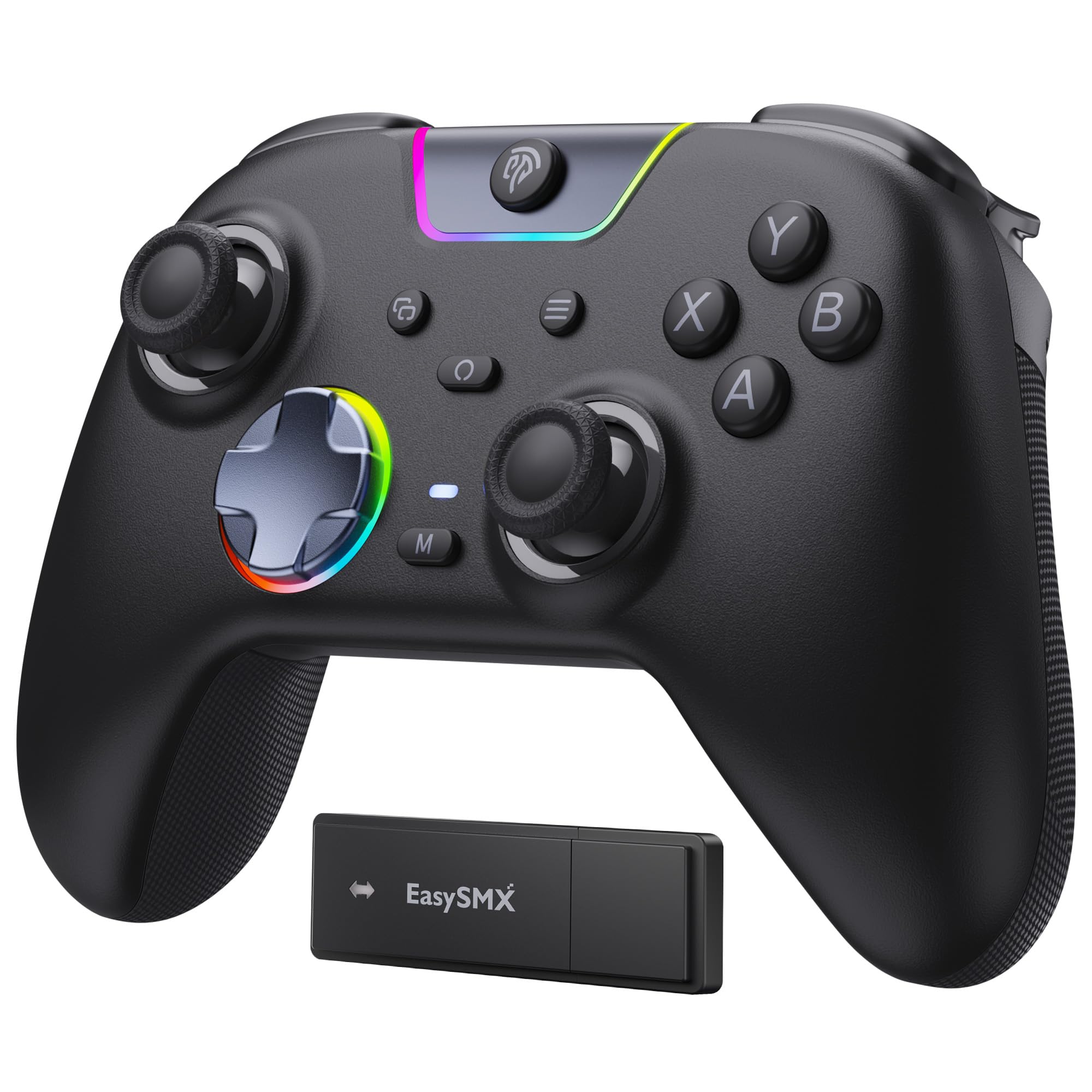
Figure 1: EasySMX X05PRO Controller Overview
- A/B/X/Y బటన్లు: ప్రామాణిక చర్య బటన్లు.
- డి-ప్యాడ్: 8-direction digital input.
- ఎడమ/కుడి అనలాగ్ స్టిక్లు: ఖచ్చితమైన కదలిక మరియు కెమెరా నియంత్రణ కోసం.
- LB/RB Buttons: Left and Right Bumper buttons.
- LT/RT Triggers: Left and Right Analog Triggers with two-stage functionality.
- హోమ్ బటన్: కంట్రోలర్ను ఆన్/ఆఫ్ చేస్తుంది మరియు సిస్టమ్ మెనూలను యాక్సెస్ చేస్తుంది.
- ప్రారంభించు/ఎంచుకోండి బటన్లు: Game-specific functions.
- M1/M2 బటన్లు: Programmable buttons on the top of the controller.
- USB-C పోర్ట్: వైర్డు కనెక్షన్ మరియు ఛార్జింగ్ కోసం.
- మోడ్ స్విచ్: For selecting connection modes (if applicable).
4. సెటప్ & కనెక్షన్
4.1. 2.4G Wireless Connection (PC Windows)
- Insert the 2.4G wireless receiver into an available USB port on your PC.
- Press and hold the HOME button on the controller until the indicator lights turn on, indicating it's powered on.
- The controller will automatically connect to the receiver. Once connected, the indicator light will stabilize.
4.2. Bluetooth Connection (Switch, Android, iOS)
- మీ పరికరం యొక్క బ్లూటూత్ ప్రారంభించబడిందని నిర్ధారించుకోండి.
- On the controller, press and hold the HOME button along with the appropriate mode button (refer to the controller's specific button combination for Bluetooth pairing, usually a small button near the USB port or a combination with HOME).
- The indicator lights will flash rapidly, indicating pairing mode.
- On your device, search for new Bluetooth devices and select "EasySMX X05PRO" (or similar) to pair.
- Once paired, the indicator light on the controller will stabilize.
4.3. Wired Connection (PC, Switch, Steam Deck)
- Connect the USB-C end of the cable to the controller and the USB-A end to your device (PC, Switch dock, Steam Deck).
- The controller will automatically be recognized by your device and switch to wired mode.
- This mode is ideal for competitive gaming due to minimal input lag and also allows charging while playing.

Figure 2: Multi-platform Connectivity
5. ఆపరేటింగ్ సూచనలు
5.1. నిశ్శబ్ద బటన్లు
The X05PRO features a redesigned full-button structure with silicone dampers, providing ultra-quiet operation. This is ideal for late-night gaming sessions without disturbing others.

చిత్రం 3: సైలెంట్ బటన్ డిజైన్
5.2. Two-Stage Hall Triggers
The adjustable trigger locks allow you to switch between short (3mm) and long (9mm) trigger strokes. Short strokes are optimized for rapid firing in FPS games, while long strokes provide precise control for racing games.

చిత్రం 4: రెండు-Stage Hall Triggers
5.3. Upgraded 8-Direction D-Pad
The D-pad features a dome switch and concave pivot design, enabling smooth diagonal inputs and precise 8-direction operation, ideal for fighting games and retro titles.

Figure 5: Upgraded 8-Direction D-Pad
5.4. Dynamic RGB Backlight
Customize your gaming experience with dynamic RGB lighting effects. The controller offers various lighting modes and 7 color combinations. Refer to the manual for detailed settings.

Figure 6: Dynamic RGB Lighting
5.5. Programmable Buttons (M1/M2)
The two additional customizable buttons (M1 and M2) located on the top of the controller are designed to prevent accidental presses during intense gameplay, a common issue with back paddles. These buttons can be programmed to various functions. Consult the full manual for programming instructions.

Figure 7: Programmable M1/M2 Buttons
5.6. 1000Hz Polling Rate & Hall Effect Sticks
Experience virtually no input delay with a 1000Hz polling rate in both wired and 2.4G wireless modes. The high-precision 11-bit Hall effect sensors ensure drift-free accuracy and extended lifespan for the joysticks and triggers.

Figure 8: Hall Effect Technology and 1000Hz Polling Rate
5.7. వైబ్రేషన్ అభిప్రాయం
The controller features a 2+2 internal rumble motor system, providing realistic feedback for impacts, drifts, and collisions. Vibration intensity can be adjusted to your preference.

Figure 9: 4-Zone Vibration Feedback
5.8. టర్బో ఫంక్షన్
The controller supports a manual Turbo function for rapid, repeated button presses. This feature can be configured for specific action buttons (A/B/X/Y/LB/RB/LT/RT) and offers 3 speed levels.
5.9. ఎర్గోనామిక్ గ్రిప్
The soft-touch silicone coating provides a sweat-resistant, non-slip grip, ensuring comfort during extended gaming sessions.

Figure 10: Ergonomic Grip
6. ఛార్జింగ్
The controller is equipped with a built-in 1000mAh rechargeable battery, ensuring long playtimes. To charge, connect the controller to a power source using the provided USB-C cable. Charging typically takes approximately 3 hours. An indicator light will show charging status (e.g., red for charging, green for fully charged).
7. స్పెసిఫికేషన్లు
| ఫీచర్ | వివరణ |
|---|---|
| మోడల్ సంఖ్య | X05PRO |
| కనెక్టివిటీ | Wired (USB-C), 2.4G Wireless, Bluetooth |
| పోలింగ్ రేటు | 1000Hz (వైర్డ్ & 2.4G), 125Hz (బ్లూటూత్) |
| బ్యాటరీ కెపాసిటీ | 1000 ఎంఏహెచ్ లిథియం-అయాన్ |
| ఛార్జింగ్ సమయం | సుమారు 3 గంటలు |
| కంపనం | 4-zone adjustable rumble motors |
| ట్రిగ్గర్స్ | రెండు-లుtage Hall Effect Triggers (3mm/9mm) |
| జాయ్ స్టిక్స్ | హాల్ ఎఫెక్ట్ జాయ్స్టిక్లు |
| డి-ప్యాడ్ | Upgraded 8-direction with dome switch and concave pivot |
| లైటింగ్ | Dynamic RGB Backlight (customizable) |
| ప్రోగ్రామబుల్ బటన్లు | M1, M2 |
| కొలతలు | 18.1 x 14.4 x 7.4 సెం.మీ |
| బరువు | 390 గ్రా |
| మద్దతు ఉన్న ప్లాట్ఫారమ్లు | PC (Windows), Steam Deck, Switch, Android, iOS |
8. నిర్వహణ
- Keep the controller clean by wiping it with a dry, soft cloth.
- నియంత్రికను తీవ్రమైన ఉష్ణోగ్రతలు, తేమ లేదా ప్రత్యక్ష సూర్యకాంతికి గురిచేయకుండా ఉండండి.
- కంట్రోలర్ను విడదీయడానికి ప్రయత్నించవద్దు, ఎందుకంటే ఇది వారంటీని రద్దు చేయవచ్చు.
- నష్టం జరగకుండా ఉండటానికి కంట్రోలర్ను ఉపయోగంలో లేనప్పుడు సురక్షితమైన స్థలంలో నిల్వ చేయండి.
9. ట్రబుల్షూటింగ్
- కంట్రోలర్ కనెక్ట్ కావడం లేదు:
Ensure the controller is charged. For 2.4G, verify the receiver is properly inserted. For Bluetooth, ensure the device's Bluetooth is on and the controller is in pairing mode. Try restarting both the controller and the device. - Input lag in wireless mode:
Ensure there are no obstructions between the controller and the receiver/device. Move closer to the receiver/device. For critical gaming, consider using a wired connection. - బటన్లు లేదా జాయ్స్టిక్లు స్పందించడం లేదు:
Check if the controller is properly connected. If using wired, try a different USB port or cable. If the issue persists, perform a factory reset (refer to the full manual for specific instructions, usually a small reset button or button combination). - వైబ్రేషన్ పనిచేయడం లేదు:
Ensure vibration is enabled in the game settings and on the controller. Some games may require specific in-game support for trigger vibration. - RGB lights not working/customizing:
Refer to the full manual for specific button combinations to adjust RGB modes and colors. Ensure the controller is powered on. - D-Pad diagonal inputs are difficult:
The upgraded D-pad is designed for precision. Practice with the new design. If issues persist, ensure the controller firmware is up to date (check EasySMX support webసైట్).
10. వారంటీ మరియు మద్దతు
EasySMX products come with a standard warranty. For specific warranty terms, technical support, or any issues not covered in this manual, please contact EasySMX customer service or visit the official EasySMX website. Please have your product model (X05PRO) and purchase information ready when contacting support.

Figure 11: Technical Compliance Information