
పరిచయం
This manual provides comprehensive instructions for the installation, operation, and maintenance of your Fenvi FU-AX900BT Wi-Fi 6 USB Adapter with Bluetooth 5.2. Please read this manual carefully before using the device to ensure proper functionality and to maximize its performance. The FU-AX900BT is designed to provide high-speed Wi-Fi 6 (802.11ax) connectivity and Bluetooth 5.2 capabilities to your desktop or laptop computer.

చిత్రం 1: Fenvi FU-AX900BT Wi-Fi 6 USB Adapter. This image shows the compact USB adapter with its high-gain external antenna attached, ready for connection to a computer's USB port.
ప్యాకేజీ విషయాలు
ప్యాకేజీలో అన్ని అంశాలు ఉన్నాయని నిర్ధారించుకోండి:
- Fenvi FU-AX900BT Wireless USB Adapter
- సూచనల మాన్యువల్ (ఈ పత్రం)
కీ ఫీచర్లు
The Fenvi FU-AX900BT offers the following key features:
- హై-గెయిన్ ఎక్స్టర్నల్ యాంటెన్నా: Provides stronger signal reception and extended range, beneficial for systems located further from the router or in environments with obstacles.
- 2-in-1 Combo: Integrates both Wi-Fi 6 (802.11ax) AX900 and Bluetooth 5.2 connectivity.
- డ్యూయల్-బ్యాండ్ వేగం: Supports up to 600 Mbps on the 5 GHz band and 287 Mbps on the 2.4 GHz band for efficient data transfer.
- MU-MIMO మరియు OFDMA: Enhances network efficiency and performance, especially in busy network environments with multiple devices.
- WPA3 భద్రత: Provides advanced encryption for secure wireless connections.
- USB 3.0 ఇంటర్ఫేస్: Ensures high throughput for optimal Wi-Fi and Bluetooth performance.
- విస్తృత అనుకూలత: Windows 11 మరియు Windows 10 ఆపరేటింగ్ సిస్టమ్లకు అనుకూలమైనది.

చిత్రం 2: పైగాview of Fenvi FU-AX900BT features. This graphic highlights Wi-Fi 6 (802.11ax) upgrade, dual-band speeds (900 Mbps total), high-gain antenna, 3-year warranty, Bluetooth 5.3 (note: product description states 5.2), WPA3 security, and OFDMA technology.

చిత్రం 3: Wi-Fi 6 Performance with OFDMA and MU-MIMO. This illustration compares Wi-Fi 5 and Wi-Fi 6 data transmission, showing how OFDMA and MU-MIMO improve efficiency by allowing multiple devices to communicate simultaneously without waiting.
సిస్టమ్ అవసరాలు
- ఆపరేటింగ్ సిస్టమ్: Windows 11 or Windows 10 (64-bit recommended).
- USB పోర్ట్: Available USB 3.0 port (backward compatible with USB 2.0, but USB 3.0 is recommended for optimal performance).
- ప్రాసెసర్: Intel Core i3 / AMD Ryzen 3 or higher recommended.
- RAM: 4GB లేదా అంతకంటే ఎక్కువ.
సెటప్ సూచనలు
1. భౌతిక సంస్థాపన
- అడాప్టర్ను అన్ప్యాక్ చేయండి: Carefully remove the Fenvi FU-AX900BT USB adapter from its packaging.
- Identify a USB 3.0 Port: Locate an available USB 3.0 port on your desktop or laptop computer. USB 3.0 ports are typically blue internally or marked with a "SS" (SuperSpeed) symbol.
- అడాప్టర్ను చొప్పించండి: Gently insert the FU-AX900BT adapter into the chosen USB 3.0 port. Ensure it is fully seated.
- యాంటెన్నాను సర్దుబాటు చేయండి: Position the high-gain external antenna for optimal signal reception. The antenna can typically be rotated 180 degrees and tilted 90 degrees to find the best orientation.

చిత్రం 4: Antenna Benefits and Adjustment. This image illustrates the benefits of the external antenna, including stronger signal, wider coverage, faster data transfer, and better penetration, along with showing its multi-directional adjustment capabilities (180° rotation, 90° tilt).
2 డ్రైవర్ ఇన్స్టాలేషన్
For Windows 11/10, the operating system may automatically detect and install the necessary drivers. If automatic installation does not occur or if you experience issues, manual driver installation is required.
- పరికర నిర్వాహికిని తనిఖీ చేయండి:
- Right-click on the Start button and select "Device Manager".
- Look for "Network adapters" and "Bluetooth" sections. If you see an unrecognized device or a device with a yellow exclamation mark, drivers need to be installed.
- డ్రైవర్లను డౌన్లోడ్ చేయండి: Visit the official Fenvi support website (refer to the product packaging or Fenvi's main website for the exact URL) and download the latest drivers for the FU-AX900BT model.
- డ్రైవర్లను ఇన్స్టాల్ చేయండి:
- Extract the downloaded driver file (if it's a compressed archive).
- Run the setup executable (e.g., "setup.exe" or "install.exe") and follow the on-screen instructions.
- ప్రాంప్ట్ చేయబడితే మీ కంప్యూటర్ని పునఃప్రారంభించండి.
- ఇన్స్టాలేషన్ను ధృవీకరించండి: After restarting, check Device Manager again. The Fenvi FU-AX900BT should now appear correctly under "Network adapters" and "Bluetooth".
ఆపరేటింగ్ సూచనలు
1. Wi-Fiకి కనెక్ట్ చేస్తోంది
- నెట్వర్క్ సెట్టింగ్లను యాక్సెస్ చేయండి: Click on the Wi-Fi icon in the system tray (usually in the bottom-right corner of your screen).
- మీ నెట్వర్క్ను ఎంచుకోండి: A list of available Wi-Fi networks will appear. Select your desired network (SSID).
- పాస్వర్డ్ని నమోదు చేయండి: If prompted, enter the Wi-Fi password (security key) for your network.
- కనెక్ట్ చేయండి: Click "Connect". Your computer should now be connected to the Wi-Fi network.
2. బ్లూటూత్ పరికరాలను జత చేయడం
The FU-AX900BT supports Bluetooth 5.2, allowing you to connect various Bluetooth peripherals.
- బ్లూటూత్ని ప్రారంభించండి:
- వెళ్ళండి సెట్టింగ్లు > బ్లూటూత్ & పరికరాలు (Windows 11) లేదా సెట్టింగ్లు > పరికరాలు > బ్లూటూత్ & ఇతర పరికరాలు (Windows 10).
- బ్లూటూత్ "ఆన్" చేయబడిందని నిర్ధారించుకోండి.
- Put Device in Pairing Mode: Refer to your Bluetooth device's manual to put it into pairing mode. This usually involves holding a button until an indicator light flashes.
- పరికరాన్ని జోడించండి:
- In Windows Bluetooth settings, click "Add device" or "Add Bluetooth or other device".
- Select "Bluetooth" from the options.
- Your computer will scan for nearby Bluetooth devices. Select your device from the list.
- పూర్తి జత చేయడం: Follow any on-screen prompts or enter a PIN if required by your device. Once paired, the device will appear in your list of connected Bluetooth devices.

చిత్రం 5: Bluetooth 5.3 Connectivity. This graphic illustrates the Fenvi adapter connecting to various Bluetooth devices such as headphones, mobile phones, gaming consoles, and wireless mice, highlighting improved connection stability over longer distances.
నిర్వహణ
- శుభ్రముగా ఉంచు: Periodically clean the adapter with a soft, dry cloth. Avoid using liquid cleaners or solvents.
- అడ్డంకులను నివారించండి: Ensure the antenna is not obstructed by other objects to maintain optimal signal strength.
- సంస్థ కనెక్షన్: Ensure the adapter is always firmly seated in the USB port.
- సాఫ్ట్వేర్ అప్డేట్లు: Regularly check the Fenvi official webఅనుకూలత మరియు పనితీరు మెరుగుదలలను నిర్ధారించడానికి నవీకరించబడిన డ్రైవర్ల కోసం సైట్.
ట్రబుల్షూటింగ్
| సమస్య | సాధ్యమైన పరిష్కారం |
|---|---|
| No Wi-Fi connection or slow speeds. |
|
| Bluetooth devices cannot pair or connect. |
|
| Adapter not recognized by the computer. |
|
స్పెసిఫికేషన్లు
| మోడల్ | FU-AX900BT |
| బ్రాండ్ | Fenvi |
| Wi-Fi ప్రమాణం | IEEE 802.11ax (Wi-Fi 6) |
| బ్లూటూత్ వెర్షన్ | 5.2 |
| ఇంటర్ఫేస్ | USB 3.0 |
| Data Transfer Rate (Wi-Fi) | 600 Mbps (5 GHz) వరకు, 287 Mbps (2.4 GHz) వరకు |
| భద్రత | WPA3 |
| ఫీచర్లు | MU-MIMO, OFDMA, High-Gain External Antenna |
| OS అనుకూలత | విండోస్ 11, విండోస్ 10 |
| ఉత్పత్తి కొలతలు | 10 x 2 x 2 సెం.మీ |
| వస్తువు బరువు | 60 గ్రా |
| మూలం దేశం | చైనా |
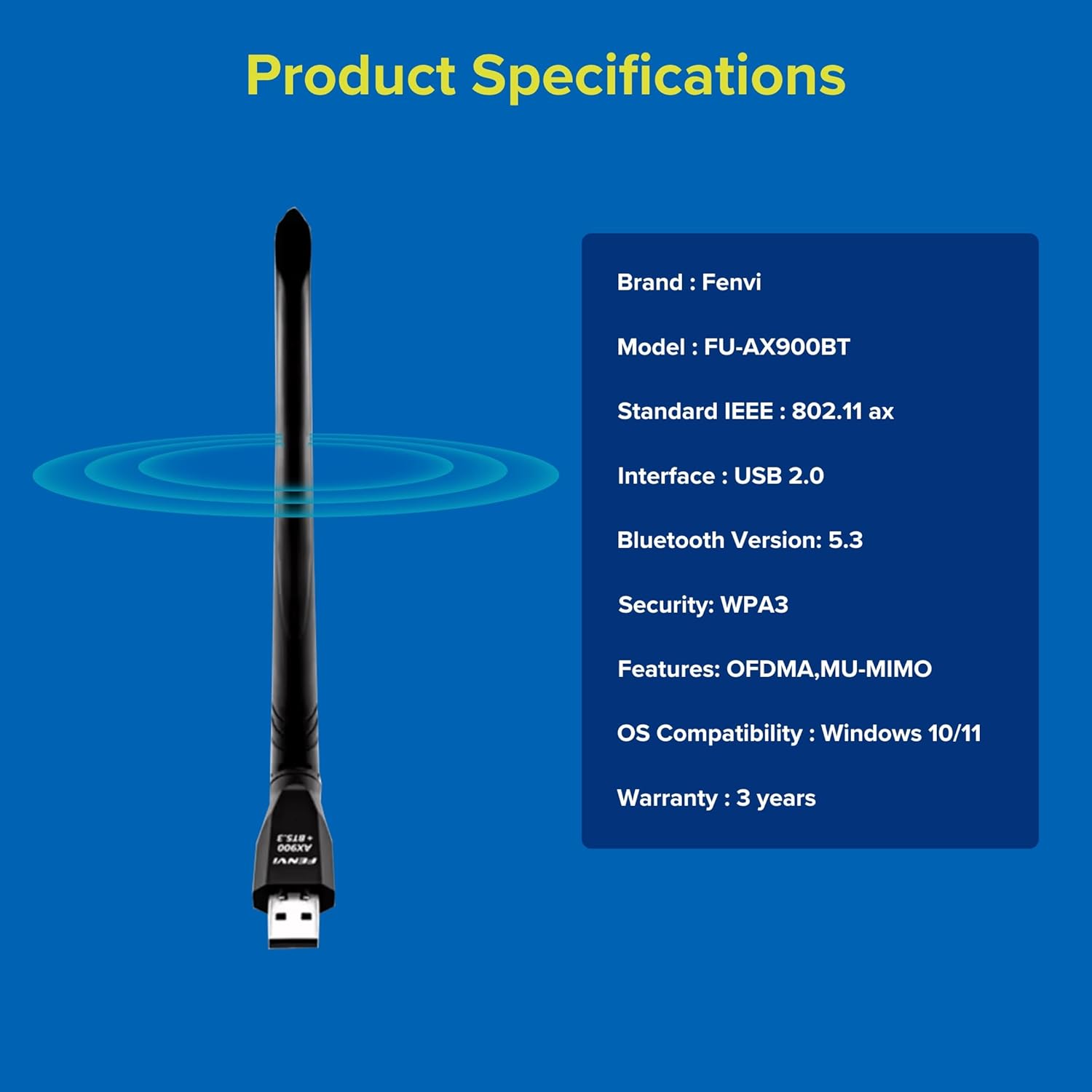
చిత్రం 6: Fenvi FU-AX900BT Product Specifications. This graphic summarizes key specifications such as brand, model, Wi-Fi standard, interface, Bluetooth version, security, features, OS compatibility, and warranty.
వారంటీ మరియు మద్దతు
The Fenvi FU-AX900BT comes with a 3-Year India Warranty. For technical support, warranty claims, or further assistance, please contact Fenvi customer support through their official webఉత్పత్తిని కొనుగోలు చేసిన సైట్ లేదా రిటైలర్.
దయచేసి వారంటీ ప్రయోజనాల కోసం కొనుగోలు రుజువుగా మీ కొనుగోలు రసీదును ఉంచుకోండి.