
1. ఉత్పత్తి ముగిసిందిview
The TP-Link Archer GE400 is a high-performance Dual-Band BE6500 WiFi 7 Gaming Router designed to provide a stable and fast network experience, especially for gaming. It features advanced WiFi 7 technology, multi-gigabit ports, and dedicated gaming optimizations to reduce latency and enhance connectivity.
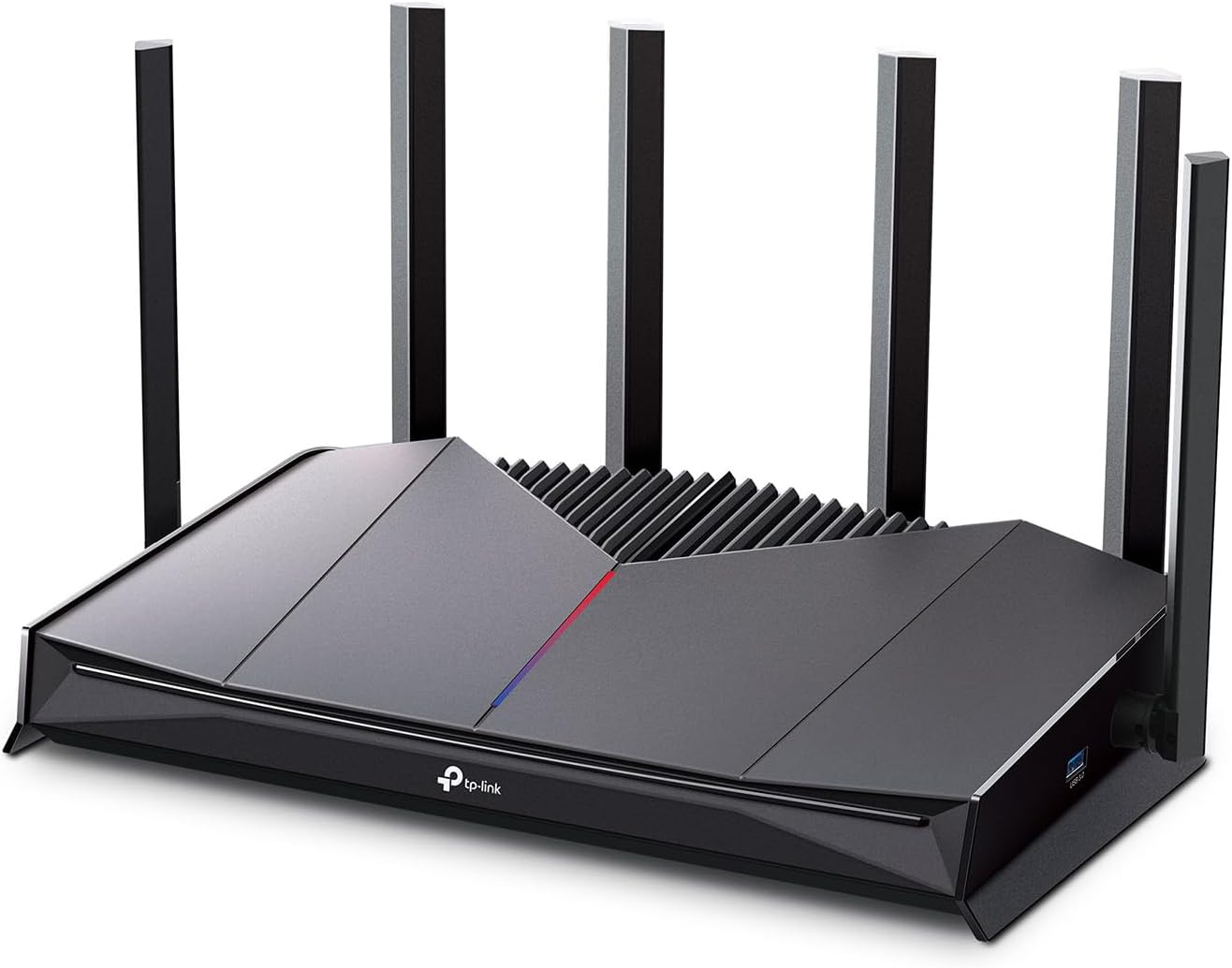
చిత్రం: ముందు భాగం view of the TP-Link Archer GE400 Dual-Band BE6500 WiFi 7 Gaming Router, showcasing its sleek design and six external antennas.
ముఖ్య లక్షణాలు:
- డ్యూయల్-బ్యాండ్ వైఫై 7: Offers combined speeds of up to 6.5 Gbps (5765 Mbps on 5 GHz and 688 Mbps on 2.4 GHz) for high-speed data transfer.
- Game Acceleration: Includes a dedicated multi-gig gaming port, Quality of Service (QoS) for prioritizing game traffic, and game server acceleration via WTFast.
- మల్టీ-గిగాబిట్ పోర్టులు: Equipped with 1x 2.5 Gbps WAN/LAN port, 1x 2.5 Gbps LAN port (dedicated gaming port), and 3x 1 Gbps LAN ports for versatile wired connections.
- విస్తృతమైన కవరేజ్: Provides up to 2,600 sq. ft. of coverage for up to 90 devices, enhanced by 6 antennas and Beamforming technology.
- EasyMesh అనుకూలత: Allows for seamless expansion of WiFi coverage by adding compatible EasyMesh devices.
- TP-లింక్ హోమ్షీల్డ్: Integrated security service offering network protection, parental controls, and IoT device security.
- Intuitive Management: Easy setup and management via the TP-Link Tether app or web ఇంటర్ఫేస్.
2. పెట్టెలో ఏముంది
మీరు ప్రారంభించడానికి ముందు, దయచేసి మీ ప్యాకేజీలో అన్ని అంశాలు ఉన్నాయని నిర్ధారించుకోండి:
- 1 x Wi-Fi 7 Router Archer GE400
- 1 x త్వరిత ఇన్స్టాలేషన్ గైడ్
- 1 x పవర్ అడాప్టర్
- 1 x RJ45 ఈథర్నెట్ కేబుల్
3. సెటప్ గైడ్
3.1 హార్డ్వేర్ కనెక్షన్
- మోడెమ్ను పవర్ ఆఫ్ చేయండి: Unplug your modem's power to turn it off.
- రూటర్ను కనెక్ట్ చేయండి: Connect the provided Ethernet cable from your modem's Ethernet port to the 2.5 Gbps WAN/LAN port (blue) on your Archer GE400 router.
- మోడెమ్ను పవర్ ఆన్ చేయండి: Plug in and power on your modem. Wait for about 2 minutes for it to restart.
- పవర్ ఆన్ రూటర్: Connect the power adapter to the router and plug it into a power outlet. Wait for the router to fully start up.
- పరికరాలను కనెక్ట్ చేయండి: For wired connections, connect your gaming PC or console to the dedicated 2.5 Gbps Gaming Port (red) for prioritized traffic, or use any of the 1 Gbps LAN ports for other devices.

చిత్రం: క్లోజప్ view of the rear ports of the Archer GE400 router, highlighting the 2.5 Gbps WAN/LAN port, 2.5 Gbps Gaming Port, and 1 Gbps LAN ports.
3.2 నెట్వర్క్ కాన్ఫిగరేషన్
- రూటర్ యొక్క WiFiకి కనెక్ట్ అవ్వండి: On your computer or mobile device, connect to the default WiFi network name (SSID) printed on the label at the bottom of the router.
- ప్రారంభించండి Web బ్రౌజర్: తెరవండి a web బ్రౌజర్ మరియు నమోదు చేయండి
http://tplinkwifi.netలేదా రౌటర్ యొక్క డిఫాల్ట్ IP చిరునామా (సాధారణంగా192.168.0.1or192.168.1.1) చిరునామా పట్టీలో. - లాగిన్ పాస్వర్డ్ను సృష్టించండి: Follow the on-screen instructions to create a new login password for the router.
- Follow Quick Setup: The Quick Setup wizard will guide you through basic internet settings and WiFi network configuration.
- టెథర్ యాప్ను డౌన్లోడ్ చేసుకోండి: For easier management, download the TP-Link Tether app from the App Store or Google Play.
Video: An introductory video for the Archer GE400, demonstrating its features and setup process.
4. ఆపరేటింగ్ సూచనలు
4.1 గేమ్ త్వరణం
The Archer GE400 is optimized for gaming performance:
- డెడికేటెడ్ గేమింగ్ పోర్ట్: Connect your primary gaming device (PC, console) to the 2.5 Gbps Gaming Port for automatic traffic prioritization.
- Game QoS: Configure Quality of Service settings via the Tether app or web interface to prioritize gaming applications over other network traffic.
- Game Server Acceleration (WTFast): Utilize the integrated WTFast service to optimize connections to game servers, reducing ping and latency.

Image: Diagram illustrating the Archer GE400's gaming features, including Game Applications Boost with QoS, Prioritize Game Devices with the Gaming Port, and Game Server Acceleration by GPN.
4.2 WiFi 7 Connectivity
Leverage the advanced capabilities of WiFi 7 for a superior wireless experience:
- డ్యూయల్-బ్యాండ్ ఆపరేషన్: The router operates on both 2.4 GHz and 5 GHz bands. The 5 GHz band offers higher speeds for demanding tasks like gaming and 4K/8K streaming, while the 2.4 GHz band provides wider coverage for general use.
- మల్టీ-లింక్ ఆపరేషన్ (MLO): WiFi 7's MLO feature allows devices to use multiple frequency bands simultaneously, improving throughput and reducing latency.
- 4K-QAM: This modulation scheme packs more data into each signal, leading to higher speeds and efficiency.
4.3 EasyMesh Integration
Expand your network coverage with TP-Link EasyMesh:
- సజావుగా రోమింగ్: Add EasyMesh-compatible routers or range extenders to create a unified whole-home mesh network. Your devices will automatically switch to the strongest signal as you move around your home.
- Single WiFi Name: Enjoy a single network name (SSID) across your entire home, eliminating the need to manually switch between different networks.

Image: Illustration of an EasyMesh network setup with the Archer GE400, showing how it extends WiFi coverage throughout a home.
4.4 హోమ్షీల్డ్ భద్రత
Protect your network and devices with TP-Link HomeShield:
- నెట్వర్క్ భద్రత: Scans for network threats and vulnerabilities.
- తల్లిదండ్రుల నియంత్రణలు: Manage internet access for children, including content filtering and time limits.
- IoT Device Protection: Provides security for smart home devices, preventing unauthorized access.

Image: Visual representation of TP-Link HomeShield features, including network threat scanning, WPA3 encryption, device blocking, and IoT device protection.
4.5 Dedicated Game Panel
Monitor and manage your gaming network with the intuitive Game Panel:
- Real-Time Stats: View network status, router performance, and accelerated game data.
- RGB నియంత్రణ: Customize the router's RGB lighting settings.
- పరికర ప్రాధాన్యత: Easily see and manage which devices are prioritized for gaming performance.

Image: Screenshot of the Archer GE400's dedicated game panel, showing network overview, device distribution, and gaming record features accessible via the Tether app.
5. నిర్వహణ
To ensure optimal performance and longevity of your Archer GE400 router, follow these maintenance guidelines:
- ఫర్మ్వేర్ నవీకరణలు: టెథర్ యాప్ ద్వారా ఫర్మ్వేర్ అప్డేట్ల కోసం క్రమం తప్పకుండా తనిఖీ చేసి, ఇన్స్టాల్ చేయండి లేదా web ఇంటర్ఫేస్. నవీకరణలలో తరచుగా పనితీరు మెరుగుదలలు మరియు భద్రతా ప్యాచ్లు ఉంటాయి.
- రెగ్యులర్ రీబూట్: Reboot your router periodically (e.g., once a month) to clear its memory and refresh network connections.
- భౌతిక శుభ్రపరచడం: Keep the router in a well-ventilated area. Gently clean dust from the vents and surfaces using a soft, dry cloth. Avoid blocking ventilation openings.
- Network Security Scans: Utilize the HomeShield feature to perform regular network security scans to identify and address potential vulnerabilities.
6. ట్రబుల్షూటింగ్
If you encounter issues with your Archer GE400 router, try the following troubleshooting steps:
6.1 ఇంటర్నెట్ యాక్సెస్ లేదు
- కేబుల్లను తనిఖీ చేయండి: అన్ని ఈథర్నెట్ కేబుల్స్ రౌటర్ మరియు మోడెమ్కి సురక్షితంగా కనెక్ట్ అయ్యాయని నిర్ధారించుకోండి.
- పరికరాలను రీబూట్ చేయండి: మీ మోడెమ్ మరియు రౌటర్ను పవర్ ఆఫ్ చేయండి. 30 సెకన్లు వేచి ఉండి, ఆపై ముందుగా మోడెమ్ను ఆన్ చేయండి. మోడెమ్ పూర్తిగా ఆన్లైన్లోకి వచ్చిన తర్వాత, రౌటర్ను పవర్ ఆన్ చేయండి.
- మోడెమ్ స్థితిని ధృవీకరించండి: మీ మోడెమ్లో యాక్టివ్ ఇంటర్నెట్ కనెక్షన్ ఉందని నిర్ధారించుకోవడానికి దానిలోని ఇండికేటర్ లైట్లను తనిఖీ చేయండి.
- ISP Contact: If the modem lights indicate no internet, contact your Internet Service Provider (ISP).
6.2 Slow WiFi Speeds
- పరికరం ప్లేస్మెంట్: Ensure the router is centrally located and free from obstructions. Avoid placing it near large metal objects or other electronics that may cause interference.
- బ్యాండ్ ఎంపిక: For high-bandwidth activities, connect your devices to the 5 GHz WiFi band.
- జోక్యం: Check for potential sources of wireless interference (e.g., microwaves, cordless phones).
- QoS సెట్టింగ్లు: Review your QoS settings in the Tether app or web interface to ensure critical applications are prioritized correctly.
6.3 Dropped Connections
- ఫర్మ్వేర్ నవీకరణ: మీ రౌటర్ యొక్క ఫర్మ్వేర్ తాజాగా ఉందని నిర్ధారించుకోండి.
- సిగ్నల్ బలం: If connections drop frequently, your device might be too far from the router or experiencing signal interference. Consider using EasyMesh to extend coverage.
- రూటర్ని రీసెట్ చేయండి: As a last resort, perform a factory reset. Use a pin to press and hold the Reset button on the back of the router for about 10 seconds until the LEDs flash. Note: This will erase all your custom settings.
7. స్పెసిఫికేషన్లు
Detailed technical specifications for the TP-Link Archer GE400 router:
| బ్రాండ్ | TP-లింక్ |
| మోడల్ పేరు | Dual-Band GE6500 WiFi 7 Gaming Router |
| మోడల్ సంఖ్య | ఆర్చర్ GE400 |
| ఫ్రీక్వెన్సీ బ్యాండ్ క్లాస్ | డ్యూయల్-బ్యాండ్ |
| వైర్లెస్ కమ్యూనికేషన్ స్టాండర్డ్ | 802.11.be, 802.11ac, 802.11ax, 802.11g, 802.11n |
| డేటా బదిలీ రేటు | సెకనుకు 6500 మెగాబిట్లు |
| LAN పోర్ట్ బ్యాండ్విడ్త్ | 1 x 2.5 Gbps WAN/LAN, 1 x 2.5 Gbps LAN (Gaming Port), 3 x 1 Gbps LAN |
| యాంటెన్నాల సంఖ్య | 6 |
| కవరేజ్ | 2,600 చ.అ.ల వరకు |
| అనుకూల పరికరాలు | గేమింగ్ కన్సోల్, పర్సనల్ కంప్యూటర్, స్మార్ట్ టెలివిజన్, స్మార్ట్ఫోన్, టాబ్లెట్ |
| భద్రతా ప్రోటోకాల్ | WPA-PSK, WPA2-PSK, WPA3 |
| నియంత్రణ పద్ధతి | App (TP-Link Tether) |
| ఆపరేటింగ్ సిస్టమ్ | Linux |
| అంశం కొలతలు (L x W x H) | 10.57"లీ x 6.02"వా x 2.31"హ |
| వస్తువు బరువు | 1.43 పౌండ్లు |
8. వారంటీ మరియు మద్దతు
8.1 వారంటీ సమాచారం
The TP-Link Archer GE400 Dual-Band BE6500 WiFi 7 Gaming Router comes with a 2 సంవత్సరాల తయారీదారు వారంటీవారంటీ క్లెయిమ్ల కోసం దయచేసి మీ కొనుగోలు రుజువును ఉంచుకోండి.
8.2 సాంకేతిక మద్దతు
For further assistance, technical support, or to access the latest drivers and firmware, please visit the official TP-Link webసైట్:
You can also find FAQs and community forums on the TP-Link support pages.