
పరిచయం
This manual provides detailed instructions for the installation, operation, and maintenance of your Rosewill ACA501B ATX Mid Tower Gaming PC Case. Please read this manual thoroughly before beginning assembly to ensure proper setup and optimal performance. Keep this manual for future reference.
ఉత్పత్తి లక్షణాలు
- మదర్బోర్డు అనుకూలత: Supports ATX, Micro ATX (mATX), and Mini ITX (ITX) motherboard installations, offering versatile build options. Features a convenient 32mm space behind the motherboard tray for efficient cable management.
- శీతలీకరణ వ్యవస్థ: Equipped with 3 pre-installed ARGB fans and a 4+4 port fan hub for immediate cooling and lighting control. The case supports a maximum of 9 fans and allows for a 360mm AIO liquid cooler installation on the top panel.
- Dual Tempered Glass Panels: Features two panoramic tempered glass side panels with a buckle design for easy access and showcasing your internal hardware.
- ఆప్టిమైజ్ చేయబడిన వాయుప్రసరణ: Mesh panel designs on the PSU chamber and the right side panel ensure comprehensive airflow for effective PC cooling.
- అయస్కాంత ధూళి ఫిల్టర్లు: Includes magnetic dust filters on the top and bottom plates, made from PVC, providing excellent dust protection and easy removal for cleaning.
- High-Speed I/O Ports: Conveniently located on the front of the PSU chamber, the I/O panel includes USB 3.0, USB 2.0, and HD audio ports for easy connectivity.

చిత్రం: పైగాview of the Rosewill ACA501B PC case highlighting ample hard drive bays, USB 3.0, support for up to 9 fans, and 360mm liquid cooling.
స్పెసిఫికేషన్లు
| బ్రాండ్ | రోజ్విల్ |
| మోడల్ పేరు | ACA501B |
| కేసు రకం | మిడ్ టవర్ |
| మదర్బోర్డు అనుకూలత | ATX, మైక్రో ATX, మినీ ITX |
| రంగు | నలుపు |
| మెటీరియల్ | అల్లాయ్ స్టీల్, అల్యూమినియం |
| వస్తువు బరువు | 13.7 పౌండ్లు |
| ఉత్పత్తి కొలతలు (LxWxH) | 18.1 x 8.7 x 19.1 అంగుళాలు |
| USB 3.0 పోర్ట్ల సంఖ్య | 1 |
| శీతలీకరణ పద్ధతి | గాలి |
| విద్యుత్ సరఫరా మౌంటు రకం | దిగువ మౌంట్ |

Image: Diagram illustrating motherboard compatibility (ATX, M-ATX, ITX) and component clearance limits for CPU cooler height (165mm) and graphics card length (427mm).
ఇన్స్టాలేషన్ గైడ్
1. కేసును సిద్ధం చేయడం
Before installing components, ensure the case is placed on a stable, flat surface. Remove the tempered glass side panels by gently unbuckling them. This provides full access to the interior for easier installation.
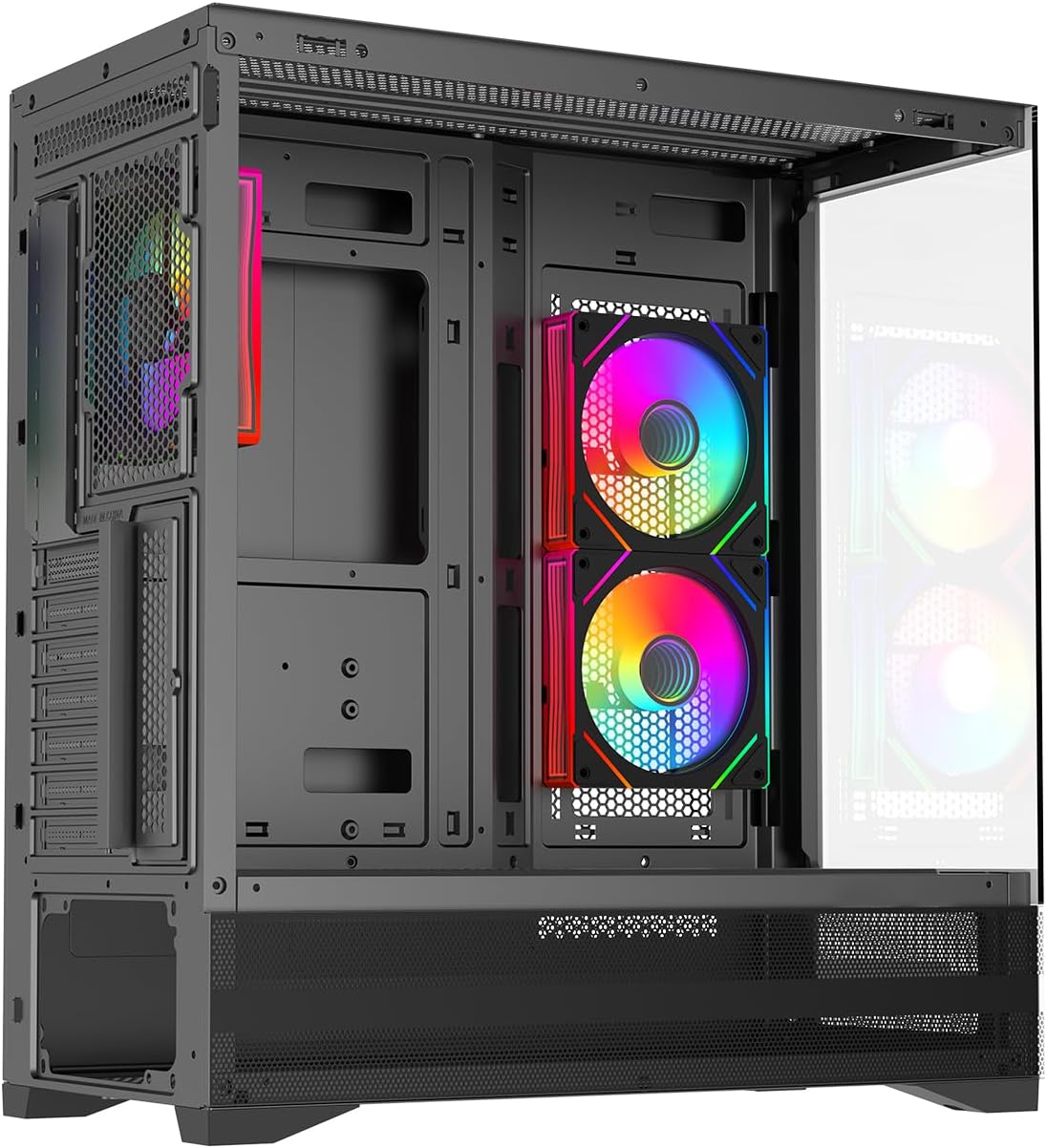
చిత్రం: ఒక అంతర్గత view of the PC case with the side panel removed, showing the spacious interior and pre-installed fans.
2. మదర్బోర్డు సంస్థాపన
Align your ATX, mATX, or ITX motherboard with the standoffs inside the case. Secure the motherboard using the provided screws. Ensure all necessary cables can reach their respective ports for optimal cable management.
3. నిల్వ పరికర సంస్థాపన (HDD/SSD)
The case supports 2x 3.5" HDDs and 1x 2.5" SSD in the bottom hard drive rack. The design allows flexibility to choose between SSD and HDD based on your needs. Secure your storage devices in the designated bays.

Image: A diagram illustrating the placement of 3.5" HDDs and 2.5" SSDs within the case's bottom drive rack.
4. Fan and Cooling System Setup
The case comes with 3 pre-installed ARGB fans and a fan hub. Additional fans can be installed to maximize cooling. The top panel supports up to a 360mm AIO liquid cooler.

Image: An internal layout overview showing fan and liquid cooler support locations: Top (3x 120mm/2x 140mm fans, 240/280/360mm AIO), Rear (1x 120mm fan), PSU Chamber (3x 120mm fans), and Motherboard (2x 120mm fans).

Image: Details on the 3 pre-installed Infinity Space ARGB fans, including specifications (61.5CFM ±10%, 600-1600RPM ±10%) and connectivity (4PIN PWM + 5V AURA 3PIN).
5. Connecting Front I/O Ports
Connect the USB 3.0, USB 2.0, and HD audio cables from the front I/O panel to their corresponding headers on your motherboard. The convenient placement of these ports on the front of the PSU chamber makes them easily accessible when the PC is on a desk.

Image: A diagram highlighting the front I/O ports, including the Power Button, LED button, 2-in-1 HD Audio jack, USB 2.0, and USB 3.0 ports.
6. కేబుల్ నిర్వహణ
Utilize the 32mm space behind the motherboard tray to route and organize cables. Proper cable management improves airflow and the aesthetic appeal of your build.
Video: A demonstration of RGB lighting effects in a black PC case, showcasing various color patterns and the visual impact of internal components. This video provides a general idea of RGB customization in a gaming PC case.
ఆపరేటింగ్ సూచనలు
Once all components are securely installed and connected, replace the tempered glass side panels. Connect your monitor, keyboard, mouse, and power cable. Press the power button on the front I/O panel to start your PC. The pre-installed ARGB fans will illuminate, and you can manage their lighting effects via your motherboard's RGB software or the dedicated LED button on the front panel.
నిర్వహణ
Regular maintenance is crucial for the longevity and performance of your PC. The Rosewill ACA501B case is designed for easy cleaning:
- డస్ట్ ఫిల్టర్ క్లీనింగ్: The magnetic dust filters on the top and bottom panels can be easily removed for cleaning. Gently pull them off, clean with compressed air or a soft brush, and reattach.
- ఇంటీరియర్ క్లీనింగ్: Periodically open the side panels and use compressed air to remove dust from internal components, especially fans, heatsinks, and the mesh panels.
- బాహ్య క్లీనింగ్: Wipe the exterior surfaces, including the tempered glass panels, with a soft, damp cloth. Avoid abrasive cleaners that could scratch the surfaces.
ట్రబుల్షూటింగ్
If you encounter issues with your PC build, consider the following common troubleshooting steps:
- శక్తి లేదు: Ensure the power supply unit (PSU) is switched on and all power cables (24-pin motherboard, CPU, GPU) are securely connected. Check the front panel power switch connection to the motherboard.
- ప్రదర్శన లేదు: Verify that your monitor is connected to the graphics card (GPU) and not the motherboard's integrated graphics ports (unless you are using integrated graphics). Reseat the graphics card and RAM modules.
- అభిమానుల సమస్యలు: If fans are not spinning or RGB is not working, check their connections to the fan hub and ensure the fan hub is powered. Consult your motherboard manual for RGB software control.
- వేడెక్కడం: Ensure all fans are correctly oriented for optimal airflow (intake/exhaust). Verify that CPU cooler is properly seated and thermal paste is applied. Clean dust filters and internal components regularly.
వారంటీ మరియు మద్దతు
వారంటీ సమాచారం మరియు సాంకేతిక మద్దతు కోసం, దయచేసి అధికారిక రోజ్విల్ను చూడండి. website or contact their customer service. Keep your proof of purchase for any warranty claims. Rosewill provides support for product-related inquiries and assistance with troubleshooting.
సంప్రదింపు సమాచారం: Please visit the official Rosewill website for the most up-to-date support resources and contact details.