
1. ముఖ్యమైన భద్రతా సమాచారం
Please read all instructions carefully before using this monitor. Keep this manual for future reference.
- మానిటర్ను వర్షం, తేమ లేదా తీవ్రమైన ఉష్ణోగ్రతలకు గురి చేయవద్దు.
- వేడెక్కడాన్ని నివారించడానికి మానిటర్ చుట్టూ సరైన వెంటిలేషన్ ఉండేలా చూసుకోండి.
- మానిటర్తో పాటు అందించబడిన పవర్ అడాప్టర్ను మాత్రమే ఉపయోగించండి.
- పవర్ కార్డ్ లేదా మానిటర్పై బరువైన వస్తువులను ఉంచడం మానుకోండి.
- మానిటర్ ఎక్కువ కాలం ఉపయోగించబడకపోతే అవుట్లెట్ నుండి పవర్ ప్లగ్ను డిస్కనెక్ట్ చేయండి.
- మానిటర్ను మీరే సర్వీసింగ్ చేయడానికి ప్రయత్నించవద్దు. అన్ని సర్వీసింగ్లను అర్హత కలిగిన సిబ్బందికి సూచించండి.
2. ప్యాకేజీ విషయాలు
మీ ప్యాకేజీలో అన్ని అంశాలు ఉన్నాయని ధృవీకరించండి:
- 27-inch QHD 210Hz Monitor (1 unit)
- మానిటర్ స్టాండ్ (1 యూనిట్)
- క్విక్ స్టార్ట్ గైడ్ (QSG) (1 యూనిట్)
- DP కేబుల్ (1 యూనిట్)
- Power Adaptor (1 unit)
- పవర్ కార్డ్ (1 యూనిట్)
- Shielding Hood (2 units)

Video: KTC 27M1 27 Inch 210Hz Gaming Monitor. This video provides a visual overview of the monitor and its features.
3. సెటప్ సూచనలు
3.1 మానిటర్ స్టాండ్ను అసెంబుల్ చేయడం
- ప్యాకేజింగ్ నుండి మానిటర్ మరియు స్టాండ్ భాగాలను జాగ్రత్తగా తొలగించండి.
- Attach the stand base to the stand arm using the provided screw.
- Align the stand arm with the mounting slot on the back of the monitor and push until it clicks into place.
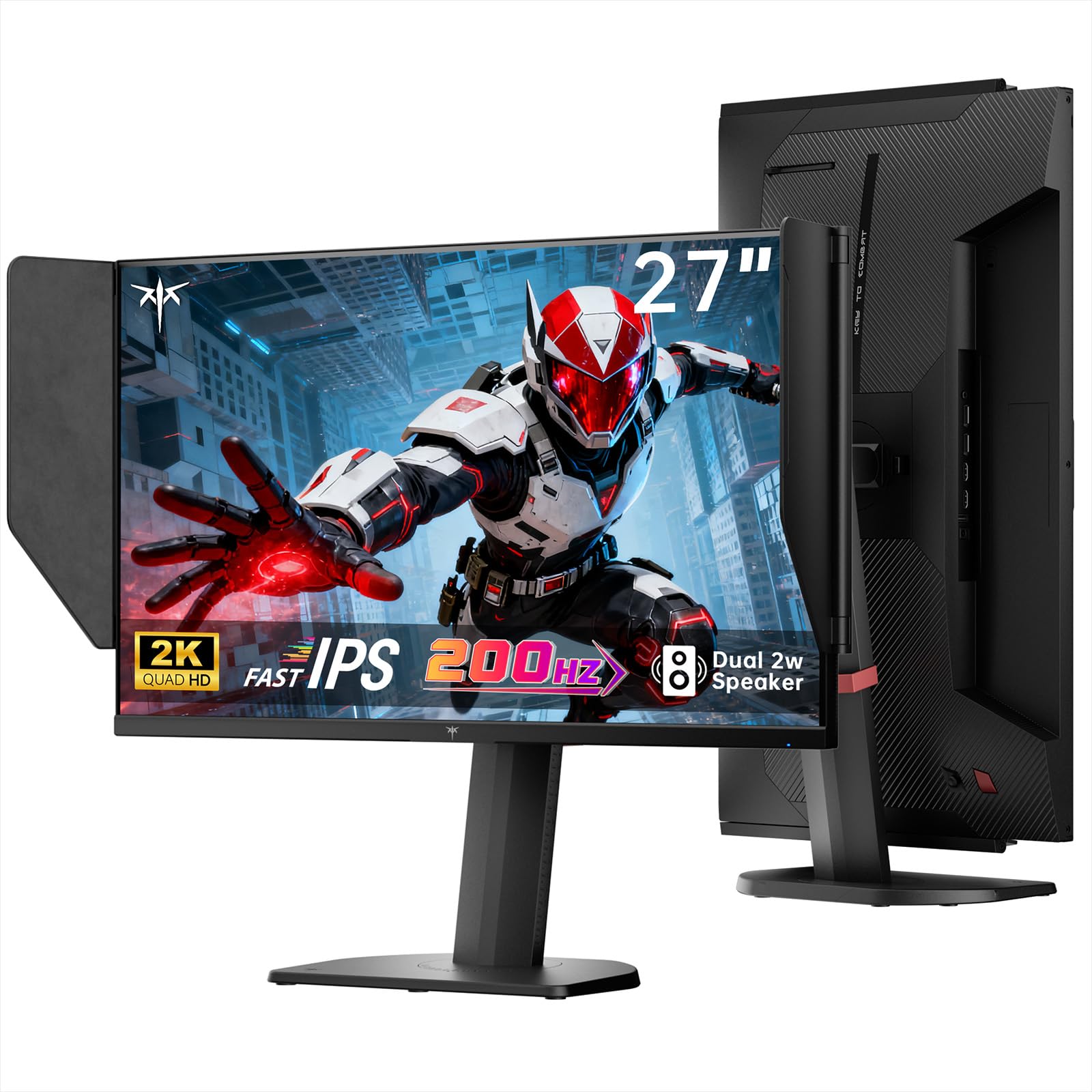
Image: The KTC 27M1 monitor with its stand fully assembled, ready for use.
3.2 Attaching the Shielding Hood
The shielding hood helps reduce glare and reflections for an optimal viewing అనుభవం.
- Locate the two shielding hood pieces.
- Align each piece with the designated slots on the sides of the monitor and gently slide them into place until secure.

Image: The KTC 27M1 monitor shown with the shielding hood attached, designed to block reflected light.
3.3 కనెక్ట్ కేబుల్స్
తగిన కేబుల్లను ఉపయోగించి మీ కంప్యూటర్ లేదా ఇతర పరికరాలకు మానిటర్ను కనెక్ట్ చేయండి:
- డిస్ప్లేపోర్ట్ (DP): For 200Hz (overclockable to 210Hz) refresh rates, connect the DP cable from your graphics card to the monitor's DP 1.4 port.
- HDMI: For 144Hz refresh rates, connect an HDMI 2.0 cable from your device to one of the monitor's HDMI ports.
- శక్తి: Connect the power adapter to the DC input on the monitor, then plug the power cord into a wall outlet.
- ఆడియో: Connect headphones or external speakers to the 3.5mm earphone jack if desired.

చిత్రం: క్లోజప్ view of the KTC 27M1 monitor's rear ports, including HDMI, DisplayPort, USB, and earphone jack.
4. ఆపరేటింగ్ సూచనలు
4.1 పవర్ ఆన్/ఆఫ్
Press the 5-way navigation joystick located on the back of the monitor to power it on or off.
4.2 OSD మెనూ నావిగేషన్
The 5-way navigation joystick is used to access and navigate the On-Screen Display (OSD) menu:
- OSD మెనుని తెరవడానికి జాయ్స్టిక్ని నొక్కండి.
- మెనూ ఎంపికల ద్వారా నావిగేట్ చేయడానికి జాయ్స్టిక్ను పైకి/క్రిందికి/ఎడమకు/కుడికి తరలించండి.
- Press the joystick again to select an option or confirm a setting.
- Move the joystick Left to go back to the previous menu or exit the OSD.
4.3 డిస్ప్లే సెట్టింగ్లను సర్దుబాటు చేయడం
Within the OSD menu, you can adjust various display settings:
- ప్రకాశం/కాంట్రాస్ట్: మొత్తం ప్రకాశం మరియు కాంట్రాస్ట్ స్థాయిలను సర్దుబాటు చేయండి.
- రంగు సెట్టింగ్లు: Modify color temperature (Warm, Cool, User), gamma, hue, and saturation. The monitor offers 130% sRGB color gamut and ΔE<2 for accurate color reproduction.
- గేమింగ్ సెటప్: Enable/disable Adaptive Sync (FreeSync/G-Sync Compatible), adjust Overdrive (Ultra Fast recommended for gaming), and activate Game Assist features.
- అధునాతన సెట్టింగ్లు: Toggle HDR (Auto/Off) and OverClock (to achieve 210Hz refresh rate).
- ఇన్పుట్: Manually select the input source (DP, HDMI1, HDMI2).
- సిస్టమ్ సెట్: Change OSD language, LED indicator, audio volume, and other system preferences.
4.4 ఎర్గోనామిక్ సర్దుబాట్లు
The monitor stand supports multiple ergonomic adjustments for comfortable viewing:
- ఎత్తు సర్దుబాటు: Adjust the monitor height by 150±5mm.
- వంపు: Tilt the screen from -5° to 35°.
- స్వివెల్: Swivel the monitor ±60°.
- పివోట్: Pivot the screen from -5° to 90° for vertical orientation.

Image: Visual representation of the KTC 27M1 monitor's tilt, swivel, elevate, and pivot adjustments.
5 ఫీచర్లు
- ప్రదర్శన: 27-inch QHD (2560x1440) Fast IPS panel.
- రిఫ్రెష్ రేట్: 200Hz, overclockable to 210Hz.
- ప్రతిస్పందన సమయం: 1ms (MPRT) for sharp visuals.
- రంగు ఖచ్చితత్వం: 130% sRGB color gamut, 99% DCI-P3 coverage, ΔE<2, 450 cd/m² brightness, 1.07 Billion Colors, 1000:1 Contrast Ratio.
- అనుకూల సమకాలీకరణ: FreeSync and G-Sync Compatible to eliminate screen tearing.
- కంటి సంరక్షణ: Flicker-free and low blue light modes for extended comfortable viewing.
- ఆడియో: Built-in dual 2W speakers.
- కనెక్టివిటీ: 2x HDMI 2.0 ports, 1x DisplayPort 1.4 port, 1x USB 2.0 port, 1x Earphone jack.
- మౌంటు: 100x100mm VESA mount compatible.
- డిజైన్: Includes a detachable shielding hood to block reflected light.

Image: The KTC 27M1 monitor displaying vibrant colors, highlighting its color accuracy and brightness features.
6. స్పెసిఫికేషన్లు
| ఫీచర్ | స్పెసిఫికేషన్ |
|---|---|
| బ్రాండ్ | కెటిసి |
| మోడల్ సంఖ్య | H27T8 (Marketed as 27M1) |
| స్క్రీన్ పరిమాణం | 27 అంగుళాలు |
| స్థానిక రిజల్యూషన్ | 2560x1440 (QHD) |
| ప్రదర్శన సాంకేతికత | వేగవంతమైన IPS |
| రిఫ్రెష్ రేట్ | 200 Hz (Overclockable to 210 Hz) |
| ప్రతిస్పందన సమయం | 1 మిల్లీసెకన్ (MPRT) |
| ప్రకాశం | 450 క్యాండెలా (cd/m²) |
| కాంట్రాస్ట్ రేషియో | 1000:1 |
| రంగు స్వరసప్తకం | 130% sRGB, 99% DCI-P3 |
| Viewing యాంగిల్ | 178 డిగ్రీలు |
| HDR మద్దతు | అవును |
| అనుకూల సమకాలీకరణ | FreeSync, G-Sync Compatible |
| అంతర్నిర్మిత స్పీకర్లు | 2x 2W Speakers |
| కనెక్టివిటీ | 2x HDMI 2.0, 1x DisplayPort 1.4, 1x USB 2.0, 1x Earphone |
| వెసా మౌంట్ | 100x100mm |
| ఎర్గోనామిక్స్ | Height, Tilt, Swivel, Pivot Adjustment |
| విద్యుత్ వినియోగం | 48 వాట్స్ |
7. నిర్వహణ మరియు సంరక్షణ
- స్క్రీన్ క్లీనింగ్: మెత్తటి, మెత్తటి బట్టతో స్క్రీన్ను సున్నితంగా తుడవండి. మొండి మరకల కోసం, dampen the cloth with a mild, non-abrasive screen cleaner.
- సి ని శుభ్రపరచడంasing: మానిటర్ను శుభ్రం చేయడానికి మృదువైన, పొడి వస్త్రాన్ని ఉపయోగించండి casing. బలమైన డిటర్జెంట్లు లేదా రాపిడి క్లీనర్లను ఉపయోగించడం మానుకోండి.
- వెంటిలేషన్: Ensure the ventilation openings on the monitor are clear and unobstructed to prevent overheating.
- నిల్వ: మానిటర్ను ఎక్కువసేపు నిల్వ ఉంచినట్లయితే, దానిని పవర్ నుండి డిస్కనెక్ట్ చేసి, చల్లని, పొడి ప్రదేశంలో నిల్వ చేయండి.
8. ట్రబుల్షూటింగ్
8.1 శక్తి లేదు
- పవర్ కార్డ్ మానిటర్ మరియు పవర్ అవుట్లెట్కి సురక్షితంగా కనెక్ట్ చేయబడిందో లేదో తనిఖీ చేయండి.
- మరొక పరికరాన్ని ప్లగ్ చేయడం ద్వారా పవర్ అవుట్లెట్ సరిగ్గా పనిచేస్తుందో లేదో ధృవీకరించండి.
- పవర్ అడాప్టర్ సరిగ్గా కనెక్ట్ చేయబడిందని నిర్ధారించుకోండి.
8.2 No Signal/Blank Screen
- Confirm that the video cable (DP or HDMI) is securely connected to both the monitor and your computer/device.
- Press the OSD joystick to open the menu and manually select the correct input source.
- మీ కంప్యూటర్/పరికరం ఆన్లో ఉందని మరియు స్లీప్ మోడ్లో లేదని నిర్ధారించుకోండి.
- Try using a different video cable or port to rule out cable/port issues.
8.3 Flickering/Distorted Image
- ఏదైనా నష్టం లేదా వదులుగా ఉన్న కనెక్షన్ల కోసం వీడియో కేబుల్ను తనిఖీ చేయండి.
- Adjust the refresh rate in your computer's display settings to match the monitor's native refresh rate (200Hz or 210Hz if overclocked).
- Enable Adaptive Sync (FreeSync/G-Sync Compatible) in the monitor's OSD menu and your graphics card settings.
- మీ గ్రాఫిక్స్ కార్డ్ డ్రైవర్లు తాజాగా ఉన్నాయని నిర్ధారించుకోండి.
8.4 No Sound from Built-in Speakers/Earphone Jack
- మానిటర్ యొక్క OSD మెనూ మరియు మీ కంప్యూటర్ ఆపరేటింగ్ సిస్టమ్లోని వాల్యూమ్ సెట్టింగ్లను తనిఖీ చేయండి.
- మీ కంప్యూటర్ సౌండ్ సెట్టింగ్లలో సరైన ఆడియో అవుట్పుట్ పరికరం ఎంచుకోబడిందని నిర్ధారించుకోండి.
- Verify that the audio cable (if using external speakers) or headphones are properly connected.
9. వారంటీ మరియు మద్దతు
KTC is committed to providing quality service and support for your monitor.
- వారంటీ: This product comes with a 3-year quality guarantee.
- సాంకేతిక మద్దతు: Lifetime technical support is available for all KTC products.
- మమ్మల్ని సంప్రదించండి: If you have any questions or encounter issues, please contact KTC customer support. Solutions will be provided within 24 hours.


