
1. పరిచయం
This manual provides detailed instructions for the cudinham X6 Print Pod Mini Thermal Printer. This compact, inkless printer is designed for various uses, including creating stickers, notes, and labels directly from your smartphone or tablet. Please read this manual thoroughly before use to ensure proper operation and longevity of your device.
2. పెట్టెలో ఏముంది
ప్యాకేజీలో అన్ని అంశాలు ఉన్నాయని నిర్ధారించుకోండి:
- cudinham X6 Mini Thermal Printer
- 10 Rolls Printing Paper (Thermal Paper & Sticker Paper)
- టైప్-సి పవర్ కార్డ్
- వినియోగదారు మాన్యువల్

మూర్తి 2.1: ప్యాకేజీ కంటెంట్లు
3. ఉత్పత్తి ముగిసిందిview
The cudinham X6 Mini Thermal Printer features a simple and intuitive design. Key components include:
- పేపర్ అవుట్లెట్: Where printed paper exits.
- పవర్ బటన్: Used to turn the printer on/off and initiate feeding.
- శక్తి సూచిక: Shows the device's power status.
- USB పోర్ట్: పరికరాన్ని ఛార్జ్ చేయడానికి.
- Cover Opening Button: కాగితం లోడింగ్ కోసం పై కవర్ను విడుదల చేస్తుంది.
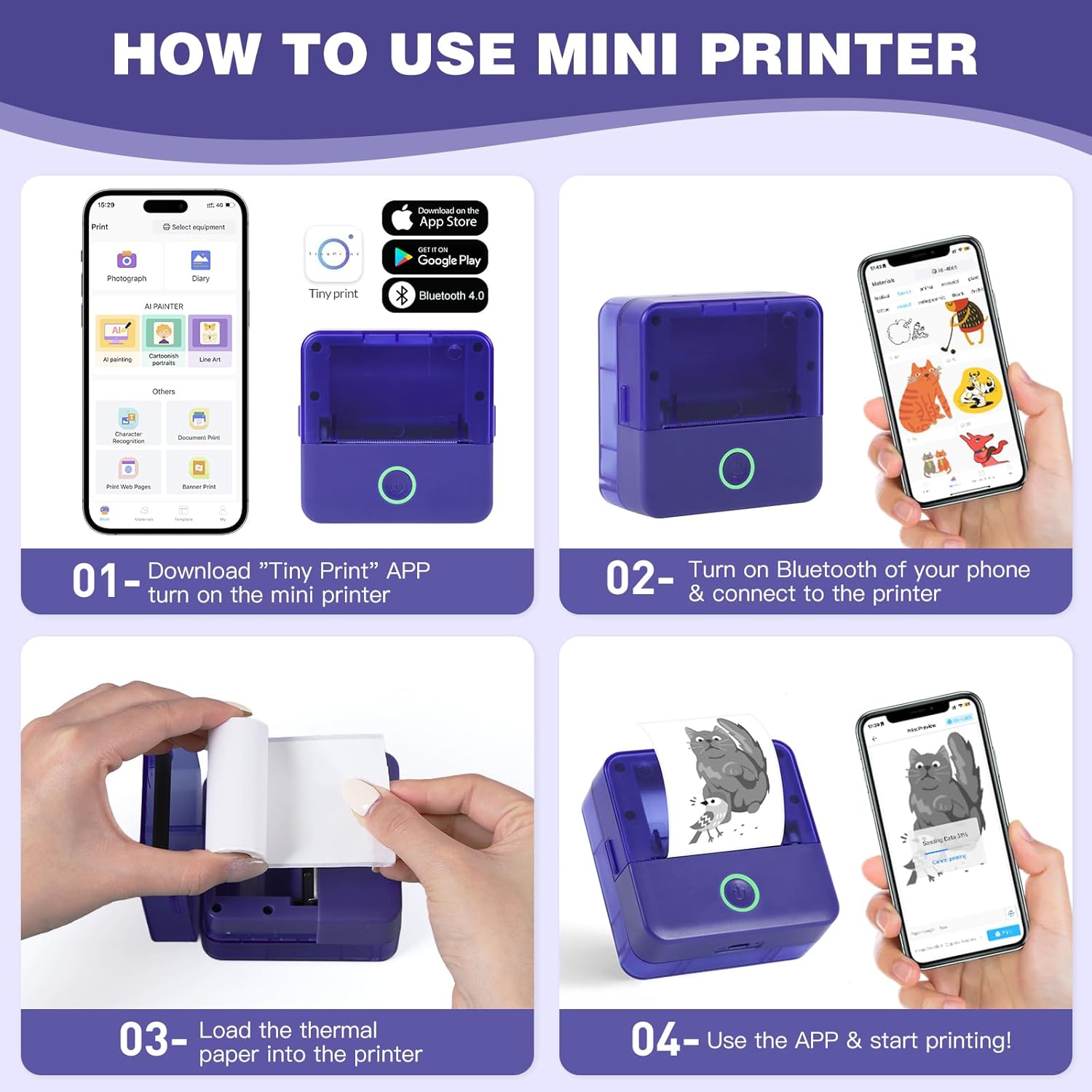
Figure 3.1: Printer Components and How to Use
4. సెటప్
4.1 ప్రింటర్ను ఛార్జ్ చేయడం
Before first use, ensure the printer is fully charged. Connect the provided Type-C power cord to the printer's USB port and a suitable power adapter (not included). The power indicator light will show charging status.
4.2 థర్మల్ పేపర్ను ఇన్స్టాల్ చేయడం
- Press the cover opening button to open the top cover of the printer.
- Remove any existing paper roll or the adjuster from the right side if present.
- Load a new thermal paper roll into the paper compartment. Ensure the printing side (smooth side) is facing up and aligned with the print head.
Tip: To distinguish the printing side, gently scratch the paper surface with your nail; the side that leaves a mark is the printing side. - If removed, install the adjuster on the right side to secure the paper roll.
- Pull out a small portion of the paper (approximately 1cm) beyond the paper outlet.
- పై కవర్ సరిగ్గా తగిలే వరకు గట్టిగా మూసివేయండి.

Figure 4.1: Opening the Paper Compartment

Figure 4.2: Loading the Paper Roll

Figure 4.3: Closing the Cover after Paper Loading
4.3 యాప్ డౌన్లోడ్ మరియు బ్లూటూత్ కనెక్షన్
- Download the "Tiny Print" app from the App Store (iOS) or Google Play Store (Android).
- Turn on the mini printer by pressing and holding the power button until the indicator light illuminates.
- మీ స్మార్ట్ఫోన్ లేదా టాబ్లెట్లో బ్లూటూత్ను ప్రారంభించండి.
- Open the "Tiny Print" app and follow the in-app instructions to connect to your printer via Bluetooth. Look for a device named "X6H-XXXX" or similar.
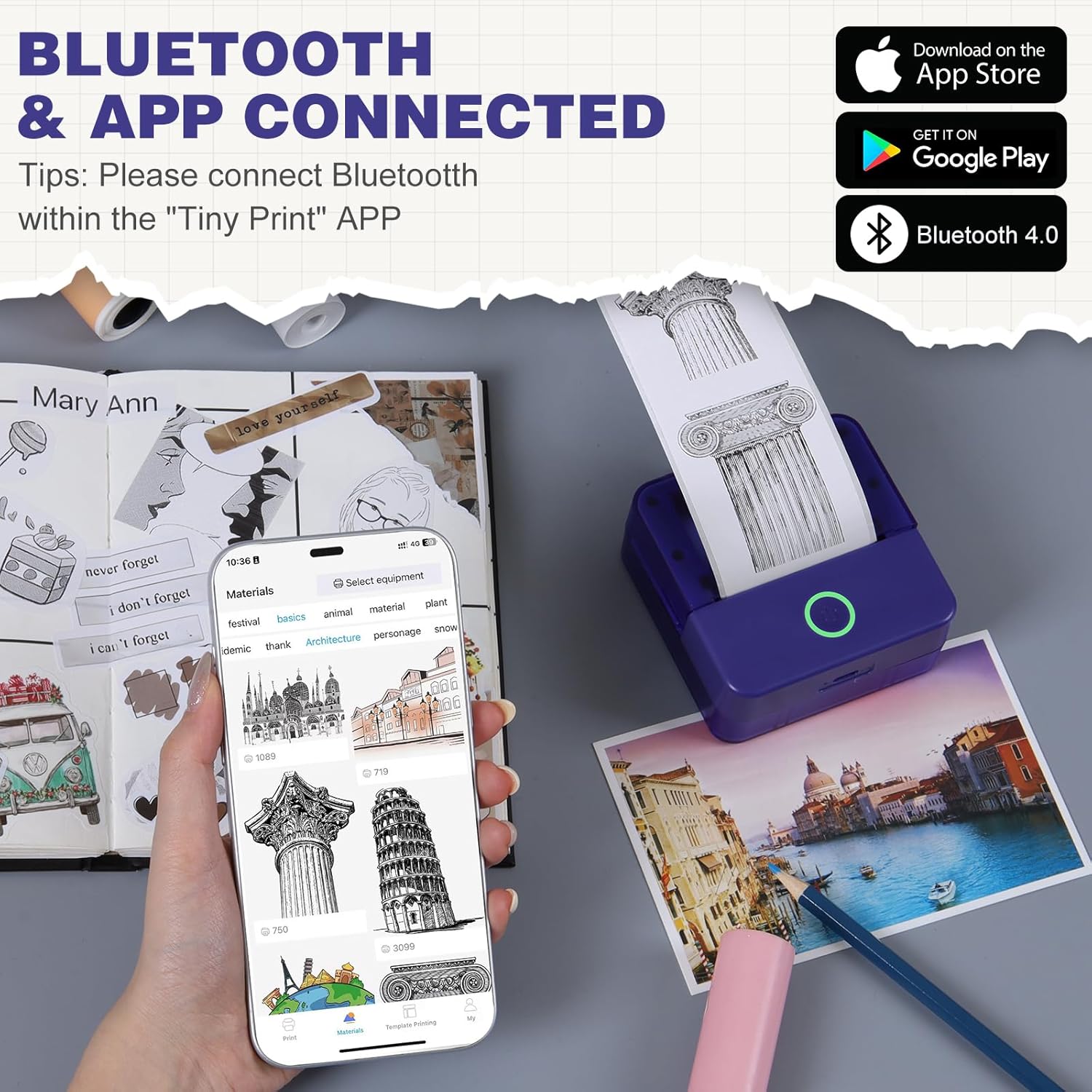
Figure 4.4: App Interface and Bluetooth Connection
Video 4.1: Demonstrating the setup and connection process for the cudinham X6 Mini Thermal Printer.
5. ఆపరేటింగ్ సూచనలు
The "Tiny Print" app offers various functions for printing. Ensure your printer is connected via Bluetooth before proceeding.
5.1 ప్రాథమిక ముద్రణ
- ఫోటో ప్రింటింగ్: Select "Photo Printing" in the app, choose an image from your gallery, adjust as needed, and tap "Print."
- Text Printing: Select "Text Printing" or a template, input your text, customize fonts and sizes, and tap "Print."
- టెంప్లేట్లు: The app provides multiple free templates for notes, to-do lists, labels, and more. Select a template, customize it, and print.

Figure 5.1: Multi-functionality of the Tiny Print App

Figure 5.2: Image Printing Settings

Figure 5.3: Text Printing Settings
5.2 Adjusting Print Settings
Within the app, you can adjust the print depth for both images and text. For optimal results, especially with images, it is recommended to use the high-definition printing mode and set the print depth between 4 and 7. Experiment with settings to achieve your desired print quality.
వీడియో 5.1: ముగిసిందిview of the cudinham X6 Print Pod Mini Printer's features and printing capabilities.
6. నిర్వహణ
6.1 ప్రింట్ హెడ్ను శుభ్రపరచడం
ప్రింట్ నాణ్యతను కాపాడుకోవడానికి, ప్రింట్ హెడ్ను క్రమం తప్పకుండా శుభ్రం చేయండి. మృదువైన, మెత్తటి బట్టను తేలికగా ఉపయోగించండి dampened with alcohol. Gently wipe the print head to remove any dust or paper residue. Ensure the printer is turned off and disconnected from power before cleaning.
6.2 కాగితపు నిల్వ
Store thermal paper in a cool, dry place away from direct sunlight and heat to prevent premature fading or damage. Avoid touching the printing surface of the paper with bare hands as oils can affect print quality.

Figure 6.1: Different Types of Thermal Paper
7. ట్రబుల్షూటింగ్
| సమస్య | సాధ్యమైన కారణం | పరిష్కారం |
|---|---|---|
| ప్రింటర్ ఆన్ కావడం లేదు | బ్యాటరీ తక్కువగా ఉంది; పవర్ బటన్ సరిగ్గా నొక్కబడలేదు. | ప్రింటర్ను ఛార్జ్ చేయండి; పవర్ బటన్ను 3 సెకన్ల పాటు నొక్కి ఉంచండి. |
| Poor print quality (faint/blurry) | Print head dirty; Incorrect print depth setting; Low battery. | Clean the print head; Adjust print depth in the app (recommended 4-7); Charge the printer. |
| ప్రింటర్ బ్లూటూత్ ద్వారా కనెక్ట్ కావడం లేదు | Bluetooth off on phone/printer; App not recognizing printer. | Ensure Bluetooth is enabled on both devices; Restart the app and printer; Re-pair the device in the app. |
| పేపర్ జామ్ | Paper loaded incorrectly; Foreign object in paper path. | Open the cover, remove jammed paper, re-load correctly; Check for obstructions. |
8. స్పెసిఫికేషన్లు
| ఫీచర్ | వివరాలు |
|---|---|
| మోడల్ పేరు | X6 |
| బ్రాండ్ | కుడిన్హామ్ |
| ప్రింటింగ్ టెక్నాలజీ | థర్మల్ |
| కనెక్టివిటీ టెక్నాలజీ | బ్లూటూత్ |
| ప్రింటర్ అవుట్పుట్ | Thermal (Monochrome) |
| గరిష్ట ముద్రణ వేగం (మోనోక్రోమ్) | 20 ppm |
| ప్రింట్ మీడియా | థర్మల్ పేపర్ |
| షీట్ పరిమాణం | 57x22 Millimeters |
| గరిష్ట మీడియా పరిమాణం | 52x350mm |
| ఉత్పత్తి కొలతలు | 3.35 x 1.77 x 3.35 అంగుళాలు |
| వస్తువు బరువు | 13.2 ఔన్సులు |
| బ్యాటరీలు | 1 ప్రామాణికం కాని బ్యాటరీ (చేర్చబడింది) |
| హార్డ్వేర్ ఇంటర్ఫేస్ | USB |
9. వారంటీ మరియు మద్దతు
For warranty information and customer support, please refer to the warranty card included in your package or contact cudinham customer service directly. Keep your purchase receipt for warranty claims.
సంప్రదింపు సమాచారం:
- తయారీదారు: కుడిన్హామ్
- విక్రేత: Cudinham Home
- Please refer to the product packaging or official webఅత్యంత తాజా మద్దతు సంప్రదింపు వివరాల కోసం సైట్.