
1. పరిచయం
Thank you for choosing the UGREEN 11-inch Keyboard Case. This product is designed to enhance your iPad experience by providing a comfortable typing solution and versatile viewing angles, transforming your tablet into a portable workstation. This manual provides essential information for setup, operation, maintenance, and troubleshooting to ensure optimal performance.
2. అనుకూలత
ఈ కీబోర్డ్ కేసు కింది ఐప్యాడ్ మోడళ్లకు అనుకూలంగా ఉంటుంది:
- iPad Air 11-inch (M4/M3/M2, 2026/2025/2024)
- iPad Pro 11-inch (4th/3rd/2nd/1st Gen)
- iPad Air 5th Generation (2022)
- iPad Air 4th Generation (2020)
Compatible Model Numbers: A3459, A2902, A3266, A1980, A2228, A2759, A2377, A2316, A2588.
గమనిక: This case is కాదు compatible with iPad Pro 11-inch (M4) 2024.

Figure 2.1: Detailed compatibility chart for UGREEN 11-inch Keyboard Case.
3. ప్యాకేజీ విషయాలు
దయచేసి మీ ప్యాకేజీలో అన్ని అంశాలు ఉన్నాయని నిర్ధారించుకోండి:
- UGREEN 11-inch Keyboard Case
- USB-C ఛార్జింగ్ కేబుల్ (3 అడుగులు)
- వినియోగదారు మాన్యువల్
4. ఉత్పత్తి ముగిసిందిview
The UGREEN Keyboard Case features a robust design with several key functionalities:
- Precision Magnetic Back Plate: Ensures a secure and stable attachment for your iPad.
- 125° సర్దుబాటు Viewకోణం: Allows for flexible positioning for typing, browsing, or viewing.
- సిజర్-స్విచ్ కీలు: Provides a smooth, quiet, and consistent typing experience.
- 3-Level Adjustable Backlight: Offers illumination for comfortable use in various lighting conditions.
- రెస్పాన్సివ్ టచ్ప్యాడ్: Enables precise cursor control and supports multi-gesture navigation.
- Dual Orientation Viewing: Supports both portrait and landscape modes.
- 650mAh బ్యాటరీ: Provides extended usage and standby times.

Figure 4.1: Powerful magnetic hold for stable iPad attachment.

Figure 4.2: Quick-set magnetic stand with 125° adjustable viewing కోణం.

Figure 4.3: Scissor-switch keyboard design and 3-level adjustable backlighting.

Figure 4.4: Responsive touchpad with multi-gesture support.
5. సెటప్ సూచనలు
5.1 మీ ఐప్యాడ్ను అటాచ్ చేయడం
- Align your compatible iPad with the magnetic back plate of the case.
- The iPad will securely snap into place due to the strong magnetic connection.
5.2 Powering On the Keyboard
- Locate the power switch on the right side of the keyboard.
- Slide the switch to the 'ON' position. The indicator light will briefly illuminate.
5.3 బ్లూటూత్ జత చేయడం
- కీబోర్డ్ పవర్ ఆన్ చేయబడిందని నిర్ధారించుకోండి.
- మీ ఐప్యాడ్లో, ఇక్కడికి వెళ్లండి సెట్టింగ్లు > బ్లూటూత్.
- బ్లూటూత్ను ఆన్ చేయండి. మీ ఐప్యాడ్ సమీపంలోని పరికరాల కోసం శోధిస్తుంది.
- Select "UGREEN Keyboard" (or similar name) from the list of available devices.
- జత చేసే ప్రక్రియను పూర్తి చేయడానికి ఏదైనా ఆన్-స్క్రీన్ ప్రాంప్ట్లను అనుసరించండి.
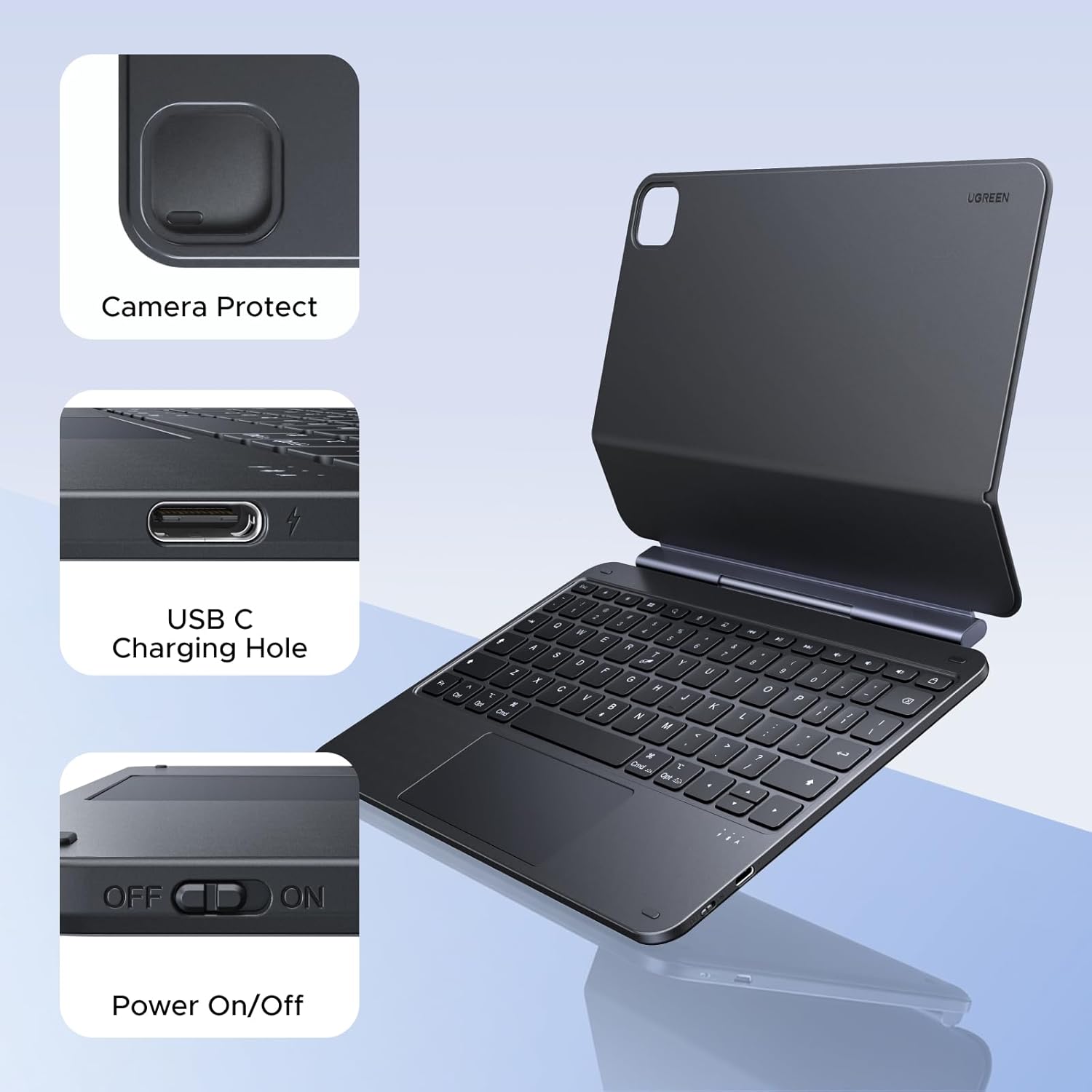
Figure 5.1: Location of the power switch and USB-C charging port.
6. ఆపరేటింగ్ సూచనలు
6.1 సర్దుబాటు Viewing యాంగిల్
The magnetic stand allows for a 125° adjustable viewing angle. Gently tilt your iPad to achieve your desired position for typing, drawing, or media consumption.
6.2 టచ్ప్యాడ్ని ఉపయోగించడం
The integrated touchpad supports various multi-touch gestures for intuitive navigation:
- ఒక్క వేలితో నొక్కడం: Click/Select
- రెండు వేళ్ల స్క్రోల్: పైకి/క్రిందికి లేదా ఎడమ/కుడికి స్క్రోల్ చేయండి
- జూమ్ చేయడానికి చిటికెడు: జూమ్ ఇన్/అవుట్ చేయండి
- మూడు వేళ్లతో పైకి స్వైప్ చేయడం: యాప్ స్విచ్చర్ను తెరవండి
- మూడు వేళ్లతో క్రిందికి స్వైప్ చేయండి: హోమ్ స్క్రీన్కి తిరిగి వెళ్ళు
- మూడు వేళ్లతో ఎడమ/కుడివైపుకు స్వైప్ చేయండి: ఓపెన్ యాప్ల మధ్య మారండి
6.3 బ్యాక్లైట్ సర్దుబాటు
నొక్కండి light icon key (usually next to the function keys) to cycle through the 3 levels of backlight brightness or to turn it off.
6.4 Dual Orientation Viewing
The case supports both portrait and landscape orientations. Simply rotate your iPad while it is magnetically attached to switch modes. This allows for flexible viewing during video calls, streaming, or browsing without compromising stability.

Figure 6.1: Versatile usage modes including typing, viewing, sketching, and reading.
7. కీబోర్డ్ను ఛార్జ్ చేయడం
The keyboard is equipped with a 650mAh battery for extended use.
- బ్యాటరీ లైఫ్: Up to 6 months standby time, or 5 months of regular use with the backlight off.
- ఛార్జింగ్ సమయం: పూర్తి ఛార్జ్ కోసం సుమారు 2 గంటలు.
- ఛార్జింగ్ విధానం: Use the included USB-C cable to connect the keyboard's USB-C port to a power source.

Figure 7.1: Battery performance overview.
8. నిర్వహణ
To ensure the longevity and optimal performance of your UGREEN Keyboard Case, follow these maintenance guidelines:
- శుభ్రపరచడం: ఒక మృదువైన ఉపయోగించండి, డిamp cloth to wipe the exterior of the case. Avoid harsh chemicals or abrasive materials. For the keyboard keys, use a soft brush or compressed air to remove dust and debris.
- నిల్వ: When not in use, store the keyboard case in a clean, dry environment away from extreme temperatures and direct sunlight.
- నిర్వహణ: Avoid dropping the case or subjecting it to strong impacts, which could damage internal components or the magnetic mechanism.
9. ట్రబుల్షూటింగ్
If you encounter issues with your UGREEN Keyboard Case, refer to the following common problems and solutions:
9.1 Keyboard Not Pairing or Connecting
- శక్తిని తనిఖీ చేయండి: Ensure the keyboard's power switch is in the 'ON' position.
- బ్యాటరీ స్థాయి: Verify that the keyboard has sufficient battery charge. Charge it if necessary.
- Bluetooth on iPad: Confirm that Bluetooth is enabled on your iPad (సెట్టింగ్లు > బ్లూటూత్).
- పరికరాన్ని తిరిగి జత చేయండి: If the keyboard was previously paired, try forgetting the device on your iPad's Bluetooth settings and then re-pairing it.
- పరికరాలను పునఃప్రారంభించండి: మీ ఐప్యాడ్ మరియు కీబోర్డ్ రెండింటినీ పునఃప్రారంభించండి.
9.2 Inconsistent Touchpad Response
- క్లీన్ టచ్ప్యాడ్: టచ్ప్యాడ్ ఉపరితలం శుభ్రంగా మరియు ధూళి లేదా తేమ లేకుండా ఉందని నిర్ధారించుకోండి.
- ఫర్మ్వేర్ నవీకరణ: UGREEN తనిఖీ చేయండి website for any available firmware updates for the keyboard.
- ఐప్యాడ్ సెట్టింగ్లు: Review your iPad's touchpad settings under సెట్టింగ్లు > జనరల్ > ట్రాక్ప్యాడ్ & మౌస్.
9.3 iPad Feels Top-Heavy or Unstable
- ఉపరితల స్థిరత్వం: Ensure the keyboard case is placed on a flat, stable surface.
- కోణ సర్దుబాటు: సర్దుబాటు చేయండి viewing angle to a more balanced position. Extreme angles may reduce stability.
- అయస్కాంత కనెక్షన్: Confirm the iPad is fully and securely attached to the magnetic back plate.
10. స్పెసిఫికేషన్లు
| ఫీచర్ | వివరాలు |
|---|---|
| బ్రాండ్ | ఉగ్రీన్ |
| మోడల్ సంఖ్య | i711 |
| అనుకూల పరికరాలు | Tablet (Specific iPad models listed in Compatibility section) |
| కనెక్టివిటీ టెక్నాలజీ | బ్లూటూత్ |
| కీబోర్డ్ వివరణ | Flexible, Scissor-switch |
| కీబోర్డ్ లేఅవుట్ | QWERTY |
| మెటీరియల్ | Plastic, Steel (Keyboard Plate) |
| శక్తి మూలం | బ్యాటరీ పవర్డ్ (650mAh లిథియం బ్యాటరీ) |
| ప్రత్యేక లక్షణాలు | Magnetic Case, Adjustable Backlight, Touchpad |
11. వారంటీ మరియు మద్దతు
11.1 వారంటీ సమాచారం
This UGREEN product is covered by a 2-సంవత్సరం తయారీదారు వారంటీ కొనుగోలు చేసిన తేదీ నుండి. ఈ వారంటీ సాధారణ ఉపయోగంలో మెటీరియల్స్ మరియు పనితనంలో లోపాలను కవర్ చేస్తుంది.
వారంటీ కవర్ చేయదు:
- ప్రమాదం, దుర్వినియోగం, దుర్వినియోగం, వరద, అగ్ని, భూకంపం లేదా ఇతర బాహ్య కారణాల వల్ల కలిగే నష్టం.
- Damage caused by operating the product outside the permitted or intended uses described by UGREEN.
- Damage caused by service performed by anyone who is not a representative of UGREEN.
11.2 కస్టమర్ మద్దతు
For technical support, warranty claims, or general inquiries, please contact UGREEN customer service through the following channels:
- Webసైట్: అధికారిక UGREEN ని సందర్శించండి webమద్దతు వనరులు మరియు సంప్రదింపు సమాచారం కోసం సైట్.
- ఇమెయిల్: మీ ఉత్పత్తి ప్యాకేజింగ్ లేదా UGREEN ని చూడండి webసరైన మద్దతు ఇమెయిల్ చిరునామా కోసం సైట్ను సందర్శించండి.
- ఆన్లైన్ రిటైలర్: If purchased from an online retailer, you may also contact their customer service for assistance.
Please have your product model number (i711) and proof of purchase ready when contacting support.