
1. పరిచయం
This manual provides essential information for setting up, operating, maintaining, and troubleshooting your Lenovo IdeaCentre AIO 3 23.8" FHD All-in-One Desktop. Please read this manual thoroughly before using your device to ensure proper functionality and to prevent damage.
The Lenovo IdeaCentre AIO 3 is designed for everyday computing tasks, office productivity, and light creative projects, offering a streamlined experience with its integrated display and components.
2. పెట్టెలో ఏముంది
ప్యాకేజింగ్లో అన్ని వస్తువులు ఉన్నాయని నిర్ధారించుకోండి:
- Lenovo IdeaCentre AIO 3 All-in-One Desktop
- వైర్లెస్ కీబోర్డ్
- వైర్లెస్ మౌస్
- పవర్ అడాప్టర్
- 7-in-1 Docking Station with 1TB Storage
- 32GB MicroSD Card with Adapter
- టైప్-సి డేటా కేబుల్
- 3-ఇన్-1 ఛార్జింగ్ కేబుల్
- Suede Cleaning Cloth
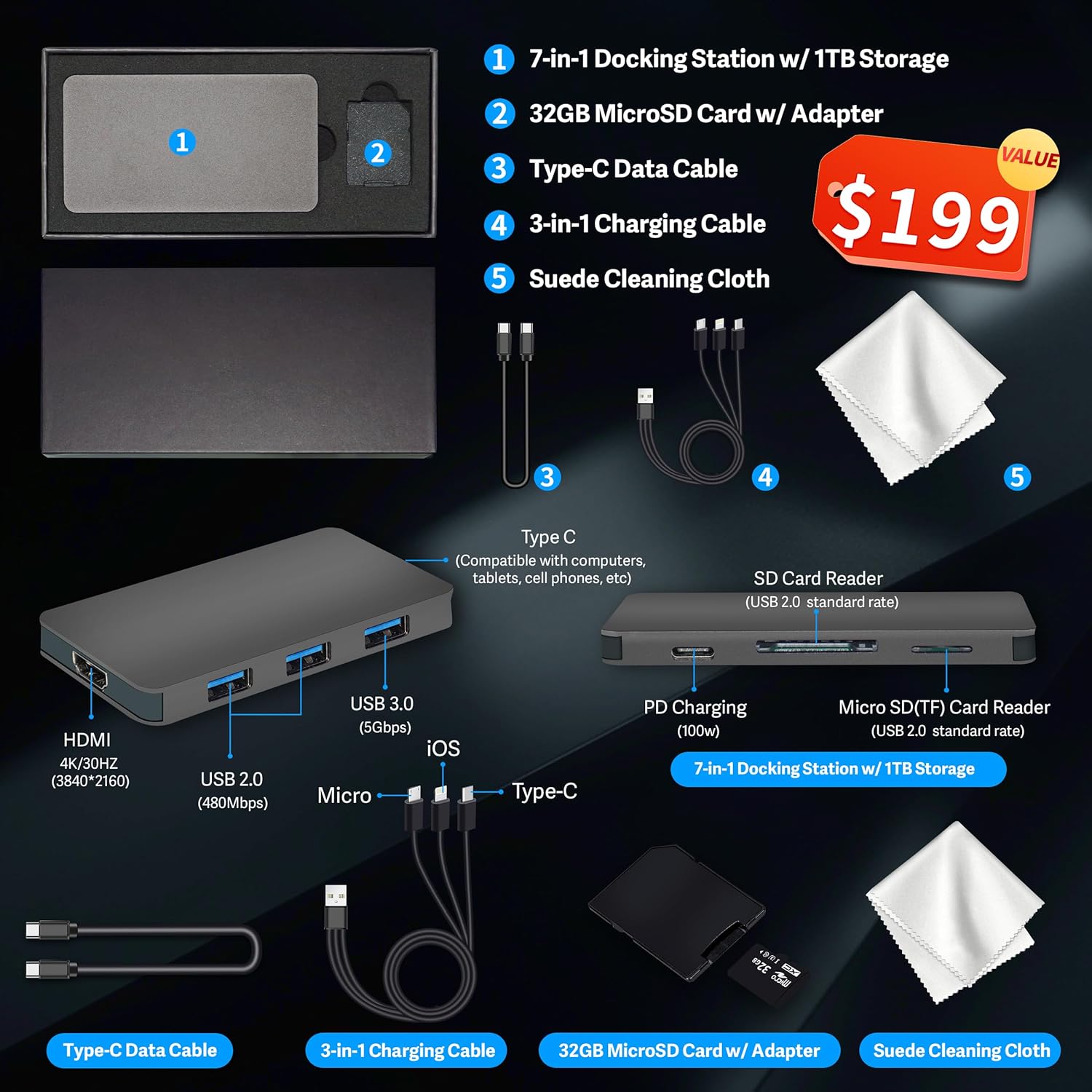
మూర్తి 2.1: Included accessories, featuring the 7-in-1 docking station, cables, MicroSD card, and cleaning cloth.
3. సెటప్ సూచనలు
3.1 అన్ప్యాకింగ్ మరియు ప్లేస్మెంట్
- Carefully remove the All-in-One desktop and all accessories from the packaging.
- Place the desktop on a stable, flat surface, ensuring adequate ventilation around the unit.
3.2 కనెక్ట్ పవర్
- Connect the power adapter cable to the DC-in port on the rear of the All-in-One desktop.
- పవర్ అడాప్టర్ను గ్రౌన్దేడ్ ఎలక్ట్రికల్ అవుట్లెట్లోకి ప్లగ్ చేయండి.
3.3 కనెక్ట్ పెరిఫెరల్స్
Connect the wireless keyboard and mouse. Typically, a single USB receiver is used for both. Insert the USB receiver into an available USB port on the desktop.
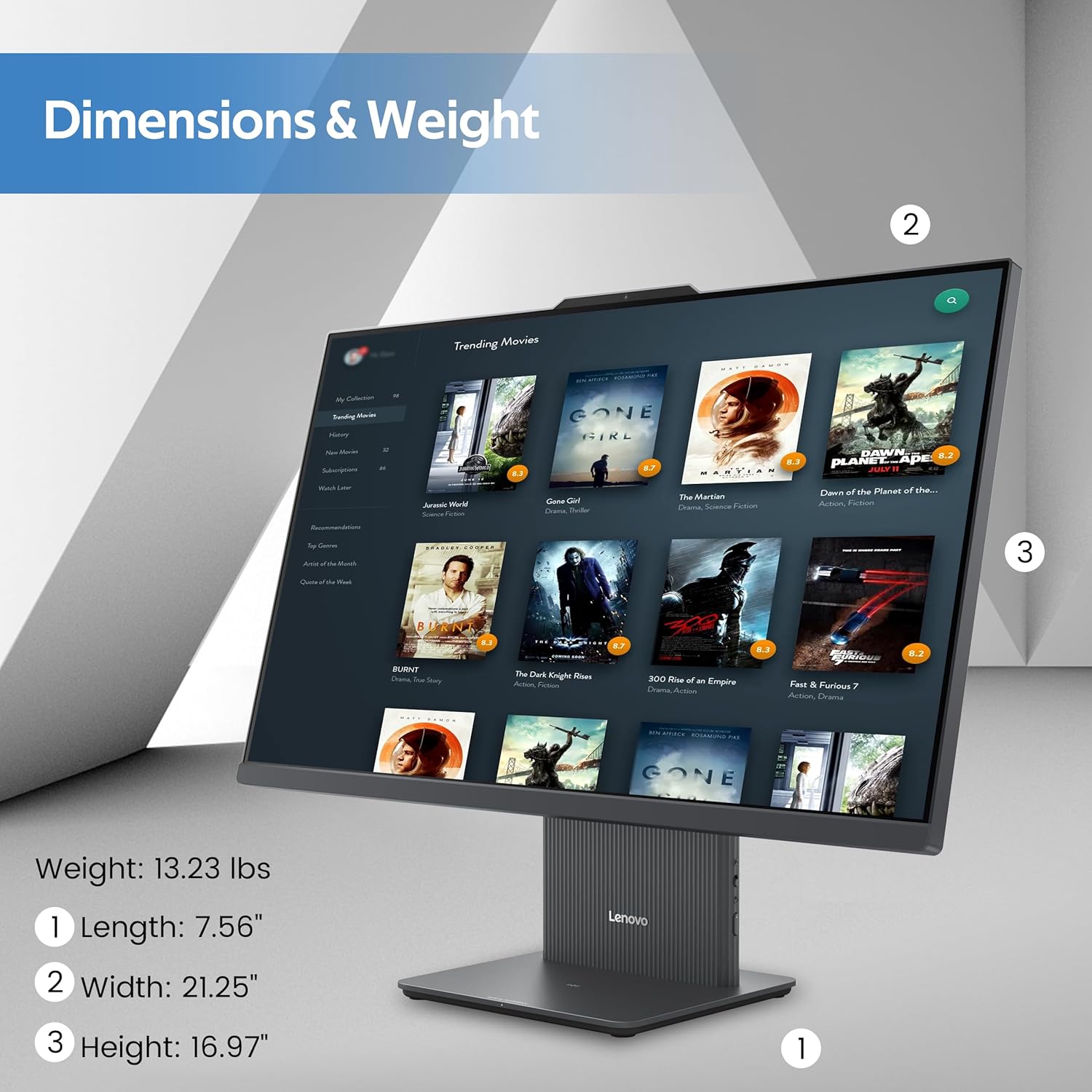
మూర్తి 3.1: పైగాview of the rear and left-side ports, including USB, HDMI, RJ-45, and audio connections.
3.4 Initial Boot-Up and Windows 11 Setup
- Press the power button located on the rear of the desktop.
- భాష ఎంపిక, నెట్వర్క్ కనెక్షన్ మరియు వినియోగదారు ఖాతా సృష్టితో సహా Windows 11 ప్రారంభ సెటప్ను పూర్తి చేయడానికి స్క్రీన్పై సూచనలను అనుసరించండి.
4. ఆపరేటింగ్ సూచనలు
4.1 డిస్ప్లే ఫీచర్లు
The IdeaCentre AIO 3 features a 23.8-inch Full HD (1920x1080) IPS display with a 100Hz refresh rate. It includes an anti-glare coating for comfortable viewing and covers 99% sRGB for accurate color reproduction.

మూర్తి 4.1: The 23.8-inch Full HD display provides clear and vibrant visuals.
4.2 సిస్టమ్ పనితీరు
Your AIO desktop is equipped with an AMD Ryzen 5 7535HS processor, 16GB DDR5 RAM, and AMD Radeon 660M Graphics. This configuration supports smooth multitasking and efficient handling of daily computing tasks.
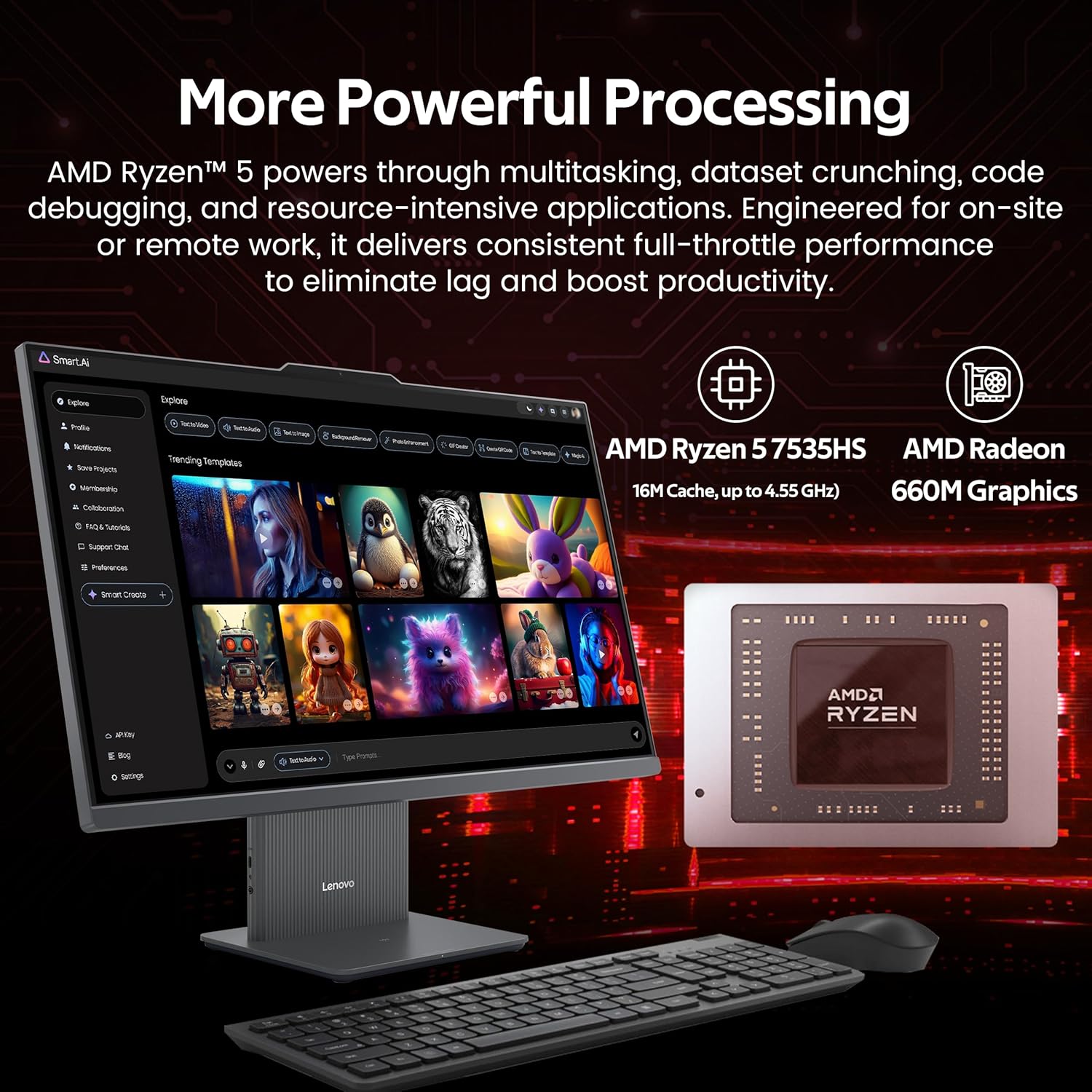
మూర్తి 4.2: Illustration of the AMD Ryzen 5 7535HS processor and AMD Radeon 660M Graphics for powerful processing.
4.3 నిల్వ
The system includes a 512GB SSD for fast operating system and application loading, complemented by a 1TB docking station for additional storage capacity, totaling 1.5TB.

మూర్తి 4.3: The All-in-One desktop highlighting its 16GB RAM and 1.5TB storage capabilities.
4.4 కనెక్టివిటీ
The IdeaCentre AIO 3 supports Wi-Fi 6 for high-speed wireless internet and Bluetooth 5.3 for connecting wireless peripherals. It also features an RJ-45 Ethernet port for wired network connections.

మూర్తి 4.4: Features such as wireless charging, Wi-Fi 6, Bluetooth 5.2, and integrated stereo speakers.
4.5 పోర్ట్లు మరియు ఇంటర్ఫేస్లు
The desktop includes various ports for connectivity:
- వెనుక పోర్టులు: 1x USB-A (USB 10Gbps / USB 3.2 Gen 2), 2x USB-A (Hi-Speed USB / USB 2.0), 1x HDMI-in 1.4, 1x HDMI-out 2.1 TMDS, 1x RJ-45 (Ethernet), 1x Power Connector.
- ఎడమ వైపు పోర్టులు: 1x USB-C, 1x Headphone / Microphone Combo Jack.
4.6 మల్టీ టాస్కింగ్
The system is designed to handle multiple applications and browser tabs simultaneously, providing a smooth user experience for various tasks.

మూర్తి 4.5: A user demonstrating the ability to manage multiple applications and tasks on the desktop.
5. నిర్వహణ
5.1 పరికరాన్ని శుభ్రపరచడం
- శుభ్రపరిచే ముందు ఎల్లప్పుడూ పరికరాన్ని పవర్ ఆఫ్ చేసి, అన్ప్లగ్ చేయండి.
- Use a soft, lint-free cloth (such as the provided suede cleaning cloth) to gently wipe the screen and exterior surfaces.
- Avoid using harsh chemicals, abrasive cleaners, or aerosol sprays directly on the device.
- వెంట్లు మరియు పోర్టుల నుండి దుమ్మును తొలగించడానికి కాలానుగుణంగా సంపీడన గాలిని ఉపయోగించండి.
5.2 సాఫ్ట్వేర్ నవీకరణలు
ఆపరేటింగ్ సిస్టమ్ నవీకరణలు (విండోస్ నవీకరణ) మరియు డ్రైవర్ నవీకరణలు (లెనోవా వాన్) కోసం క్రమం తప్పకుండా తనిఖీ చేసి ఇన్స్టాల్ చేయండి.tage లేదా Lenovo మద్దతు webసైట్) సరైన పనితీరు మరియు భద్రతను నిర్ధారించడానికి.
5.3 డేటా బ్యాకప్
డేటా నష్టాన్ని నివారించడానికి మీ ముఖ్యమైన డేటాను కాలానుగుణంగా బాహ్య డ్రైవ్ లేదా క్లౌడ్ నిల్వకు బ్యాకప్ చేయండి.
6. ట్రబుల్షూటింగ్
6.1 శక్తి లేదు
- పవర్ కేబుల్ డెస్క్టాప్ మరియు ఎలక్ట్రికల్ అవుట్లెట్ రెండింటికీ సురక్షితంగా కనెక్ట్ చేయబడిందని నిర్ధారించుకోండి.
- మరొక పరికరాన్ని ప్లగ్ చేయడం ద్వారా ఎలక్ట్రికల్ అవుట్లెట్ పనిచేస్తుందో లేదో ధృవీకరించండి.
- కనిపించే ఏదైనా నష్టం కోసం పవర్ అడాప్టర్ను తనిఖీ చేయండి.
6.2 ప్రదర్శన సమస్యలు
- If the screen is blank, ensure the device is powered on and not in sleep mode.
- Adjust display brightness settings.
- బాహ్య మానిటర్ కనెక్ట్ చేయబడి ఉంటే, Windows సెట్టింగ్లలో సరైన డిస్ప్లే అవుట్పుట్ ఎంచుకోబడిందని నిర్ధారించుకోండి.
6.3 వైర్లెస్ కనెక్టివిటీ సమస్యలు
- Wi-Fi: Check if Wi-Fi is enabled in Windows settings. Restart your router and the desktop. Ensure you are connecting to the correct network and entering the password correctly.
- బ్లూటూత్: Ensure Bluetooth is enabled. Re-pair your Bluetooth devices. Check device batteries.
6.4 కీబోర్డ్ లేదా మౌస్ స్పందించకపోవడం
- Ensure the USB receiver is properly inserted into a USB port.
- Check the batteries in the wireless keyboard and mouse and replace if necessary.
- Try inserting the USB receiver into a different USB port.
7. స్పెసిఫికేషన్లు
| ఫీచర్ | స్పెసిఫికేషన్ |
|---|---|
| బ్రాండ్ | లెనోవో |
| మోడల్ పేరు | IdeaCentre AIO 3 |
| ఆపరేటింగ్ సిస్టమ్ | Windows 11 |
| CPU మోడల్ | AMD రైజెన్ 5 7535HS |
| CPU వేగం | 3.3 GHz (up to 4.55 GHz boost) |
| RAM మెమరీ ఇన్స్టాల్ చేయబడింది | 16 GB DDR5 (4800 MHz) |
| నిల్వ | 512 GB SSD + 1 TB Docking Station (Total 1.5 TB) |
| గ్రాఫిక్స్ కోప్రాసెసర్ | AMD రేడియన్ 660M గ్రాఫిక్స్ |
| స్క్రీన్ పరిమాణం | 23.8 అంగుళాలు |
| డిస్ప్లే రిజల్యూషన్ గరిష్టం | 1920x1080 పిక్సెల్స్ (FHD) |
| కనెక్టివిటీ టెక్నాలజీ | Ethernet, HDMI, USB, Wi-Fi 6, Bluetooth 5.3 |
| ఓడరేవులు | 1x USB-A (3.2 Gen 2), 2x USB-A (2.0), 1x USB-C, 1x HDMI-in 1.4, 1x HDMI-out 2.1 TMDS, 1x RJ-45, 1x Headphone/Mic Combo, 1x Power Connector |
| అంశం కొలతలు (L x W x H) | 26 x 21.5 x 9 అంగుళాలు (సుమారుగా) |
| వస్తువు బరువు | 21 పౌండ్లు (సుమారుగా) |
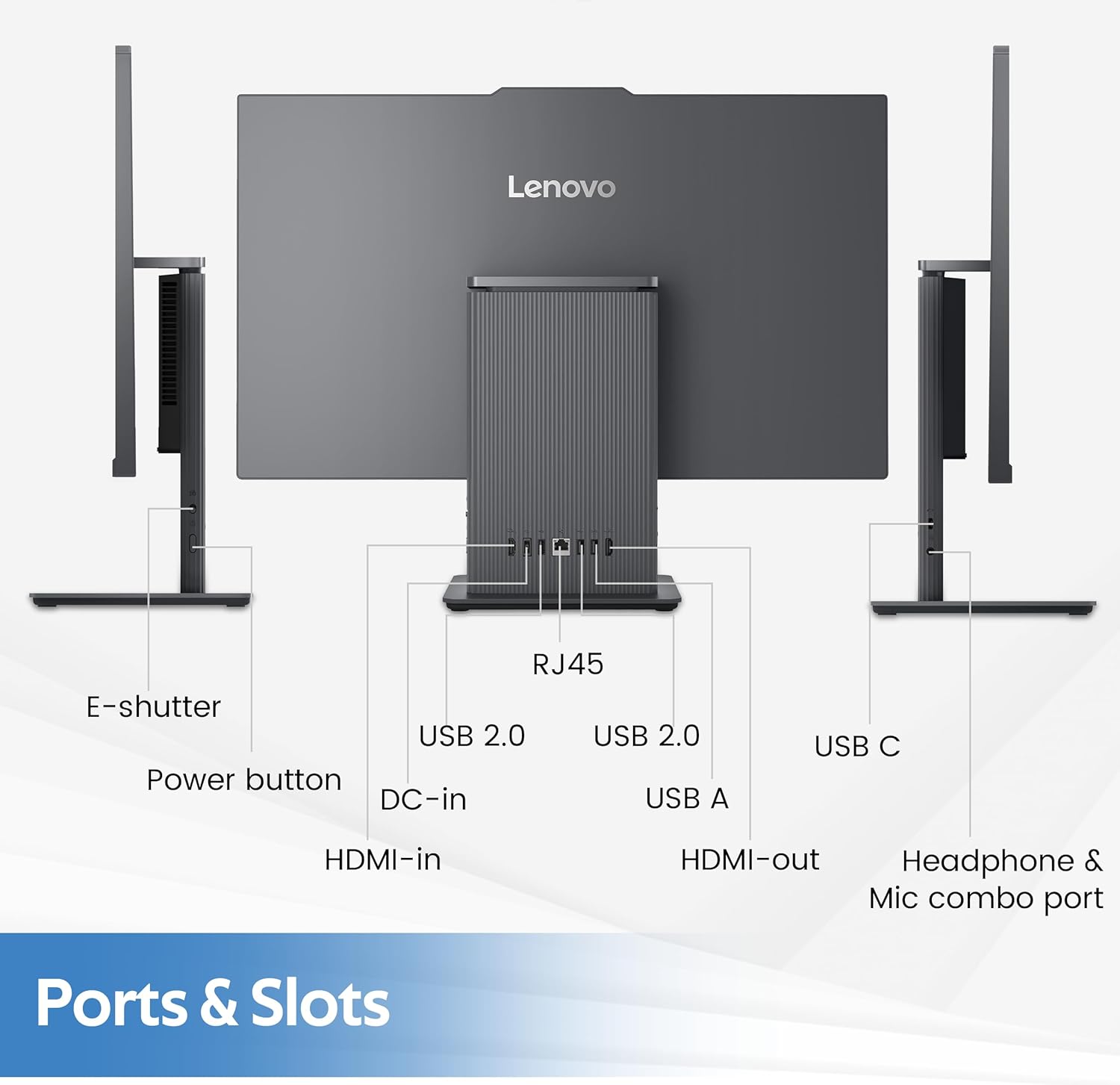
మూర్తి 7.1: Physical dimensions and weight of the Lenovo IdeaCentre AIO 3 desktop.
8. వారంటీ మరియు మద్దతు
8.1 వారంటీ సమాచారం
Your Lenovo IdeaCentre AIO 3 desktop comes with a standard manufacturer's warranty. Please refer to the warranty card included with your product for specific terms, conditions, and duration. Keep your proof of purchase for warranty claims.
8.2 సాంకేతిక మద్దతు
సాంకేతిక సహాయం, డ్రైవర్ డౌన్లోడ్లు లేదా మరిన్ని మద్దతు కోసం, దయచేసి అధికారిక Lenovo మద్దతును సందర్శించండి. website or contact Lenovo customer service. You can find contact information and support resources at support.lenovo.com.