
1. పరిచయం
The TP-Link UB600 is a compact Bluetooth 6.0 USB adapter designed for PCs. It enhances connection security and stability compared to previous Bluetooth generations, providing reliable wireless connectivity for various Bluetooth-enabled devices. Its ultra-small nano design allows it to remain discreetly plugged into a USB port, making it ideal for mobile use or permanent connection.
This adapter supports Windows 11, 10, 8.1, and 7. For Windows 11, 10, and 8.1, it offers Plug & Play functionality. For Windows 7, driver installation is required.
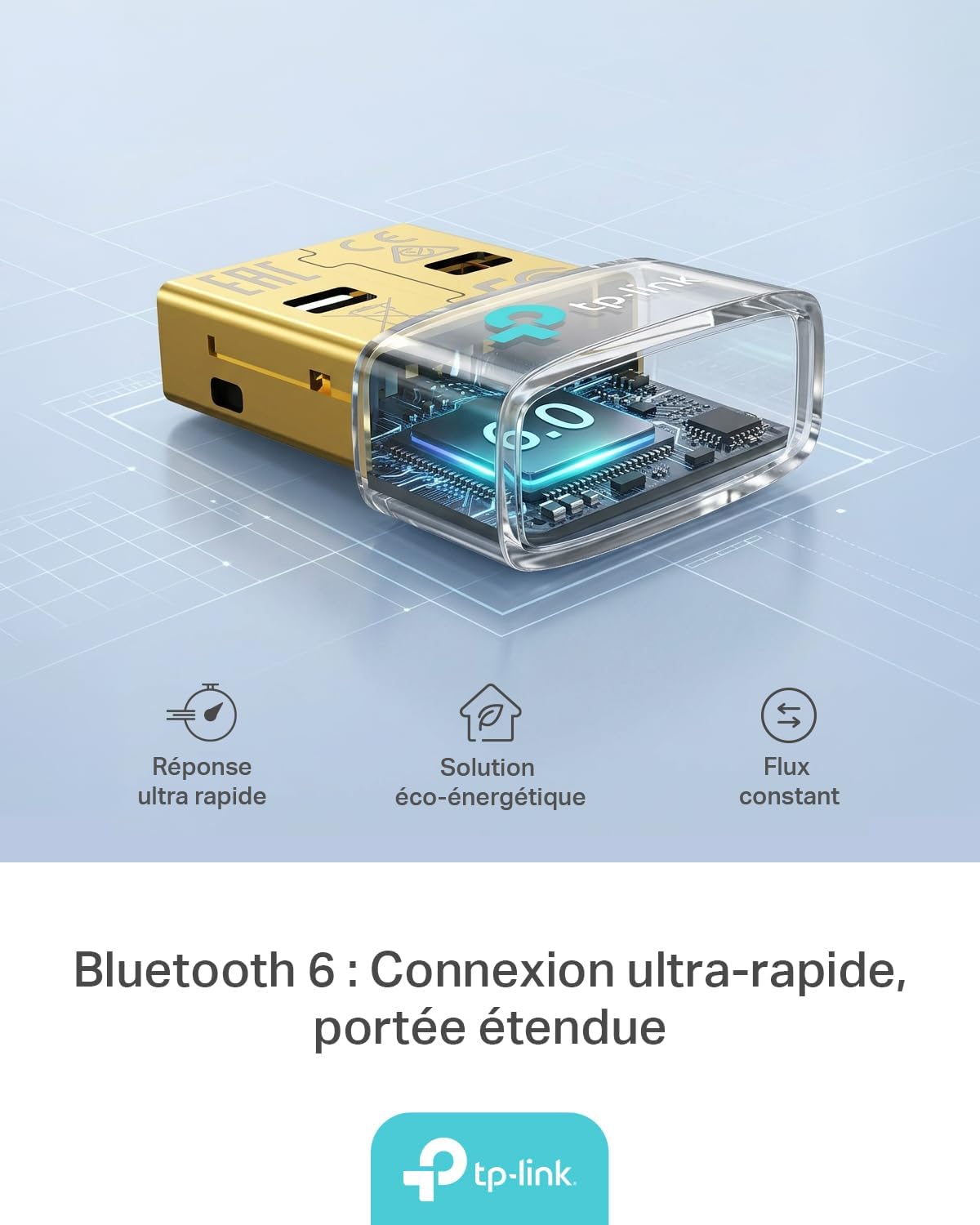
Figure 1: TP-Link UB600 Bluetooth 6.0 USB Adapter showcasing its key features: ultra-fast response, energy-saving solution, and constant data flow.
2. సెటప్ సూచనలు
2.1 సిస్టమ్ అవసరాలు
- Operating System: Windows 11, Windows 10, Windows 8.1, Windows 7.
- Available USB port.
2.2 సంస్థాపన
- అడాప్టర్ను చొప్పించండి: Plug the TP-Link UB600 Bluetooth USB adapter into an available USB port on your computer.

Figure 2: The UB600 adapter discreetly plugged into a laptop's USB port, demonstrating its compact design.
- డ్రైవర్ ఇన్స్టాలేషన్:
- For Windows 11, 10, 8.1: The adapter is Plug & Play. Your operating system should automatically detect and install the necessary drivers. No manual installation is typically required.
- Windows 7 కోసం: Driver installation is required. Please visit the official TP-Link webసైట్ (www.tp-link.com) to download the latest drivers for the UB600 model. Follow the on-screen instructions to complete the installation.

Figure 3: Visual representation of the UB600's compatibility with different Windows versions and various Bluetooth peripherals like smartphones, headphones, controllers, and keyboards.
- ధృవీకరణ: After installation, check your computer's Device Manager to ensure the Bluetooth adapter is recognized and functioning correctly.
3. ఆపరేటింగ్ సూచనలు
3.1 బ్లూటూత్ పరికరాలను జత చేయడం
Once the UB600 adapter is installed, you can pair it with your Bluetooth-enabled devices:
- బ్లూటూత్ని ప్రారంభించండి: Ensure Bluetooth is enabled on your computer. You can usually find this in the Windows Settings (Settings > Devices > Bluetooth & other devices).
- Put Device in Pairing Mode: Place your Bluetooth device (e.g., headphones, mouse, keyboard) into pairing mode. Refer to your device's manual for specific instructions.
- పరికరాన్ని జోడించండి: On your computer, click "Add Bluetooth or other device" and select "Bluetooth".
- పరికరాన్ని ఎంచుకోండి: మీ కంప్యూటర్ సమీపంలోని బ్లూటూత్ పరికరాల కోసం స్కాన్ చేస్తుంది. జాబితా నుండి మీ పరికరాన్ని ఎంచుకుని, జత చేసే ప్రక్రియను పూర్తి చేయడానికి స్క్రీన్పై ఏవైనా ప్రాంప్ట్లను అనుసరించండి.
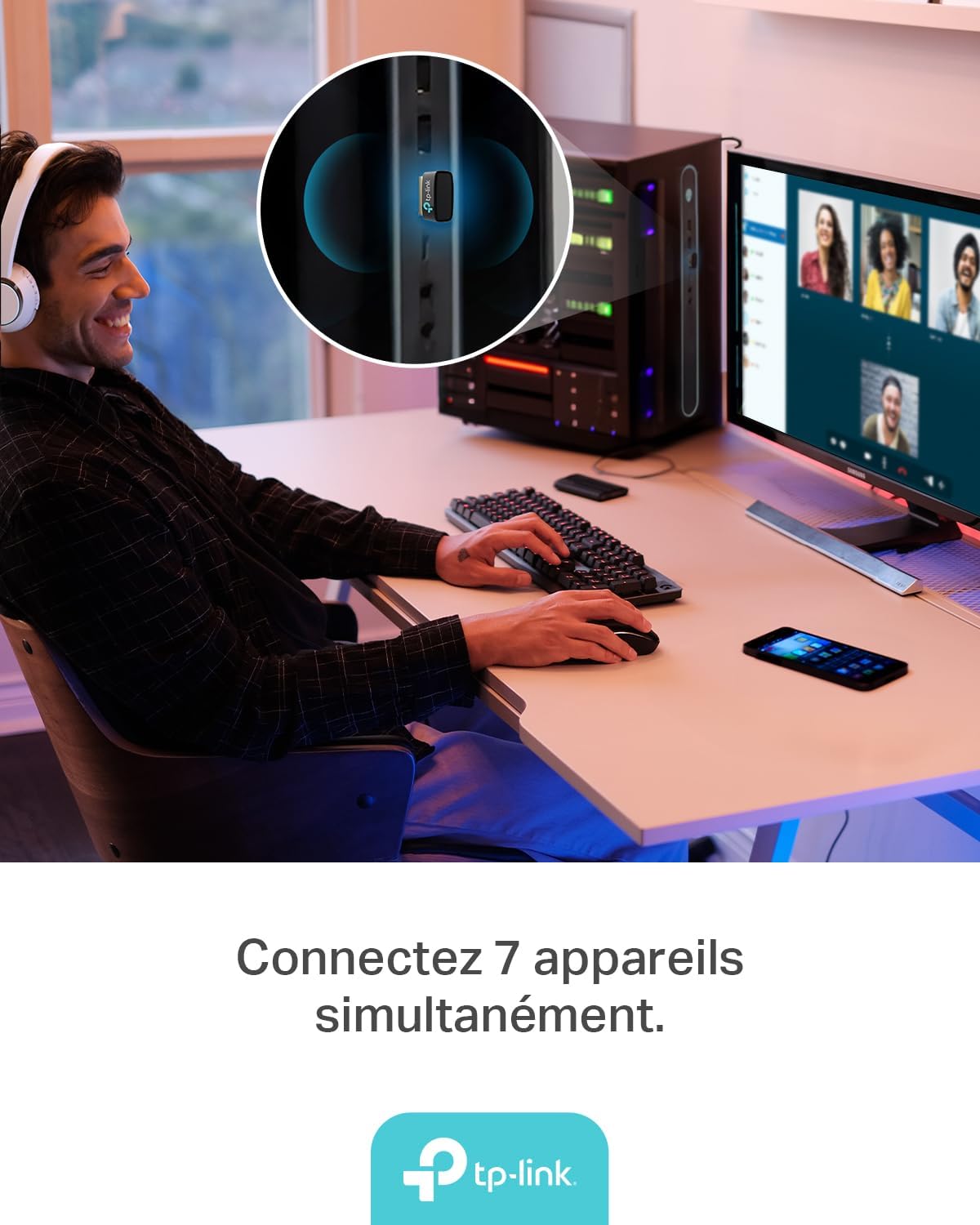
Figure 4: The UB600 adapter allows simultaneous connection of up to 7 Bluetooth devices, enhancing productivity and convenience.
3.2 Bluetooth 6.0 Advantages
The UB600 utilizes Bluetooth 6.0 technology, offering several improvements:
- మెరుగైన భద్రత: Provides improved security features for your wireless connections.
- పెరిగిన స్థిరత్వం: Offers a more stable and reliable connection compared to older Bluetooth versions.
- Faster Speeds (EDR): Supports Enhanced Data Rate (EDR) for quicker data transfer.
- Reduced Power Consumption (BLE): Utilizes Bluetooth Low Energy (BLE) for energy-efficient operation, especially beneficial for battery-powered devices.

Figure 5: The UB600 adapter contributes to daily efficiency with faster speeds (EDR) and reduced power consumption (BLE).
4. నిర్వహణ
The TP-Link UB600 is designed for durability and requires minimal maintenance. To ensure optimal performance and longevity:
- శుభ్రముగా ఉంచు: Periodically clean the adapter's exterior with a soft, dry cloth. Avoid using liquid cleaners or solvents.
- నష్టం నుండి రక్షించండి: While compact, avoid subjecting the adapter to physical shocks, extreme temperatures, or moisture.
- సంస్థ కనెక్షన్: Ensure the adapter is securely plugged into the USB port to prevent intermittent connections.
5. ట్రబుల్షూటింగ్
If you encounter issues with your TP-Link UB600 adapter, consider the following steps:
- అడాప్టర్ గుర్తించబడలేదు:
- అడాప్టర్ను వేరే USB పోర్ట్లోకి ప్లగ్ చేసి ప్రయత్నించండి.
- మీ కంప్యూటర్ని పునఃప్రారంభించండి.
- For Windows 7, ensure drivers are correctly installed from the TP-Link webసైట్.
- పరికరాలను జత చేయడం సాధ్యం కాదు:
- Ensure Bluetooth is enabled on your computer and the device you are trying to pair.
- Make sure your device is in pairing mode.
- Check if the device is already paired with another computer or adapter.
- Move the device closer to the computer to rule out range issues.
- అడపాదడపా కనెక్షన్:
- Ensure there are no major obstructions between the adapter and the Bluetooth device.
- Avoid placing the adapter near sources of strong electromagnetic interference (e.g., Wi-Fi routers, microwaves).
- మీ కంప్యూటర్ ఆపరేటింగ్ సిస్టమ్ మరియు బ్లూటూత్ డ్రైవర్లను తాజా వెర్షన్లకు అప్డేట్ చేయండి.
మరింత సహాయం కోసం, దయచేసి అధికారిక TP-Link మద్దతును సందర్శించండి. webసైట్.
6. స్పెసిఫికేషన్లు
| ఫీచర్ | వివరాలు |
|---|---|
| మోడల్ సంఖ్య | UB600 |
| ఇంటర్ఫేస్ | USB |
| బ్లూటూత్ వెర్షన్ | బ్లూటూత్ 6.0 |
| డేటా బదిలీ రేటు | 2 Mbps |
| అనుకూలమైన ఆపరేటింగ్ సిస్టమ్స్ | Windows 11, Windows 10, Windows 8.1, Windows 7 |
| అనుకూల పరికరాలు | Computer, Laptop (for connecting mouse, keyboard, headset, smartphone, controller, etc.) |
| కొలతలు (L x W x H) | 0.68 x 1.89 x 1.48 సెం.మీ |
| బరువు | 10 గ్రాములు |
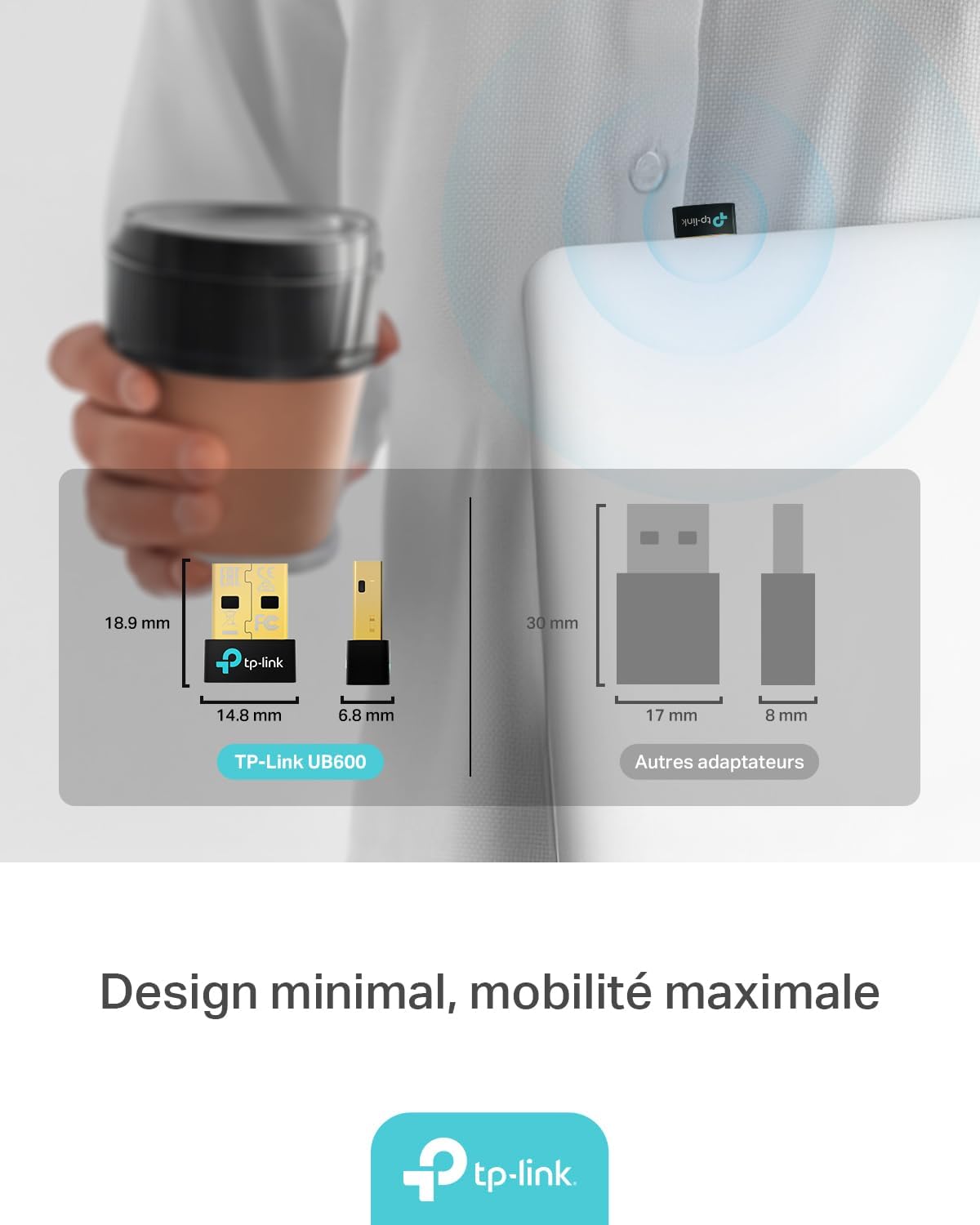
Figure 6: The UB600's minimal design ensures maximum mobility and discreet integration with your device.
7. వారంటీ సమాచారం
వివరణాత్మక వారంటీ సమాచారం కోసం, దయచేసి మీ ఉత్పత్తితో చేర్చబడిన వారంటీ కార్డును చూడండి లేదా అధికారిక TP-లింక్ని సందర్శించండి. webసైట్. వారంటీ నిబంధనలు మరియు షరతులు ప్రాంతాన్ని బట్టి మారవచ్చు.
8. సాంకేతిక మద్దతు
If you require technical assistance or have questions regarding your TP-Link UB600 Bluetooth USB Adapter, please visit the TP-Link support webసైట్:
You can find FAQs, driver downloads, and contact information for customer service on their webసైట్.