
పరిచయం
Welcome to the VIBOX PC Gamer VTX-8 instruction manual. This guide provides essential information for setting up, operating, maintaining, and troubleshooting your new gaming computer. Please read this manual carefully to ensure optimal performance and longevity of your system.
The VIBOX VTX-8 is a high-performance gaming PC equipped with an AMD Ryzen 5 5500 processor, Nvidia RTX 5060 graphics card, 16GB of RAM, and a 1TB SSD, running on Windows 11 Home. It is designed to deliver an immersive gaming experience and handle demanding tasks with ease.

Image: The VIBOX PC Gamer VTX-8 desktop computer, showcasing its sleek white chassis and internal components.
సెటప్
1. అన్బాక్సింగ్ మరియు ప్రారంభ ప్లేస్మెంట్
Carefully remove your VIBOX PC Gamer from its packaging. Ensure all accessories, including the power cable, USB Wi-Fi 6 AX900 and Bluetooth 5.4 adapter, and any included RGB lighting components, are present. Place the PC on a stable, flat surface with adequate ventilation around the chassis.
2. పెరిఫెరల్స్ కనెక్ట్ చేయడం
Connect your monitor(s) to the graphics card's HDMI or DisplayPort outputs. Connect your keyboard and mouse to the available USB ports. Plug in any other peripherals such as a headset or external storage devices.
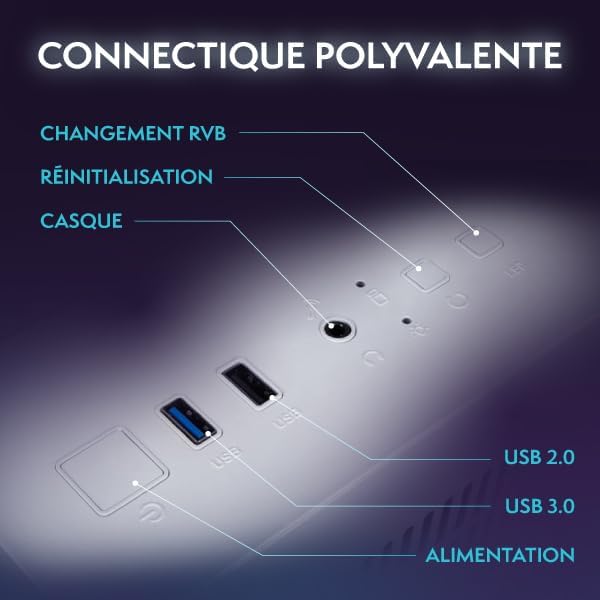
చిత్రం: క్లోజప్ view of the versatile connectivity ports on the VIBOX PC Gamer, including USB 2.0, USB 3.0, headset jack, reset button, and RGB change button.
3. పవర్ కనెక్షన్
Connect the power cable to the PC's power supply unit (PSU) and then to a wall outlet. Ensure the power switch on the PSU (if present) is in the 'ON' position.
4. మొదటి బూట్ మరియు Windows 11 సెటప్
Press the power button on the front of the PC. The system will boot up, and you will be guided through the initial setup process for Windows 11 Home. Follow the on-screen instructions to configure your language, region, network, and user account.
మీ PC ని ఆపరేట్ చేస్తోంది
1. పవర్ ఆన్/ఆఫ్ చేసి పునఃప్రారంభించండి
- పవర్ ఆన్: పవర్ బటన్ను ఒకసారి నొక్కండి.
- షట్ డౌన్: స్టార్ట్ బటన్ క్లిక్ చేసి, ఆపై పవర్ > షట్ డౌన్ క్లిక్ చేయండి.
- పునఃప్రారంభించు: స్టార్ట్ బటన్ క్లిక్ చేసి, ఆపై పవర్ > రీస్టార్ట్ క్లిక్ చేయండి.
2. Windows 11 Home Features
Your VIBOX PC Gamer comes pre-installed with Windows 11 Home, optimized for gaming. Key features include:
- DirectStorage: Enables faster game load times.
- AutoHDR: Automatically enhances game graphics for compatible displays.
- Xbox Game Pass Integration: Seamless access to a library of games.
- Optimized CPU Performance: Enhanced performance for gaming and multitasking.

Image: An illustration highlighting the gaming-centric features of Windows 11 Home, including faster load times, AutoHDR, Xbox Game Pass integration, and optimized CPU performance.
3 నెట్వర్క్ కనెక్టివిటీ
Your PC includes a USB Wi-Fi 6 AX900 and Bluetooth 5.4 adapter for wireless connectivity. To connect to Wi-Fi, click the network icon in the taskbar, select your network, and enter the password. For Bluetooth devices, go to Settings > Bluetooth & devices to pair.
4. Gaming and Multimedia
The VIBOX VTX-8 is designed for gaming, photo editing, and video editing. Utilize the powerful Nvidia RTX 5060 graphics card and AMD Ryzen 5 5500 processor for demanding applications.
నిర్వహణ
1. శుభ్రపరచడం
Regularly clean the exterior of your PC with a soft, dry cloth. For internal components, use compressed air to remove dust from fans and heatsinks. Ensure the PC is powered off and unplugged before cleaning. Pay attention to the air intake and exhaust vents to maintain optimal airflow.
2. సాఫ్ట్వేర్ నవీకరణలు
Keep your Windows operating system and graphics drivers updated. Windows updates can be managed via Settings > Windows Update. Graphics drivers can be downloaded from the official NVIDIA webసైట్.
3. వాయుప్రసరణ మరియు శీతలీకరణ
The VTX-8 features an inverted airflow design and Hex RGB Infinity 120mm fans for efficient cooling. Ensure that the PC's vents are not obstructed to allow proper air circulation. Good airflow is crucial for maintaining system stability and performance, especially during intensive gaming sessions.
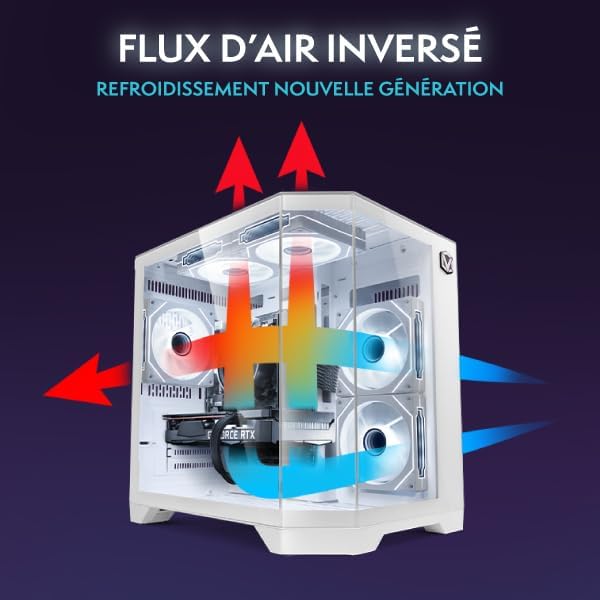
Image: A diagram illustrating the inverted airflow design of the VIBOX PC Gamer, showing how air is drawn in and expelled for next-generation cooling efficiency.

Image: A display of the Hex RGB Infinity 120mm fans, highlighting their customizable multiple colors and RGB modes for personalizing your setup.
ట్రబుల్షూటింగ్
This section addresses common issues you might encounter with your VIBOX PC Gamer.
పవర్ లేదు
- Check if the power cable is securely connected to both the PC and the wall outlet.
- PSU లోని పవర్ స్విచ్ 'ఆన్' స్థానంలో ఉందని నిర్ధారించుకోండి.
- వేరే పవర్ అవుట్లెట్ని ప్రయత్నించండి.
మానిటర్ పై డిస్ప్లే లేదు
- Verify that the monitor is powered on and correctly connected to the graphics card (not the motherboard's integrated graphics ports, if any).
- Check the input source on your monitor.
- వీలైతే వేరే డిస్ప్లే కేబుల్ లేదా మానిటర్ ప్రయత్నించండి.
పనితీరు సమస్యలు / లాగ్
- Ensure all drivers (especially graphics drivers) are up to date.
- సిస్టమ్ వనరులను వినియోగించే నేపథ్య అనువర్తనాల కోసం తనిఖీ చేయండి.
- Monitor CPU and GPU temperatures to prevent thermal throttling. Ensure proper airflow and clean any dust buildup.
Windows Installation Issues (e.g., Bugs, Language Mix)
Some users have reported initial Windows installations being buggy or having mixed languages. If you experience this:
- Immediately run all available Windows Updates. Go to Settings > Windows Update and check for updates repeatedly until no more are found.
- Ensure your display language is correctly set in Settings > Time & Language > Language & Region.
- If issues persist, consider performing a clean reinstallation of Windows 11 Home using official Microsoft media creation tools. This can resolve deep-seated software conflicts.
ఫ్యాన్ శబ్దం
A slight fan noise can be normal, especially under load. However, if you notice an unusual or loud noise from a specific fan:
- Check for any obstructions (cables, dust) that might be hitting the fan blades.
- Ensure fans are securely mounted.
- If the noise is persistent and disruptive, contact VIBOX support.
స్పెసిఫికేషన్లు
| భాగం | వివరాలు |
|---|---|
| మోడల్ పేరు | VTX-8 (V-506) |
| ప్రాసెసర్ | AMD Ryzen 5 5500 (6 Cores, 3.6 GHz base, up to 4.2 GHz max) |
| గ్రాఫిక్స్ కార్డ్ | Nvidia GeForce RTX 5060 (8GB GDDR7, HDMI 2.1, DisplayPort) |
| RAM | 16GB DDR4 (2666 MHz) |
| నిల్వ | 1TB SATA SSD |
| ఆపరేటింగ్ సిస్టమ్ | Windows 11 హోమ్ |
| వైర్లెస్ కనెక్టివిటీ | USB Wi-Fi 6 AX900 & Bluetooth 5.4 (Dual-band support) |
| వైర్డు కనెక్టివిటీ | Ethernet, HDMI, DisplayPort, USB |
| శీతలీకరణ పద్ధతి | Air Cooling (Hex RGB Infinity 120mm Fans) |
| కేస్ డిజైన్ | 3-Panel Tempered Glass |
| కొలతలు (L x W x H) | 35 x 28 x 38 సెం.మీ |
| గరిష్ట డిస్ప్లే రిజల్యూషన్ | 3840x2160 |
| పవర్ ప్లగ్ రకం | Type C/EF (European/Hybrid FR-DE plug) |

Image: The VIBOX PC Gamer VTX-8 case with dimensions indicated: 29.5cm (depth), 22cm (width), 37.5cm (height), and 8cm (base height).
వారంటీ సమాచారం
Your VIBOX PC Gamer VTX-8 comes with a comprehensive warranty:
- భాగాలు: 2 సంవత్సరాలు
- శ్రమ: జీవితకాలం
Please retain your proof of purchase for warranty claims. The warranty covers manufacturing defects and hardware failures under normal use conditions. It does not cover damage caused by misuse, accidents, unauthorized modifications, or improper maintenance.
మద్దతు
For technical assistance, warranty claims, or any questions regarding your VIBOX PC Gamer, please contact VIBOX Gaming customer support. You can typically find contact information on the VIBOX official webసైట్ లేదా మీ రిటైలర్ ద్వారా.
అదనపు వనరులు మరియు ఉత్పత్తి సమాచారం కోసం, సందర్శించండి VIBOX Gaming Store on Amazon.