
1. పరిచయం
Thank you for choosing the Tibuta 10.1-inch Android 14 Tablet, Model E100. This manual provides essential information for the safe and efficient use of your device. Please read it thoroughly before operating your tablet and retain it for future reference.
The Tibuta E100 tablet features a vivid 10.1-inch HD IPS display, a powerful quad-core processor, 6GB RAM, and 128GB of internal storage, expandable up to 512GB. Running on Android 14 with full GMS certification, it offers access to a wide range of applications from the Google Play Store.
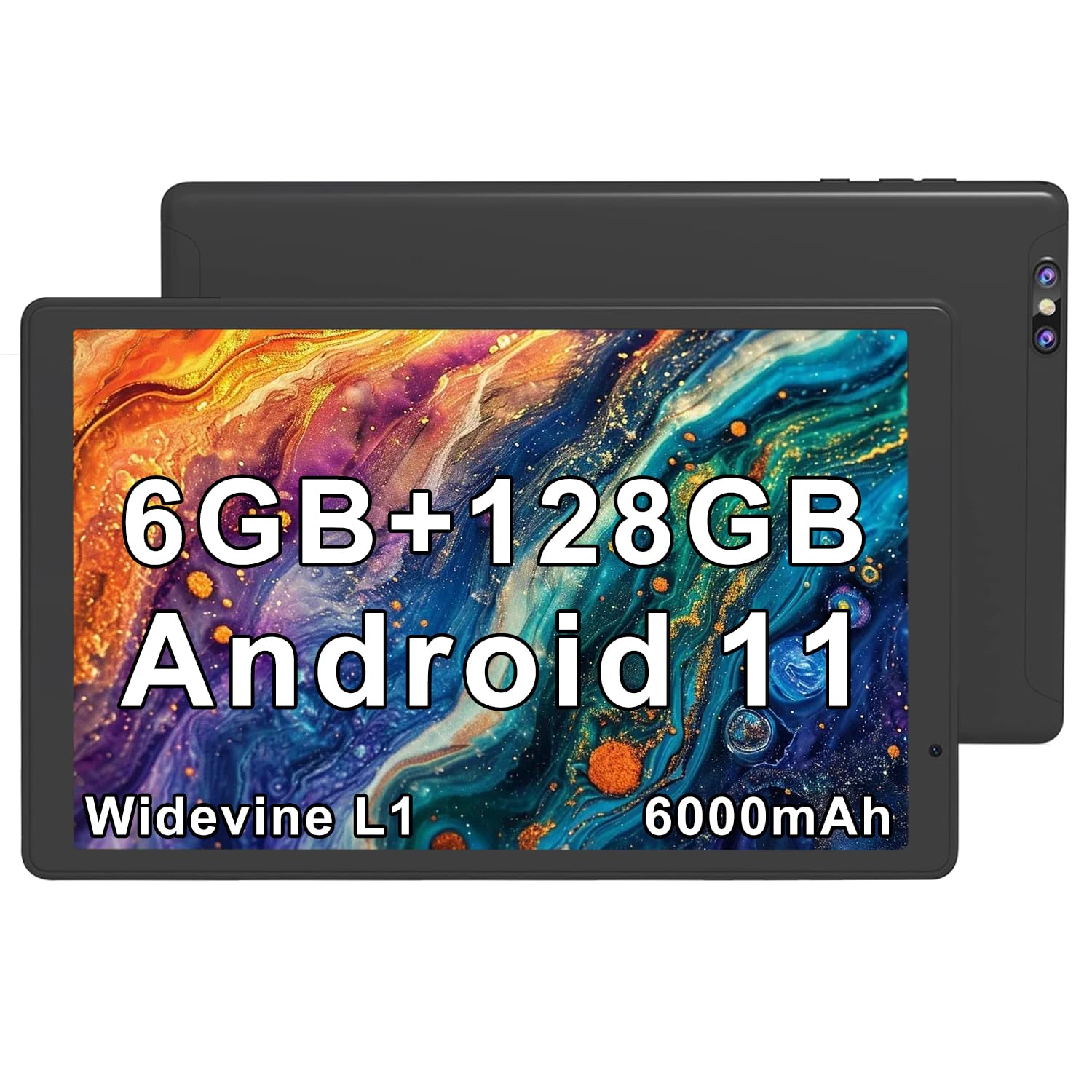
Image 1.1: Tibuta 10.1-inch Android 14 Tablet with included protective case.

Image 1.2: Key performance features of the Tibuta E100 tablet.
2. ప్యాకేజీ విషయాలు
Please check the package contents upon unboxing. If any items are missing or damaged, contact Tibuta customer support.
- Tibuta 10.1-inch Android 14 Tablet (Model E100)
- రక్షణ కేసు
- Charger (USB-C cable and power adapter)
- వినియోగదారు మాన్యువల్ (ఈ పత్రం)
3. Tablet Layout
Familiarize yourself with the physical features and ports of your Tibuta tablet.

చిత్రం 3.1: ముగిసిందిview of tablet ports and buttons.
- 1. 2 MP Front-facing Camera: వీడియో కాల్స్ మరియు సెల్ఫీల కోసం.
- 2. USB-C (2.0) Port: ఛార్జింగ్ మరియు డేటా బదిలీ కోసం.
- 3. 5 MP Rear Camera: ఫోటోలు మరియు వీడియోలు తీయడం కోసం.
- 4. 3.5mm Stereo Jack: హెడ్ఫోన్లు లేదా బాహ్య స్పీకర్లను కనెక్ట్ చేయడానికి.
- 5. Volume Buttons: ఆడియో వాల్యూమ్ను సర్దుబాటు చేయండి.
- 6. పవర్ బటన్: Press and hold to power on/off or restart; press briefly to sleep/wake.
- 7. Built-in Microphone: For voice input during calls or recordings.
- 8. స్పీకర్: ఆడియో అవుట్పుట్ కోసం.
- 9. మైక్రో SD కార్డ్ స్లాట్: For expanding storage (card not included).
- 10. SIM Card Slot: For cellular data connectivity (if applicable to your model).
4. సెటప్
4.1 బ్యాటరీని ఛార్జ్ చేయడం
Before first use, fully charge your tablet.
- Connect the USB-C cable to the tablet's USB-C port.
- కేబుల్ యొక్క మరొక చివరను పవర్ అడాప్టర్కు కనెక్ట్ చేయండి.
- పవర్ అడాప్టర్ను వాల్ అవుట్లెట్లోకి ప్లగ్ చేయండి.
- స్క్రీన్పై ఉన్న బ్యాటరీ చిహ్నం ఛార్జింగ్ స్థితిని సూచిస్తుంది.
గమనిక: Use only the provided charger or a certified compatible charger to avoid damage.
4.2 పవర్ చేయడం ఆన్/ఆఫ్
- పవర్ ఆన్ చేయడానికి: Press and hold the Power Button until the Tibuta logo appears.
- పవర్ ఆఫ్ చేయడానికి: Press and hold the Power Button until the power options menu appears, then select "Power off".
- పునఃప్రారంభించడానికి: Press and hold the Power Button until the power options menu appears, then select "Restart".
- నిద్ర/మేల్కొలపండి: టాబ్లెట్ను నిద్రపోయేలా చేయడానికి లేదా మేల్కొలపడానికి పవర్ బటన్ను క్లుప్తంగా నొక్కండి.
4.3 ప్రారంభ సెటప్
The first time you power on your tablet, you will be guided through the initial setup process.
- మీకు ఇష్టమైన భాషను ఎంచుకోండి.
- Wi-Fi నెట్వర్క్కి కనెక్ట్ చేయండి.
- Sign in with your Google Account or create a new one. This is necessary to download apps from the Google Play Store.
- Follow the on-screen prompts to complete the setup, including setting up screen lock and Google services.
4.4 మైక్రో SD కార్డ్ని చొప్పించడం
You can expand the tablet's storage up to 512GB using a microSD card (sold separately).
- Locate the microSD card slot on the side of the tablet (refer to Image 3.1).
- మైక్రో SD కార్డ్ను స్లాట్లోకి బంగారు కాంటాక్ట్లు క్రిందికి ఉండేలా సున్నితంగా చొప్పించండి, అది స్థానంలో క్లిక్ అయ్యే వరకు.
- The tablet will detect the card and prompt you to format it for use. Follow the on-screen instructions.

Image 4.1: Tablet with visual representation of expandable storage.
4.5 Inserting a SIM Card (for Cellular Models)
If your Tibuta E100 model supports cellular connectivity (5G), you can insert a Nano-SIM card for mobile data.
- Power off the tablet before inserting or removing a SIM card.
- Locate the SIM card slot (refer to Image 3.1).
- Use the provided SIM ejector tool (if included) to open the SIM tray.
- Place the Nano-SIM card into the tray with the gold contacts facing down, ensuring it fits securely.
- ట్రేని జాగ్రత్తగా టాబ్లెట్లోకి తిరిగి చొప్పించండి.
- Power on the tablet. You may need to configure APN settings in the tablet's network settings.
గమనిక: Not all models support cellular connectivity. Refer to your product packaging or specifications for confirmation.
5. మీ టాబ్లెట్ను ఆపరేట్ చేయడం
5.1 ప్రాథమిక నావిగేషన్
- నొక్కండి: Select an item or activate a button.
- నొక్కి పట్టుకోండి: సందర్భోచిత మెనూలను యాక్సెస్ చేయండి లేదా చిహ్నాలను తరలించండి.
- స్వైప్: Scroll through screens, lists, or pages.
- పించ్-టు-జూమ్: చిత్రాలను జూమ్ ఇన్ లేదా అవుట్ చేయండి మరియు web పేజీలు.
5.2 డిస్ప్లే ఫీచర్లు
The 10.1-inch HD IPS display provides crisp visuals and rich colors with a resolution of 1280x800 pixels.
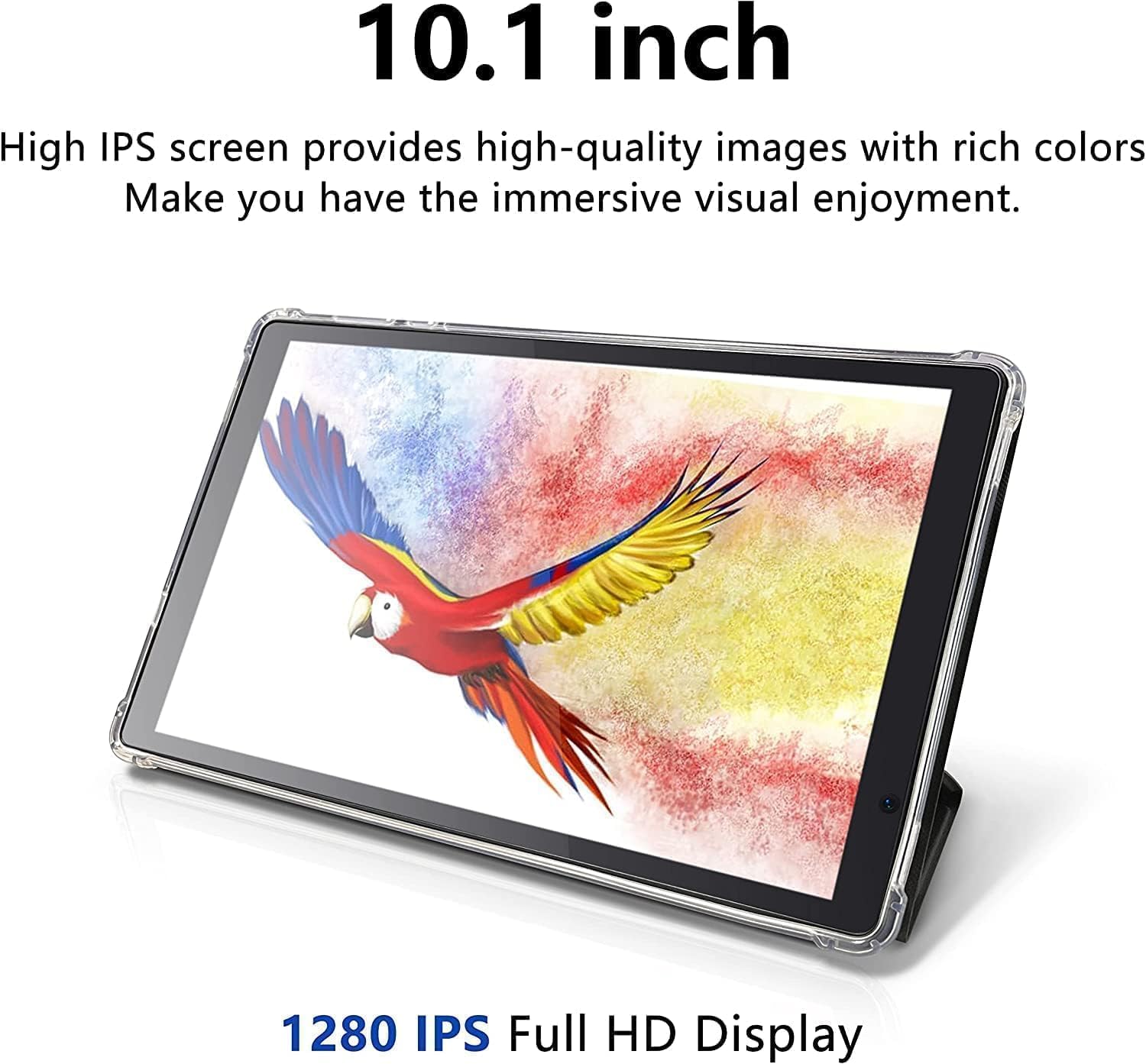
Image 5.1: The tablet's 10.1-inch HD IPS display offers high-quality visuals.
5.3 Wi-Fiకి కనెక్ట్ చేస్తోంది
- వెళ్ళండి సెట్టింగ్లు > నెట్వర్క్ & ఇంటర్నెట్ > Wi-Fi.
- Wi-Fiని టోగుల్ చేయి On.
- జాబితా నుండి మీకు కావలసిన Wi-Fi నెట్వర్క్ను ఎంచుకోండి.
- ప్రాంప్ట్ చేయబడితే పాస్వర్డ్ను నమోదు చేయండి, ఆపై నొక్కండి కనెక్ట్ చేయండి.
5.4 బ్లూటూత్ జత చేయడం
- వెళ్ళండి సెట్టింగ్లు > కనెక్ట్ చేయబడిన పరికరాలు > బ్లూటూత్.
- బ్లూటూత్ను టోగుల్ చేయండి On.
- Ensure the device you want to pair is in pairing mode.
- Select the device from the list of available devices and follow any on-screen prompts to complete pairing.
5.5 కెమెరాలను ఉపయోగించడం
Your tablet is equipped with a 2MP front-facing camera and a 5MP rear camera.
- తెరవండి కెమెరా app from the home screen or app drawer.
- ముందు మరియు వెనుక కెమెరాల మధ్య మారడానికి కెమెరా చిహ్నాన్ని నొక్కండి.
- ఫోటో తీయడానికి లేదా వీడియో రికార్డింగ్ ప్రారంభించడానికి/ఆపడానికి షట్టర్ బటన్ను నొక్కండి.

Image 5.2: Tablet showcasing dual camera capabilities for capturing moments.
5.6 నిల్వ నిర్వహణ
The tablet has 128GB of internal storage. You can view and manage storage usage in సెట్టింగ్లు > నిల్వ.
- స్థలాన్ని ఖాళీ చేయండి: అనవసరంగా తొలగించండి files, uninstall unused apps, or move files to your microSD card.
- మైక్రో SD కార్డ్: Ensure your microSD card is properly formatted and mounted for use.
5.7 Downloading Apps
Access millions of apps, games, movies, and books through the pre-installed Google Play Store.
- Ensure you are connected to Wi-Fi and signed into your Google Account.
- తెరవండి ప్లే స్టోర్ అనువర్తనం.
- కోసం వెతకండి the desired app and tap ఇన్స్టాల్ చేయండి.
5.8 బ్యాటరీ నిర్వహణ
6000mAh బ్యాటరీ పొడిగించిన వినియోగాన్ని అందిస్తుంది. బ్యాటరీ జీవితాన్ని ఆప్టిమైజ్ చేయడానికి:
- స్క్రీన్ ప్రకాశాన్ని తగ్గించండి.
- Turn off Wi-Fi, Bluetooth, or cellular data when not in use.
- నేపథ్యంలో నడుస్తున్న ఉపయోగించని అప్లికేషన్లను మూసివేయండి.
- బ్యాటరీ సేవర్ మోడ్ను ప్రారంభించండి సెట్టింగ్లు > బ్యాటరీ.

Image 5.3: Visual representation of the tablet's extended battery life for various activities.
6. నిర్వహణ
6.1 టాబ్లెట్ను శుభ్రపరచడం
- స్క్రీన్ మరియు బాడీని శుభ్రం చేయడానికి మృదువైన, మెత్తటి బట్టను ఉపయోగించండి.
- Do not use liquid cleaners, aerosols, or abrasive materials.
- తేమ రంధ్రాలలోకి రాకుండా చూసుకోండి.
6.2 సాఫ్ట్వేర్ నవీకరణలు
Keep your tablet's software up to date for optimal performance and security.
- వెళ్ళండి సెట్టింగ్లు > వ్యవస్థ > సిస్టమ్ నవీకరణ.
- Check for available updates and follow the on-screen instructions to install them.
6.3 నిల్వ నిర్వహణ
Regularly manage your tablet's storage to maintain performance.
- క్రమానుగతంగా రీview and delete old photos, videos, and documents.
- మీరు ఇకపై ఉపయోగించని యాప్లను అన్ఇన్స్టాల్ చేయండి.
- యాప్ల కోసం కాష్ డేటాను క్లియర్ చేయండి సెట్టింగ్లు > యాప్లు > [యాప్ పేరు] > నిల్వ & కాష్.
7. ట్రబుల్షూటింగ్
If you encounter issues with your tablet, try the following solutions before contacting support.
| సమస్య | పరిష్కారం |
|---|---|
| టాబ్లెట్ పవర్ ఆన్ అవ్వదు. | బ్యాటరీ ఛార్జ్ అయ్యిందని నిర్ధారించుకోండి. ఛార్జర్ను కనెక్ట్ చేసి, మళ్లీ పవర్ ఆన్ చేయడానికి ప్రయత్నించే ముందు కొన్ని నిమిషాలు వేచి ఉండండి. |
| Tablet is unresponsive. | Perform a force restart by pressing and holding the Power Button for approximately 10-15 seconds until the tablet restarts. |
| Wi-Fiకి కనెక్ట్ చేయడం సాధ్యపడదు. | Check if Wi-Fi is enabled in Settings. Ensure the Wi-Fi password is correct. Restart your Wi-Fi router and the tablet. |
| యాప్లు క్రాష్ అవుతున్నాయి లేదా నెమ్మదిగా నడుస్తున్నాయి. | Close background apps. Clear app cache (Settings > Apps > [App Name] > Storage & cache). Ensure sufficient free storage space. Restart the tablet. |
| MicroSD card not detected. | Ensure the card is inserted correctly. Try reinserting the card. Check if the card is damaged by testing it in another device. |
8. స్పెసిఫికేషన్లు
Detailed technical specifications for the Tibuta 10.1-inch Android 14 Tablet (Model E100).
| ఫీచర్ | వివరాలు |
|---|---|
| బ్రాండ్ | టిబుటా |
| మోడల్ పేరు | E100 |
| ఆపరేటింగ్ సిస్టమ్ | ఆండ్రాయిడ్ 14 |
| ప్రాసెసర్ బ్రాండ్ | Allwinner (Quad-core) |
| RAM మెమరీ ఇన్స్టాల్ చేయబడింది | 6 GB |
| మెమరీ స్టోరేజ్ కెపాసిటీ | 128 GB (Expandable up to 512 GB via microSD) |
| స్క్రీన్ పరిమాణం | 10.1 అంగుళాలు |
| ప్రదర్శన రకం | LCD, HD IPS |
| డిస్ప్లే రిజల్యూషన్ గరిష్టం | 1280*800 పిక్సెల్లు |
| బ్యాటరీ సెల్ రకం | లిథియం పాలిమర్ |
| Lithium-Battery Energy Content | 6000 మిల్లీampముందు గంట (mAh) |
| ఫ్రంట్ కెమెరా | 2 ఎంపీ |
| వెనుక కెమెరా | 5 ఎంపీ |
| వైర్లెస్ టెక్నాలజీ | బ్లూటూత్, వై-ఫై |
| సెల్యులార్ టెక్నాలజీ | 5G (Note: Requires compatible SIM card and service plan) |
| Item Dimensions L x W x Thickness | 20"లీ x 10"వా x 3"వ |
| అంతర్నిర్మిత మీడియా | ఛార్జర్ |
9. వారంటీ సమాచారం
The Tibuta 10.1-inch Android 14 Tablet (Model E100) comes with a 1-సంవత్సరం పరిమిత వారంటీ కొనుగోలు చేసిన తేదీ నుండి. ఈ వారంటీ సాధారణ ఉపయోగంలో తయారీ లోపాలు మరియు పనితనాన్ని కవర్ చేస్తుంది. దుర్వినియోగం, ప్రమాదాలు, అనధికార మార్పులు లేదా సాధారణ అరిగిపోవడం వల్ల కలిగే నష్టాన్ని ఇది కవర్ చేయదు.
Please retain your proof of purchase for warranty claims. For full warranty terms and conditions, please refer to the official Tibuta webసైట్ లేదా కస్టమర్ సపోర్ట్ని సంప్రదించండి.
10. కస్టమర్ మద్దతు
For any questions, technical assistance, or warranty inquiries regarding your Tibuta tablet, please contact our dedicated customer support team.
- ఆన్లైన్ మద్దతు: Visit the official Tibuta webతరచుగా అడిగే ప్రశ్నలు, ట్రబుల్షూటింగ్ గైడ్లు మరియు సంప్రదింపు ఫారమ్ల కోసం సైట్.
- ఇమెయిల్ మద్దతు: Refer to your product packaging or the Tibuta webకస్టమర్ సపోర్ట్ ఇమెయిల్ చిరునామా కోసం సైట్.
- అమెజాన్ స్టోర్: మీరు కూడా సందర్శించవచ్చు Tibuta Store on Amazon ఉత్పత్తి సమాచారం మరియు మద్దతు ఎంపికల కోసం.