1. పరిచయం
The Digi Connectport TS 8 is a robust serial to Ethernet terminal server designed to connect multiple serial devices to an IP network. This device facilitates remote access, management, and control of serial equipment over standard Ethernet infrastructure, enabling efficient data communication and device integration. It supports 8 serial ports, allowing for centralized management of various serial-based systems.
This manual provides essential information for the proper installation, configuration, operation, and maintenance of your Digi Connectport TS 8.
2. సెటప్
2.1 అన్ప్యాకింగ్ మరియు తనిఖీ
Carefully remove the Digi Connectport TS 8 from its packaging. Inspect the device for any signs of physical damage. Ensure all components listed in the packing slip are present. If any items are missing or damaged, contact your vendor immediately.
2.2 భౌతిక సంబంధాలు
Before powering on the device, establish all necessary physical connections.
- పవర్ కనెక్షన్: Connect the provided power adapter to the device's power input and then to a suitable power outlet.
- ఈథర్నెట్ కనెక్షన్: Connect a standard Ethernet cable from your network switch or router to the Ethernet port on the Digi Connectport TS 8.
- Serial Device Connections: Connect your serial devices to the 8 serial ports on the device using appropriate serial cables.
- Console Port (Optional): For initial configuration or direct access, connect a serial cable from your computer's serial port to the device's console port.
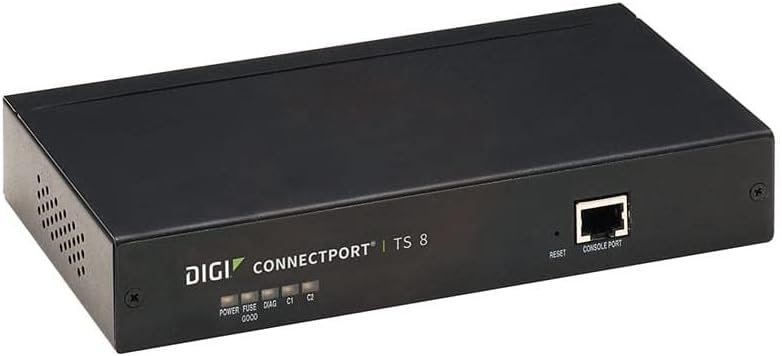
Figure 1: Front panel of the Digi Connectport TS 8. Visible elements include the product branding, five LED indicators for power, fuse status, diagnostics, and two communication channels (C1, C2). A reset button and a console port are also present on the right side of the front panel.
2.3 ప్రారంభ కాన్ఫిగరేషన్
After connecting the device, power it on. The device can typically be configured via a web interface or through the console port. Refer to the device's network configuration guide for detailed instructions on accessing the web interface or using the command-line interface via the console port to set up network parameters and serial port settings.
3. ఆపరేటింగ్ సూచనలు
3.1 పవర్ చేయడం ఆన్/ఆఫ్
- పవర్ ఆన్: Connect the power adapter. The "POWER" LED indicator on the front panel should illuminate.
- పవర్ ఆఫ్: Disconnect the power adapter from the device or the power outlet.
3.2 స్థితి సూచికలు
The front panel features several LED indicators to provide operational status at a glance:
- శక్తి: పరికరం శక్తిని అందుకుంటుందని సూచిస్తుంది.
- FUSE GOOD: Indicates the internal fuse is operational.
- డయాగ్: Diagnostic indicator, typically flashes during boot-up and indicates status or errors.
- C1, C2: Communication indicators for specific serial ports or internal processes. Refer to the detailed product documentation for specific interpretations.
3.3 Accessing Serial Devices
Once configured, serial devices connected to the Connectport TS 8 can be accessed over the network using various methods, including:
- TCP/IP Sockets: Direct TCP or UDP connections to specific port numbers associated with each serial port.
- Serial over IP (SoIP) Software: Using specialized software on a host computer to create virtual serial ports that map to the physical serial ports on the Connectport TS 8.
- టెల్నెట్/SSH: For command-line access to the device itself or to serial devices configured for raw data passthrough.
4. నిర్వహణ
4.1 ఫర్మ్వేర్ నవీకరణలు
తయారీదారుని కాలానుగుణంగా తనిఖీ చేయండి website for firmware updates. Firmware updates can provide new features, performance enhancements, and security patches. Follow the instructions provided with the firmware update package carefully to avoid damaging the device.
4.2 శుభ్రపరచడం
Ensure the device is powered off and disconnected from all power sources before cleaning. Use a soft, dry cloth to wipe the exterior of the device. Do not use liquid cleaners or aerosol sprays directly on the unit.
4.3 పర్యావరణ పరిగణనలు
Operate the device within its specified temperature and humidity ranges. Ensure adequate ventilation around the unit to prevent overheating. Avoid exposing the device to direct sunlight, excessive dust, or moisture.
5. ట్రబుల్షూటింగ్
This section provides solutions to common issues you might encounter with the Digi Connectport TS 8.
5.1 శక్తి లేదు
- లక్షణం: పవర్ LED ఆఫ్ చేయబడింది.
- చర్య: Verify the power adapter is securely connected to both the device and a working power outlet. Check the power outlet with another device. If the FUSE GOOD LED is off, the internal fuse may need inspection by qualified personnel.
5.2 నెట్వర్క్ కనెక్టివిటీ లేదు
- లక్షణం: Cannot access the device via its IP address or network tools.
- చర్య: Ensure the Ethernet cable is properly connected. Check the link/activity LEDs on the Ethernet port. Verify network settings (IP address, subnet mask, gateway) are correctly configured on the device and match your network. Ping the device's IP address from a computer on the same network.
5.3 Serial Device Not Responding
- లక్షణం: Data is not being transmitted or received from a connected serial device.
- చర్య: Verify the serial cable connection. Check the serial port configuration (baud rate, data bits, parity, stop bits, flow control) on both the Connectport TS 8 and the serial device. Ensure the correct serial port is being accessed over the network.
5.4 పరికర రీసెట్
The device features a reset button on the front panel. Pressing this button typically initiates a soft reboot. For a factory reset, consult the detailed product documentation, as this often involves a specific sequence or holding the button for an extended period, which will erase all custom configurations.
6. స్పెసిఫికేషన్లు
| ఫీచర్ | వివరాలు |
|---|---|
| మోడల్ సంఖ్య | 70002323 |
| ఉత్పత్తి కొలతలు | 10.5 x 7.75 x 3.75 అంగుళాలు |
| వస్తువు బరువు | 2.73 పౌండ్లు (1.24 కిలోగ్రాములు) |
| పోర్టుల సంఖ్య | 8 (Serial) |
| కనెక్టివిటీ టెక్నాలజీ | ఈథర్నెట్ |
| అనుకూల పరికరాలు | Personal Computer, Serial Devices |
| ఆపరేటింగ్ సిస్టమ్ | Digi's proprietary firmware |
| భద్రతా ప్రోటోకాల్ | WPS (Wireless Protected Setup - Note: This might be a misclassification from Amazon's data for a wired device, but I'll include it as provided in the source data. For a serial server, this usually refers to network security features.) |
| తయారీదారు | డిజి ఇంటర్నేషనల్ |
7. వారంటీ మరియు మద్దతు
7.1 ఉత్పత్తి వారంటీ
This product is covered by a limited warranty provided by the manufacturer, DIGI INTERNATIONAL. For specific warranty terms, duration, and conditions, please refer to the warranty card included with your product or visit the official DIGI INTERNATIONAL webవారంటీ క్లెయిమ్ల కోసం మీ కొనుగోలు రుజువును ఉంచండి.
7.2 సాంకేతిక మద్దతు
For technical assistance, troubleshooting beyond this manual, or inquiries regarding product functionality, please contact DIGI INTERNATIONAL customer support. Support contact information can typically be found on the manufacturer's website or in the documentation accompanying the product.
Before contacting support, please have your product model number (70002323) and a detailed description of the issue ready.


