1. పరిచయం
This manual provides instructions for the Canon PIXMA MX 897 Ink All-in-One Printer. The device integrates print, scan, copy, and fax functionalities, along with network and Wi-Fi capabilities. It features a 3.0-inch LCD screen for user interaction.
ముఖ్య లక్షణాలు ఉన్నాయి:
- ISO standard print speed (A4): up to 12.5 images per minute (ipm) for monochrome and 9.3 ipm for color.
- Capable of printing a 10 x 15 cm borderless photo in approximately 20 seconds.
- Functions: Print, Scan, Copy, Fax, Networkable, Wi-Fi, and Card Direct.
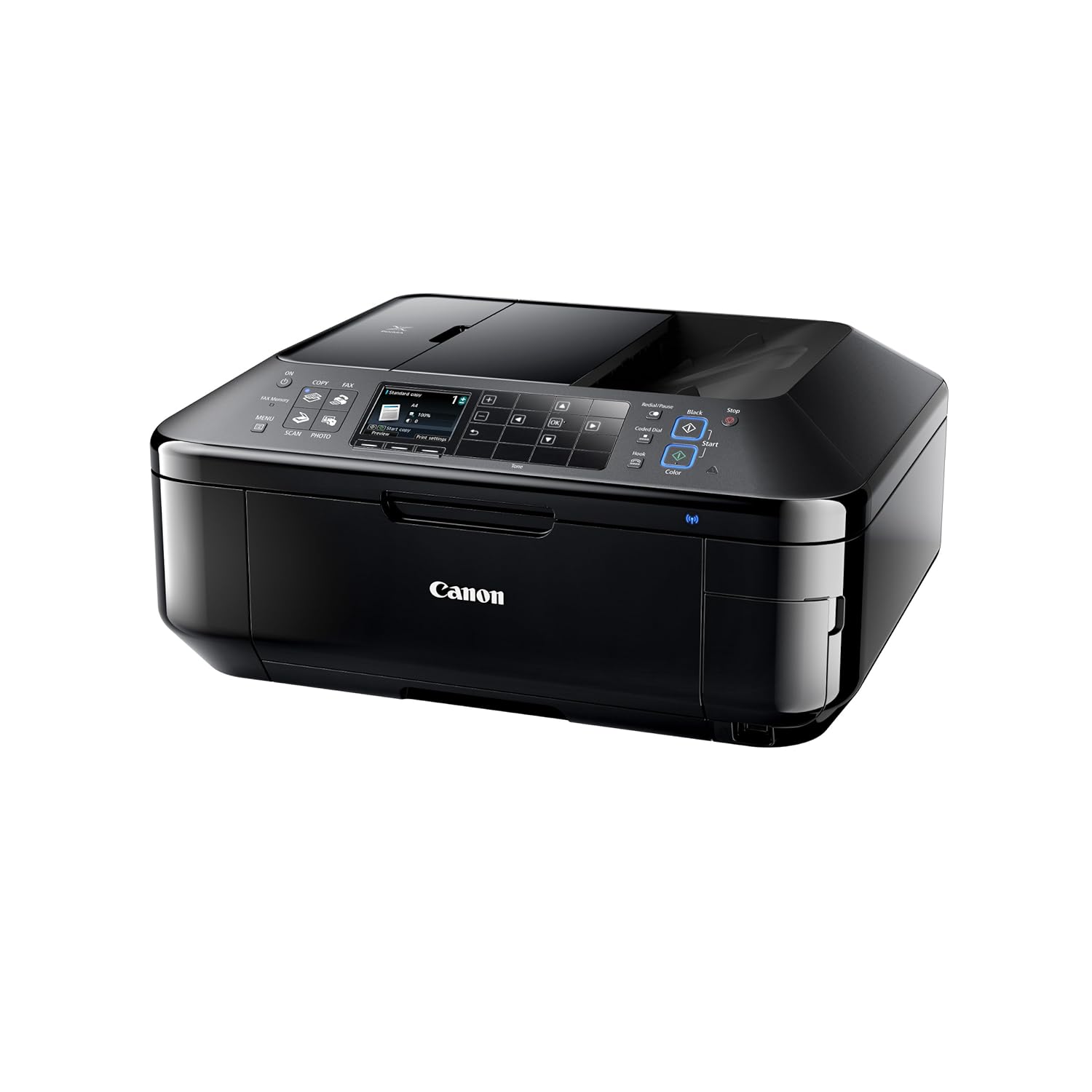
మూర్తి 1: ముందు view of the Canon PIXMA MX 897 All-in-One Printer. This image displays the printer's overall design, including the control panel and paper output tray.
2. సెటప్
Follow these general steps to set up your Canon PIXMA MX 897 printer. Refer to the quick start guide included in the packaging for detailed, step-by-step instructions.
- అన్ప్యాకింగ్: Carefully remove the printer from its packaging and remove all protective materials and tapes.
- పవర్ కనెక్షన్: Connect the power cord to the printer and then to a power outlet. Turn on the printer.
- ఇంక్ కార్ట్రిడ్జ్ ఇన్స్టాలేషన్: Open the printer cover and install the compatible ink cartridges (PG740 and CL741) into their designated slots. Ensure they are securely latched.
- పేపర్ లోడ్ అవుతోంది: Load appropriate paper (e.g., A4 plain paper or glossy photo paper) into the paper tray. Adjust the paper guides to fit the paper size.
- Initial Setup on LCD: Follow the on-screen instructions on the 3.0-inch LCD panel to select language, region, and perform print head alignment.
- కనెక్టివిటీ సెటప్:
- Wi-Fi కనెక్షన్: Navigate to the Wi-Fi setup menu on the LCD panel. Select your wireless network and enter the password.
- USB కనెక్షన్: USB కేబుల్ ఉపయోగించి ప్రింటర్ను మీ కంప్యూటర్కు కనెక్ట్ చేయండి (చేర్చబడలేదు).
- డ్రైవర్ ఇన్స్టాలేషన్: Install the printer drivers and software on your computer from the provided CD-ROM or by downloading them from the official Canon webసైట్.
3. ఆపరేటింగ్ సూచనలు
The Canon PIXMA MX 897 features a dual-function panel and a 3.0-inch LCD screen for intuitive operation across its various functions.
3.1. కంట్రోల్ ప్యానెల్ ఓవర్view
The printer's control panel utilizes an alternating keypad interface on a single touch panel. This design displays only the keys relevant to the specific function currently in use, enhancing user efficiency.

మూర్తి 2: క్లోజ్-అప్ view of the Canon PIXMA MX 897 control panel and paper output tray. The image highlights the touch-sensitive buttons and the integrated LCD screen.
3.2. ప్రింటింగ్
To print documents or photos:
- ప్రింటర్ ఆన్ చేయబడి, మీ కంప్యూటర్ లేదా నెట్వర్క్కి కనెక్ట్ చేయబడిందని నిర్ధారించుకోండి.
- Load the desired paper type and size into the paper tray. The printer supports A4 and glossy photo paper.
- మీ కంప్యూటర్ నుండి, మీరు ప్రింట్ చేయాలనుకుంటున్న డాక్యుమెంట్ లేదా ఇమేజ్ను తెరవండి.
- Select "Print" from the application's menu. Adjust print settings such as paper size, type, and print quality in the printer driver dialog box.
- ముద్రణ ప్రక్రియను ప్రారంభించడానికి "ముద్రించు" క్లిక్ చేయండి.
The printer offers ISO standard print speeds of up to 12.5 ipm for monochrome and 9.3 ipm for color A4 documents. Borderless 10 x 15 cm photos can be printed in approximately 20 seconds.

Figure 3: The Canon PIXMA MX 897 printer actively printing a document. Paper is visible exiting the output tray, demonstrating the printing function.
3.3. Scanning and Copying
The printer is equipped with a fully integrated Auto Document Feeder (ADF) that can hold up to 35 sheets of regular A4 paper for scanning and copying tasks.
- స్కానింగ్: Place documents on the scanner glass or in the ADF. Use the "Scan" function on the control panel or initiate scanning from your computer using the installed software.
- కాపీ చేస్తోంది: Place documents on the scanner glass or in the ADF. Select "Copy" on the control panel, adjust settings like number of copies or quality, and press the start button.
3.4. Faxing
To send or receive faxes, ensure the printer is connected to a telephone line. Use the "Fax" function on the control panel to dial numbers and manage fax settings.
3.5. PIXMA Cloud Link
The PIXMA Cloud Link feature allows direct access to online content without a computer:
- Online Photo Albums: Print photos directly from supported online photo services.
- Web టెంప్లేట్లు: Access and print various stationery templates directly from the Canon server.
- గూగుల్ క్లౌడ్ ప్రింట్: నుండి ప్రింట్ చేయండి web-connected devices using Google Cloud Print.
4. నిర్వహణ
క్రమం తప్పకుండా నిర్వహణ మీ ప్రింటర్ యొక్క అత్యుత్తమ పనితీరును మరియు దీర్ఘాయువును నిర్ధారిస్తుంది.
4.1. ఇంక్ కార్ట్రిడ్జ్ భర్తీ
When an ink cartridge runs low or is empty, a message will appear on the LCD screen. Replace cartridges with genuine Canon PG740 (Black) and CL741 (Color) cartridges. Follow the on-screen instructions or refer to the full manual for detailed replacement steps.
4.2. శుభ్రపరచడం
- బాహ్య: ప్రింటర్ యొక్క బాహ్య భాగాన్ని మృదువైన, d శుభ్రముపరచుతో తుడవండి.amp, మెత్తటి వస్త్రం.
- అంతర్గత: Periodically clean the paper feed rollers and print head using the utility functions available through the printer's control panel or computer software.
- స్కానర్ గ్లాస్: Clean the scanner glass with a soft, lint-free cloth and a non-abrasive glass cleaner to prevent streaks on scanned or copied documents.
4.3. Print Head Alignment and Nozzle Check
If print quality deteriorates (e.g., blurry text, incorrect colors), perform a print head alignment and nozzle check from the printer's maintenance menu to resolve common issues.
5. ట్రబుల్షూటింగ్
This section addresses common issues you might encounter with your Canon PIXMA MX 897 printer.
5.1. ప్రింటర్ స్పందించడం లేదు
- శక్తిని తనిఖీ చేయండి: ప్రింటర్ ప్లగిన్ చేయబడిందని మరియు పవర్ ఆన్ చేయబడిందని నిర్ధారించుకోండి.
- కనెక్షన్లను తనిఖీ చేయండి: Verify that the USB cable is securely connected to both the printer and the computer, or that the Wi-Fi connection is active and stable.
- Printer Status: Check the printer's LCD screen for any error messages.
- పరికరాలను పునఃప్రారంభించండి: Turn off the printer and computer, then restart them.
5.2. ముద్రణ నాణ్యత సమస్యలు
- Low Ink: ఇంక్ స్థాయిలను తనిఖీ చేయండి మరియు ఏవైనా ఖాళీ లేదా తక్కువ కార్ట్రిడ్జ్లను భర్తీ చేయండి.
- నాజిల్ క్లాగ్: Perform a nozzle check and print head cleaning from the maintenance menu.
- ప్రింట్ హెడ్ అలైన్మెంట్: If prints are misaligned, perform print head alignment.
- పేపర్ రకం: Ensure the correct paper type is selected in the print settings.
5.3. కాగితం జామ్లు
- మార్గాన్ని క్లియర్ చేయండి: Carefully remove any jammed paper from the paper input tray, output tray, or inside the printer.
- సరిగ్గా లోడ్ చేయండి: కాగితం సరిగ్గా లోడ్ చేయబడిందని మరియు ఎక్కువగా నింపబడలేదని నిర్ధారించుకోండి.
- Paper Condition: Use new, uncreased paper.
5.4. నెట్వర్క్ కనెక్టివిటీ సమస్యలు
- రూటర్: మీ Wi-Fi రూటర్ ఆన్లో ఉందని మరియు సరిగ్గా పనిచేస్తుందని నిర్ధారించుకోండి.
- సిగ్నల్ బలం: Check the Wi-Fi signal strength on the printer's LCD.
- తిరిగి కాన్ఫిగర్ చేయండి: Re-enter Wi-Fi settings on the printer if necessary.
6. స్పెసిఫికేషన్లు
| ఫీచర్ | వివరాలు |
|---|---|
| మోడల్ సంఖ్య | PIXMA MX 897 |
| తయారీదారు | కానన్ |
| ఫారమ్ ఫ్యాక్టర్ | All-in-One (Print, Scan, Copy, Fax) |
| ప్రింటింగ్ టెక్నాలజీ | ఇంక్జెట్ |
| ప్రింటర్ అవుట్పుట్ | రంగు |
| గరిష్ట ముద్రణ వేగం (రంగు) | 4 ppm (నిమిషానికి పేజీలు) |
| ISO Standard Print Speed (Mono) | 12.5 ipm (images per minute) |
| ISO Standard Print Speed (Colour) | 9.3 ipm (images per minute) |
| Borderless Photo Print (10x15cm) | సుమారు 20 సెకన్లు |
| డ్యూప్లెక్స్ ప్రింటింగ్ | ఆటోమేటిక్ |
| స్కానర్ రకం | షీట్ఫెడ్ |
| Auto Document Feeder (ADF) Capacity | Up to 35 sheets (A4) |
| నియంత్రణ పద్ధతి | Touch (Dual function panel, 3.0-inch LCD) |
| కనెక్టివిటీ టెక్నాలజీ | USB, Wi-Fi |
| ప్రత్యేక ఫీచర్ | నెట్వర్క్-సిద్ధంగా ఉంది |
| అనుకూలమైన గుళికలు | PG740 (Black), CL741 (Color) |
| మద్దతు ఉన్న ప్రింట్ మీడియా | Glossy photo paper, A4 |
| ఉత్పత్తి కొలతలు (LxWxH) | 21.8 x 49.1 x 21.8 సెం.మీ |
| వస్తువు బరువు | 11.7 కిలోలు (11 కిలోలు 700 గ్రా) |
| చేర్చబడిన భాగాలు | ప్రింటర్ |
7. వారంటీ మరియు మద్దతు
7.1. వారంటీ సమాచారం
The Canon PIXMA MX 897 Ink All-in-One Printer comes with a 2 సంవత్సరం వారంటీవారంటీ క్లెయిమ్ల కోసం దయచేసి మీ కొనుగోలు రుజువును ఉంచుకోండి.
7.2. కస్టమర్ మద్దతు
For technical assistance, troubleshooting beyond this manual, or warranty service, please contact Canon customer support. Refer to the official Canon website or the documentation included with your product for contact details specific to your region.
Additional resources may include:
- Canon Official Support Webసైట్ (ఉదాampలింక్, వాస్తవ లింక్ ప్రాంతం వారీగా మారవచ్చు)
- ఆన్లైన్ FAQలు మరియు నాలెడ్జ్ బేస్.
- డ్రైవర్ మరియు సాఫ్ట్వేర్ డౌన్లోడ్లు.


