1. పరిచయం
This manual provides detailed instructions for the setup, operation, maintenance, and troubleshooting of your LUXUL XWC-1000 Stand Alone Wireless Controller. Please read this manual thoroughly before using the device to ensure proper functionality and to maximize its performance.
2. ఉత్పత్తి ముగిసిందిview
The LUXUL XWC-1000 is a stand-alone wireless controller designed to manage Luxul access points within a network environment. It provides centralized control for simplified network management.

Figure 2.1: The LUXUL XWC-1000 Stand Alone Wireless Controller unit.

Figure 2.2: Packaging detail showing the LUXUL XWC-1000 Wireless Controller model name.
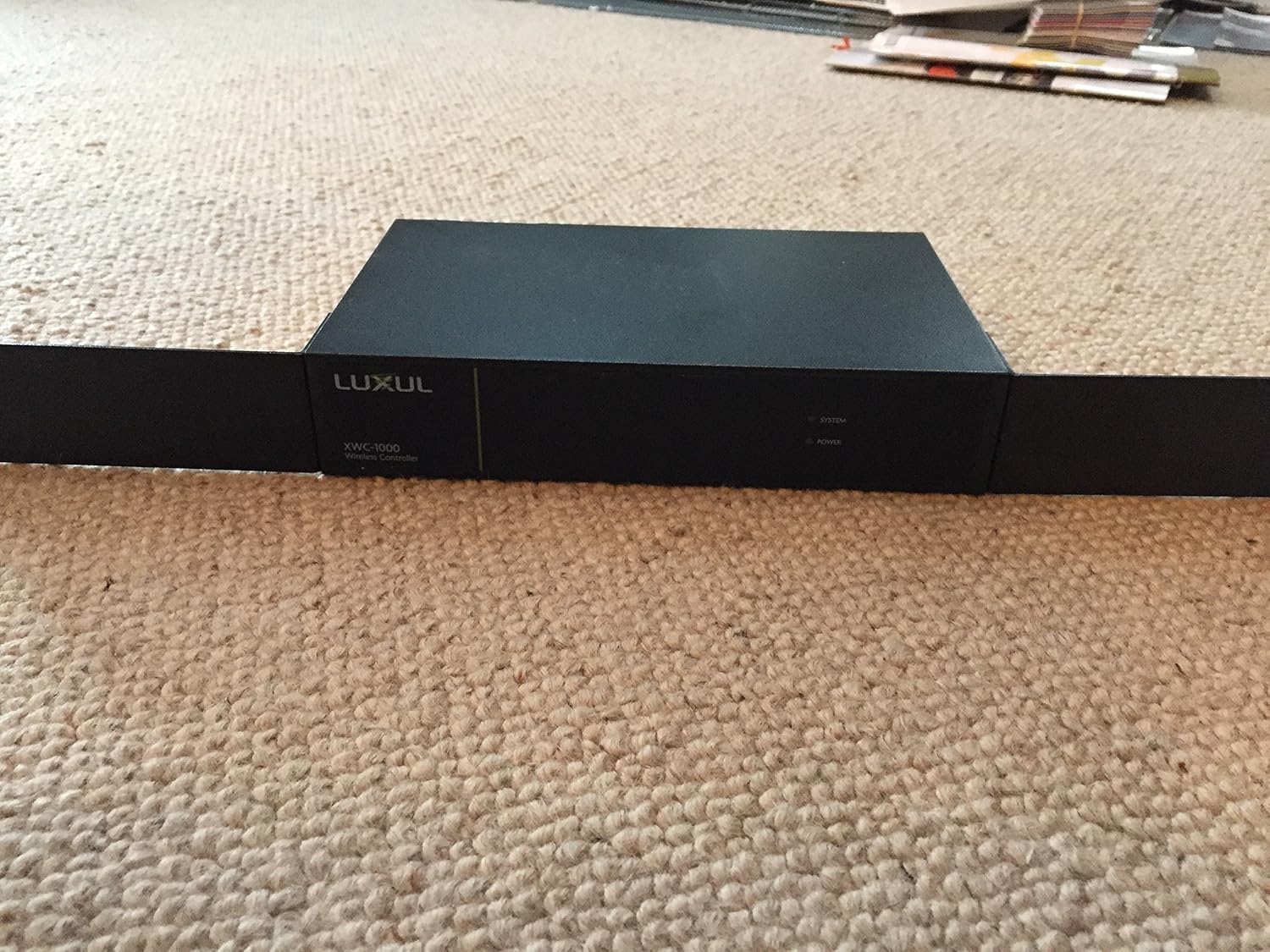
Figure 2.3: Product label displaying essential information including Model No.: XWC-1000, Vers. 2, default IP Address: 192.168.0.19, User Name: admin, Password: admin, Power: 100-240VAC 50/60Hz 0.6A. Serial numbers are XWC100010151097 and A4134E294581.

Figure 2.4: Front panel of the controller, showing SYSTEM, POWER, and RESET indicators, along with the LAN port and its LINK/ACTIVITY and 1000Mbps status lights.
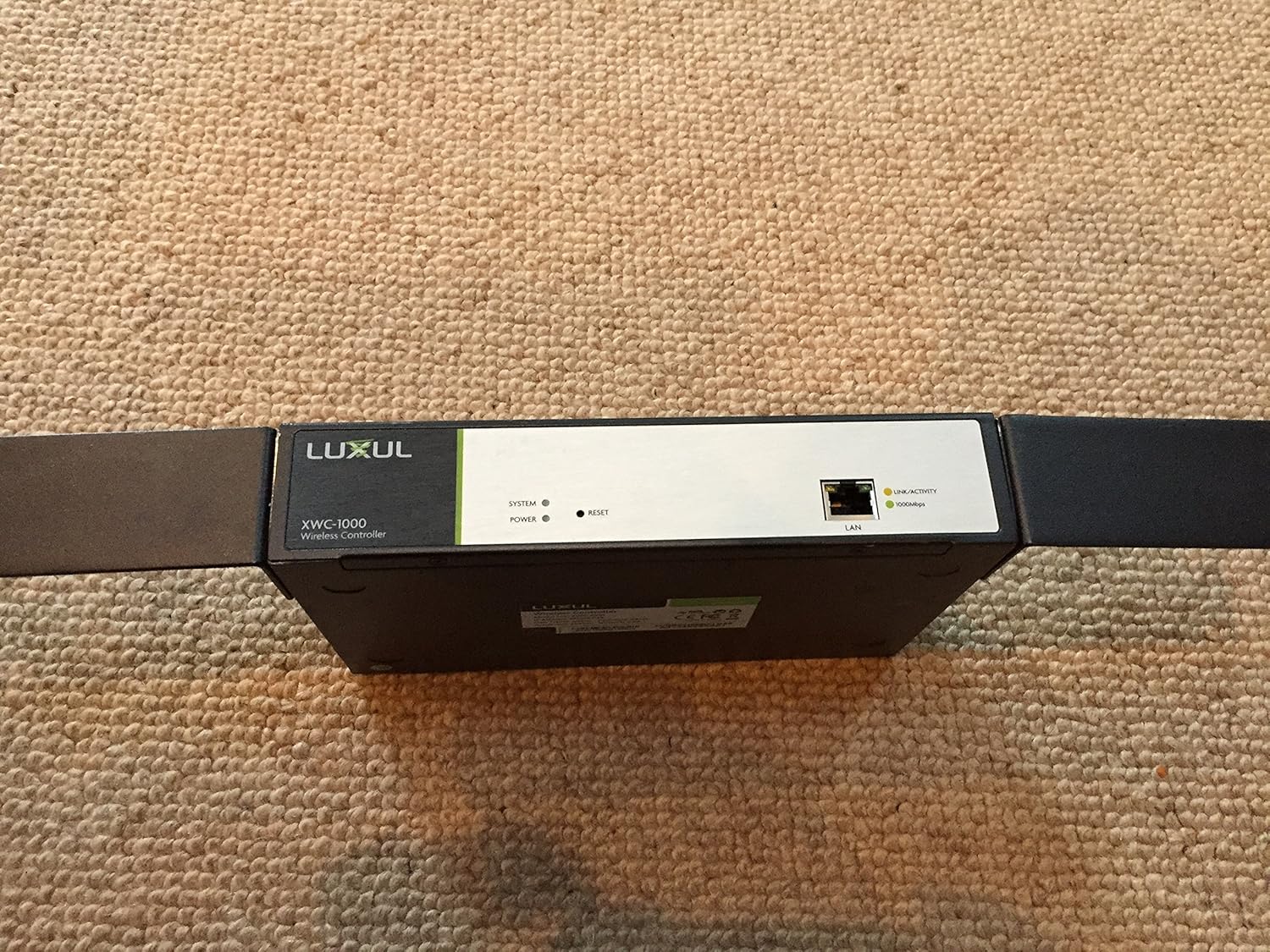
Figure 2.5: Close-up of the LAN port area, highlighting the BLUE/GREEN indicator switch, LAN port, and RESET button, along with LINK/ACTIVITY and 1000Mbps indicators.
3. సెటప్
- అన్ప్యాకింగ్: Carefully remove the XWC-1000 controller from its packaging. Ensure all components are present.
- పవర్ కనెక్షన్: Connect the provided power adapter to the XWC-1000 and then to a suitable power outlet (100-240VAC, 50/60Hz). The POWER indicator light should illuminate.
- నెట్వర్క్ కనెక్షన్: Connect an Ethernet cable from your network router or switch to the LAN port on the XWC-1000. The LINK/ACTIVITY and 1000Mbps indicators should show network activity.
- ప్రారంభ యాక్సెస్: To access the controller's web ఇంటర్ఫేస్, ఓపెన్ a web browser and navigate to the default IP address: 192.168.0.19. Use the default credentials: User Name: నిర్వాహకుడు, పాస్వర్డ్: నిర్వాహకుడు. It is highly recommended to change the default password immediately after the first login for security purposes.
- Access Point Integration: Once logged in, follow the on-screen instructions or refer to the controller's internal help documentation to discover and integrate your Luxul Access Points (APs).
4. ఆపరేటింగ్ సూచనలు
The LUXUL XWC-1000 provides a centralized interface for managing your wireless network. Key operational aspects include:
- Access Point Management: View the status of connected APs, configure their settings, and monitor their performance.
- వైర్లెస్ నెట్వర్క్ కాన్ఫిగరేషన్: Set up SSIDs, security protocols (WPA2/WPA3), and guest network access.
- ఫర్మ్వేర్ నవీకరణలు: Regularly check for and apply firmware updates to the controller and connected APs to ensure optimal performance and security.
- సిస్టమ్ పర్యవేక్షణ: Monitor network traffic, client connections, and system logs for diagnostic purposes.
- వాడుకరి నిర్వహణ: Create and manage user accounts with different access levels for the controller interface.
5. నిర్వహణ
- రెగ్యులర్ ఫర్మ్వేర్ అప్డేట్లు: Periodically check the Luxul website for the latest firmware versions for your XWC-1000 and connected access points. Updating firmware can resolve issues and introduce new features.
- భౌతిక శుభ్రపరచడం: Keep the device free from dust and debris. Use a soft, dry cloth for cleaning. Do not use liquid cleaners directly on the device.
- పర్యావరణ పరిస్థితులు: Ensure the controller is operated within its specified temperature and humidity ranges to prevent damage. Avoid placing it near heat sources or in direct sunlight.
- బ్యాకప్ కాన్ఫిగరేషన్: Regularly back up your controller's configuration settings. This allows for quick restoration in case of a system reset or replacement.
6. ట్రబుల్షూటింగ్
If you encounter issues with your LUXUL XWC-1000, consider the following troubleshooting steps:
- కంట్రోలర్ ఆన్ చేయడం లేదు: Verify the power adapter is securely connected to both the device and the power outlet. Check the power outlet with another device.
- యాక్సెస్ చేయలేరు Web ఇంటర్ఫేస్:
- Ensure your computer is on the same network segment as the controller (e.g., if the controller is 192.168.0.19, your computer should be 192.168.0.x).
- Confirm the Ethernet cable is properly connected and the LAN port indicators are active.
- Try resetting the controller by pressing the RESET button (refer to Figure 2.5).
- Verify you are using the correct IP address (default is 192.168.0.19) and login credentials.
- Access Points Not Recognized:
- Ensure your access points are Luxul brand and compatible with the XWC-1000.
- Check that the APs are powered on and properly connected to the network.
- Verify that the controller's firmware is up to date. Outdated firmware can sometimes cause compatibility issues with newer AP models.
- Consult the Luxul support documentation for specific AP discovery procedures.
- నెట్వర్క్ కనెక్టివిటీ సమస్యలు: Check all network cables and ensure your router/switch is functioning correctly.
If problems persist, contact Luxul technical support for further assistance.
7. స్పెసిఫికేషన్లు
| ఫీచర్ | వివరాలు |
|---|---|
| బ్రాండ్ | లగ్జల్ |
| సిరీస్ | XWC-1000 |
| మోడల్ సంఖ్య | XWC-1000 |
| వస్తువు బరువు | 2.58 పౌండ్లు |
| ఉత్పత్తి కొలతలు (LxWxH) | 1 x 1 x 1 అంగుళాలు |
| శక్తి మూలం | Battery Powered (Note: This may refer to internal clock battery or general power source type, actual operation is via AC adapter) |
| తయారీదారు | లగ్జల్ |
| ASIN | B0144D61GA |
| మొదటి తేదీ అందుబాటులో ఉంది | ఆగస్టు 11, 2015 |
8. వారంటీ మరియు మద్దతు
For warranty information, please refer to the documentation included with your product or visit the official LUXUL webసైట్. సాంకేతిక మద్దతు, ఉత్పత్తి నమోదు లేదా తాజా డ్రైవర్లు మరియు ఫర్మ్వేర్ డౌన్లోడ్ కోసం, దయచేసి సందర్శించండి www.luxul.com or contact Luxul customer service directly.


