1. పరిచయం
ఎంచుకున్నందుకు ధన్యవాదాలు KOLINK Refractor Midi-Tower computer case. This manual provides essential information for the proper installation, operation, and maintenance of your new PC chassis. Please read this manual carefully before beginning the assembly process to ensure a smooth and safe build.
1.1 భద్రతా సమాచారం
- ఏదైనా భాగాలను ఇన్స్టాల్ చేయడానికి లేదా తీసివేయడానికి ముందు ఎల్లప్పుడూ వాల్ అవుట్లెట్ నుండి విద్యుత్ సరఫరాను డిస్కనెక్ట్ చేయండి.
- సున్నితమైన భాగాలకు ఎలక్ట్రోస్టాటిక్ డిశ్చార్జ్ (ESD) దెబ్బతినకుండా నిరోధించడానికి యాంటీ-స్టాటిక్ రిస్ట్ స్ట్రాప్ ధరించండి.
- Handle components with care. Avoid touching pins or circuit boards directly.
- చిన్న భాగాలు మరియు ఉపకరణాలను పిల్లలకు దూరంగా ఉంచండి.
- వేడెక్కకుండా ఉండటానికి కేసు చుట్టూ సరైన వెంటిలేషన్ ఉండేలా చూసుకోండి.
2. ప్యాకేజీ విషయాలు
దయచేసి మీ ప్యాకేజీలో ఈ క్రింది అన్ని అంశాలు ఉన్నాయని నిర్ధారించుకోండి:
- KOLINK Refractor Midi-Tower Chassis
- Accessory Box (containing screws, standoffs, cable ties, etc.)
- వినియోగదారు మాన్యువల్ (ఈ పత్రం)
If any items are missing or damaged, please contact your retailer or KOLINK support.
3. ఉత్పత్తి ముగిసిందిview
Familiarize yourself with the key features and components of your KOLINK Refractor Midi-Tower.
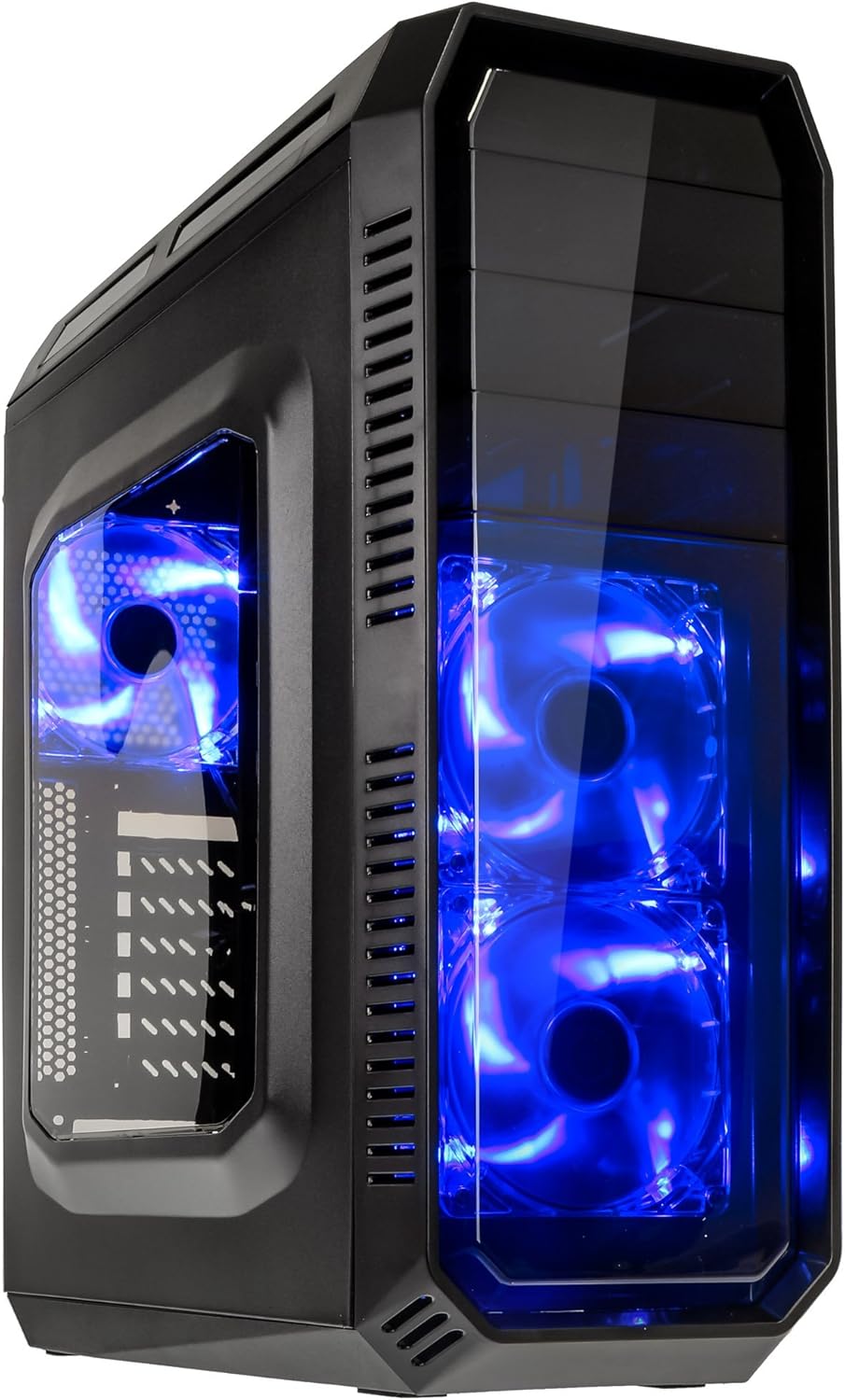
This image displays the KOLINK Refractor Midi-Tower from a front-left perspective, highlighting its sleek black design. The front panel features two pre-installed 120mm blue LED fans, visible through a transparent section, providing both cooling and aesthetic appeal. The left side panel includes a window, allowing visibility of internal components.

A top-front view of the case, illustrating the conveniently located I/O panel on the top. This panel includes two USB 3.0 ports, two USB 2.0 ports, and audio input/output jacks. The top surface also features a mesh area for additional ventilation, contributing to optimal airflow.

This image shows the right side panel of the KOLINK Refractor Midi-Tower. It is a solid black panel, designed for cable management behind the motherboard tray, ensuring a clean and organized interior.

This composite image provides three distinct views of the case. The left panel shows the front with its blue LED fans. The middle panel displays the rear of the case, featuring the motherboard I/O cutout, seven expansion slots, and a 120mm fan mount. The right panel offers a close-up of the top I/O ports, including USB 3.0, USB 2.0, and audio jacks.

A detailed close-up of the top I/O panel. It clearly shows the power and reset buttons, two USB 3.0 ports, two USB 2.0 ports, and the microphone and headphone jacks, providing easy access for peripherals.
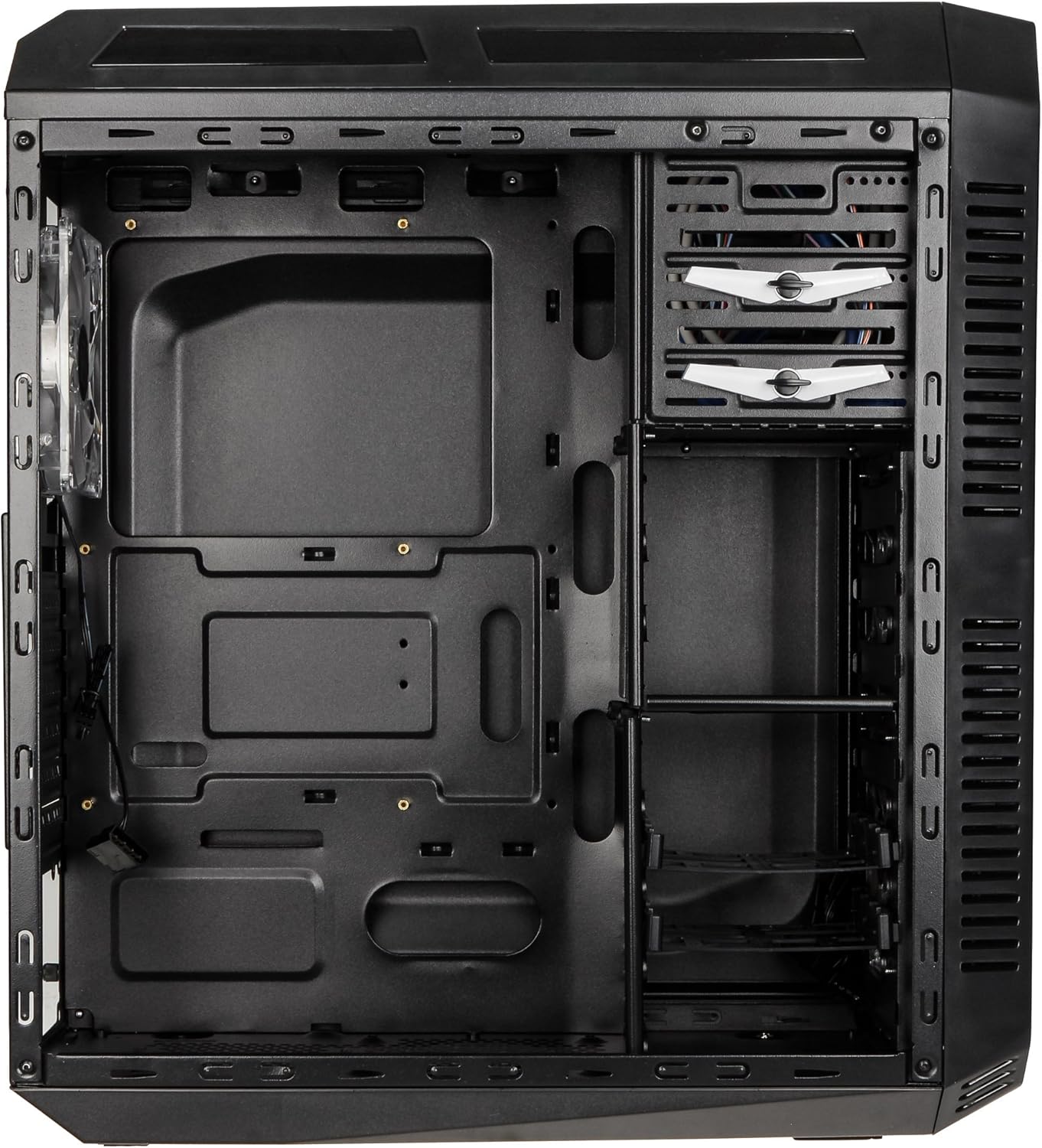
This image presents the interior of the case from the left side, revealing the spacious motherboard tray compatible with ATX motherboards. It features a large cutout behind the CPU area for easy cooler installation and multiple grommeted holes for efficient cable routing.

ఒక అంతర్గత view from the right side, focusing on the drive bay configuration. The case offers three external 5.25-inch bays and seven internal 2.5/3.5-inch drive bays, providing ample storage expansion options.

A closer look at the internal drive bays, illustrating the design for mounting 2.5-inch or 3.5-inch storage drives. These bays are designed for easy installation and removal of hard drives and SSDs.

ఈ చిత్రం అంతర్గతంగా అందిస్తుంది view looking down from the top, showcasing the pre-installed 120mm blue LED fan at the rear for exhaust. The top panel's mesh area for additional fan mounting is also visible, contributing to overall system cooling.
4. సెటప్ మరియు ఇన్స్టాలేషన్
Follow these steps to install your computer components into the KOLINK Refractor Midi-Tower.
4.1 కేసును సిద్ధం చేయడం
- కేసును చదునైన, స్థిరమైన ఉపరితలంపై ఉంచండి.
- Remove the left and right side panels by unscrewing the thumbscrews at the rear of the case and sliding the panels backward.
4.2 మదర్బోర్డ్ సంస్థాపన
- Install the I/O shield that came with your motherboard into the cutout at the rear of the case.
- Ensure the correct motherboard standoffs are installed for your ATX motherboard. Adjust or add standoffs as necessary using the provided accessory kit.
- స్క్రూ రంధ్రాలను సమలేఖనం చేస్తూ, మీ మదర్బోర్డును స్టాండ్ఆఫ్లపై జాగ్రత్తగా ఉంచండి.
- Secure the motherboard with the appropriate screws from the accessory kit.
4.3 విద్యుత్ సరఫరా సంస్థాపన
- Position your ATX power supply unit (PSU) in the designated compartment at the bottom rear of the case.
- కేసు వెనుక భాగంలో ఉన్న స్క్రూ రంధ్రాలతో PSUని సమలేఖనం చేయండి.
- Secure the PSU using the screws provided with your power supply.
4.4 డ్రైవ్ ఇన్స్టాలేషన్
5.25-inch External Drives:
- Remove the desired 5.25-inch bay cover from the front panel.
- Slide your optical drive or other 5.25-inch device into the bay from the front.
- Secure the drive using the tool-less clips or screws.
2.5/3.5-inch Internal Drives:
- Locate the internal drive bays.
- Mount your 2.5-inch SSD or 3.5-inch HDD into the drive trays.
- Slide the populated drive trays back into the drive cage until they click into place.
4.5 ఎక్స్పాన్షన్ కార్డ్ ఇన్స్టాలేషన్
- కేసు వెనుక భాగంలో అవసరమైన విస్తరణ స్లాట్ కవర్లను తీసివేయండి.
- Insert your graphics card or other PCIe expansion card into the corresponding slot on the motherboard.
- Secure the card with the provided screws.
4.6 కేబుల్ నిర్వహణ
Utilize the cable routing holes and tie-down points behind the motherboard tray to organize cables. This improves airflow and gives your build a cleaner appearance.
4.7 Fan Installation (Optional)
The case comes with two 120mm blue LED fans pre-installed at the front and one 120mm blue LED fan at the rear. Additional fan mounting locations include:
- Top: 1x 120/140mm fan
- Bottom: 1x 120mm fan (under the PSU)
Install additional fans as needed for optimal cooling, ensuring proper airflow direction.
5. ఆపరేటింగ్ సూచనలు
5.1 ప్రారంభ పవర్ ఆన్
- Once all components are installed and cables are connected, replace both side panels.
- మీ మానిటర్, కీబోర్డ్, మౌస్ మరియు ఇతర పరిధీయ పరికరాలను కనెక్ట్ చేయండి.
- Connect the power cable to the PSU and then to a wall outlet.
- Press the power button on the top I/O panel to start your system.
5.2 Front Panel I/O Usage
The top I/O panel provides convenient access to:
- USB 3.0 పోర్ట్లు (x2): అనుకూల పరికరాలతో హై-స్పీడ్ డేటా బదిలీ కోసం.
- USB 2.0 పోర్ట్లు (x2): ప్రామాణిక USB పరికరాలను కనెక్ట్ చేయడానికి.
- Audio Jacks (Headphone/Microphone): For connecting headsets or external audio devices.
- పవర్ బటన్: సిస్టమ్ను ఆన్/ఆఫ్ చేయడానికి.
- రీసెట్ బటన్: సిస్టమ్ను పునఃప్రారంభించడానికి.
5.3 LED లైటింగ్
The pre-installed front and rear fans feature blue LED lighting, which illuminates when the system is powered on, adding an aesthetic element to your build.
6. నిర్వహణ
Regular maintenance helps ensure optimal performance and longevity of your computer system.
6.1 శుభ్రపరచడం
- డస్ట్ ఫిల్టర్లు: The case includes a removable dust filter under the PSU. Regularly remove and clean this filter to prevent dust buildup and maintain airflow.
- బాహ్య: బాహ్య ఉపరితలాలను మృదువైన, డితో తుడవండిamp గుడ్డ. రాపిడి క్లీనర్లను నివారించండి.
- అంతర్గత: Periodically use compressed air to remove dust from internal components and fan blades. Ensure the system is powered off and unplugged before cleaning the interior.
6.2 ఎయిర్ఫ్లో ఆప్టిమైజేషన్
Ensure that the case's ventilation areas (front, top, rear, bottom) are not obstructed. Proper cable management also contributes significantly to unrestricted airflow within the case.
7. ట్రబుల్షూటింగ్
ఈ విభాగం మీరు ఎదుర్కొనే సాధారణ సమస్యలను పరిష్కరిస్తుంది.
7.1 సాధారణ సమస్యలు
- సిస్టమ్ ఆన్ కావడం లేదు:
- పవర్ కేబుల్ PSU మరియు వాల్ అవుట్లెట్ రెండింటికీ సురక్షితంగా కనెక్ట్ చేయబడిందో లేదో తనిఖీ చేయండి.
- PSU స్విచ్ 'ఆన్' స్థానంలో ఉందని నిర్ధారించుకోండి.
- ముందు ప్యానెల్ పవర్ బటన్ కేబుల్ మదర్బోర్డుకు సరిగ్గా కనెక్ట్ చేయబడిందని ధృవీకరించండి.
- Confirm all internal power cables (24-pin ATX, CPU, GPU) are properly seated.
- తిరుగుతున్న ఫ్యాన్లు:
- Check if the fan power cables are correctly connected to the motherboard or fan controller.
- సిస్టమ్ విద్యుత్తును అందుకుంటుందని నిర్ధారించుకోండి.
- USB పోర్ట్లు పనిచేయవు:
- Verify that the front panel USB 3.0 and USB 2.0 headers are correctly connected to the motherboard.
- Ensure the device you are connecting is functioning correctly.
- Audio Ports Not Working:
- Check that the front panel audio header (HD Audio) is correctly connected to the motherboard.
- Confirm your audio drivers are installed and up to date.
For further assistance, please refer to your motherboard manual or contact KOLINK support.
8. స్పెసిఫికేషన్లు
కోసం వివరణాత్మక సాంకేతిక వివరణలు KOLINK Refractor Midi-Tower.
| ఫీచర్ | స్పెసిఫికేషన్ |
|---|---|
| మోడల్ పేరు | Refractor Midi-Tower |
| కొలతలు (W x H x D) | 190 x 475 x 445 మిమీ (7.5 x 18.7 x 17.5 అంగుళాలు) |
| మెటీరియల్ | Steel (body), Plastic (front) |
| బరువు | సుమారు 4.8 కిలోలు (10.6 పౌండ్లు) |
| రంగు | నలుపు |
| ఫారమ్ ఫ్యాక్టర్ | మిడి టవర్ |
| మదర్బోర్డు అనుకూలత | ATX |
| బాహ్య డ్రైవ్ బేలు | 3x 5.25-అంగుళాలు |
| అంతర్గత డ్రైవ్ బేలు | 7x 2.5/3.5-inch |
| విస్తరణ స్లాట్లు | 7 |
| ముందే ఇన్స్టాల్ చేసిన అభిమానులు | 2x 120mm (front, blue LED), 1x 120mm (rear, blue LED) |
| Fan Support (Total Possible) | Front: 2x 120mm, Top: 1x 120/140mm, Bottom: 1x 120mm, Rear: 1x 120mm |
| I/O ప్యానెల్ | 2x USB 3.0, 2x USB 2.0, 1x Audio In/Out |
| గరిష్ట గ్రాఫిక్స్ కార్డ్ పొడవు | 360 మి.మీ |
| గరిష్ట CPU కూలర్ ఎత్తు | 174 మి.మీ |
| PSU అనుకూలత | Standard ATX (optional) |
| డస్ట్ ఫిల్టర్లు | Floor (under PSU, removable) |
9. వారంటీ మరియు మద్దతు
KOLINK products are manufactured to high-quality standards. This product is covered by a manufacturer's warranty against defects in materials and workmanship. The specific terms and duration of the warranty may vary by region and retailer.
Please retain your proof of purchase for warranty claims. For technical support, warranty inquiries, or to report missing/damaged parts, please contact your point of purchase or visit the official KOLINK webమద్దతు వనరుల కోసం సైట్.
KOLINK Official Webసైట్: www.kolink.eu (Please note: This is a general link and may not lead directly to a support page for this specific model.)


