1. పరిచయం
The TP-Link AD7200 Wireless Wi-Fi Tri-Band Gigabit Router, model Talon AD7200, is designed to provide advanced wireless connectivity for your home or office network. This router utilizes 802.11ad technology to deliver ultra-fast, multi-band Wi-Fi speeds across 2.4GHz, 5GHz, and 60GHz bands. Key features include 4-Stream technology, MU-MIMO for efficient multi-device performance, beamforming for targeted signals, and a powerful 1.4GHz dual-core CPU for uninterrupted high-speed connections.
This manual provides essential information for the proper installation, configuration, and use of your Talon AD7200 router.
2. పెట్టెలో ఏముంది
దయచేసి మీ ప్యాకేజీలో అన్ని అంశాలు ఉన్నాయని ధృవీకరించండి:
- Talon AD7200 Multi-Band Wi-Fi Router
- విద్యుత్ సరఫరా యూనిట్
- ఈథర్నెట్ కేబుల్
- త్వరిత సంస్థాపన గైడ్
3. సెటప్
3.1 భౌతిక కనెక్షన్
- పవర్ ఆఫ్: మీ మోడెమ్ మరియు రౌటర్ నుండి పవర్ను డిస్కనెక్ట్ చేయండి (ఇప్పటికే ఉన్న దాన్ని భర్తీ చేస్తుంటే).
- మోడెమ్ను కనెక్ట్ చేయండి: Connect one end of the provided Ethernet cable to your modem's LAN port and the other end to the blue 'Internet' port on the back of the Talon AD7200 router.
- మోడెమ్ను పవర్ ఆన్ చేయండి: మీ మోడెమ్ను ఆన్ చేసి, అది పూర్తిగా ప్రారంభించబడే వరకు వేచి ఉండండి (సాధారణంగా స్థిరమైన స్థితి లైట్ల ద్వారా సూచించబడుతుంది).
- పవర్ ఆన్ రూటర్: Connect the power adapter to the router's power input and plug it into a power outlet. Press the Power On/Off button if necessary. Wait for the router's indicator lights to stabilize.

చిత్రం 1: వెనుక view of the Talon AD7200 router with power and Ethernet connections. The blue port is for the internet connection from your modem, and the yellow ports are for wired LAN devices.
3.2 ప్రారంభ కాన్ఫిగరేషన్
మీరు మీ రౌటర్ను ఉపయోగించి కాన్ఫిగర్ చేయవచ్చు a web browser or the TP-Link Tether app.
- రూటర్కి కనెక్ట్ చేయండి: Connect your computer or mobile device to the router's default Wi-Fi network (SSID and password are typically found on a label on the bottom of the router). Alternatively, connect a computer to one of the yellow LAN ports using an Ethernet cable.
- యాక్సెస్ మేనేజ్మెంట్ ఇంటర్ఫేస్: తెరవండి a web బ్రౌజర్ని తెరిచి, డిఫాల్ట్ యాక్సెస్ చిరునామాను నమోదు చేయండి (ఉదా.,
http://tplinkwifi.netorhttp://192.168.0.1). Follow the on-screen instructions to create a login password and set up your Wi-Fi network name (SSID) and password. - యాంటెన్నా పొజిషనింగ్: For optimal signal strength and coverage, position the router's antennas vertically. Adjust them as needed to improve signal in specific areas.
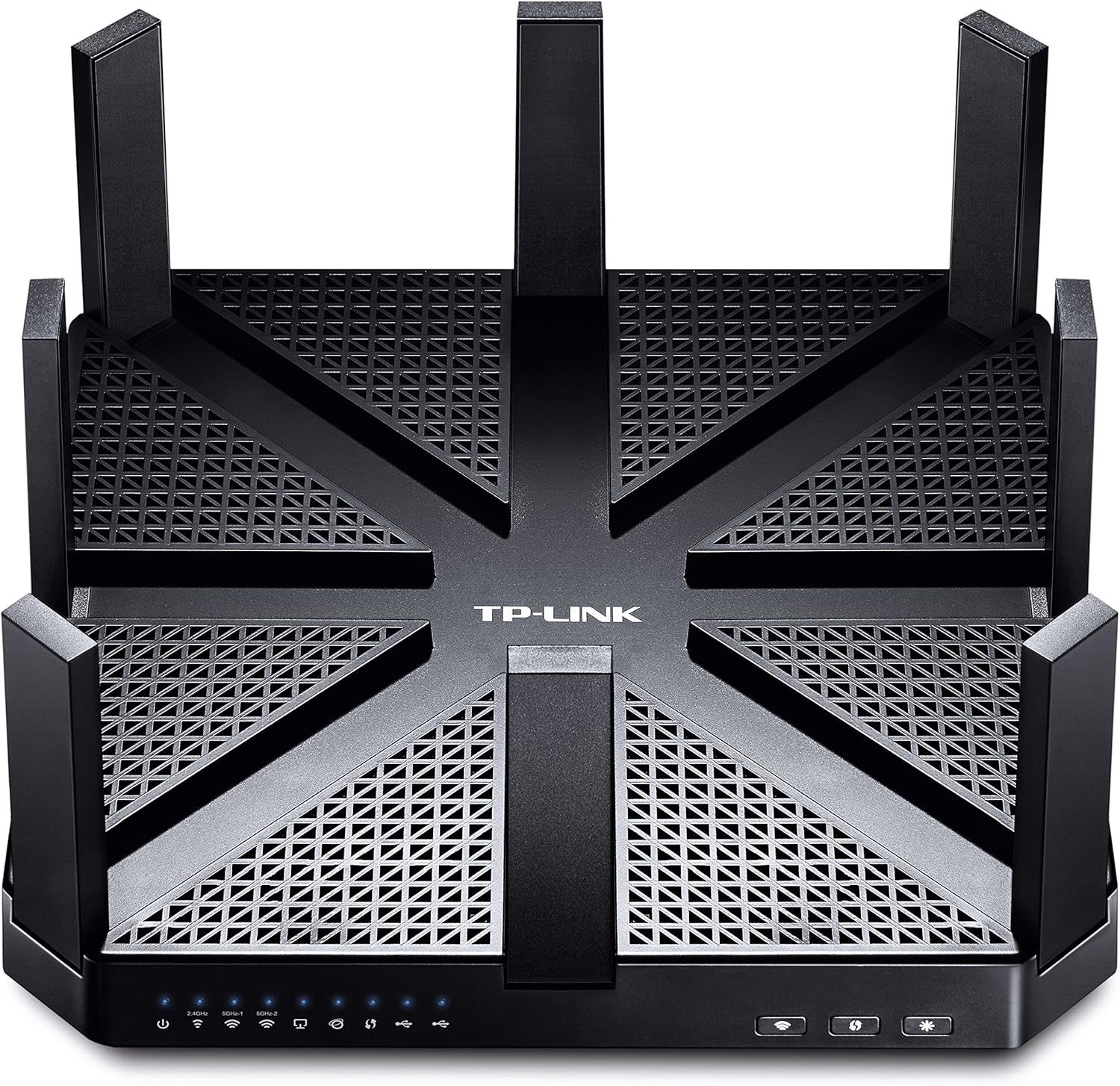
మూర్తి 2: టాప్ view of the Talon AD7200 router with its eight antennas extended for maximum coverage.
4. రూటర్ను ఆపరేట్ చేయడం
4.1 వైర్లెస్ బ్యాండ్లు
The Talon AD7200 is a Tri-Band router, offering three distinct Wi-Fi bands:
- 2.4GHz (800Mbps): Provides wider coverage and better penetration through walls, suitable for general internet use and older devices.
- 5GHz (1733Mbps): Offers higher speeds and less interference, ideal for streaming 4K video, online gaming, and bandwidth-intensive applications in closer proximity to the router.
- 60GHz (4600Mbps): Delivers ultra-fast, in-room wireless connections using 802.11ad technology. This band is best for very high-speed data transfers over short distances within the same room, as its signal does not penetrate walls effectively.
4.2 అధునాతన ఫీచర్లు
- MU-MIMO టెక్నాలజీ: Enables the router to communicate with multiple devices simultaneously, improving overall network efficiency and reducing buffering.
- బీమ్ఫార్మింగ్: Focuses Wi-Fi signals directly towards connected devices, enhancing signal strength and reliability, especially for devices further away.
- అతిథి నెట్వర్క్: మీ ప్రధాన నెట్వర్క్ను సురక్షితంగా మరియు ప్రైవేట్గా ఉంచుతూ, అతిథుల కోసం ప్రత్యేక Wi-Fi నెట్వర్క్ను సృష్టించండి.
- తల్లిదండ్రుల నియంత్రణలు: Manage and monitor internet access for children's devices, including setting time limits and content filters.
- VPN మద్దతు: The router supports VPN functionality for secure remote access and privacy.
వీడియో 1: ఒక అధికారిview of the TP-Link AD7200 Multi-band Wi-Fi Router, highlighting its features and benefits.
5. నిర్వహణ
5.1 ఫర్మ్వేర్ నవీకరణలు
Regularly check for and install firmware updates to ensure optimal performance, security, and access to new features. Updates can typically be found on the TP-Link support website or through the router's management interface.
5.2 ఆప్టిమల్ ప్లేస్మెంట్
Place the router in a central location in your home, away from obstructions and interference sources (e.g., microwaves, cordless phones). Elevating the router can also improve signal distribution.
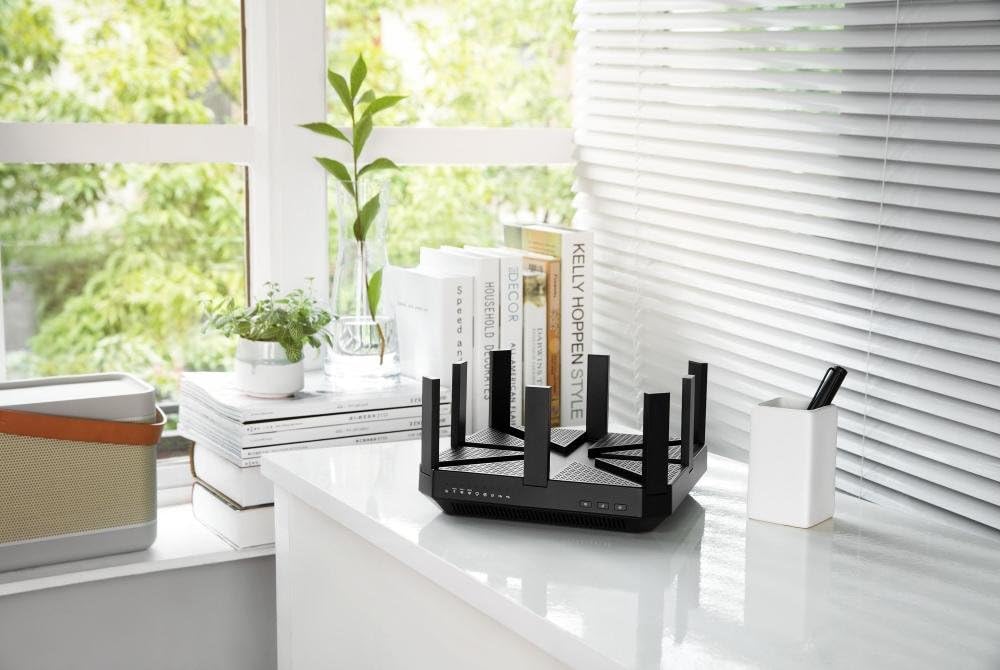
Figure 3: The Talon AD7200 router positioned on a desk, illustrating a typical home setup. Proper placement is crucial for optimal Wi-Fi coverage.
5.3 రెగ్యులర్ రీబూట్
Rebooting your router periodically (e.g., once a month) can help clear its memory and resolve minor network issues, improving overall stability and performance.
6. ట్రబుల్షూటింగ్
6.1 ఇంటర్నెట్ కనెక్షన్ లేదు
- మోడెమ్ మరియు రౌటర్ మధ్య ఉన్న అన్ని కేబుల్ కనెక్షన్లను తనిఖీ చేయండి.
- మీ మోడెమ్ మరియు రూటర్ని రీబూట్ చేయండి.
- మీ ఇంటర్నెట్ సర్వీస్ ప్రొవైడర్ (ISP) కనెక్షన్ స్థితిని ధృవీకరించండి.
6.2 నెమ్మదిగా Wi-Fi వేగం
- Ensure your devices are connected to the appropriate Wi-Fi band (5GHz or 60GHz for higher speeds).
- ఇతర ఎలక్ట్రానిక్ పరికరాల నుండి రౌటర్ను దూరంగా తరలించడం ద్వారా జోక్యాన్ని తగ్గించండి.
- Update your device's wireless drivers and the router's firmware.
- Consider the number of devices connected and their bandwidth usage.
6.3 ఫ్యాక్టరీ రీసెట్
If you encounter persistent issues, you may need to perform a factory reset. Locate the 'Reset' button on the back of the router (often a small pinhole button). With the router powered on, press and hold the reset button for about 10 seconds until the lights flash. This will restore the router to its default factory settings, requiring you to reconfigure it.
7. స్పెసిఫికేషన్లు
| ఫీచర్ | వివరాలు |
|---|---|
| బ్రాండ్ | TP-లింక్ |
| మోడల్ పేరు | Talon AD7200 |
| వైర్లెస్ రకం | 802.11ad |
| ఫ్రీక్వెన్సీ బ్యాండ్ క్లాస్ | ట్రై-బ్యాండ్ (2.4GHz, 5GHz, 60GHz) |
| Wi-Fi వేగం | Up to 7200Mbps (2.4GHz: 800Mbps, 5GHz: 1733Mbps, 60GHz: 4600Mbps) |
| కనెక్టివిటీ టెక్నాలజీ | వైఫై, వైర్డు |
| ఈథర్నెట్ పోర్ట్స్ | 4 x గిగాబిట్ LAN, 1 x గిగాబిట్ WAN |
| USB పోర్ట్లు | 2 x USB 3.0 పోర్ట్లు |
| ప్రత్యేక ఫీచర్ | WPS |
| ప్రాసెసర్ | 1.4GHz Dual-Core CPU |
| కొలతలు (LxWxH) | 9 x 9 x 1.7 అంగుళాలు |
| బరువు | 4 పౌండ్లు |
| ఆపరేటింగ్ సిస్టమ్ మద్దతు | Microsoft Windows 98SE, NT, 2000, XP, Vista, Windows 7, Windows 8/8.1/10, MAC OS, NetWare, UNIX, Linux |
8. వారంటీ మరియు మద్దతు
వారంటీ సమాచారం, సాంకేతిక మద్దతు మరియు అదనపు వనరుల కోసం, దయచేసి అధికారిక TP-Link ని సందర్శించండి. webసైట్. మీరు తరచుగా అడిగే ప్రశ్నలు, ట్రబుల్షూటింగ్ మార్గదర్శకాలు మరియు కస్టమర్ సేవ కోసం సంప్రదింపు సమాచారాన్ని కనుగొనవచ్చు.
TP-లింక్ మద్దతు Webసైట్: www.tp-link.com/us/support/ వద్ద ఉన్న లింక్లను తనిఖీ చేయండి.


