1. ఉత్పత్తి ముగిసిందిview
The Logitech MK850 Performance Wireless Keyboard and Mouse Set offers a comfortable and productive computing experience. This versatile set features dual connectivity options (Logitech Unifying USB receiver or Bluetooth Smart technology) and Easy-Switch functionality, allowing seamless transition between multiple devices. The keyboard includes a padded palm rest and carefully designed keys for extended comfort, while the ergonomically shaped mouse for right-handers boasts a hyper-fast scroll wheel and customizable buttons via Logitech DuoLink software.

మూర్తి 1.1: The Logitech MK850 Performance Wireless Keyboard and Mouse Set, showcasing the full-size keyboard with integrated palm rest and the ergonomic mouse.
2. సెటప్ గైడ్
2.1 ప్యాకేజీ విషయాలు
- లాజిటెక్ MK850 వైర్లెస్ కీబోర్డ్
- లాజిటెక్ MK850 వైర్లెస్ మౌస్
- లాజిటెక్ యూనిఫైయింగ్ USB రిసీవర్
- AA Batteries (for mouse)
- AAA Batteries (for keyboard)
2.2 బ్యాటరీ ఇన్స్టాలేషన్
The keyboard requires 2 AAA batteries and the mouse requires 1 AA battery. Batteries are typically included.
- కీబోర్డ్ మరియు మౌస్ దిగువన బ్యాటరీ కంపార్ట్మెంట్లను గుర్తించండి.
- బ్యాటరీ కవర్లను తెరవండి.
- సరైన ధ్రువణతను (+/-) నిర్ధారించడానికి బ్యాటరీలను చొప్పించండి.
- బ్యాటరీ కవర్లను సురక్షితంగా మూసివేయండి.
2.3 మీ పరికరాలను కనెక్ట్ చేయడం
The MK850 set offers two connection methods: Logitech Unifying USB Receiver or Bluetooth Smart technology.
2.3.1 Using the Logitech Unifying Receiver
- లాజిటెక్ యూనిఫైయింగ్ USB రిసీవర్ను మీ కంప్యూటర్లో అందుబాటులో ఉన్న USB పోర్ట్లోకి ప్లగ్ చేయండి.
- కీబోర్డ్ మరియు మౌస్ను వాటి సంబంధిత పవర్ స్విచ్లను ఉపయోగించి ఆన్ చేయండి.
- The devices should automatically connect to the receiver. If not, press and hold one of the Easy-Switch buttons (1, 2, or 3) on the keyboard and mouse until the LED blinks rapidly, then release. The device is now in pairing mode.
- For advanced pairing, download and install the Logitech Options software from the official Logitech webసైట్.
2.3.2 Using Bluetooth Smart Technology
- కీబోర్డ్ మరియు మౌస్ను వాటి సంబంధిత పవర్ స్విచ్లను ఉపయోగించి ఆన్ చేయండి.
- Press and hold one of the Easy-Switch buttons (1, 2, or 3) on the keyboard and mouse until the LED blinks rapidly. This indicates pairing mode.
- మీ కంప్యూటర్ లేదా పరికరంలో, బ్లూటూత్ సెట్టింగ్లను తెరవండి.
- Select "Logitech MK850 Keyboard" and "Logitech MK850 Mouse" from the list of available devices to pair.
- జత చేసే ప్రక్రియను పూర్తి చేయడానికి ఏదైనా ఆన్-స్క్రీన్ ప్రాంప్ట్లను అనుసరించండి.
3. ఆపరేటింగ్ సూచనలు
3.1 కీబోర్డ్ విధులు
- Padded Palm Rest: Provides ergonomic support for comfortable typing over extended periods.
- ఫంక్షన్ కీలు (F1-F12): Perform various system functions. Some keys may have secondary functions accessible via the 'Fn' key.
- QWERTZ లేఅవుట్: Standard German keyboard layout.
- Easy-Switch Buttons (1, 2, 3): Located above the numeric keypad, these buttons allow you to instantly switch the keyboard's connection between up to three paired devices.
3.2 మౌస్ విధులు
- ఎర్గోనామిక్ ఆకారం: Designed for comfortable use by right-handed users.
- హైపర్-ఫాస్ట్ స్క్రోల్ వీల్: Allows for rapid scrolling through long documents or web pages. Press the button behind the scroll wheel to toggle between hyper-fast and click-to-click scrolling.
- ప్రోగ్రామబుల్ బటన్లు: The mouse features additional buttons that can be customized using Logitech Options software for specific functions.
- Easy-Switch Buttons (1, 2, 3): Located on the side of the mouse, these buttons allow you to instantly switch the mouse's connection between up to three paired devices.
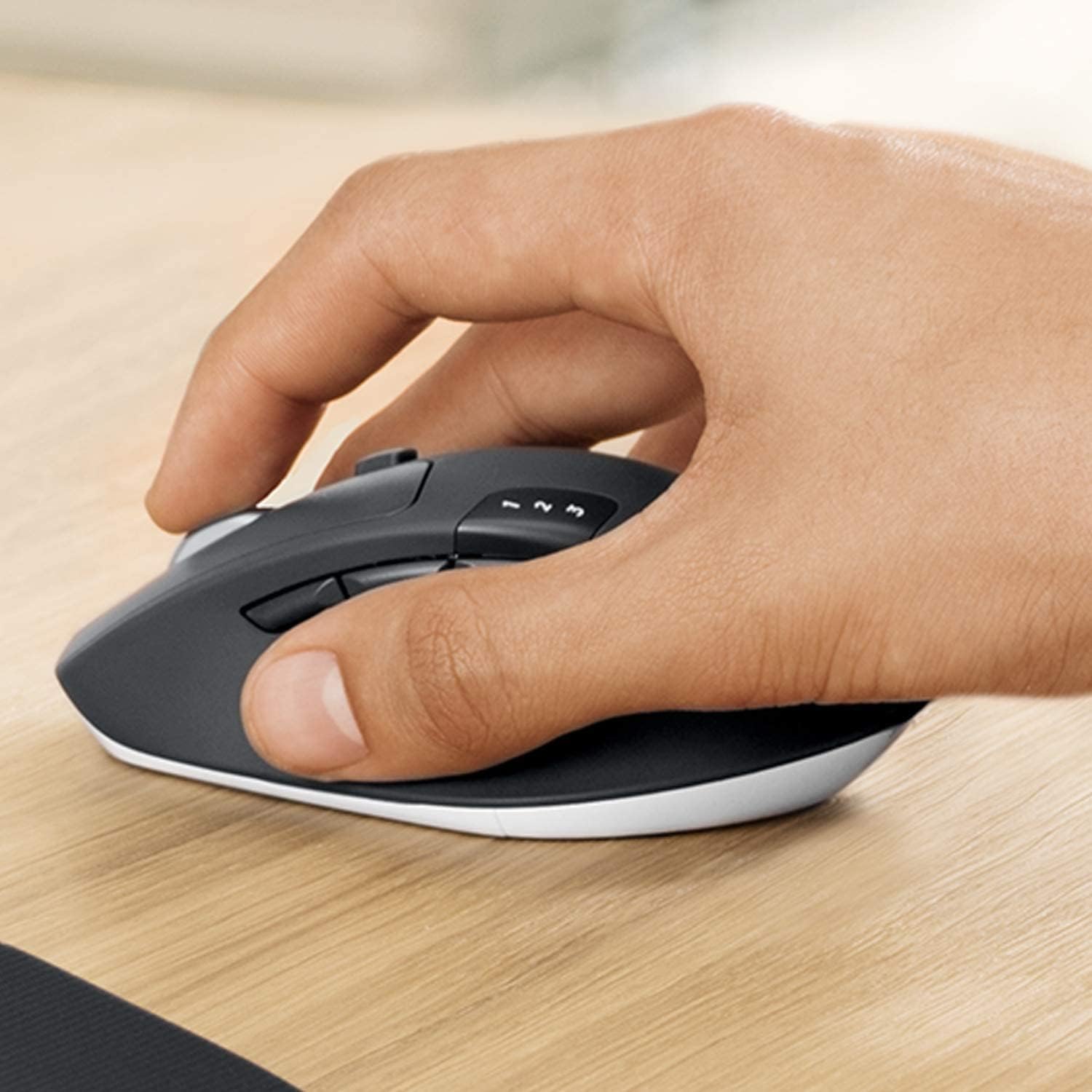
మూర్తి 3.1: A hand demonstrating the ergonomic grip on the Logitech MK850 mouse.

మూర్తి 3.2: ఒక వివరణాత్మక view of the Logitech MK850 mouse, highlighting its scroll wheel and Easy-Switch buttons.
3.3 DuoLink Software
Logitech DuoLink is a feature within Logitech Options software that allows the mouse and keyboard to work together for enhanced functionality. For example, holding the Fn key on the keyboard can change the mouse's button functions.
Download Logitech Options from the official Logitech website to customize your device settings, program buttons, and enable DuoLink.
4. సంరక్షణ మరియు నిర్వహణ
- శుభ్రపరచడం: కొద్దిగా మెత్తని, మెత్తని బట్టను ఉపయోగించండి dampకీబోర్డ్ మరియు మౌస్ ఉపరితలాలను శుభ్రం చేయడానికి నీరు లేదా తేలికపాటి శుభ్రపరిచే ద్రావణంతో నానబెట్టండి. కఠినమైన రసాయనాలు లేదా రాపిడి పదార్థాలను నివారించండి.
- బ్యాటరీ భర్తీ: Replace batteries when the low battery indicator light illuminates. Ensure to use the correct battery type (AAA for keyboard, AA for mouse).
- నిల్వ: ఎక్కువసేపు వాడకంలో లేనప్పుడు, బ్యాటరీ జీవితకాలాన్ని ఆదా చేయడానికి పరికరాలను ఆపివేయండి. చల్లని, పొడి ప్రదేశంలో నిల్వ చేయండి.
5. ట్రబుల్షూటింగ్
5.1 కనెక్షన్ సమస్యలు
- కనెక్షన్ లేదు: Ensure the keyboard and mouse are turned on. Check battery levels. For Unifying receiver, try plugging it into a different USB port. For Bluetooth, ensure Bluetooth is enabled on your device and the devices are in pairing mode.
- జోక్యం: Move the devices closer to the receiver or Bluetooth-enabled device. Avoid placing them near other wireless devices that might cause interference (e.g., Wi-Fi routers, cordless phones).
- తిరిగి జత చేయడం: If connection is lost, try re-pairing the devices using the steps in Section 2.3.
5.2 పనితీరు సమస్యలు
- ఆలస్యం లేదా ఆలస్యం: Ensure sufficient battery power. Reduce distance between devices and receiver/Bluetooth host. Close other applications that might be consuming system resources.
- మౌస్ ట్రాకింగ్ సమస్యలు: Clean the mouse sensor. Use the mouse on a suitable surface (non-reflective, non-transparent).
6. సాంకేతిక లక్షణాలు
| ఫీచర్ | స్పెసిఫికేషన్ |
|---|---|
| బ్రాండ్ | లాజిటెక్ |
| మోడల్ | MK850 |
| కనెక్టివిటీ టెక్నాలజీ | Bluetooth Smart, Logitech Unifying (2.4 GHz wireless) |
| అనుకూల పరికరాలు | PC (Windows 10/11 or later), Mac (macOS 10.15 or later), Chrome OS, Linux, iPadOS 13.4 or later, Android 7 or later |
| కీబోర్డ్ కొలతలు (L x W x H) | సుమారు. 43 x 21 x 2.5 సెం.మీ. |
| మౌస్ కొలతలు (L x W x H) | సుమారు 99 x 60 x 39 మి.మీ |
| వస్తువు బరువు | Approx. 845 g (total for set) |
| బ్యాటరీ రకం | Keyboard: 2 x AAA; Mouse: 1 x AA |
| బ్యాటరీ లైఫ్ | Up to 36 months (keyboard), up to 24 months (mouse) - May vary based on usage. |
| రంగు | నలుపు |

మూర్తి 6.1: Dimensions of the Logitech MK850 mouse.
7. వారంటీ మరియు మద్దతు
Logitech products are manufactured to high quality standards and are designed to provide reliable performance. For detailed warranty information specific to your region and product, please refer to the warranty card included with your product or visit the official Logitech support webసైట్.
For technical support, FAQs, and driver downloads, please visit the Logitech support webసైట్:
- లాజిటెక్ మద్దతు Webసైట్: support.logi.com
When contacting support, please have your product model (MK850) and serial number ready.


