పరిచయం
The Logitech Brio 4K Pro Webcam is designed to deliver exceptional video quality for streaming, recording, and video conferencing. Featuring Ultra HD 4K resolution, advanced autofocus, and a wide field of view, it provides a professional-grade visual experience. This manual provides instructions for setting up, operating, maintaining, and troubleshooting your Brio webకామ్.
కీ ఫీచర్లు
- Ultra HD 4K Resolution: Capture video in stunning 4096 x 2160 resolution at 30 frames per second (fps), or 1080p at 60 fps, and 720p at 90 fps.
- ఆటో ఫోకస్: Ensures sharp, clear images even when moving closer or further from the camera.
- 5X డిజిటల్ జూమ్: Zoom in on details without losing clarity.
- RightLight 3 with HDR: Automatically adjusts exposure and contrast to compensate for glare and backlighting, ensuring you always look your best.
- Multiple Fields of View: Choose from 65°, 78°, or 90° diagonal fields of view to perfectly frame your video.
- Infrared Face Recognition: Supports Windows Hello for secure facial recognition login.
- Dual Integrated Microphones: Omnidirectional microphones with noise-canceling technology capture clear audio.
- USB 3.0 కనెక్టివిటీ: High-speed data transfer for smooth 4K video.
ప్యాకేజీ విషయాలు
- లాజిటెక్ బ్రియో 4K ప్రో Webకెమెరా
- Detachable Universal Mounting Clip
- USB 3.0 Cable (compatible with USB 2.0)
- గోప్యతా షట్టర్
- క్యారీయింగ్ పర్సు
- వినియోగదారు డాక్యుమెంటేషన్
సెటప్
1. మౌంట్ చేయడం Webకెమెరా
The Brio webcam comes with a universal mounting clip that allows it to be securely placed on a monitor, laptop, or tripod.
- క్లిప్ను అటాచ్ చేయండి: Ensure the universal mounting clip is securely attached to the webకామ్.
- మానిటర్లో స్థానం: క్లిప్ తెరిచి ఉంచండి webcam on top of your monitor or laptop screen. Adjust the flexible base to ensure it sits flush with the back of your device.
- త్రిపాద మౌంటు: The universal mounting clip also features a standard tripod thread. Remove the clip from the webcam and screw the webcam directly onto a tripod if preferred.

Image: Logitech Brio 4K Pro Webకామ్, ముందు భాగం view with monitor clip extended, illustrating how the clip unfolds for placement.
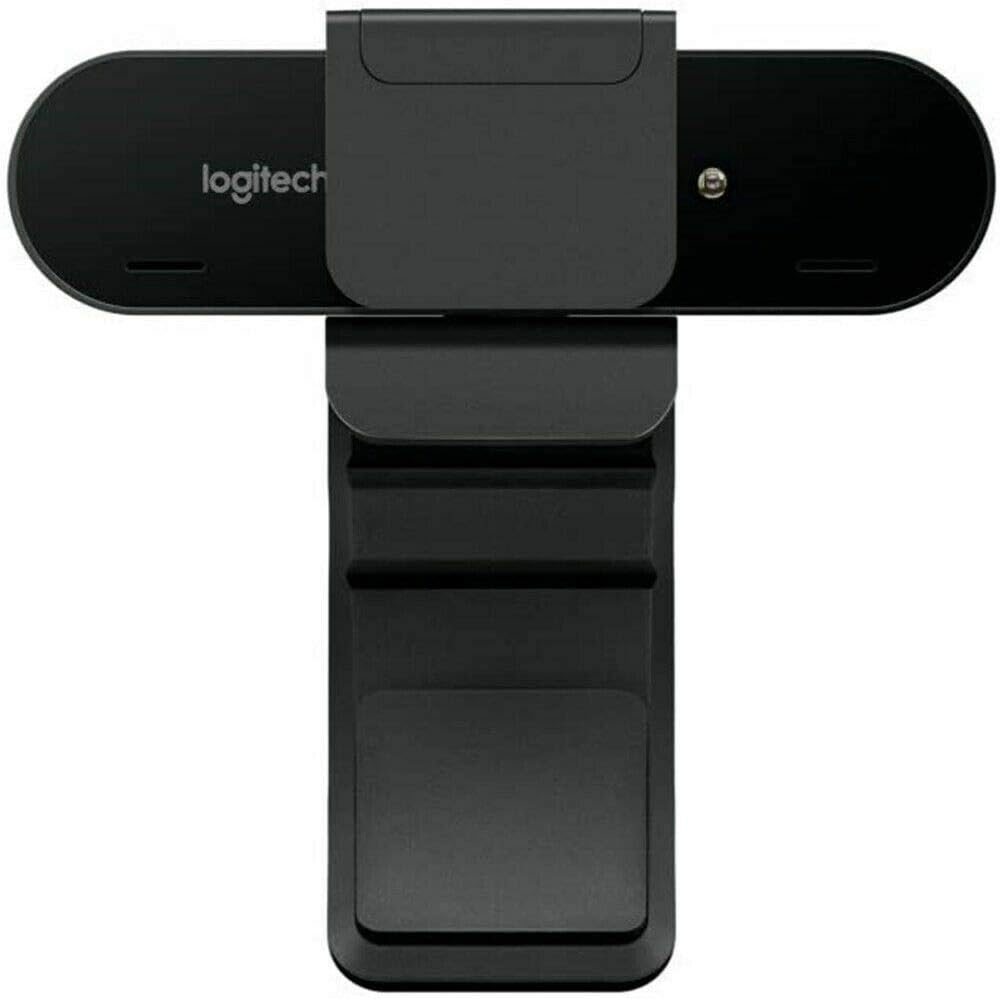
Image: Logitech Brio 4K Pro Webcam, rear view with monitor clip extended, showing the adjustable hinge for monitor placement.
2. మీ కంప్యూటర్కు కనెక్ట్ అవుతోంది
కనెక్ట్ చేయండి webఅందించిన USB కేబుల్ని ఉపయోగించి మీ కంప్యూటర్కు క్యామ్ చేయండి.
- Plug the USB-C end of the cable into the webకామ్.
- Plug the USB-A end of the cable into an available USB 3.0 port on your computer for optimal performance. The webcam is also compatible with USB 2.0 ports.
ది webcam is plug-and-play and should be automatically recognized by your operating system (Windows, macOS, Linux).

Image: Logitech Brio 4K Pro Webcam mounted on a monitor, ready for use, with a computer screen displaying a login prompt.
ఆపరేటింగ్ సూచనలు
1. సాఫ్ట్వేర్ ఇన్స్టాలేషన్ (ఐచ్ఛికం)
While the Brio webcam functions as a standard webcam without additional software, installing the Logitech Capture software (available from the Logitech website) unlocks advanced features and customization options, including:
- Adjusting field of view (65°, 78°, 90°)
- Customizing resolution and frame rate
- Enabling RightLight 3 with HDR
- Digital pan, tilt, and zoom controls
- Image adjustments (brightness, contrast, color intensity)
2. గోప్యతా షట్టర్ను ఉపయోగించడం
The included privacy shutter can be attached to the front of the webcam to physically block the lens when not in use, ensuring privacy.
3. Video Conferencing and Streaming
Once connected, select the Logitech Brio 4K Pro Webcam as your video and audio input device within your preferred video conferencing, streaming, or recording application.

Image: A person conducting a video call using the Logitech Brio 4K Pro Webcam, demonstrating its application in professional communication.

Image: The Logitech Brio 4K Pro Webcam positioned in a meeting room, illustrating its capability to maintain high performance regardless of ambient lighting.

Image: The Logitech Brio 4K Pro Webcam displaying its 4K HD resolution during a video conference, ensuring clear visual communication.
నిర్వహణ
- లెన్స్ శుభ్రపరచడం: ఆప్టిక్స్ కోసం ప్రత్యేకంగా రూపొందించిన మృదువైన, మెత్తటి బట్టను ఉపయోగించి శాంతముగా తుడవండి. webcam lens. Avoid abrasive materials or harsh chemicals.
- సాధారణ శుభ్రపరచడం: శరీరాన్ని తుడవండి webసాఫ్ట్, డి తో క్యామ్amp వస్త్రం. నిమజ్జనం చేయవద్దు webనీటిలో ముంచండి లేదా అధిక తేమను ఉపయోగించండి.
- నిల్వ: ఉపయోగంలో లేనప్పుడు, నిల్వ చేయండి webcam in the provided carrying pouch to protect it from dust and scratches.
ట్రబుల్షూటింగ్
- Webకామ్ గుర్తించబడలేదు:
- USB కేబుల్ రెండింటికీ సురక్షితంగా కనెక్ట్ చేయబడిందని నిర్ధారించుకోండి webకామ్ మరియు కంప్యూటర్.
- Try connecting to a different USB port, preferably a USB 3.0 port.
- మీ కంప్యూటర్ని పునఃప్రారంభించండి.
- Check your operating system's device manager to see if the webకామ్ జాబితా చేయబడింది.
- పేలవమైన వీడియో నాణ్యత:
- మీ వాతావరణంలో తగినంత వెలుతురు ఉండేలా చూసుకోండి.
- శుభ్రం చేయండి webకామ్ లెన్స్.
- Verify that your application is set to the desired resolution and frame rate.
- Install Logitech Capture software for advanced image adjustments.
- No Audio from Webcam Microphone:
- Ensure the Logitech Brio microphone is selected as the input device in your application and operating system sound settings.
- మీ ఆపరేటింగ్ సిస్టమ్లో మైక్రోఫోన్ గోప్యతా సెట్టింగ్లను తనిఖీ చేయండి.
- ఆటో ఫోకస్ సమస్యలు:
- Ensure there is sufficient light.
- Avoid placing objects too close to the lens that might interfere with autofocus.
- If using Logitech Capture, ensure autofocus is enabled.
స్పెసిఫికేషన్లు
| అంశం మోడల్ సంఖ్య | 960-001178 |
| వీడియో క్యాప్చర్ రిజల్యూషన్ | 4K Ultra HD (4096 x 2160) at 30 fps, 1080p at 60 fps, 720p at 90 fps |
| ఫోటో సెన్సార్ టెక్నాలజీ | BSI CMOS |
| ఆటో ఫోకస్ | అవును |
| డిజిటల్ జూమ్ | 5X |
| ఫీల్డ్ View | Adjustable (65°, 78°, 90°) |
| మైక్రోఫోన్ | Dual integrated omnidirectional with noise cancellation |
| కనెక్టివిటీ టెక్నాలజీ | USB 3.0 (USB 2.0 అనుకూలమైనది) |
| ఆపరేటింగ్ సిస్టమ్ అనుకూలత | Windows, macOS, Linux |
| వస్తువు బరువు | 2.22 ఔన్సులు (63 గ్రాములు) |
| ఉత్పత్తి కొలతలు | 4.02 x 1.06 x 1.06 అంగుళాలు (10.2 x 2.7 x 2.7 సెం.మీ.) |
| రంగు | నలుపు |
వారంటీ సమాచారం
Logitech products are manufactured to high quality standards and are subject to a limited hardware warranty. Please refer to the official Logitech website or your product packaging for specific warranty terms and conditions applicable to your region.
మద్దతు
For further assistance, driver downloads, software updates, or frequently asked questions, please visit the official Logitech support website. You can find detailed product information and contact customer support there.
లాజిటెక్ మద్దతు Webసైట్: www.logitech.com/support


