1. పరిచయం మరియు ఓవర్view
The AT&T Air 4920 Airties Smart Wi-Fi Extender is designed to expand the coverage and improve the signal strength of your existing Wi-Fi network. It creates a seamless mesh network, allowing your devices to automatically connect to the strongest Wi-Fi signal as you move around your home or office. This manual provides detailed instructions for setting up, operating, maintaining, and troubleshooting your Wi-Fi extender.

మూర్తి 1: ముందు view of the AT&T Air 4920 Airties Smart Wi-Fi Extender.
2. ప్యాకేజీ విషయాలు
దయచేసి మీ ప్యాకేజీలో అన్ని అంశాలు ఉన్నాయని ధృవీకరించండి:
- AT&T Air 4920 Airties Smart Wi-Fi Extender Unit
- పవర్ అడాప్టర్
- త్వరిత ప్రారంభ మార్గదర్శి (ఈ మాన్యువల్ సమగ్ర మార్గదర్శిగా పనిచేస్తుంది)
3. ఉత్పత్తి లక్షణాలు మరియు భాగాలు
Familiarize yourself with the various ports, buttons, and indicator lights on your Wi-Fi Extender.

చిత్రం 2: ముందు మరియు వెనుక view of the Wi-Fi Extender with labeled components.
- 5 GHz Wi-Fi Indicator: 5 GHz Wi-Fi బ్యాండ్ స్థితిని చూపుతుంది.
- 2.4 GHz Wi-Fi Indicator: 2.4 GHz Wi-Fi బ్యాండ్ స్థితిని చూపుతుంది.
- Power Indicator / On/Off Button: Indicates power status. Can also be used to turn the device on/off.
- WPS బటన్: Used for Wi-Fi Protected Setup to quickly connect to your router.
- Gigabit Ethernet Ports (1 & 2): For wired connections to devices like computers, gaming consoles, or smart TVs.
- పవర్ ఆన్/ఆఫ్ స్విచ్: A physical switch to turn the device completely off or on.
- DC పవర్ ఇన్పుట్ (12V): అందించిన పవర్ అడాప్టర్ను ఇక్కడ కనెక్ట్ చేయండి.
- రీసెట్ బటన్: Used to restore the device to factory default settings. (Requires a paperclip or similar pointed object).
4. సెటప్ గైడ్
Follow these steps to set up your AT&T Air 4920 Wi-Fi Extender:
4.1 ప్రారంభ నియామకం
For initial setup, place the Wi-Fi Extender near your AT&T gateway (router). Once paired, you can move it to a more central location in your home where Wi-Fi signal is weak.
4.2 పవర్ కనెక్షన్
- Connect the provided power adapter to the DC Power Input (7) on the back of the extender.
- పవర్ అడాప్టర్ను వాల్ అవుట్లెట్లోకి ప్లగ్ చేయండి.
- Ensure the Power On/Off Switch (6) is in the 'On' position. The Power Indicator (3) should light up.
4.3 Pairing with Your AT&T Gateway (Router)
There are two primary methods for pairing:
Method A: Using WPS (Wi-Fi Protected Setup) - Recommended
- నొక్కండి మరియు పట్టుకోండి WPS Button (4) on the front of the Wi-Fi Extender for 2-3 seconds until the indicator lights start blinking.
- రెండు నిమిషాల్లో, నొక్కండి WPS బటన్ on your AT&T gateway (router). Refer to your gateway's manual for the exact location of its WPS button.
- Wait for the indicator lights on the extender (1, 2, and 3) to turn solid green, indicating a successful connection. This may take a few minutes as the extender updates its firmware and synchronizes with your gateway.
Method B: Using an Ethernet Cable (If WPS fails or is not preferred)
- Connect one end of an Ethernet cable (not included) to one of the Gigabit Ethernet Ports (5) on the back of the extender.
- Connect the other end of the Ethernet cable to an available LAN port on your AT&T gateway (router).
- The extender will automatically detect the connection and begin pairing. Wait for the indicator lights (1, 2, and 3) to turn solid green.
- Once paired, you can disconnect the Ethernet cable if you wish to use the extender wirelessly.
4.4 ఆప్టిమల్ ప్లేస్మెంట్
After successful pairing, unplug the extender and move it to a location roughly halfway between your AT&T gateway and the area where you need improved Wi-Fi coverage. Ensure the extender is placed in an open area, away from large metal objects, concrete walls, or other electronic devices that might cause interference. Plug it back into a power outlet. The indicator lights should turn solid green again, confirming a good connection.

Figure 3: The Wi-Fi Extender connected to its power adapter.
5. Operating Your Wi-Fi Extender
Once set up, the AT&T Air 4920 operates automatically to extend your Wi-Fi network. Your devices will seamlessly connect to the strongest signal, whether from your gateway or the extender, using your existing Wi-Fi network name (SSID) and password.
సూచిక కాంతి స్థితి:
- ఘన ఆకుపచ్చ: Excellent connection and operation.
- Solid Amber/Orange: Fair connection. Consider repositioning the extender closer to your gateway.
- ఘన ఎరుపు: No connection or poor signal. Reposition the extender or check connections.
- మెరిసేది: During WPS pairing or firmware update.
- ఆఫ్: పరికరం పవర్ ఆఫ్ చేయబడింది లేదా పవర్ అందుకోవడం లేదు.
వైర్డు కనెక్షన్లు:
You can connect wired devices (e.g., desktop computers, smart TVs, gaming consoles) to the Gigabit Ethernet Ports (5) on the back of the extender for a stable, high-speed connection.
6. నిర్వహణ
To ensure optimal performance and longevity of your Wi-Fi Extender:
- శుభ్రపరచడం: మెత్తటి, పొడి గుడ్డతో బాహ్య భాగాన్ని సున్నితంగా తుడవండి. లిక్విడ్ క్లీనర్లు లేదా ఏరోసోల్లను ఉపయోగించవద్దు.
- వెంటిలేషన్: వేడెక్కకుండా ఉండటానికి వెంటిలేషన్ స్లాట్లు మూసుకుపోకుండా చూసుకోండి.
- ఫర్మ్వేర్ నవీకరణలు: The extender typically receives automatic firmware updates from AT&T. Ensure it remains connected to power and your network for these updates to occur.
- పవర్ సైకిల్: If you experience minor issues, try unplugging the extender from the power outlet for 10 seconds and then plugging it back in.
7. ట్రబుల్షూటింగ్
If you encounter issues with your Wi-Fi Extender, refer to the following common problems and solutions:
| సమస్య | సాధ్యమైన కారణం | పరిష్కారం |
|---|---|---|
| Extender lights are off. | శక్తి లేదు. | Ensure the power adapter is securely connected and plugged into a working outlet. Check the Power On/Off Switch (6). |
| Indicator lights are red or amber. | Poor or no connection to the gateway. |
|
| Wi-Fi signal is still weak in extended areas. | Suboptimal placement. | Move the extender to a more central location between your gateway and the weak signal area. Avoid placing it in corners or behind furniture. |
| Devices not connecting to the extender. | Extender not properly paired or network issues. |
|
| Need to reset to factory settings. | Configuration issues or preparing for new setup. | With the extender powered on, use a paperclip or similar pointed object to press and hold the రీసెట్ బటన్ (8) for about 10 seconds until the lights flash. The extender will restart with factory defaults. |
8. స్పెసిఫికేషన్లు
| ఫీచర్ | వివరాలు |
|---|---|
| మోడల్ సంఖ్య | AIR-4920 |
| ఉత్పత్తి కొలతలు (H x W x D) | 3.94 x 4.27 x 1.63 అంగుళాలు (సుమారుగా) |
| వస్తువు బరువు | 15 ఔన్సులు |
| వైర్లెస్ కమ్యూనికేషన్ స్టాండర్డ్ | 802.11ac |
| డేటా బదిలీ రేటు | సెకనుకు 1000 మెగాబిట్ల వరకు |
| కనెక్టర్ రకం | RJ45 (ఈథర్నెట్) |
| రంగు | తెలుపు |
| తయారీదారు | ఎయిర్టైస్ |
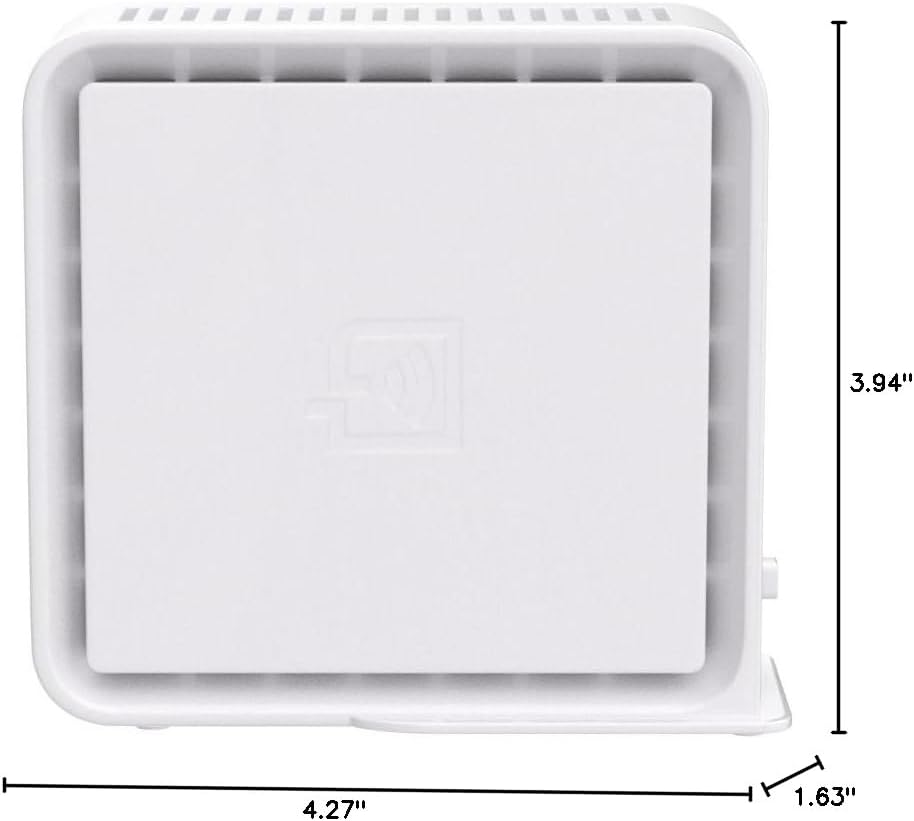
Figure 4: Approximate dimensions of the Wi-Fi Extender.


