1. పరిచయం
This manual provides comprehensive instructions for the installation, operation, and maintenance of your Aigo Aurora RGB LED 120mm Case Fan. Please read this manual carefully before installation and retain it for future reference. This product is designed to enhance the cooling performance and aesthetic appeal of your desktop computer system.
2. భద్రతా సమాచారం
- ఇన్స్టాలేషన్కు ముందు మీ కంప్యూటర్ పవర్ ఆఫ్ చేయబడిందని మరియు వాల్ అవుట్లెట్ నుండి అన్ప్లగ్ చేయబడిందని నిర్ధారించుకోండి.
- భాగాలకు నష్టం జరగకుండా జాగ్రత్తగా నిర్వహించండి.
- Do not attempt to modify the fan or its cables. Unauthorized modifications may void your warranty and pose safety risks.
- ఫ్యాన్ను ద్రవాలు మరియు అధిక తేమ నుండి దూరంగా ఉంచండి.
- This product is intended for use in desktop computer cases only.
3. ప్యాకేజీ విషయాలు
The Aigo Aurora RGB LED 120mm Case Fan package typically includes:
- 1 x Aigo Aurora RGB LED 120mm Case Fan
- 4 x మౌంటు స్క్రూలు
Note: An Aigo C3 RGB controller is required to change the fan's RGB lighting colors, modes, and speed. The C3 controller is sold separately and is not included with a single fan unit.
4. ఉత్పత్తి లక్షణాలు
- అధిక పనితీరు శీతలీకరణ: Designed for efficient heat dissipation within your PC case.
- శక్తివంతమైన RGB LED లైటింగ్: Features adjustable colorful lighting for aesthetic customization.
- ఆప్టిమైజ్ చేయబడిన వాయుప్రసరణ: Engineered for high air volume movement.
- తక్కువ నాయిస్ ఆపరేషన్: Operates at a quiet 23.5 Decibels.
- Anti-Vibration Pads: Equipped with silicone pads to reduce operational noise and vibration.
- Standard 120mm Size: Compatible with most PC case fan mounts.

ఈ చిత్రం ముందు భాగాన్ని ప్రదర్శిస్తుంది view of the Aigo Aurora 120mm case fan, showcasing its vibrant RGB LED lighting effects.
5. స్పెసిఫికేషన్లు
| బ్రాండ్ | ఐగో |
| మోడల్ | Aurora RGB LED 120mm Case Fan |
| అభిమాని కొలతలు | 120mm x 120mm x 25mm |
| పవర్ కనెక్టర్ | 4-పిన్ |
| వాల్యూమ్ రేట్ చేయబడిందిtage | 12 వోల్ట్లు |
| వాట్ రేట్ చేయబడిందిtage | 1.92 వాట్స్ |
| శీతలీకరణ పద్ధతి | గాలి |
| శబ్దం స్థాయి | 23.5 డెసిబెల్స్ |
| గరిష్ట భ్రమణ వేగం | 1200 RPM |
| అనుకూల పరికరాలు | డెస్క్టాప్ కంప్యూటర్లు |
| Material (Anti-Vibration Pads) | సిలికాన్ |
| UPC | 609015766972 |

This image provides the physical dimensions of the Aigo Aurora case fan, indicating a standard 120mm width and a 25mm thickness, suitable for most PC case fan mounts.

ఒక పేలింది view of the Aigo Aurora fan, detailing its construction. Key components include a transparent ring, a 7-blade transparent fan, a plastic frame, a back cushion, and a front shock pad, all designed for optimal performance and reduced vibration.
6. సెటప్ మరియు ఇన్స్టాలేషన్
- మీ వ్యవస్థను సిద్ధం చేయండి: Power off your computer and unplug it from the power outlet. Open your computer case to access the fan mounting locations.
- మౌంటు స్థానాన్ని గుర్తించండి: Determine where you want to install the fan. Common locations include the front, rear, top, or bottom of the case. Ensure there is adequate space.
- గాలి ప్రవాహ దిశను నిర్ణయించండి: Fans have a designated airflow direction. Typically, air flows from the open side (where the fan blades are most visible) towards the side with the motor support struts. Position the fan to draw cool air into the case or exhaust hot air out.
- ఫ్యాన్ను మౌంట్ చేయండి: Align the fan with the screw holes in your PC case. Use the provided mounting screws to secure the fan firmly. Do not overtighten.
- పవర్ కనెక్ట్ చేయండి: Locate the 4-pin fan connector on your Aigo Aurora fan.
- For RGB and Speed Control: Connect the fan's 4-pin connector to an available fan port on an Aigo C3 RGB controller (sold separately). The C3 controller will then connect to your power supply.
- For Basic Operation (No RGB/Speed Control): If you do not have a C3 controller, you can connect the fan's 4-pin connector directly to a compatible 4-pin fan header on your motherboard or power supply. In this configuration, the fan will operate at a fixed speed, and RGB lighting functionality may be limited or unavailable.
- కేబుల్ నిర్వహణ: Route the fan cables neatly to avoid interference with other components and to improve airflow within the case.
- కేస్ మూసివేసి పవర్ ఆన్ చేయండి: Once all connections are secure, close your computer case, plug it back in, and power it on.

This diagram illustrates the directional airflow of the Aigo Aurora fan, indicating how it draws in cool air and expels hot air from the PC case for efficient cooling.
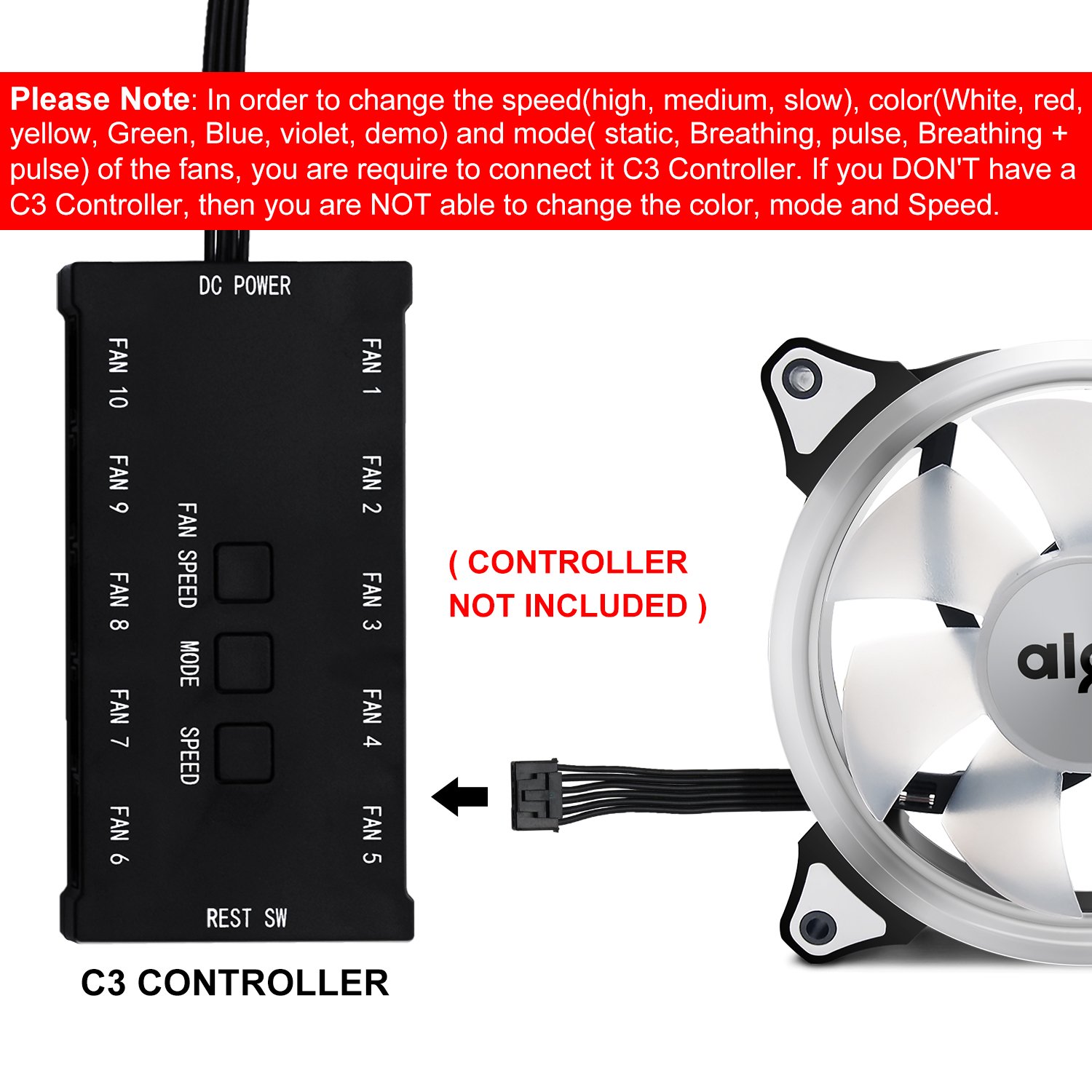
This detailed diagram displays the Aigo C3 controller, showing its various ports for connecting up to 10 fans, DC power input, and buttons for adjusting fan speed and RGB lighting modes. It emphasizes that the controller is not included with the fan.

This image highlights that a separate C3 controller is necessary to adjust the fan's RGB lighting colors, modes, and speed settings. The controller is not included with the single fan unit.
7. ఆపరేటింగ్ సూచనలు
Upon powering on your computer, the Aigo Aurora fan will begin to spin and illuminate. The specific functionality depends on whether a C3 controller is used.
- Without C3 Controller: The fan will operate at its default speed (1200 RPM) and may display a default RGB lighting effect, or no lighting, depending on the motherboard header's capabilities. Speed and lighting adjustments are not possible.
- With Aigo C3 Controller (Sold Separately):
If connected to an Aigo C3 controller, you can customize the fan's performance and aesthetics:
- వేగ నియంత్రణ: Use the "SPEED" buttons on the C3 controller to cycle through different fan speeds (e.g., high, medium, slow).
- మోడ్ నియంత్రణ: Use the "MODE" button to change RGB lighting effects (e.g., static, breathing, pulse, rainbow).
- రంగు నియంత్రణ: Use the "COLOR" button to select specific static colors (e.g., white, red, yellow, green, blue, violet).

This image shows the Aigo Aurora 120mm case fan illuminated with a solid red RGB light, demonstrating one of its color options.
8. నిర్వహణ
- శుభ్రపరచడం: Periodically clean the fan blades and frame to prevent dust buildup, which can impede airflow and reduce cooling efficiency. Use a soft brush or compressed air. Ensure the computer is powered off and unplugged before cleaning.
- కనెక్షన్లను తనిఖీ చేయండి: Occasionally verify that all fan cables are securely connected to prevent intermittent operation.
- లూబ్రికేషన్ మానుకోండి: The fan bearings are factory-sealed and do not require lubrication. Attempting to lubricate them may cause damage.
9. ట్రబుల్షూటింగ్
- ఫ్యాన్ తిరగడం లేదు:
- Ensure the 4-pin power connector is securely plugged into a functional fan header on the motherboard or C3 controller.
- Check if the computer's power supply is functioning correctly.
- If using a C3 controller, ensure the controller itself is powered and connected correctly.
- RGB Lights Not Working or Incorrect:
- Verify that the fan is connected to an Aigo C3 RGB controller. Without the controller, full RGB functionality is not available.
- If using a C3 controller, ensure it is properly powered and that the fan is connected to one of its fan ports.
- Try cycling through modes and colors using the C3 controller buttons.
- Ensure no software conflicts if using motherboard RGB control (though this fan primarily relies on the C3 controller).
- అధిక శబ్దం:
- ఫ్యాన్ సురక్షితంగా అమర్చబడిందని మరియు కేసుకు వ్యతిరేకంగా వైబ్రేట్ కాకుండా చూసుకోండి.
- ఫ్యాన్ బ్లేడ్లను తాకుతున్న ఏవైనా కేబుల్స్ లేదా అడ్డంకులు ఉన్నాయా అని తనిఖీ చేయండి.
- ఫ్యాన్ బ్లేడ్లపై పేరుకుపోయిన దుమ్మును శుభ్రం చేయండి.
10. వారంటీ మరియు మద్దతు
Aigo products are manufactured to high-quality standards. For warranty information and technical support, please refer to the official Aigo webసైట్లో లేదా మీ రిటైలర్ను సంప్రదించండి. వారంటీ క్లెయిమ్ల కోసం దయచేసి మీ కొనుగోలు రుజువును మీ వద్ద ఉంచుకోండి.
మరిన్ని సహాయం కోసం, మీరు సందర్శించవచ్చు aigo Store on Amazon.


