1. పరిచయం మరియు ఓవర్view
The Acer V226HQL is a 21.5-inch LED LCD monitor designed for various computing needs. It features Acer eColor technology for enhanced visuals and Acer ComfyView innovations to reduce glare, providing a comfortable viewing experience. This monitor offers a wide array of connectivity ports and incorporates eco-friendly features for energy efficiency.
The monitor is designed for adaptability, allowing users to find an optimal working angle with its quick and smooth tilt adjustment. The stand includes a magnetic area for organizing small items, and the monitor is also wall-mountable for space-saving configurations.

మూర్తి 1: ముందు view of the Acer V226HQL monitor, showcasing its display and Acer branding.
2. సెటప్
2.1 అన్ప్యాకింగ్ మరియు అసెంబ్లీ
Carefully remove the monitor and all components from the packaging. Assemble the stand according to the instructions provided in the quick start guide. Ensure all connections are secure before proceeding.
2.2 మానిటర్ను కనెక్ట్ చేస్తోంది
The Acer V226HQL monitor supports multiple input types. Connect the appropriate cable from your computer to the monitor's input port.
- HDMI కనెక్షన్: Use an HDMI cable for digital video and audio transmission.
- DVI-D Connection: Use a DVI-D cable for digital video transmission.
- VGA కనెక్షన్: Use a VGA cable for analog video transmission.
After connecting the video cable, connect the power cable to the monitor and then to a power outlet.
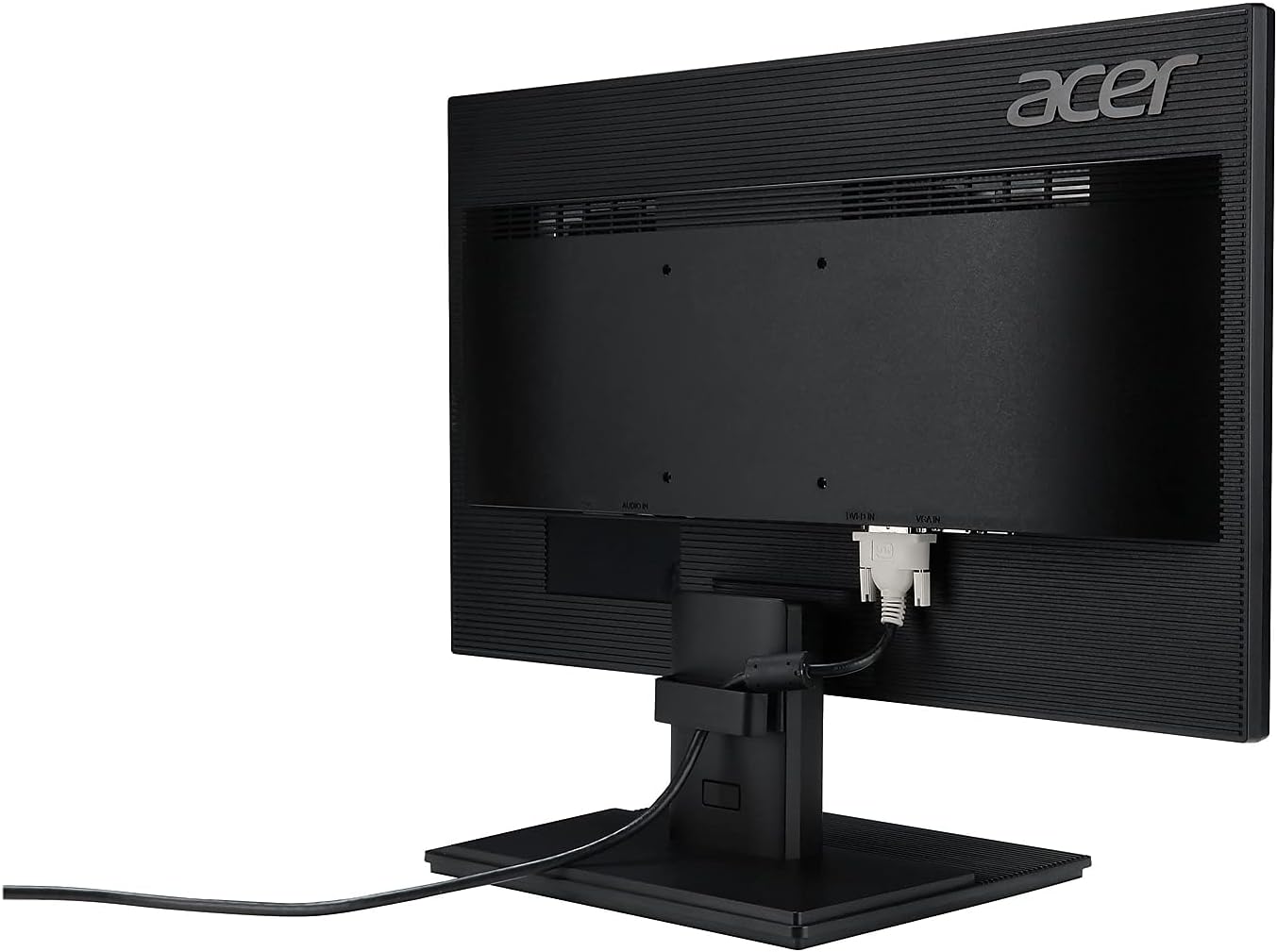
చిత్రం 2: వెనుక view of the Acer V226HQL monitor, illustrating the HDMI, DVI-D, and VGA input ports with an HDMI cable connected.
2.3 వాల్ మౌంటు
The monitor is compatible with VESA wall mounts. If you choose to wall-mount the monitor, ensure you use a VESA-compliant mounting kit and follow the kit's instructions carefully. The VESA mount points are located on the rear of the monitor.
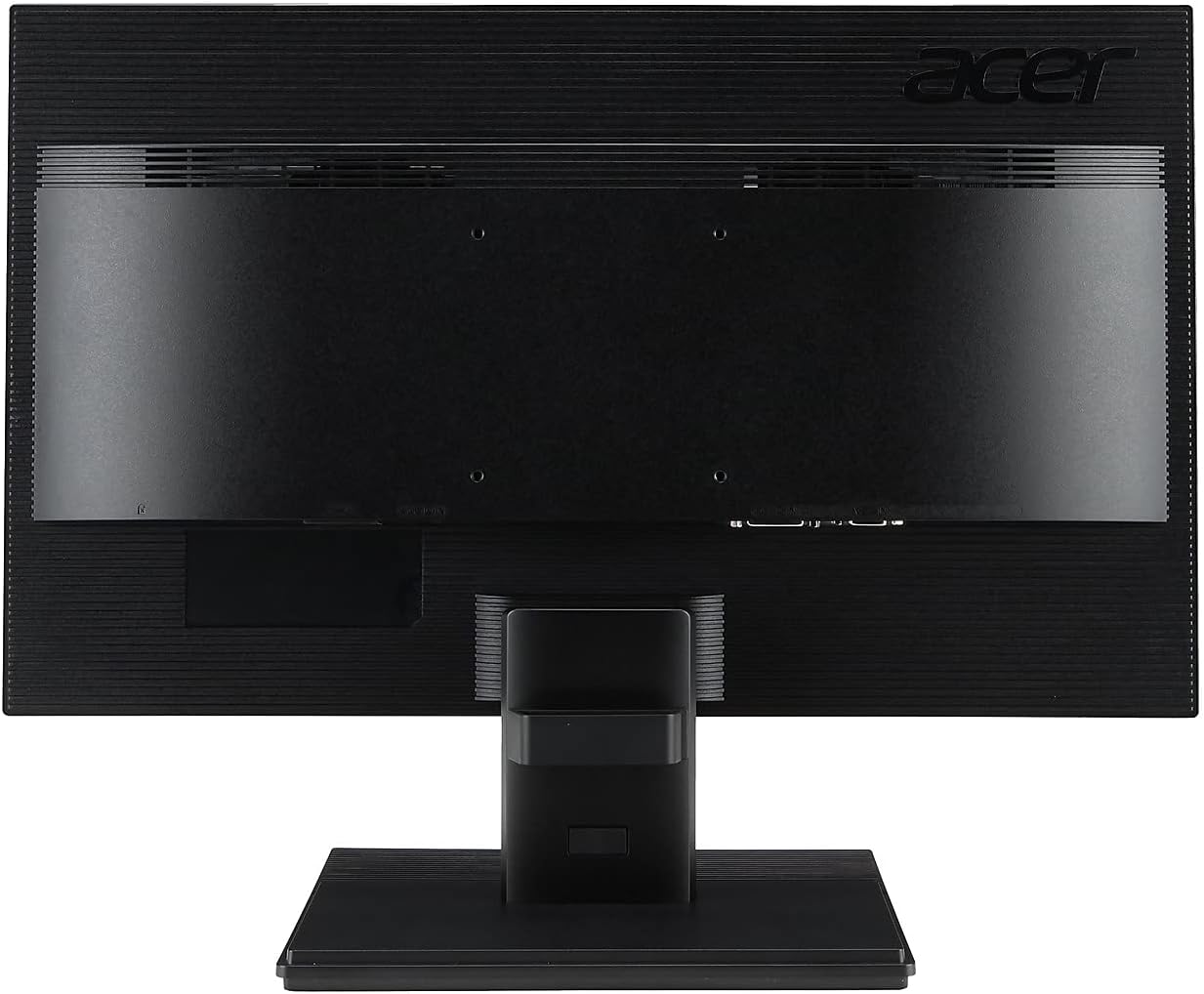
చిత్రం 3: వెనుక view of the Acer V226HQL monitor, showing the VESA mount points for wall installation.
3. మానిటర్ను నిర్వహించడం
3.1 పవర్ ఆన్/ఆఫ్
Locate the power button on the bottom right bezel of the monitor. Press it to turn the monitor on or off. A blue LED indicator will illuminate when the monitor is powered on.
3.2 ఆన్-స్క్రీన్ డిస్ప్లే (OSD) నియంత్రణలు
The monitor features several control buttons located on the bottom right bezel, adjacent to the power button. These buttons allow you to navigate the On-Screen Display (OSD) menu to adjust various settings:
- ప్రకాశం: స్క్రీన్ యొక్క మొత్తం కాంతిని సర్దుబాటు చేయండి.
- కాంట్రాస్ట్: Modify the difference between the brightest and darkest areas of the image.
- రంగు సెట్టింగ్లు: Fine-tune color temperature, gamma, and other color-related parameters.
- బ్లూ లైట్ ఫిల్టర్: Activate the blue light filter to reduce eye strain during prolonged use.
- ఇన్పుట్ ఎంపిక: Manually switch between HDMI, DVI-D, and VGA inputs.
Refer to the detailed OSD menu guide in the full product manual for specific navigation and adjustment procedures.
4. నిర్వహణ
4.1 మానిటర్ను శుభ్రపరచడం
మానిటర్ స్క్రీన్ను శుభ్రం చేయడానికి, దానిని మృదువైన, మెత్తటి బట్టతో సున్నితంగా తుడవండి. మొండి గుర్తుల కోసం, dampen the cloth with a mild, non-abrasive screen cleaner. Avoid using harsh chemicals or abrasive materials that could damage the screen surface.
మానిటర్ కోసం సిasing, మృదువైన, పొడి వస్త్రాన్ని ఉపయోగించండి. శుభ్రపరిచే ద్రావణాలను నేరుగా మానిటర్పై పిచికారీ చేయవద్దు.
4.2 భద్రతా జాగ్రత్తలు
- వేడెక్కడాన్ని నివారించడానికి మానిటర్ చుట్టూ సరైన వెంటిలేషన్ ఉండేలా చూసుకోండి.
- వెంటిలేషన్ ఓపెనింగ్స్ను నిరోధించవద్దు.
- మానిటర్ లేదా దాని కేబుల్స్పై బరువైన వస్తువులను ఉంచడం మానుకోండి.
- మానిటర్ను ప్రత్యక్ష సూర్యకాంతి, ఉష్ణ వనరులు మరియు అధిక తేమ నుండి దూరంగా ఉంచండి.
- Disconnect the power cable before cleaning or if the monitor will be unused for an extended period.
5. ట్రబుల్షూటింగ్
If you encounter issues with your Acer V226HQL monitor, refer to the following common troubleshooting steps:
- ప్రదర్శన లేదు: Ensure the monitor is powered on and the video cable is securely connected to both the monitor and the computer. Verify that the correct input source is selected via the OSD menu.
- పేలవమైన చిత్ర నాణ్యత: Check the resolution settings on your computer to ensure they match the monitor's native resolution (1920 x 1080). Adjust brightness, contrast, and color settings through the OSD menu.
- విద్యుత్ సమస్యలు: Confirm the power cable is properly connected to both the monitor and the power outlet. Test the power outlet with another device.
- మినుకుమినుకుమనే తెర: Check for loose cable connections. Ensure the refresh rate is set correctly (60 Hz).
For more complex issues, consult the comprehensive troubleshooting section in the full product manual or contact Acer customer support.
6. స్పెసిఫికేషన్లు
| ఫీచర్ | స్పెసిఫికేషన్ |
|---|---|
| మోడల్ సంఖ్య | V226HQL |
| స్క్రీన్ పరిమాణం | 21.5 అంగుళాలు |
| ప్యానెల్ రకం | LED-LCD |
| గరిష్ట రిజల్యూషన్ | 1920 x 1080 (పూర్తి HD) |
| కారక నిష్పత్తి | 16:9 |
| ప్రతిస్పందన సమయం | 5మి.లు |
| డైనమిక్ కాంట్రాస్ట్ రేషియో | 100,000,000:1 |
| స్థానిక కాంట్రాస్ట్ నిష్పత్తి | 1,000:1 |
| అడ్డంగా Viewing యాంగిల్ | 170° |
| నిలువు Viewing యాంగిల్ | 160° |
| ప్రకాశం (సాధారణ) | 250 cd/m² |
| ఇంటిగ్రేటెడ్ స్పీకర్లు | 2 x 1.0W |
| సిగ్నల్ కనెక్టర్లు | VGA, HDMI, DVI-D |
| రిఫ్రెష్ రేట్ | 60 Hz |
| ఉత్పత్తి కొలతలు (LxWxH) | 2 x 20 x 12 అంగుళాలు |
| వస్తువు బరువు | 7.14 పౌండ్లు |
| రంగు | నలుపు |
| వాల్ మౌంటబుల్ | అవును (VESA అనుకూలంగా ఉంటుంది) |
7. వారంటీ మరియు మద్దతు
7.1 పరిమిత వారంటీ
This Acer V226HQL monitor comes with a మూడు సంవత్సరాల పరిమిత వారంటీ. Please retain your proof of purchase for warranty claims. The warranty covers defects in materials and workmanship under normal use. For full details on warranty terms and conditions, refer to the warranty card included with your product or visit the official Acer support webసైట్.
7.2 కస్టమర్ మద్దతు
For technical assistance, product inquiries, or warranty service, please contact Acer customer support. You can find contact information and support resources on the official Acer website. When contacting support, please have your monitor's model number (V226HQL) and serial number readily available.


