పరిచయం
The LaCie d2 Professional is an external desktop hard drive designed for creative professionals and users requiring substantial storage capacity and high performance. It is ideal for those using SSD-based laptops or all-in-one computers with limited internal storage. This manual provides essential information for setting up, operating, maintaining, and troubleshooting your LaCie d2 Professional hard drive.

Image: LaCie d2 Professional 8TB External Hard Drive, showcasing its sleek black aluminum enclosure and blue indicator light.
పెట్టెలో ఏముంది
ప్యాకేజింగ్లో అన్ని భాగాలు ఉన్నాయని నిర్ధారించుకోండి:
- LaCie d2 Professional 8TB USB 3.1 TYPE C External Hard Drive
- USB-C నుండి USB-C కేబుల్
- USB-C to USB 3.0 (Type A) adapter cable
- బాహ్య విద్యుత్ సరఫరా
- Quick start guide (this manual serves as a comprehensive guide)
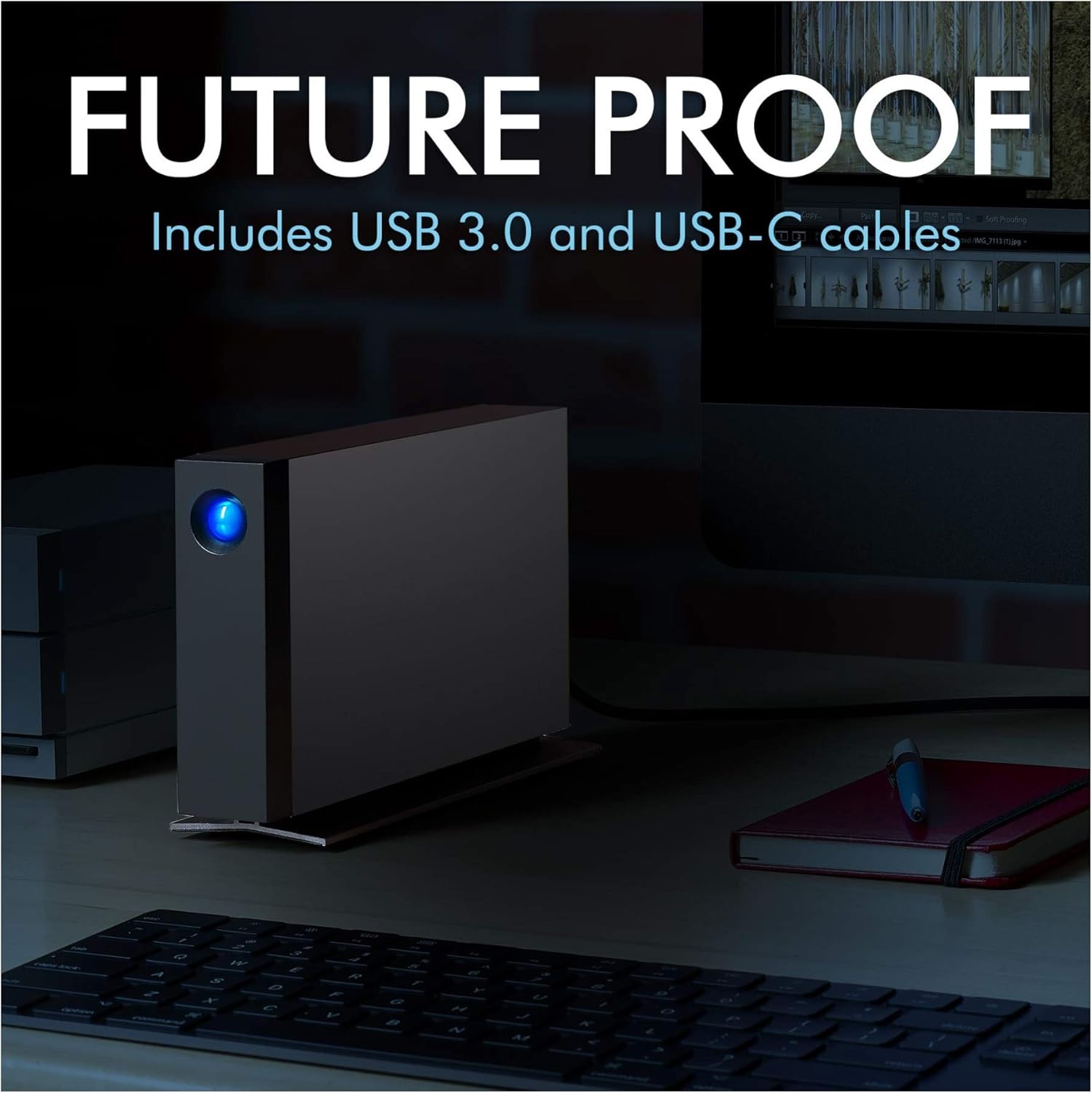
Image: LaCie d2 Professional hard drive connected to a computer, illustrating the included USB-C and USB 3.0 cables for versatile connectivity.
సెటప్
- విద్యుత్ సరఫరాను కనెక్ట్ చేయండి: Plug the external power supply into the hard drive's power input and then into a wall outlet.
- మీ కంప్యూటర్కు కనెక్ట్ చేయండి:
- For USB-C or Thunderbolt 3 ports: Use the provided USB-C to USB-C cable.
- For USB 3.0 (Type A) ports: Use the provided USB-C to USB 3.0 (Type A) adapter cable.
- ప్రారంభ డ్రైవ్ సెటప్:
Upon first connection, the drive may appear as a new volume on your desktop. It is pre-formatted for universal compatibility. For optimal performance and specific operating system features (e.g., Time Machine for Mac), you may need to reformat the drive using your computer's disk utility. Refer to your operating system's documentation for detailed formatting instructions.
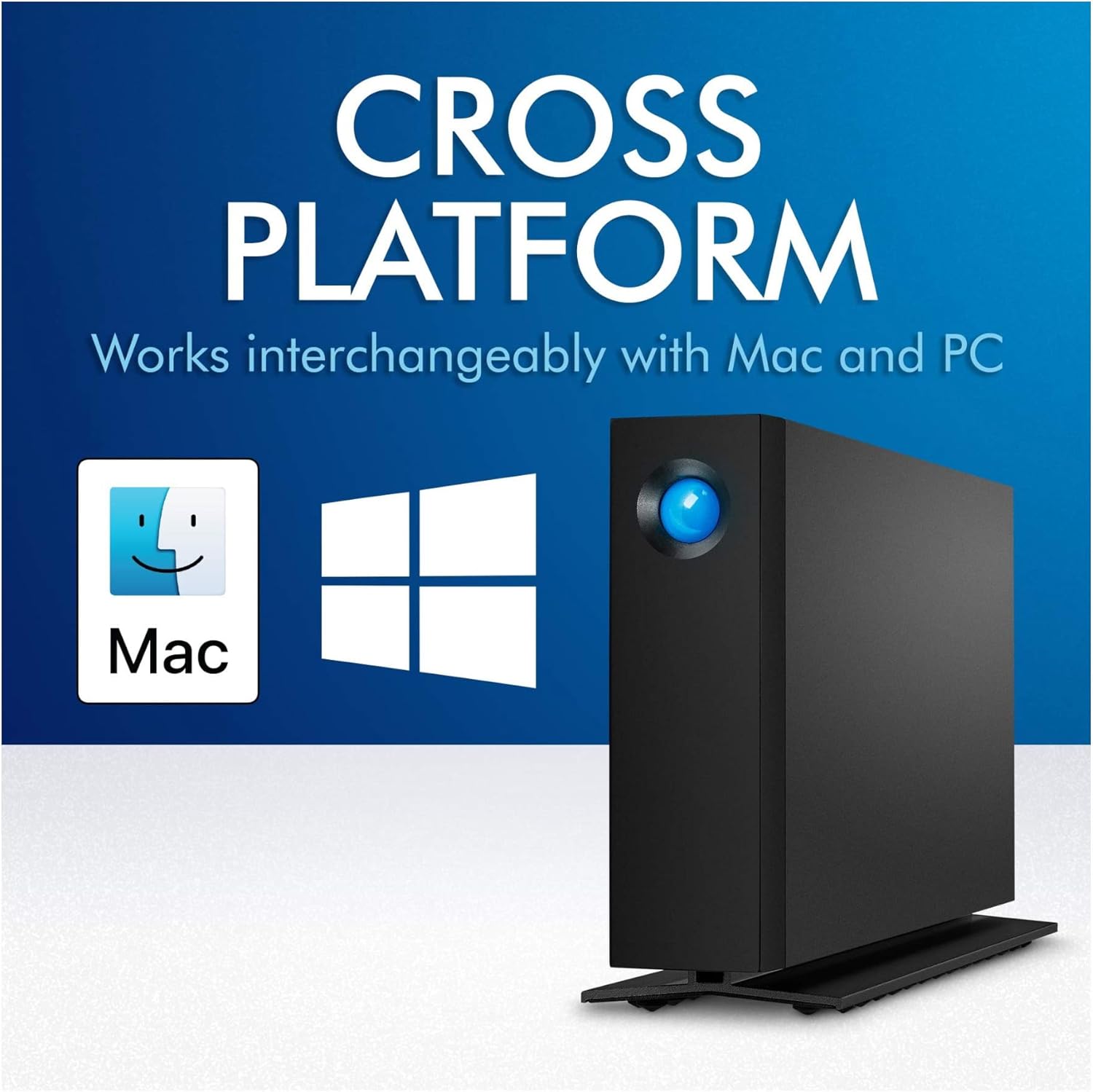
Image: LaCie d2 Professional hard drive demonstrating its cross-platform compatibility with both Mac and PC operating systems.
పరికరాన్ని ఆపరేట్ చేస్తోంది
The LaCie d2 Professional is designed for straightforward operation. Once connected and recognized by your computer, it functions like any other external storage device.
- డేటా బదిలీ: లాగండి మరియు వదలండి files to and from the drive, or use your operating system's copy/paste functions. The drive offers speeds of up to 240MB/s for efficient data transfer.
- సూచిక కాంతి: The blue LED on the front of the drive indicates power and activity. A solid blue light typically means the drive is powered on and idle, while a blinking light indicates data transfer or activity.
- డ్రైవ్ను ఎజెక్ట్ చేస్తోంది: Always safely eject the drive from your operating system before disconnecting it to prevent data corruption.
- విండోస్: Right-click the drive icon in 'This PC' or 'My Computer' and select 'Eject'.
- MacOS: Drag the drive icon to the Trash, or click the Eject button next to the drive name in Finder.
- శబ్దం మరియు కంపనం: The aluminum form factor helps reduce noise and vibration during operation, providing a quieter working environment.
నిర్వహణ
Proper maintenance ensures the longevity and optimal performance of your LaCie d2 Professional hard drive.
- శుభ్రంగా ఉంచండి: డ్రైవ్ యొక్క బాహ్య భాగాన్ని శుభ్రం చేయడానికి మృదువైన, పొడి వస్త్రాన్ని ఉపయోగించండి. ద్రవ క్లీనర్లు లేదా రాపిడి పదార్థాలను నివారించండి.
- వెంటిలేషన్: Ensure the drive is placed in a location with adequate airflow to prevent overheating. Do not block the ventilation openings.
- ఫర్మ్వేర్ నవీకరణలు: LaCie మద్దతును క్రమానుగతంగా తనిఖీ చేయండి website for any available firmware updates for your model. Firmware updates can improve performance and stability.
- డేటా బ్యాకప్: While the drive is reliable, it is always recommended to maintain backups of critical data on multiple devices or cloud storage.
ట్రబుల్షూటింగ్
If you encounter issues with your LaCie d2 Professional, try the following steps:
- డ్రైవ్ గుర్తించబడలేదు:
- Ensure the power supply is securely connected and the drive's indicator light is on.
- మీ కంప్యూటర్లో వేరే USB పోర్ట్ని ప్రయత్నించండి.
- అందుబాటులో ఉంటే వేరే USB కేబుల్తో పరీక్షించండి.
- మీ కంప్యూటర్ని పునఃప్రారంభించండి.
- Check your computer's Disk Management (Windows) or Disk Utility (macOS) to see if the drive is recognized but not mounted.
- నెమ్మదిగా పనితీరు:
- Ensure you are using a USB 3.0 or USB-C port for optimal speeds. Connecting to a USB 2.0 port will result in significantly slower performance.
- నేపథ్యంలో నడుస్తున్న ఏవైనా అనవసరమైన అప్లికేషన్లను మూసివేయండి.
- విచ్ఛిన్నమైందో లేదో తనిఖీ చేయండి files (though modern operating systems often handle this automatically).
- డ్రైవ్ యాదృచ్ఛికంగా డిస్కనెక్ట్ అవుతుంది:
- అన్ని కేబుల్స్ సురక్షితంగా కనెక్ట్ అయ్యాయని నిర్ధారించుకోండి.
- Disable power-saving features for USB ports in your computer's settings.
- Ensure the drive is placed on a stable surface and not subject to vibrations.
స్పెసిఫికేషన్లు
| ఫీచర్ | వివరాలు |
|---|---|
| మోడల్ సంఖ్య | STHA8000800 |
| డిజిటల్ స్టోరేజ్ కెపాసిటీ | 8 TB |
| హార్డ్ డ్రైవ్ రకం | మెకానికల్ హార్డ్ డిస్క్ |
| హార్డ్ డ్రైవ్ భ్రమణ వేగం | 7200 RPM |
| ఇంటర్ఫేస్ | USB-C (USB 3.1 Gen 2 compatible), USB 3.0 (via adapter) |
| కనెక్టివిటీ టెక్నాలజీ | USB |
| అనుకూల పరికరాలు | Desktop (Mac, PC) |
| కొలతలు (LxWxH) | 2.36 x 5.12 x 7.42 అంగుళాలు |
| వస్తువు బరువు | 2.36 పౌండ్లు |
| తయారీదారు | SEAGATE |
వారంటీ మరియు మద్దతు
The LaCie d2 Professional includes a comprehensive warranty and data recovery service for peace of mind.
- పరిమిత వారంటీ: The product comes with a five-year limited warranty. Please refer to the official LaCie website or the warranty card included with your product for full terms and conditions.
- రెస్క్యూ డేటా రికవరీ సేవలు: Included with your purchase are five years of Rescue Data Recovery Services. This service can help recover data in the event of accidental data loss, mechanical failure, or natural disaster. For more information and to initiate a recovery request, visit the LaCie support portal.
- సాంకేతిక మద్దతు: For technical assistance, driver downloads, or further inquiries, please visit the official LaCie support webసైట్.

Image: Graphic indicating "Recovery Included" with 5 years of Rescue Data Recovery Services, symbolized by a large blue 'R' with a cross.


