1. ఉత్పత్తి ముగిసిందిview
The WitMotion USB-HID Wireless Bluetooth Adapter is designed for seamless wireless communication with Wit-Motion Bluetooth 2.0 sensors, including models BWT901CL, BWT61CL, BWT901, and BWT61. This adapter features HID technology and a CH340 driver, enabling a plug-and-play experience without the need for complex driver installations. Its compact, anti-dust design with a protective cap makes it highly portable and durable.

Figure 1.1: WitMotion USB-HID Wireless Bluetooth Adapter, showcasing its compact design and protective cap.
ముఖ్య లక్షణాలు:
- Dedicated Application: Exclusively compatible with Wit-Motion Bluetooth 2.0 sensors (BWT901CL, BWT61CL, BWT901, BWT61).
- ప్లగ్ & ప్లే: Utilizes HID technology and CH340 driver for immediate use upon connection.
- విస్తృత అనుకూలత: Fully compatible with all Windows operating systems (Windows 7, 8, 10, 11).
- మన్నికైన & పోర్టబుల్: Features an anti-dust, cap-design, small form factor for easy carrying and extended lifespan.
- వైర్లెస్ పరిధి: Supports Bluetooth connections up to 10 meters.
2. సెటప్ మరియు ఇన్స్టాలేషన్
The WitMotion USB-HID Bluetooth Adapter is designed for ease of use with its driver-free, plug-and-play functionality. Follow these steps to set up your adapter:
- అడాప్టర్ను కనెక్ట్ చేయండి: Insert the USB-HID Bluetooth Adapter into an available USB port on your Windows computer.
- స్వయంచాలక గుర్తింపు: The operating system should automatically recognize the device. For the CH340 driver, it is typically installed automatically by Windows. If not, ensure you have an internet connection for Windows to download it, or manually install the CH341SER.EXE driver if prompted.
- Prepare Your Sensor: Ensure your Wit-Motion Bluetooth 2.0 sensor (e.g., BWT901CL, BWT61CL) is powered on and within the 10-meter Bluetooth range of the adapter.
- జత చేయడం: The adapter is designed to automatically pair with compatible Wit-Motion Bluetooth 2.0 sensors. Once connected, the blue LED on the adapter will indicate a successful connection.
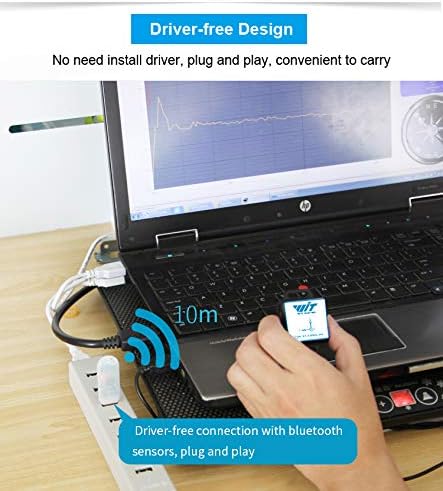
Figure 2.1: The USB-HID Adapter connected to a laptop, demonstrating its driver-free, plug-and-play operation with Bluetooth sensors.

Figure 2.2: The adapter features an in-built BT-02 module, ensuring superior compatibility with Windows 7, 8, 10, and 11 systems.
3. ఆపరేటింగ్ సూచనలు
Once the WitMotion USB-HID Bluetooth Adapter is successfully connected to your computer and paired with a compatible Wit-Motion Bluetooth 2.0 sensor, it will establish a transparent data link. Data from the sensor will be transmitted wirelessly to your computer.
- డేటా ట్రాన్స్మిషన్: The adapter facilitates real-time data transfer from your Wit-Motion sensor to your computer. This data can be viewed and processed using the appropriate WitMotion software, such as MiniIMU.exe.
- కనెక్షన్ పరిధి: Maintain the sensor within 10 meters (approximately 33 feet) of the adapter for optimal and stable wireless communication. Obstacles and interference may reduce this range.
- LED సూచిక: The blue LED on the adapter will flash when attempting to connect and remain solid or flash in a specific pattern once a connection is established, indicating active communication.
4. నిర్వహణ
The WitMotion USB-HID Bluetooth Adapter is designed for durability and minimal maintenance. Adhering to these simple guidelines will help ensure its longevity and optimal performance:
- శుభ్రముగా ఉంచు: Use a soft, dry cloth to gently wipe the adapter. Avoid using liquid cleaners or solvents, which could damage the internal components.
- దుమ్ము నుండి రక్షించండి: The adapter features an anti-dust cap design. Always replace the cap when the adapter is not in use to prevent dust and debris from entering the USB connector.
- సరిగ్గా నిల్వ చేయండి: When not in use, store the adapter in a cool, dry place, away from direct sunlight, extreme temperatures, and high humidity.
- జాగ్రత్తగా నిర్వహించండి: Avoid dropping the adapter or subjecting it to strong impacts, as this can damage internal circuitry.

Figure 4.1: The adapter's cap design provides anti-dust protection, contributing to its durability and extended lifetime.
5. ట్రబుల్షూటింగ్
If you encounter issues with your WitMotion USB-HID Bluetooth Adapter, refer to the following troubleshooting steps:
Common Connection Issues:
- Red Light Not Flashing / Only Blue Flashing LED: If the red light (indicating configuration/pairing attempt) never flashes and only the blue LED flashes (indicating connection to a previously configured device), follow these steps:
- Verify USB-C Cable (if applicable for sensor): Ensure you are using a proper USB-C డేటా cable (one with all wires) for your sensor, not just a charging cable.
- Test IMU with Cable: Confirm your IMU sensor works correctly when connected via a USB-C cable using the appropriate driver (e.g., CP210xVCPInstaller_x64.exe) and the MiniIMU.exe software from WitMotion's official resources.
- Check Dongle Driver Installation: On Windows, open Device Manager (Win+R >
devmgmt.msc). Under 'Ports (COM & LPT)', verify that the dongle driver is correctly installed and appears as a COM serial port device, typically named "USB-SERIAL CH340". If not, install the correct driver (e.g., CH341SER.EXE). The driver installation requires the USB-HID dongle to be connected. - Use MiniIMU.exe for Configuration: Obtain a copy of MiniIMU.exe (version 6.2.65 or higher) from WitMotion's GitHub page. With the dongle plugged in, its driver installed, and both the IMU and dongle powered on and flashing their blue LEDs, open MiniIMU.exe. Navigate to Help > Bluetooth 2.0 transparent set > One click configuration. This action will reset any previous auto-connection settings stored in the dongle and reprogram it to pair with your current IMU.
- Isolate Pairing: When performing the "One click configuration," it is advisable to have only the specific WitMotion dongle and IMU you intend to pair powered on and connected to avoid interference from other devices.
- No Power/LED Activity: If there is no light activity when plugged in, try a different USB port or a different computer to rule out port issues.
- పరికరాన్ని గుర్తించని సాఫ్ట్వేర్: Ensure you are using the correct version of WitMotion's software (e.g., MiniIMU.exe) and that it is up-to-date.
6. స్పెసిఫికేషన్లు
Detailed technical specifications for the WitMotion USB-HID Wireless Bluetooth Adapter:
| గుణం | విలువ |
|---|---|
| మోడల్ సంఖ్య | USB-HID Adapter |
| ఉత్పత్తి కొలతలు (L x W x H) | 2.28 x 0.75 x 0.35 అంగుళాలు (58 x 19 x 9 మిమీ) |
| వస్తువు బరువు | 0.563 ఔన్సులు |
| బ్రాండ్ | WITMOTION |
| హార్డ్వేర్ ఇంటర్ఫేస్ | Bluetooth, Bluetooth 2.0, USB |
| రంగు | నలుపు, వెండి |
| అనుకూల పరికరాలు | Desktop (Windows systems) |
| డేటా లింక్ ప్రోటోకాల్ | బ్లూటూత్ |
| డేటా బదిలీ రేటు | సెకనుకు 3 మెగాబిట్లు |
| UPC | 713721000074 |
7. మద్దతు మరియు వారంటీ
For further assistance, documentation, or warranty information, please refer to the following resources:
- అధికారిక Webసైట్: సందర్శించండి WIT-MOTION.com for support pages, documentation, software, and tutorials.
- ఆన్లైన్ వనరులు: Access the WITMOTION Google Drive for additional tutorials and resources.
- వీడియో ట్యుటోరియల్స్: Subscribe to the WITMOTION YouTube channel for instructional videos and project sharing.
- కస్టమర్ మద్దతు: For direct inquiries, you can contact WitMotion support via email at support@wit-motion.com.
- రిటర్న్ పాలసీ: This product is typically eligible for a refund or replacement within 30 days of purchase, subject to the seller's return policy. Please refer to your purchase platform for specific details.

Figure 7.1: Product packaging showing contact information and QC Passed certification for quality assurance.


