1. పరిచయం
This manual provides essential information for the safe and efficient installation, operation, and maintenance of your Aerocool LUX RGB 650M Power Supply Unit. Please read this manual thoroughly before installation and use to ensure optimal performance and safety.
The Aerocool LUX RGB 650M is a high-performance power supply designed to deliver stable and reliable power to your PC components. It features a stylish RGB LED design with 13 preset lighting effects, controllable via a dedicated button or compatible Addressable RGB motherboards.
2. భద్రతా సమాచారం
హెచ్చరిక: అధిక వాల్యూమ్tage components are present inside the power supply unit. Do not open the casing under any circumstances. Refer all servicing to qualified personnel.
- Always disconnect the AC power cord from the wall outlet before installing, removing, or servicing the power supply unit or any other system components.
- Ensure the power supply is installed in a well-ventilated area, free from excessive heat, humidity, or dust.
- Do not block the ventilation openings of the power supply.
- మీ కంప్యూటర్ సిస్టమ్ సరైన గ్రౌండింగ్లో ఉందని నిర్ధారించుకోండి.
- Use only the cables provided with the power supply unit.
- ఈ ఉత్పత్తి కంప్యూటర్ సిస్టమ్లలో మాత్రమే ఉపయోగించడానికి రూపొందించబడింది. దీన్ని మరే ఇతర ప్రయోజనం కోసం ఉపయోగించవద్దు.
3. ప్యాకేజీ విషయాలు
దయచేసి మీ ప్యాకేజీలో అన్ని అంశాలు ఉన్నాయని ధృవీకరించండి:
- Aerocool LUX RGB 650M Power Supply Unit
- AC పవర్ కార్డ్
- మౌంటు స్క్రూలు
- వినియోగదారు మాన్యువల్ (ఈ పత్రం)

Figure 3.1: Aerocool LUX RGB 650M Power Supply Unit. This image shows the main unit with its attached power cables and the RGB lighting panel on the side.
4. సెటప్ మరియు ఇన్స్టాలేషన్
Follow these steps to install your power supply unit:
- మీ వ్యవస్థను సిద్ధం చేయండి: Ensure your computer case is open and accessible. Disconnect all power from your system before beginning installation.
- PSU ని మౌంట్ చేయండి: Carefully slide the power supply into the designated PSU bay in your computer case. Align the screw holes on the PSU with those on the case. Secure the PSU using the provided mounting screws.
- మదర్బోర్డ్ పవర్ను కనెక్ట్ చేయండి: Connect the 24-pin ATX power cable from the PSU to the corresponding 24-pin connector on your motherboard. Ensure it clicks securely into place.
- CPU పవర్ కనెక్ట్ చేయండి: Connect the 4+4 pin EPS/CPU power cable from the PSU to the CPU power connector on your motherboard. This is typically located near the CPU socket.
- Connect Graphics Card Power (if applicable): If your graphics card requires additional power, connect the appropriate PCIe 6+2 pin power cables from the PSU to your graphics card.
- పెరిఫెరల్స్ కనెక్ట్ చేయండి: Connect SATA power cables to your storage drives (HDDs, SSDs) and optical drives. Connect Molex power cables to any other peripherals that require them (e.g., case fans, older components).
- Connect RGB Sync Cable (Optional): If your motherboard supports Addressable RGB (ARGB) and you wish to synchronize the PSU's RGB lighting with your system, connect the PSU's ARGB cable to a compatible +5V ARGB header on your motherboard. Refer to your motherboard manual for header location. If not connecting to a motherboard, the RGB can be controlled via the button on the PSU.
- కేబుల్ నిర్వహణ: Route all cables neatly to improve airflow and aesthetics within your case.
- AC పవర్ కనెక్ట్ చేయండి: Once all internal connections are made, connect the supplied AC power cord to the power supply's AC inlet and then to a wall outlet.
- పవర్ ఆన్: Ensure the power switch on the back of the PSU is in the 'ON' (I) position. You can now power on your computer system.

చిత్రం 4.1: వెనుక view of the PSU showing the AC power inlet and the main power switch. Ensure the switch is in the 'I' (ON) position for operation.
5. ఆపరేటింగ్ సూచనలు
The Aerocool LUX RGB 650M operates automatically once installed and powered on. The primary user interaction involves controlling the RGB lighting.
RGB లైటింగ్ నియంత్రణ:
The LUX RGB 650M offers two methods for controlling its lighting effects:
- Via LED Control Button: The power supply features a dedicated LED control button, typically located on the unit itself or accessible via a small button on the rear. Press this button to cycle through 13 preset lighting effects, including various static colors, breathing effects, and dynamic RGB modes.
- Via Addressable RGB Motherboard: If you have connected the PSU's ARGB cable to a compatible +5V ARGB header on your motherboard, you can control the lighting effects using your motherboard's RGB software (e.g., ASUS Aura Sync, MSI Mystic Light Sync, Gigabyte RGB Fusion, ASRock Polychrome Sync). This allows for synchronized lighting across your entire system.
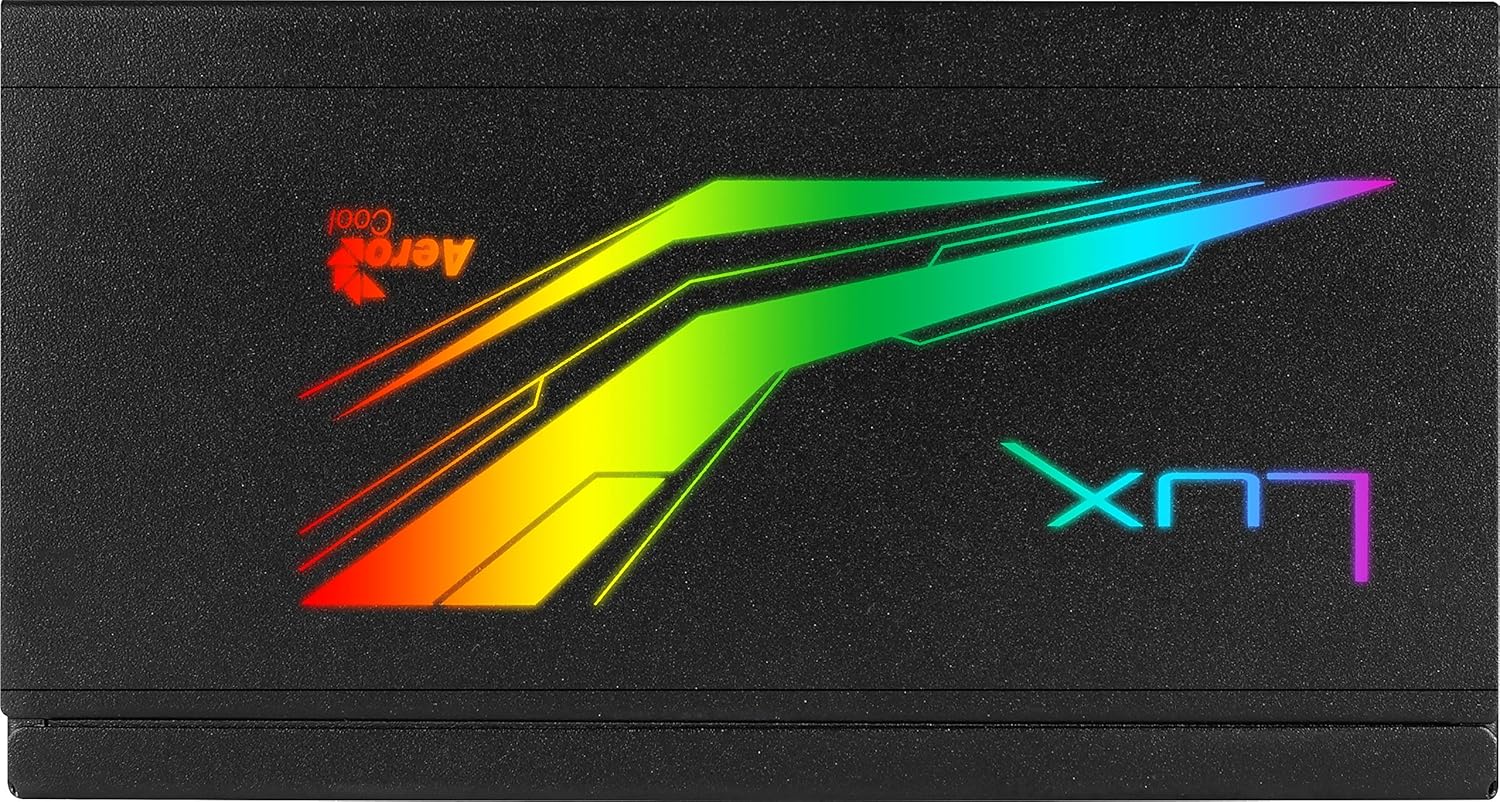
Figure 5.1: Close-up of the Aerocool LUX RGB lighting panel, showcasing its vibrant illumination.
6. నిర్వహణ
Proper maintenance ensures the longevity and stable operation of your power supply unit:
- దుమ్ము తొలగింపు: Periodically clean the exterior of the power supply and its fan grill to prevent dust buildup. Use compressed air to gently blow dust out of the vents. Ensure the system is powered off and unplugged before cleaning.
- వెంటిలేషన్: Ensure that the power supply's intake and exhaust vents are not obstructed by cables or other components. Good airflow is crucial for efficient cooling.
- పర్యావరణ పరిస్థితులు: Operate the PSU within recommended temperature and humidity ranges. Avoid extreme conditions.
7. ట్రబుల్షూటింగ్
If you encounter issues with your Aerocool LUX RGB 650M, refer to the following common troubleshooting steps:
- వ్యవస్థకు విద్యుత్ లేదు:
- AC పవర్ కార్డ్ PSU మరియు వాల్ అవుట్లెట్ రెండింటికీ సురక్షితంగా కనెక్ట్ చేయబడిందని నిర్ధారించుకోండి.
- Verify that the power switch on the back of the PSU is in the 'ON' (I) position.
- అన్ని అంతర్గత విద్యుత్ కనెక్షన్లను (24-పిన్ ATX, CPU, PCIe, SATA) గట్టిగా అమర్చబడి ఉన్నాయని నిర్ధారించుకోవడానికి వాటిని తనిఖీ చేయండి.
- దానికి శక్తి ఉందని నిర్ధారించుకోవడానికి మరొక పరికరంతో గోడ అవుట్లెట్ను పరీక్షించండి.
- సిస్టమ్ ఆన్ అవుతుంది కానీ డిస్ప్లే లేదు:
- Ensure your graphics card is properly seated in its PCIe slot and all necessary PCIe power cables are connected.
- Check RAM modules are correctly installed.
- RGB లైటింగ్ పని చేయడం లేదు:
- If using the LED control button, ensure you are pressing it correctly to cycle through effects.
- If using motherboard sync, verify the ARGB cable is correctly connected to a +5V ARGB header (not 12V RGB).
- Ensure your motherboard's RGB software is up-to-date and configured correctly.
- అసాధారణ శబ్దాలు లేదా వాసనలు:
Immediately power off your system and disconnect the AC power cord. Do not attempt to operate the PSU. Contact Aerocool support or your retailer for assistance.
If the issue persists after following these steps, please contact Aerocool customer support or your retailer for further assistance. Do not attempt to repair the unit yourself.
8. స్పెసిఫికేషన్లు
Below are the technical specifications for the Aerocool LUX RGB 650M Power Supply Unit:
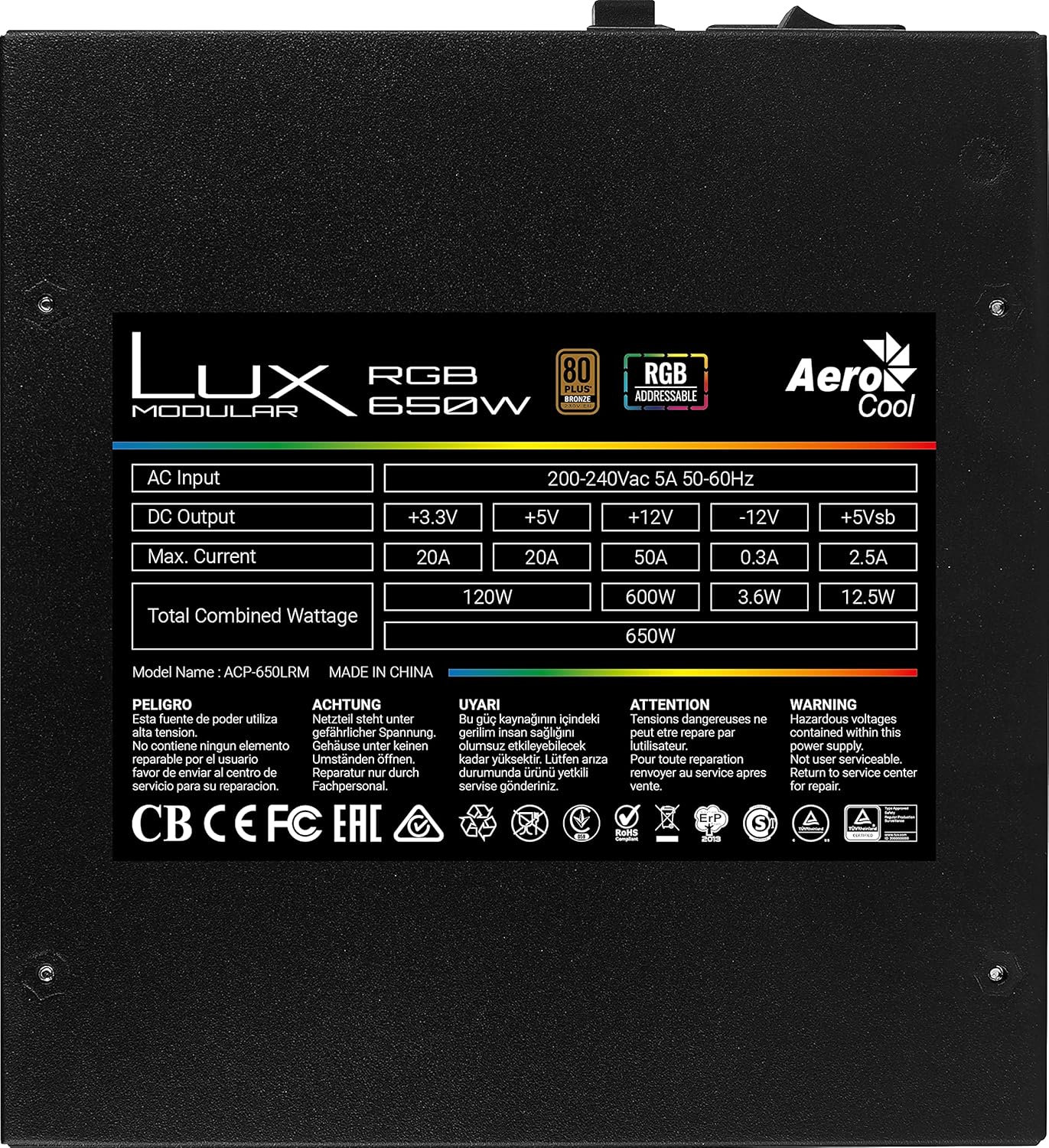
Figure 8.1: Product label showing detailed electrical specifications and certifications.
| ఫీచర్ | వివరాలు |
|---|---|
| మోడల్ పేరు | AEROPGSLUXRGB-650 (Internal: ACP-650LRM) |
| వాట్tage | 650W Total Combined |
| సమర్థత రేటింగ్ | 80 ప్లస్ కాంస్యం |
| AC ఇన్పుట్ | 200-240Vac, 5A, 50-60Hz |
| DC Output (+3.3V) | 20A (120W Combined) |
| DC Output (+5V) | 20A (120W Combined) |
| DC Output (+12V) | 50A (600W) |
| DC Output (-12V) | 0.3A (3.6W) |
| DC Output (+5Vsb) | 2.5A (12.5W) |
| RGB Features | 13 Preset Lighting Effects, Addressable RGB Compatible (+5V) |
| ధృవపత్రాలు | CB, CE, FC, EAC, RoHS, ErP, TUV, cTUVus (as per label) |
9. వారంటీ మరియు మద్దతు
Specific warranty terms and conditions for the Aerocool LUX RGB 650M Power Supply Unit may vary by region and retailer. Please refer to the warranty card included with your product or visit the official Aerocool webవివరణాత్మక వారంటీ సమాచారం కోసం సైట్.
For technical support, troubleshooting assistance beyond this manual, or warranty claims, please contact Aerocool customer support or the retailer from whom you purchased the product. Have your product model number (AEROPGSLUXRGB-650) and serial number ready when contacting support.
Aerocool Official Webసైట్: www.aerocool.io


