1. పరిచయం
This manual provides comprehensive instructions for the setup, operation, and maintenance of your NETUM NT-8003 80mm Wireless Bluetooth Thermal Receipt Printer. Please read this manual carefully before using the printer to ensure proper functionality and to prevent damage.
The NETUM NT-8003 is a portable thermal receipt printer designed for various applications, including retail, restaurants, and mobile sales, offering connectivity via Bluetooth and USB.
2. ప్యాకేజీ విషయాలు
ప్యాకేజీలో అన్ని అంశాలు ఉన్నాయని నిర్ధారించుకోండి:
- NETUM NT-8003 Thermal Printer
- Rechargeable Lithium-ion Battery (7.4V DV / 2000mA)
- USB కేబుల్
- Power Adapter (external 9V / 1.5-2A)
- Thermal Paper Roll (sampలే)
- వినియోగదారు మాన్యువల్ (ఈ పత్రం)

Image: The NETUM NT-8003 thermal printer, showing its compact design and control panel.
3. భద్రతా జాగ్రత్తలు
- ప్రింటర్ను నీరు లేదా తేమకు గురిచేయవద్దు.
- ప్రింటర్ను పడవేయడం లేదా బలమైన ప్రభావాలకు గురిచేయడం మానుకోండి.
- Use only the specified power adapter and battery.
- ప్రింటర్ను మీరే విడదీయడానికి లేదా రిపేర్ చేయడానికి ప్రయత్నించవద్దు. సహాయం కోసం కస్టమర్ సపోర్ట్ను సంప్రదించండి.
- పిల్లలకు దూరంగా ఉంచండి.
- ముఖ్యమైన గమనిక: Remove the insulating tape from the battery before first use.
4. సెటప్
4.1 బ్యాటరీ ఇన్స్టాలేషన్ మరియు ఛార్జింగ్
- Open the battery compartment cover on the back of the printer.
- Insert the rechargeable lithium-ion battery, ensuring correct polarity.
- బ్యాటరీ కంపార్ట్మెంట్ కవర్ను మూసివేయండి.
- Connect the power adapter to the printer's charging port and plug it into a power outlet. The "CHARGE" indicator light will illuminate.
- Charge the printer fully before first use. A full charge typically takes several hours.
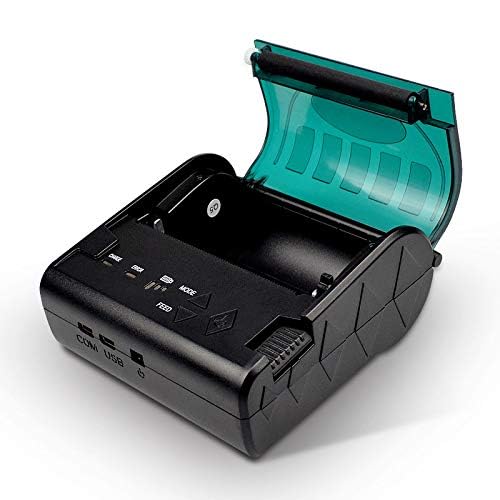
Image: The NETUM NT-8003 printer with its battery removed, illustrating the battery compartment.
4.2 పేపర్ రోల్ ఇన్స్టాలేషన్
- Press the cover open button to open the paper compartment cover.
- కంపార్ట్మెంట్లోకి కొత్త 80mm థర్మల్ పేపర్ రోల్ను చొప్పించండి, కాగితం దిగువ నుండి ఫీడ్ అయ్యేలా మరియు ముందు అంచు నిటారుగా ఉండేలా చూసుకోండి.
- కట్టింగ్ ఎడ్జ్ దాటి కొద్ది మొత్తంలో కాగితాన్ని బయటకు లాగండి.
- పేపర్ కంపార్ట్మెంట్ కవర్ సరిగ్గా సరిపోయే వరకు గట్టిగా మూసివేయండి.
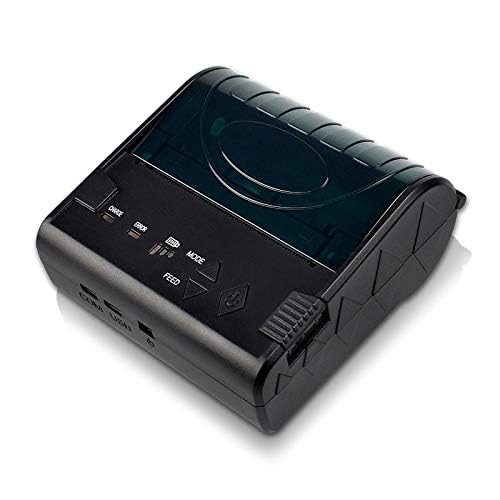
Image: The NETUM NT-8003 printer with its top cover open, ready for paper roll installation.
5. ఆపరేటింగ్ సూచనలు
5.1 పవర్ ఆన్/ఆఫ్
- పవర్ ఆన్ చేయడానికి: పవర్ బటన్ను నొక్కి పట్టుకోండి (శక్తి చిహ్నం) until the indicator lights illuminate.
- పవర్ ఆఫ్ చేయడానికి: సూచిక లైట్లు ఆరిపోయే వరకు పవర్ బటన్ను నొక్కి పట్టుకోండి.
5.2 Bluetooth Connection (Android/iOS)
The printer cannot be directly detected by the built-in Bluetooth function of Apple/Android devices. To connect and use the printer, you must use a compatible application for searching and connecting.
- Ensure the printer is powered on and within range of your device.
- Download a compatible POS printing application (e.g., "POS-Printer V1.0" or similar) from your device's app store.
- Open the application and navigate to its settings or printer connection section.
- కోసం వెతకండి available Bluetooth devices within the application.
- Select "NT-8003" or a similar name from the list of found devices.
- If prompted for a PIN, enter "0000" or "1234".
- Once connected, the application will indicate a successful connection, and you can proceed with printing.

Image: Visual guide demonstrating the process of connecting the printer via a mobile application, highlighting that direct Bluetooth pairing is not supported for printing.
5.3 USB Connection (PC/Windows/Linux)
- అందించిన USB కేబుల్ ఉపయోగించి ప్రింటర్ను మీ కంప్యూటర్కు కనెక్ట్ చేయండి.
- Install the appropriate printer drivers for your operating system (Windows/Linux). Drivers are typically provided on a CD or available for download from the NETUM webసైట్.
- Once drivers are installed, the printer should appear in your system's printer list.
- You can now print directly from compatible software on your computer.
5.4 ప్రింటింగ్
After successful connection via Bluetooth or USB, you can initiate printing from your application or software. Ensure the paper roll is correctly installed and the printer has sufficient battery charge.
- ఫీడ్ బటన్: Press the "FEED" button to advance the paper manually.
- మోడ్ బటన్: The "MODE" button may be used for self-test printing or changing printer settings, depending on the firmware version. Refer to specific application instructions for advanced settings.
6. నిర్వహణ
6.1 ప్రింట్ హెడ్ను శుభ్రపరచడం
Regular cleaning of the thermal print head ensures optimal print quality and extends the printer's lifespan.
- Turn off the printer and disconnect the power adapter.
- పేపర్ కంపార్ట్మెంట్ కవర్ తెరవండి.
- తేలికగా కాటన్ శుభ్రముపరచు ఉపయోగించండి dampened with isopropyl alcohol to gently wipe the thermal print head (the dark strip inside the cover).
- కవర్ను మూసివేసి ప్రింటర్ను ఆన్ చేసే ముందు ప్రింట్ హెడ్ పూర్తిగా ఆరనివ్వండి.
6.2 Cleaning the Roller
Clean the rubber roller to prevent paper jams and ensure smooth feeding.
- Turn off the printer and disconnect the power adapter.
- పేపర్ కంపార్ట్మెంట్ కవర్ తెరవండి.
- మెత్తని, మెత్తని బట్టను తేలికగా ఉపయోగించండి డిampened with water to wipe the rubber roller.
- కవర్ మూసే ముందు పూర్తిగా ఆరనివ్వండి.
6.3 బ్యాటరీ సంరక్షణ
- Charge the battery regularly, even if the printer is not in use, to maintain battery health.
- బ్యాటరీని తరచుగా పూర్తిగా డిశ్చార్జ్ చేయడాన్ని నివారించండి.
- ప్రింటర్ను ఎక్కువసేపు ఉపయోగించనప్పుడు చల్లని, పొడి ప్రదేశంలో నిల్వ చేయండి.
7. ట్రబుల్షూటింగ్
| సమస్య | సాధ్యమైన కారణం | పరిష్కారం |
|---|---|---|
| ప్రింటర్ పవర్ ఆన్ అవ్వదు. | తక్కువ బ్యాటరీ లేదా పవర్ లేదు. | Charge the battery or connect the power adapter. Ensure insulating tape is removed from the battery. |
| ప్రింట్ అవుట్పుట్ లేదు. | No paper, paper jam, or print head issue. | Check paper roll. Clear any paper jams. Clean the print head. |
| పేలవమైన ముద్రణ నాణ్యత. | Dirty print head or low battery. | Clean the print head. Ensure the battery is sufficiently charged. Use high-quality thermal paper. |
| బ్లూటూత్ ద్వారా కనెక్ట్ చేయడం సాధ్యం కాలేదు. | Incorrect connection method, app issue, or printer not discoverable. | Ensure you are connecting via a compatible printing application, not directly through device settings. Restart both printer and device. Check app permissions. |
| USB ద్వారా PC ద్వారా ప్రింటర్ గుర్తించబడలేదు. | తప్పిపోయిన లేదా తప్పు డ్రైవర్లు. | Install the correct USB drivers for your operating system. Try a different USB port or cable. |
8. స్పెసిఫికేషన్లు
| ఫీచర్ | వివరాలు |
|---|---|
| ప్రింటింగ్ పద్ధతి | థర్మల్ లైన్ ప్రింటింగ్ |
| ప్రింట్ స్పీడ్ | 90మిమీ/సెకను |
| రిజల్యూషన్ | 8 చుక్కలు/మిమీ (203 DPI) |
| పేపర్ వెడల్పు | 80 ± 1 మిమీ |
| పేపర్ రోల్ వ్యాసం | 83 మి.మీ |
| పేపర్ మందం | 0.06-0.08 మి.మీ |
| ఇంటర్ఫేస్లు | USB, Bluetooth 2.0 (4.0) |
| కమాండ్ సెట్ | ESC / POS / STAR compatible |
| బ్యాటరీ | 7.4V DV / 2000mA Rechargeable Lithium-ion |
| బాహ్య ఛార్జర్ | 9V / 1.5-2A |
| ఆపరేటింగ్ సిస్టమ్స్ | Windows 7, Android, iOS, Linux |
| కొలతలు | 12 x 11 x 8 సెం.మీ |
| బరువు | 322 గ్రాములు |
| విశ్వసనీయత | ప్రింట్ హెడ్ లైఫ్: 100 కి.మీ |
9. వారంటీ మరియు మద్దతు
NETUM products are designed for reliability and performance. This product comes with a warranty period of at least 12 months from the date of purchase.
For warranty claims, technical support, or service inquiries, please contact NETUM customer support through your retailer or the official NETUM website. Please have your purchase receipt and product model number (NT-8003) available when contacting support.
ధృవపత్రాలు: CE, FCC, CCC, ROHS, ISO9001:2008


