1. పరిచయం
The Logitech Ergo M575 Wireless Trackball Mouse is designed for ergonomic comfort and precise control. This manual provides essential information for setting up, operating, maintaining, and troubleshooting your device.

Figure 1: Logitech Ergo M575 Wireless Trackball Mouse (Graphite)
2 కీ ఫీచర్లు
- Ergonomic Comfort Design: The sculpted shape naturally fits your hand, promoting a relaxed hand and arm posture.
- Smooth Thumb Control: Achieve precise cursor control on any surface using the integrated trackball. Cursor speed can be adjusted via Logitech Options software.
- స్పేస్-సేవింగ్ డిజైన్: Ideal for tight workspaces and busy desks as the trackball does not require movement of the mouse itself.
- ద్వంద్వ కనెక్టివిటీ: Connect effortlessly using either Bluetooth or the included USB receiver. Enjoy a stable connection with a range of up to 33 feet (10m).
- స్థిరమైన పదార్థాలు: Plastic parts in the ERGO M575 include post-consumer recycled plastic (Graphite/Black: 50%, Off-White: 21%). Packaging uses FSC-certified paper.
- పొడిగించిన బ్యాటరీ జీవితం: Up to 24 months of use from a single AA battery when using the USB receiver.
- అనుకూలమైన నియంత్రణలు: Features large, easy-to-reach Back/Forward buttons and a precision scroll wheel for efficient navigation.

Figure 2: Labeled components of the Ergo M575 mouse, including Back/Forward buttons, Precision scroll wheel, and Removable trackball.
3. సెటప్
3.1. పెట్టెలో ఏముంది
ప్యాకేజింగ్లో అన్ని భాగాలు ఉన్నాయని నిర్ధారించుకోండి:
- Logitech Ergo M575 Wireless Trackball Mouse
- AA బ్యాటరీ
- USB యూనిఫైయింగ్ రిసీవర్
- వినియోగదారు డాక్యుమెంటేషన్

Figure 3: Packaging and contents of the Logitech Ergo M575.
3.2 బ్యాటరీని ఇన్స్టాల్ చేస్తోంది
- మౌస్ దిగువ భాగంలో బ్యాటరీ కంపార్ట్మెంట్ను గుర్తించండి.
- బ్యాటరీ కంపార్ట్మెంట్ కవర్ తెరవండి.
- అందించిన AA బ్యాటరీని చొప్పించండి, సరైన ధ్రువణతను (+/-) నిర్ధారించుకోండి.
- బ్యాటరీ కంపార్ట్మెంట్ కవర్ను సురక్షితంగా మూసివేయండి.
3.3. మీ మౌస్ని కనెక్ట్ చేస్తోంది
The Ergo M575 offers two connection methods: USB Unifying Receiver or Bluetooth.
3.3.1. USB యూనిఫైయింగ్ రిసీవర్ని ఉపయోగించడం
- Remove the USB Unifying Receiver from its storage slot inside the battery compartment.
- మీ కంప్యూటర్లో అందుబాటులో ఉన్న USB పోర్ట్కి USB రిసీవర్ని ప్లగ్ చేయండి.
- మౌస్ కింద ఉన్న ఆన్/ఆఫ్ స్విచ్ని ఉపయోగించి మౌస్ను ఆన్ చేయండి.
- మీ కంప్యూటర్ స్వయంచాలకంగా మౌస్ను గుర్తించి దానికి కనెక్ట్ అవ్వాలి.
3.3.2. బ్లూటూత్ ఉపయోగించడం
- మౌస్ కింద ఉన్న ఆన్/ఆఫ్ స్విచ్ని ఉపయోగించి మౌస్ను ఆన్ చేయండి.
- Press and hold the Bluetooth pairing button on the underside of the mouse until the LED indicator starts blinking rapidly.
- మీ కంప్యూటర్లో, బ్లూటూత్ సెట్టింగ్లను తెరవండి.
- Select "Logitech Ergo M575" from the list of available devices and follow the on-screen prompts to complete pairing.
4. మీ మౌస్ను ఆపరేట్ చేయడం
4.1. ప్రాథమిక విధులు
- ఎడమ క్లిక్ చేయండి: అంశాలను ఎంచుకోవడానికి మరియు సాఫ్ట్వేర్తో పరస్పర చర్య చేయడానికి ప్రాథమిక బటన్.
- కుడి క్లిక్ చేయండి: సందర్భ మెనులు మరియు అదనపు ఎంపికల కోసం ద్వితీయ బటన్.
- స్క్రోల్ వీల్: పత్రాల ద్వారా పైకి లేదా క్రిందికి స్క్రోల్ చేయండి మరియు web pages. Pressing the scroll wheel acts as a middle click.
- వెనుకకు/ముందుకు బటన్లు: Located near the trackball, these buttons allow for quick navigation in web బ్రౌజర్లు మరియు file అన్వేషకులు.
4.2. Using the Trackball
Control the cursor by rolling the trackball with your thumb. The trackball provides precise movement without needing to move the entire mouse, making it ideal for limited desk space.

Figure 4: The compact design of the Ergo M575 allows for efficient use in tight spaces.
4.3. Logitech Options Software
For advanced customization, download and install the Logitech Options software from the official Logitech webసైట్. ఈ సాఫ్ట్వేర్ మిమ్మల్ని వీటిని చేయడానికి అనుమతిస్తుంది:
- Adjust cursor speed and acceleration.
- Reassign button functions to suit your workflow.
- Set application-specific settings.
5. నిర్వహణ
5.1. ట్రాక్బాల్ను శుభ్రపరచడం
Over time, dust and debris may accumulate around the trackball, affecting its smoothness. To clean:
- Gently push the trackball from the underside of the mouse to pop it out.
- ట్రాక్బాల్ను శుభ్రంగా తుడవడానికి మృదువైన, మెత్తటి బట్టను ఉపయోగించండి.
- Clean the inside of the trackball cavity, paying attention to the small sensor points.
- Reinsert the trackball into its socket until it clicks into place.
5.2. బ్యాటరీ భర్తీ
When the battery indicator light on the mouse turns red, it's time to replace the AA battery. Follow the steps in Section 3.2.
6. ట్రబుల్షూటింగ్
| సమస్య | సాధ్యమైన కారణం | పరిష్కారం |
|---|---|---|
| మౌస్ స్పందించడం లేదు | Battery is low or dead. Mouse is off. Connection issue. | Replace the AA battery. Ensure the On/Off switch is in the 'On' position. Re-pair via Bluetooth or re-insert USB receiver. |
| కర్సర్ కదలిక అస్తవ్యస్తంగా లేదా జిగటగా ఉంది | Trackball or sensor is dirty. | Clean the trackball and its cavity as described in Section 5.1. |
| బ్లూటూత్ కనెక్షన్ తరచుగా తగ్గిపోతుంది | Interference from other devices. Distance from computer. | Move closer to your computer. Ensure no other strong wireless signals are interfering. Try connecting via USB receiver. |
| బటన్లు ఆశించిన విధంగా పనిచేయడం లేదు. | Software settings are incorrect. | Check Logitech Options software settings and reassign button functions if necessary. |
7. స్పెసిఫికేషన్లు
- ఉత్పత్తి కొలతలు: 5.28 x 3.94 x 0.01 అంగుళాలు
- వస్తువు బరువు: 7 ఔన్సులు
- బ్యాటరీలు: 1 Lithium Ion battery required (AA battery included)
- కనెక్టివిటీ టెక్నాలజీ: బ్లూటూత్, USB (యూనిఫైయింగ్ రిసీవర్)
- మూవ్మెంట్ డిటెక్షన్ టెక్నాలజీ: ట్రాక్బాల్
- రంగు: గ్రాఫైట్
- తయారీదారు: లాజిటెక్
- మొదట అందుబాటులో ఉన్నవి: మే 5, 2021
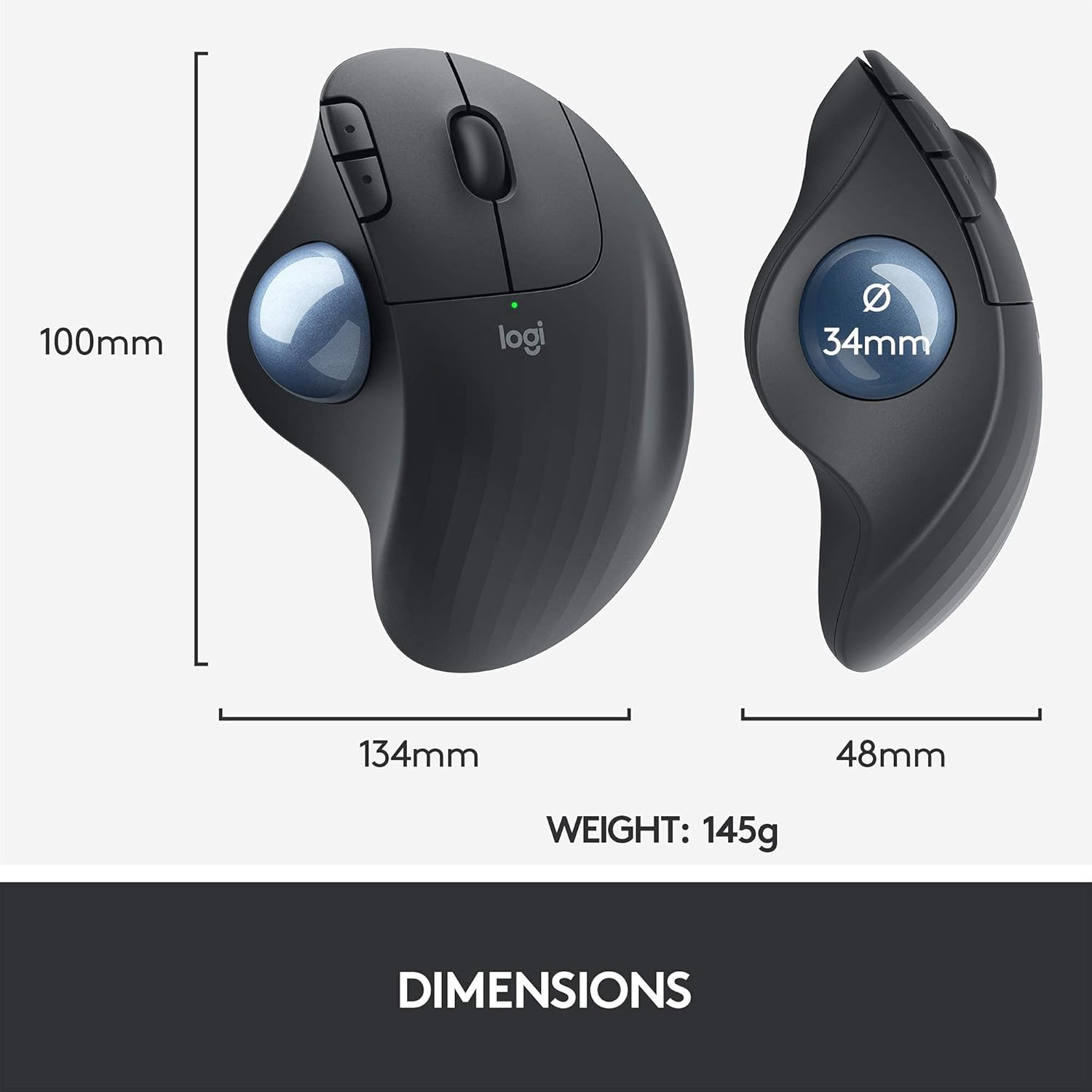
Figure 5: Physical dimensions and weight of the Ergo M575 mouse.
8. వారంటీ మరియు మద్దతు
వారంటీ సమాచారం మరియు సాంకేతిక మద్దతు కోసం, దయచేసి అధికారిక లాజిటెక్ను చూడండి. website or contact Logitech customer service. This product is a renewed item and is covered by the Amazon Renewed Guarantee, which ensures it has been professionally inspected and tested to work and look like new. Renewed products are eligible for replacement or refund if not satisfied with the purchase.
సందర్శించండి లాజిటెక్ మద్దతు for the latest drivers, software, and support resources.


