1. పరిచయం
ఈ మాన్యువల్ మీ MoesGo WiFi స్మార్ట్ వాల్ లైట్ స్విచ్ యొక్క ఇన్స్టాలేషన్, కాన్ఫిగరేషన్ మరియు ఆపరేషన్ కోసం వివరణాత్మక సూచనలను అందిస్తుంది. ఈ పరికరం స్మార్ట్ఫోన్ అప్లికేషన్, వాయిస్ కమాండ్లు లేదా నేరుగా దాని టచ్ ప్యానెల్ ద్వారా మీ లైటింగ్ను రిమోట్గా నియంత్రించడానికి మిమ్మల్ని అనుమతిస్తుంది. ఇది బహుళ-నియంత్రణ కార్యాచరణకు మద్దతు ఇస్తుంది మరియు ప్రసిద్ధ స్మార్ట్ హోమ్ ప్లాట్ఫారమ్లతో అనుసంధానిస్తుంది.
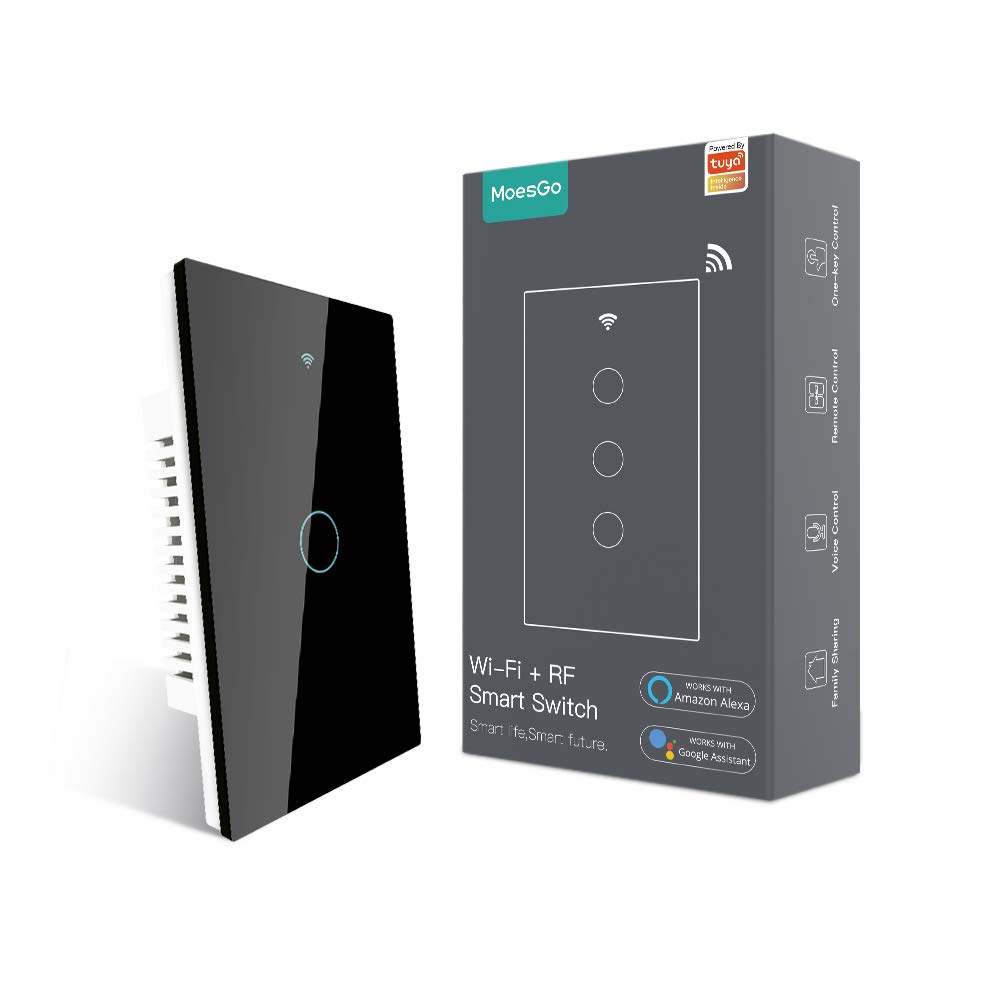
చిత్రం 1.1: MoesGo WiFi స్మార్ట్ వాల్ లైట్ స్విచ్ మరియు దాని రిటైల్ ప్యాకేజింగ్.
2. భద్రతా సమాచారం మరియు ముఖ్యమైన పరిగణనలు
ఇన్స్టాలేషన్తో కొనసాగే ముందు, దయచేసి కింది భద్రతా మార్గదర్శకాలను చదివి అర్థం చేసుకోండి. సరికాని ఇన్స్టాలేషన్ విద్యుత్ షాక్కు లేదా పరికరానికి మరియు మీ విద్యుత్ వ్యవస్థకు నష్టం కలిగించవచ్చు.
- తటస్థ వైర్ అవసరం: ఈ స్మార్ట్ స్విచ్ పనిచేయడానికి న్యూట్రల్ వైర్ అవసరం. మీ ఎలక్ట్రికల్ బాక్స్లో న్యూట్రల్ వైర్ (సాధారణంగా తెలుపు) ఉందని ధృవీకరించండి.asing లేదా ఇన్స్టాలేషన్ని ప్రయత్నిస్తున్నారు.
- 2.4GHz Wi-Fi మాత్రమే: ఈ స్విచ్ ప్రత్యేకంగా 2.4GHz Wi-Fi నెట్వర్క్లో పనిచేస్తుంది. ఇది 5GHz Wi-Fi నెట్వర్క్లకు అనుకూలంగా లేదు. మీ రౌటర్ 2.4GHzకి మద్దతు ఇస్తుందని మరియు జత చేసే సమయంలో మీ పరికరం ఈ ఫ్రీక్వెన్సీకి కనెక్ట్ చేయబడిందని నిర్ధారించుకోండి.
- పవర్ డిస్కనెక్ట్: స్విచ్ను ఇన్స్టాల్ చేయడానికి, తీసివేయడానికి లేదా సర్వీసింగ్ చేయడానికి ముందు ఎల్లప్పుడూ సర్క్యూట్ బ్రేకర్ వద్ద పవర్ను ఆపివేయండి. అలా చేయడంలో విఫలమైతే తీవ్రమైన గాయం లేదా మరణం సంభవించవచ్చు.
- వృత్తిపరమైన సంస్థాపన: మీకు ఎలక్ట్రికల్ వైరింగ్ గురించి తెలియకపోతే, అర్హత కలిగిన ఎలక్ట్రీషియన్ను సంప్రదించండి.
- డిమ్మర్ స్విచ్ కాదు: ఈ పరికరం ఆన్/ఆఫ్ స్విచ్ మరియు డిమ్మింగ్ కార్యాచరణకు మద్దతు ఇవ్వదు.
- సాంప్రదాయ 3-వే వైరింగ్ కోసం కాదు: ఈ స్విచ్ సాంప్రదాయ 3-వే వైరింగ్ కాకుండా 3-వే కార్యాచరణ కోసం యాప్ ద్వారా బహుళ-నియంత్రణ అనుబంధాన్ని ఉపయోగిస్తుంది.

చిత్రం 2.1: కీలకమైన సంస్థాపనా అవసరాలు మరియు పరిమితుల దృశ్య సారాంశం.
3. స్పెసిఫికేషన్లు
| ఫీచర్ | వివరాలు |
|---|---|
| బ్రాండ్ | MoesGo |
| మోడల్ సంఖ్య | AUB088K9T82Z పరిచయం |
| ఉత్పత్తి కొలతలు | 4.7 x 2.9 x 1.5 అంగుళాలు |
| బరువు | 7.83 ఔన్సులు |
| ఆపరేషన్ మోడ్ | ఆన్-ఆఫ్-ఆన్ |
| ప్రస్తుత రేటింగ్ | 10 Amps |
| ఆపరేటింగ్ వాల్యూమ్tage | 240 వోల్ట్లు |
| సంప్రదింపు రకం | సాధారణంగా తెరవండి |
| కనెక్టర్ రకం | వైర్లెస్ (2.4GHz వై-ఫై) |
| టెర్మినల్ | స్క్రూ |
| సర్క్యూట్ రకం | 3-మార్గం (యాప్ మల్టీ-కంట్రోల్ ద్వారా) |
| యాక్యుయేటర్ రకం | స్మార్ట్ టచ్ |
4. ఇన్స్టాలేషన్ గైడ్
4.1 ప్రీ-ఇన్స్టాలేషన్ చెక్లిస్ట్
- మీ ఎలక్ట్రికల్ బాక్స్లో న్యూట్రల్ వైర్ ఉందని నిర్ధారించండి.
- మీ Wi-Fi నెట్వర్క్ 2.4GHz అని నిర్ధారించుకోండి.
- ప్రారంభించడానికి ముందు సర్క్యూట్ బ్రేకర్ వద్ద పవర్ ఆఫ్ చేయండి.
- అవసరమైన సాధనాలను సేకరించండి: స్క్రూడ్రైవర్, వైర్ స్ట్రిప్పర్స్, వాల్యూమ్tagఇ టెస్టర్.
4.2 వైరింగ్ సూచనలు
- పవర్ ఆఫ్ చేయండి: మీరు మార్చాలనుకుంటున్న లైట్ స్విచ్ను నియంత్రించే సర్క్యూట్ బ్రేకర్ను గుర్తించి దాన్ని ఆపివేయండి. వాల్యూమ్ ఉపయోగించి పవర్ ఆఫ్ అయిందని ధృవీకరించండి.tagఇ టెస్టర్.
- పాత స్విచ్ తొలగించండి: ఇప్పటికే ఉన్న వాల్ ప్లేట్ను జాగ్రత్తగా తీసివేసి, ఎలక్ట్రికల్ బాక్స్ నుండి పాత స్విచ్ను విప్పండి. వైర్లను డిస్కనెక్ట్ చేయండి.
- వైర్లను గుర్తించండి: లైవ్ (లోడ్), న్యూట్రల్ మరియు గ్రౌండ్ వైర్లను గుర్తించండి. లైవ్ వైర్ సాధారణంగా బ్రేకర్ నుండి శక్తిని తీసుకువెళుతుంది, న్యూట్రల్ వైర్ సర్క్యూట్ను పూర్తి చేస్తుంది మరియు గ్రౌండ్ వైర్ భద్రతను అందిస్తుంది.
- కొత్త స్విచ్ను కనెక్ట్ చేయండి: క్రింద ఉన్న రేఖాచిత్రం ప్రకారం మీ ఎలక్ట్రికల్ బాక్స్ నుండి వైర్లను MoesGo స్మార్ట్ స్విచ్కి కనెక్ట్ చేయండి. అన్ని కనెక్షన్లు సురక్షితంగా ఉన్నాయని నిర్ధారించుకోండి.
- ఎలక్ట్రికల్ బాక్స్ నుండి లైవ్ వైర్ (L) ను స్విచ్లోని 'L IN' టెర్మినల్కు కనెక్ట్ చేయండి.
- ఎలక్ట్రికల్ బాక్స్ నుండి న్యూట్రల్ వైర్ (N) ను స్విచ్లోని 'N IN' టెర్మినల్కు కనెక్ట్ చేయండి.
- మీ స్విచ్ గ్యాంగ్ కాన్ఫిగరేషన్కు తగినట్లుగా లోడ్ వైర్(లు) (లైట్ ఫిక్చర్కు) 'L1 OUT', 'L2 OUT', 'L3 OUT', 'L4 OUT' టెర్మినల్లకు కనెక్ట్ చేయండి.
- గ్రౌండ్ వైర్ (ఉంటే)ను ఎలక్ట్రికల్ బాక్స్లోని గ్రౌండ్ స్క్రూకు కనెక్ట్ చేయండి.
- మౌంట్ స్విచ్: వైర్డు స్విచ్ను ఎలక్ట్రికల్ బాక్స్లోకి సున్నితంగా నెట్టండి, వైర్లు పించ్ చేయబడలేదని నిర్ధారించుకోండి. స్విచ్ను స్థానంలో స్క్రూ చేయండి.
- వాల్ ప్లేట్ను ఇన్స్టాల్ చేయండి: కొత్త గాజు గోడ ప్లేట్ను అటాచ్ చేయండి.
- శక్తిని పునరుద్ధరించండి: సర్క్యూట్ బ్రేకర్ వద్ద పవర్ను తిరిగి ఆన్ చేయండి. స్విచ్ ఇండికేటర్ లైట్ వెలుగుతూ ఉండాలి.

చిత్రం 4.1: MoesGo స్మార్ట్ వాల్ లైట్ స్విచ్ కోసం వివరణాత్మక వైరింగ్ రేఖాచిత్రం.
5. యాప్ జత చేయడం మరియు కాన్ఫిగరేషన్
5.1 స్మార్ట్ లైఫ్/తుయా యాప్ను డౌన్లోడ్ చేసుకోండి
కోసం వెతకండి మీ స్మార్ట్ఫోన్ యాప్ స్టోర్ (iOS లేదా Android)లో "స్మార్ట్ లైఫ్" లేదా "తుయా స్మార్ట్" డౌన్లోడ్ చేసుకోండి మరియు అప్లికేషన్ను డౌన్లోడ్ చేసుకోండి. ఖాతా కోసం నమోదు చేసుకోండి లేదా మీకు ఇప్పటికే ఒకటి ఉంటే లాగిన్ అవ్వండి.
5.2 స్విచ్ను జత చేయడం
- జత చేసే విధానాన్ని నమోదు చేయండి: పవర్ పునరుద్ధరించిన తర్వాత, స్విచ్లోని Wi-Fi సూచిక వేగంగా బ్లింక్ అవ్వాలి. లేకపోతే, స్విచ్లోని ఏదైనా బటన్ను 5-10 సెకన్ల పాటు నొక్కి పట్టుకోండి, అది వేగంగా బ్లింక్ అయ్యే వరకు.
- యాప్లో పరికరాన్ని జోడించండి: స్మార్ట్ లైఫ్/తుయా యాప్ను తెరవండి. యాప్ కొత్త పరికరాన్ని స్వయంచాలకంగా గుర్తించవచ్చు. లేకపోతే, ఎగువ కుడి మూలలో ఉన్న "+" చిహ్నాన్ని నొక్కి, ఆపై "పరికరాన్ని జోడించు" లేదా "ఆటో స్కాన్" ఎంచుకోండి.
- Wi-Fi నెట్వర్క్ను నిర్ధారించండి: మీ ఫోన్ 2.4GHz Wi-Fi నెట్వర్క్కి కనెక్ట్ చేయబడిందని నిర్ధారించుకోండి. ప్రాంప్ట్ చేయబడినప్పుడు మీ Wi-Fi పాస్వర్డ్ను నమోదు చేయండి.
- పూర్తి జత చేయడం: జత చేసే ప్రక్రియను పూర్తి చేయడానికి యాప్లోని స్క్రీన్పై సూచనలను అనుసరించండి. విజయవంతంగా జత చేసిన తర్వాత, మీరు స్విచ్ పేరు మార్చవచ్చు మరియు దానిని గదికి కేటాయించవచ్చు.

చిత్రం 5.1: స్మార్ట్ లైఫ్ యాప్ ఉపయోగించి సరళీకృత జత చేసే ప్రక్రియ.
6. ఆపరేటింగ్ సూచనలు
6.1 మాన్యువల్ టచ్ కంట్రోల్
కనెక్ట్ చేయబడిన లైట్ను ఆన్ లేదా ఆఫ్ చేయడానికి గ్లాస్ ప్యానెల్లోని సంబంధిత బటన్ను తాకండి.
6.2 స్మార్ట్ లైఫ్/తుయా యాప్ ద్వారా రిమోట్ కంట్రోల్
జత చేసిన తర్వాత, మీరు మీ స్మార్ట్ఫోన్లోని స్మార్ట్ లైఫ్/తుయా యాప్ని ఉపయోగించి ఎక్కడి నుండైనా మీ లైట్లను నియంత్రించవచ్చు. యాప్ను తెరిచి, మీ స్విచ్ను ఎంచుకుని, ఆన్/ఆఫ్ బటన్ను నొక్కండి.
6.3 వాయిస్ కంట్రోల్ (అలెక్సా & గూగుల్ హోమ్)
హ్యాండ్స్-ఫ్రీ వాయిస్ కంట్రోల్ కోసం మీ MoesGo స్మార్ట్ స్విచ్ని Amazon Alexa లేదా Google Homeతో అనుసంధానించండి. మీ Smart Life/Tuya ఖాతాను లింక్ చేయడానికి Alexa లేదా Google Home యాప్లోని సూచనలను అనుసరించండి.
- అలెక్సా కోసం: "అలెక్సా, [స్విచ్ నేమ్] ఆన్ చేయి" లేదా "అలెక్సా, [స్విచ్ నేమ్] ఆఫ్ చేయి" అని చెప్పండి.
- Google హోమ్ కోసం: "హే గూగుల్, [స్విచ్ నేమ్] ఆన్ చేయి" లేదా "హే గూగుల్, [స్విచ్ నేమ్] ఆఫ్ చేయి" అని చెప్పండి.

చిత్రం 6.1: ముగిసిందిview స్మార్ట్ స్విచ్ కోసం వివిధ నియంత్రణ పద్ధతుల గురించి.
6.4 బహుళ-నియంత్రణ (3-మార్గం) సంఘం
MoesGo స్మార్ట్ స్విచ్ బహుళ-నియంత్రణ కార్యాచరణకు మద్దతు ఇస్తుంది, సాంప్రదాయ 3-మార్గం వైరింగ్ లేకుండా బహుళ స్విచ్లు ఒకే లైట్ను నియంత్రించడానికి అనుమతిస్తుంది. ఇది స్మార్ట్ లైఫ్/తుయా యాప్లోని అసోసియేషన్ ఫీచర్ ద్వారా సాధించబడుతుంది.
- రెండు స్మార్ట్ స్విచ్లు ఇన్స్టాల్ చేయబడి, యాప్కి జత చేయబడ్డాయని నిర్ధారించుకోండి.
- యాప్లో, స్విచ్లలో ఒకదాన్ని ఎంచుకోండి.
- దాని సెట్టింగ్లు లేదా ఎంపికలకు నావిగేట్ చేయండి మరియు "మల్టీ-కంట్రోల్ అసోసియేషన్" కోసం చూడండి.
- ఒకే కాంతిని నియంత్రించడానికి రెండు స్విచ్లను లింక్ చేయడానికి యాప్ యొక్క ప్రాంప్ట్లను అనుసరించండి.

చిత్రం 6.2: బహుళ-నియంత్రణ అనుబంధాన్ని ఏర్పాటు చేయడానికి అనువర్తన ఇంటర్ఫేస్.
6.5 షెడ్యూలింగ్ మరియు టైమర్లు
మీ లైట్ల కోసం షెడ్యూల్లు లేదా కౌంట్డౌన్ టైమర్లను సెట్ చేయడానికి స్మార్ట్ లైఫ్/తుయా యాప్ను ఉపయోగించండి. ఇది లైట్లు ఆన్ లేదా ఆఫ్ అయినప్పుడు ఆటోమేట్ చేయడానికి మిమ్మల్ని అనుమతిస్తుంది, సౌలభ్యం మరియు శక్తి సామర్థ్యాన్ని పెంచుతుంది.
6.6 రిలే స్థితి మరియు బ్యాక్లైట్ సెట్టింగ్లు
స్విచ్ ప్రవర్తనను అనుకూలీకరించడానికి యాప్ ఎంపికలను అందిస్తుంది:
- రిలే స్థితి: పవర్ అవుట్ తర్వాత దాని చివరి ఆన్/ఆఫ్ స్థితిని గుర్తుంచుకోవడానికి స్విచ్ను కాన్ఫిగర్ చేయండిtage, లేదా డిఫాల్ట్గా ఆన్ లేదా ఆఫ్ చేయడానికి.
- బ్యాక్లైట్ స్విచ్: స్విచ్ యొక్క బ్యాక్లైట్ను ఆన్ లేదా ఆఫ్ చేయండి. నిద్రలో వెలుతురు అంతరాయం కలగకుండా ఉండటానికి బెడ్రూమ్లకు ఇది ఉపయోగపడుతుంది.

చిత్రం 6.3: రిలే స్థితిని అనుకూలీకరించడానికి యాప్ సెట్టింగ్లు.

చిత్రం 6.4: స్విచ్ బ్యాక్లైట్ను నియంత్రించడానికి యాప్ సెట్టింగ్లు.
7. ట్రబుల్షూటింగ్
మీ MoesGo స్మార్ట్ వాల్ లైట్ స్విచ్తో మీకు సమస్యలు ఎదురైతే, ఈ క్రింది సాధారణ సమస్యలు మరియు పరిష్కారాలను చూడండి:
- స్విచ్ స్పందించడం లేదు / పవర్ లేదు:
- పవర్ ఆన్లో ఉందని నిర్ధారించుకోవడానికి సర్క్యూట్ బ్రేకర్ను తనిఖీ చేయండి.
- అన్ని వైరింగ్ కనెక్షన్లు సురక్షితంగా మరియు సరిగ్గా ఉన్నాయని ధృవీకరించండి, ముఖ్యంగా న్యూట్రల్ వైర్.
- లైట్ బల్బ్ పనిచేస్తుందని నిర్ధారించుకోండి.
- యాప్తో జత చేయడం సాధ్యం కాలేదు:
- మీ Wi-Fi నెట్వర్క్ 2.4GHz అని నిర్ధారించండి. స్విచ్ 5GHzకి మద్దతు ఇవ్వదు.
- జత చేసే సమయంలో మీ స్మార్ట్ఫోన్ 2.4GHz Wi-Fi నెట్వర్క్కి కనెక్ట్ చేయబడిందని నిర్ధారించుకోండి.
- స్విచ్ వేగవంతమైన బ్లింకింగ్ జత చేసే మోడ్లో ఉందని నిర్ధారించుకోండి. లేకపోతే, ఏదైనా బటన్ను 5-10 సెకన్ల పాటు నొక్కి పట్టుకోండి.
- సిగ్నల్ బలం బలహీనంగా ఉంటే స్విచ్ను మీ Wi-Fi రూటర్కు దగ్గరగా తరలించండి.
- జత చేసే సమయంలో మీ ఫోన్లో మొబైల్ డేటాను తాత్కాలికంగా నిలిపివేయండి.
- మీ Wi-Fi రూటర్ను పునఃప్రారంభించి, మళ్లీ ప్రయత్నించండి.
- వాయిస్ కంట్రోల్ పనిచేయడం లేదు:
- మీ స్మార్ట్ లైఫ్/తుయా ఖాతా అలెక్సా లేదా గూగుల్ హోమ్కి సరిగ్గా లింక్ చేయబడిందని నిర్ధారించుకోండి.
- స్మార్ట్ లైఫ్/తుయా యాప్లోని స్విచ్ పేరు వాయిస్ కమాండ్లలో ఉపయోగించిన పేరుతో సరిపోలుతుందో లేదో ధృవీకరించండి.
- మీ ఇంటర్నెట్ కనెక్షన్ని తనిఖీ చేయండి.
- స్విచ్ యాదృచ్ఛికంగా ఆన్/ఆఫ్ అవుతుంది:
- ఈ ప్రవర్తనకు కారణమయ్యే ఏవైనా యాక్టివ్ షెడ్యూల్లు లేదా ఆటోమేషన్ నియమాలను Smart Life/Tuya యాప్లో తనిఖీ చేయండి.
- ఇతర స్మార్ట్ హోమ్ పరికరాలు లేదా వినియోగదారులు అనుకోకుండా స్విచ్ను నియంత్రించడం లేదని నిర్ధారించుకోండి.
- సమస్య కొనసాగితే, స్విచ్ను రీసెట్ చేసి, తిరిగి జత చేయడాన్ని పరిగణించండి.
8. నిర్వహణ
మీ MoesGo స్మార్ట్ వాల్ లైట్ స్విచ్ యొక్క సరైన పనితీరు మరియు దీర్ఘాయువును నిర్ధారించడానికి, ఈ నిర్వహణ మార్గదర్శకాలను అనుసరించండి:
- శుభ్రపరచడం: గాజు ప్యానెల్ శుభ్రం చేయడానికి మృదువైన, పొడి వస్త్రాన్ని ఉపయోగించండి. ఉపరితలం లేదా అంతర్గత భాగాలను దెబ్బతీసే రాపిడి క్లీనర్లు, ద్రావకాలు లేదా అధిక తేమను నివారించండి.
- ఫర్మ్వేర్ నవీకరణలు: మీ స్విచ్ కోసం అందుబాటులో ఉన్న ఫర్మ్వేర్ అప్డేట్ల కోసం స్మార్ట్ లైఫ్/తుయా యాప్ను కాలానుగుణంగా తనిఖీ చేయండి. అప్డేట్లు పనితీరును మెరుగుపరుస్తాయి, ఫీచర్లను జోడించగలవు మరియు భద్రతను మెరుగుపరుస్తాయి.
- పర్యావరణ పరిస్థితులు: సిఫార్సు చేయబడిన ఉష్ణోగ్రత మరియు తేమ పరిధులలోపు ఇండోర్ వాతావరణంలో స్విచ్ ఇన్స్టాల్ చేయబడిందని నిర్ధారించుకోండి. ప్రత్యక్ష సూర్యకాంతి, విపరీతమైన ఉష్ణోగ్రతలు లేదా అధిక తేమకు గురికాకుండా ఉండండి.


