1. పరిచయం
This manual provides detailed instructions for the installation, operation, and maintenance of your ESSGOO Android 10 Car Stereo. Please read this manual thoroughly before using the product to ensure proper function and safety. Keep this manual for future reference.
2. భద్రతా సమాచారం
- డ్రైవింగ్ భద్రత: Always prioritize driving safety. Do not operate the system in a way that distracts you from the road.
- సంస్థాపన: Professional installation is recommended. Incorrect wiring can damage the vehicle's electrical system or the stereo unit.
- విద్యుత్ సరఫరా: Ensure the car stereo is connected to a 12V DC power supply with negative grounding.
- ఉష్ణోగ్రత: Avoid exposing the unit to extreme temperatures or direct sunlight for extended periods.
- తేమ: Keep the unit away from water and moisture to prevent electrical hazards.
3. ప్యాకేజీ విషయాలు
ప్యాకేజీలో అన్ని అంశాలు ఉన్నాయని నిర్ధారించుకోండి:
- ESSGOO Android 10 Car Stereo Unit
- Power Cable (ISO Wire)
- వైఫై యాంటెన్నా
- USB Transfer Cables
- GPS యాంటెన్నా
- Mounting Brackets / Universal Frame
- Backup Camera with 8 LED lights
- బాహ్య మైక్రోఫోన్
- సూచనల మాన్యువల్ (ఈ పత్రం)
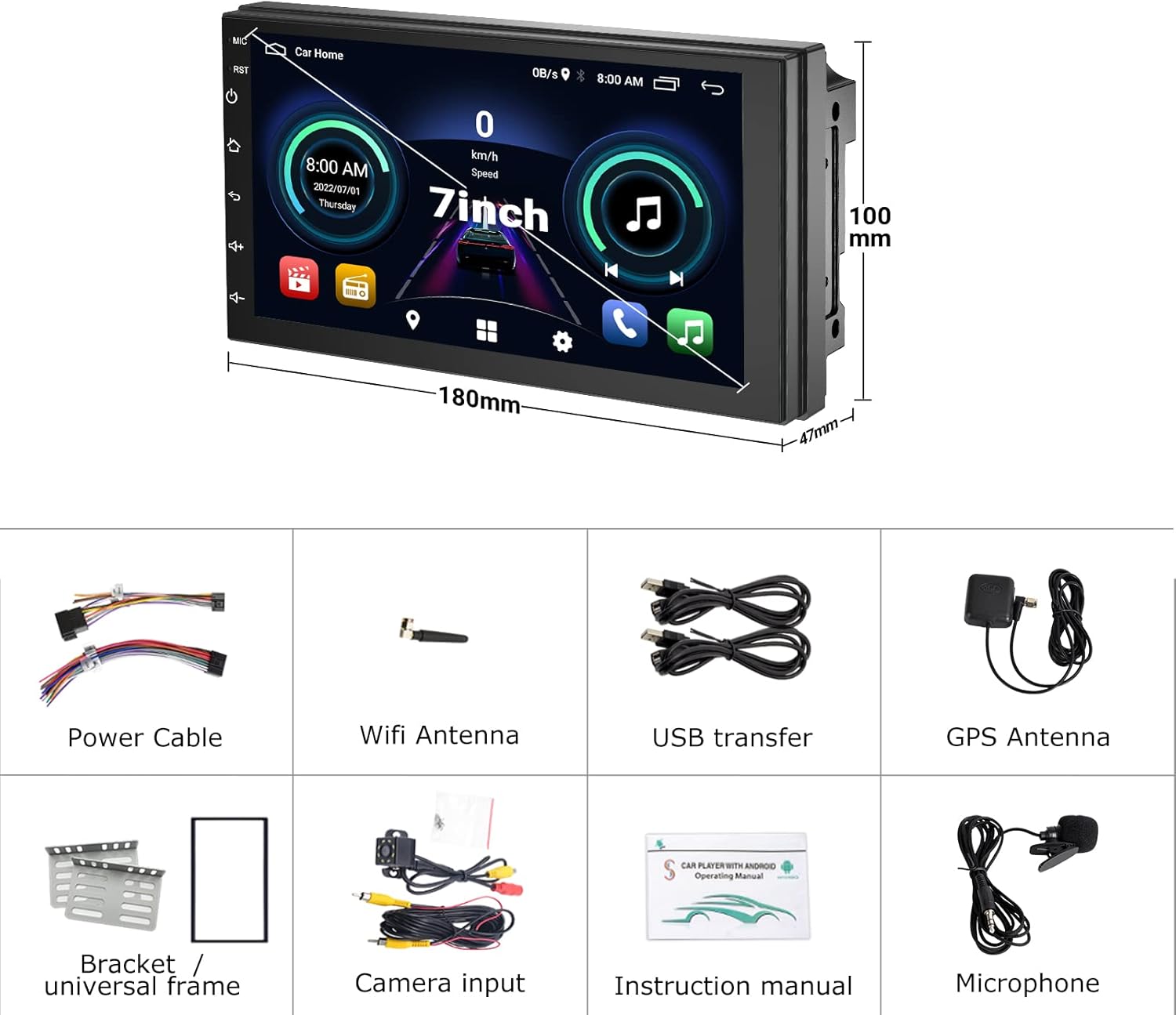
Image: Contents of the ESSGOO Android 10 Car Stereo package, showing the main unit, power cable, WiFi antenna, USB transfer cables, GPS antenna, mounting brackets, backup camera, and external microphone.
4. ఉత్పత్తి ముగిసిందిview
The ESSGOO Android 10 Car Stereo is a double DIN unit featuring a 7-inch touch screen. It integrates advanced connectivity and entertainment options for your vehicle.
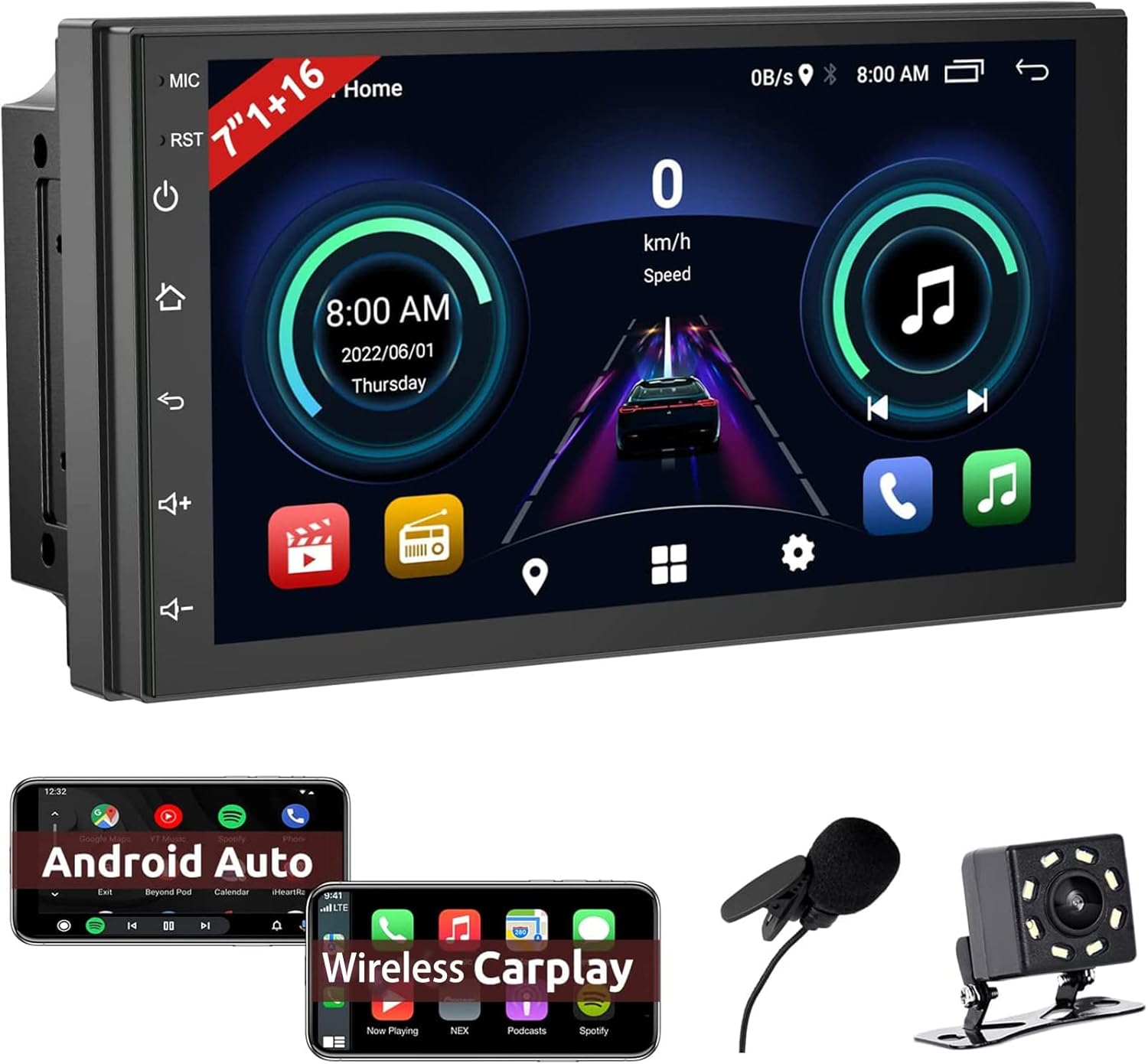
చిత్రం: ముందు భాగం view of the ESSGOO Android 10 Car Stereo, displaying its 7-inch touch screen interface and physical control buttons on the left side.
ముఖ్య లక్షణాలు:
- ఆండ్రాయిడ్ 10 ఆపరేటింగ్ సిస్టమ్
- 7-అంగుళాల కెపాసిటివ్ టచ్ స్క్రీన్
- వైర్లెస్ Apple CarPlay & Android Auto
- Mirror Link Functionality (USB for iPhone/Android)
- Bluetooth for Hands-Free Calling and Music Streaming
- FM రేడియో ట్యూనర్
- Built-in GPS Navigation
- వైఫై కనెక్టివిటీ
- Support for HD Backup Camera Input
- స్టీరింగ్ వీల్ నియంత్రణ అనుకూలత
- స్ప్లిట్ స్క్రీన్ ఫంక్షన్
5. ఇన్స్టాలేషన్ గైడ్
మీ కారు స్టీరియో పనితీరు మరియు దీర్ఘాయువుకు సరైన ఇన్స్టాలేషన్ చాలా కీలకం. మీకు ఏవైనా దశల గురించి ఖచ్చితంగా తెలియకపోతే, ప్రొఫెషనల్ ఇన్స్టాలర్ను సంప్రదించండి.
5.1 వైరింగ్ రేఖాచిత్రం
సరైన వైరింగ్ కనెక్షన్ల కోసం కింది రేఖాచిత్రాన్ని చూడండి. షార్ట్ సర్క్యూట్లు లేదా పనిచేయకపోవడాన్ని నివారించడానికి అన్ని కనెక్షన్లు సురక్షితంగా ఉన్నాయని నిర్ధారించుకోండి.

Image: Schematic diagram illustrating the various input and output ports on the rear of the car stereo, including power, audio, video, USB, GPS, WiFi, and the specific wiring for the reversing camera.
5.2 భౌతిక సంస్థాపన
- బ్యాటరీని డిస్కనెక్ట్ చేయండి: ప్రారంభించడానికి ముందు, విద్యుత్ షార్ట్లను నివారించడానికి మీ వాహనం బ్యాటరీ యొక్క నెగటివ్ టెర్మినల్ను డిస్కనెక్ట్ చేయండి.
- పాత యూనిట్ తొలగించండి: మీ ప్రస్తుత కార్ స్టీరియోను డాష్బోర్డ్ నుండి జాగ్రత్తగా తీసివేయండి.
- వైరింగ్ కనెక్ట్ చేయండి: Connect the ISO wire harness from the new stereo to your vehicle's wiring. Ensure all connections (power, speakers, antenna, etc.) match the wiring diagram.
- యాంటెన్నాలను ఇన్స్టాల్ చేయండి: Connect the GPS antenna and WiFi antenna to their respective ports on the stereo unit. Position them in a location with good signal reception.
- బ్యాకప్ కెమెరా ఇన్స్టాలేషన్:
- Mount the backup camera at the rear of your vehicle, typically near the license plate.
- Connect the camera's power wire (red) to the positive pole of the reverse light.
- Connect the camera's ground wire (black) to the negative pole of the reverse light or vehicle chassis.
- Run the video cable from the camera to the "CAM VIDEO IN" port on the car stereo.
- Connect the red trigger wire from the video cable to the reversing detection line (BACK) on the stereo's harness.
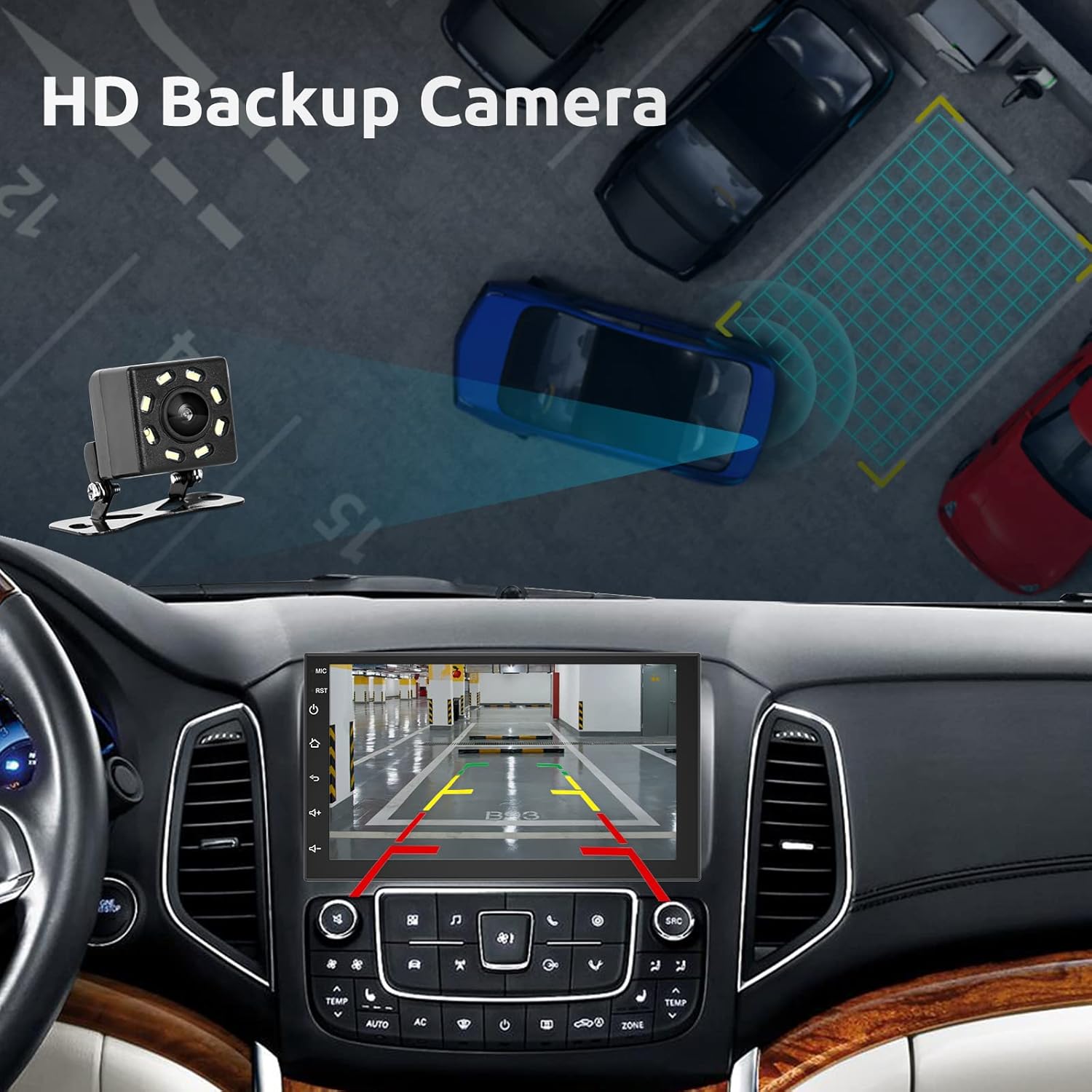
Image: Illustration of the HD backup camera system in operation, showing the camera mounted at the rear of a vehicle and its feed displayed on the car stereo screen with parking guidelines.
- బాహ్య మైక్రోఫోన్: Connect the external microphone to the designated port for improved call quality. Position it near the driver for optimal voice pickup.
- Mount Stereo: Secure the car stereo into the dashboard using the provided mounting brackets.
- బ్యాటరీని మళ్లీ కనెక్ట్ చేయండి: మీ వాహనం బ్యాటరీ యొక్క నెగటివ్ టెర్మినల్ను తిరిగి కనెక్ట్ చేయండి.
- పరీక్ష కార్యాచరణ: Turn on the vehicle and test all functions of the stereo.
6. ఆపరేటింగ్ సూచనలు
This section details how to use the various features of your ESSGOO Android 10 Car Stereo.
6.1 ప్రాథమిక ఆపరేషన్
- పవర్ ఆన్/ఆఫ్: The unit powers on automatically with the vehicle's ignition. Press and hold the power button (if available) for manual power control.
- వాల్యూమ్ నియంత్రణ: Use the physical volume buttons or the on-screen controls to adjust audio levels.
- హోమ్ స్క్రీన్: Navigate through applications and settings from the main home screen.
6.2 ఆపిల్ కార్ప్లే & ఆండ్రాయిడ్ ఆటో
The stereo supports both wireless Apple CarPlay and Android Auto for seamless smartphone integration.
- మీ స్మార్ట్ఫోన్లో బ్లూటూత్ మరియు Wi-Fi ప్రారంభించబడిందని నిర్ధారించుకోండి.
- కారు స్టీరియోలో, CarPlay లేదా Android Auto అప్లికేషన్ను ఎంచుకోండి.
- Follow the on-screen prompts to pair your phone. For wireless connection, your phone will typically connect via Bluetooth first, then switch to Wi-Fi for data transfer.
- Once connected, your phone's compatible apps will appear on the stereo screen, allowing navigation, music, calls, and messages.
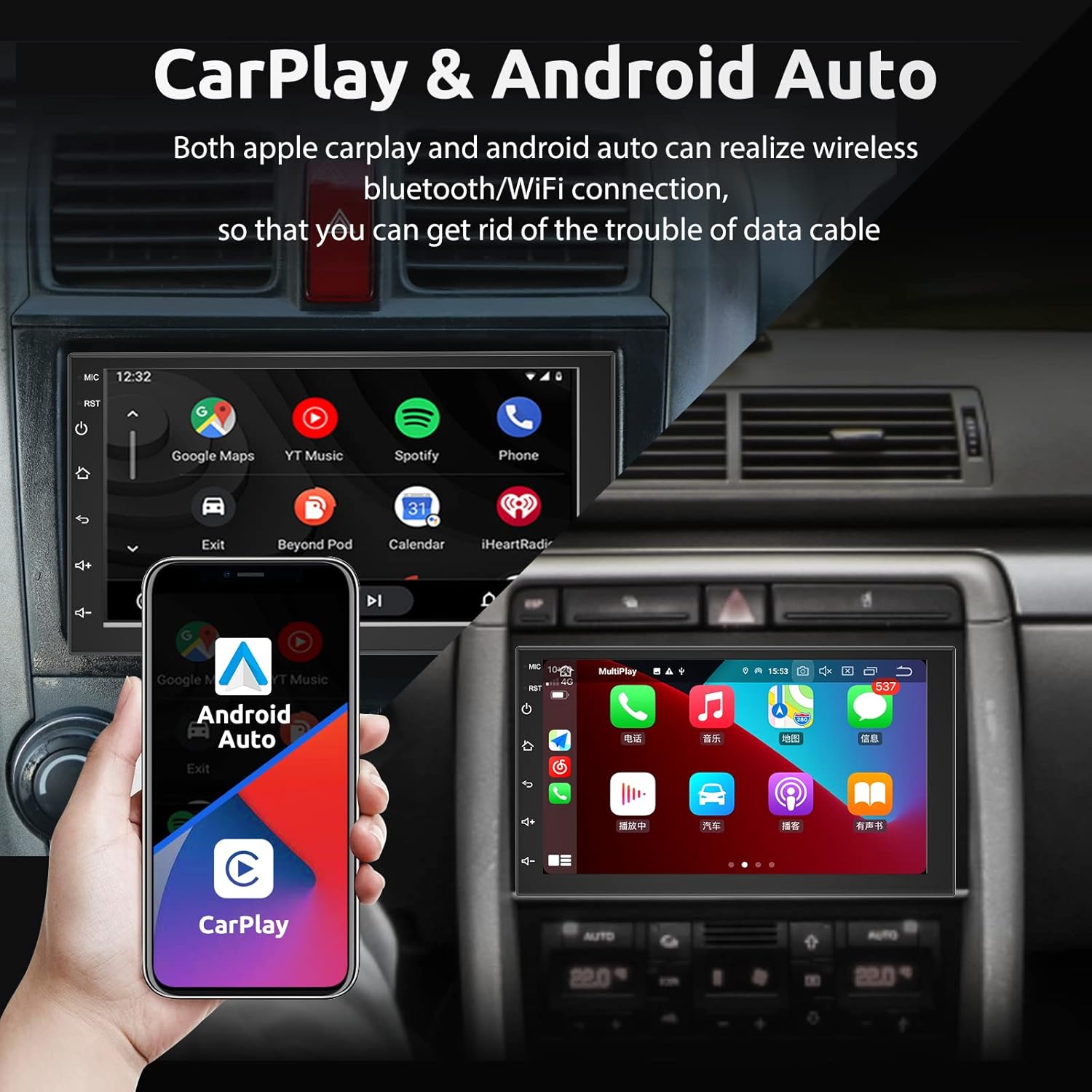
Image: The car stereo screen showing both Apple CarPlay and Android Auto interfaces, demonstrating wireless connectivity for navigation, music, and phone functions.
6.3 మిర్రర్ లింక్
Mirror Link allows you to display your smartphone's screen directly on the car stereo via a USB connection.
- Connect your iPhone or Android phone to the stereo using a USB cable.
- Select the "Mirror Link" application on the stereo.
- Follow the on-screen instructions to establish the connection. You may need to enable USB debugging or grant permissions on your phone.
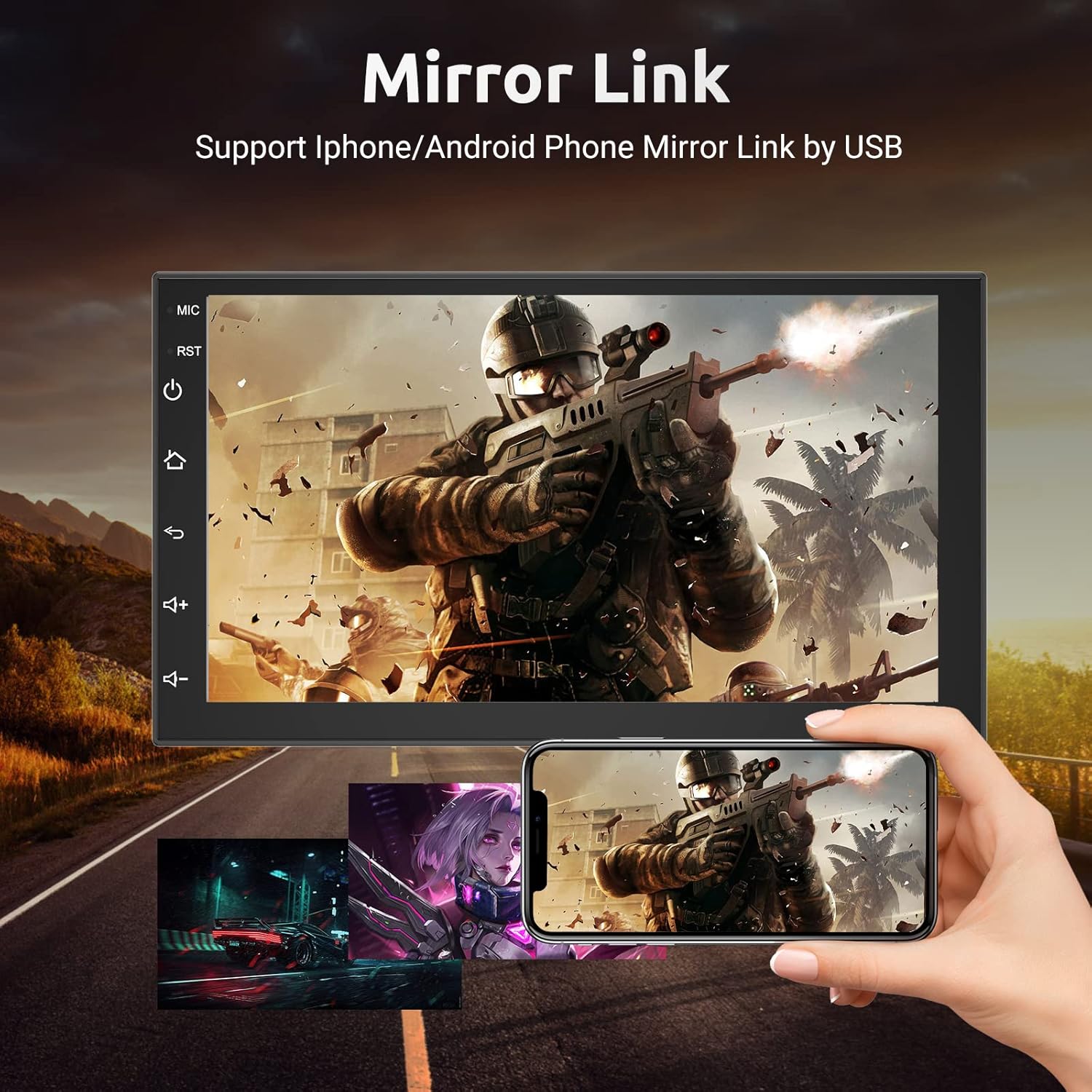
Image: The car stereo screen mirroring a smartphone display, showing a video game, with a hand holding the connected smartphone below the stereo.
6.4 బ్లూటూత్ కార్యాచరణ
Connect your phone via Bluetooth for hands-free calling and audio streaming.
- Go to the Bluetooth settings on the car stereo.
- మీ స్మార్ట్ఫోన్లో బ్లూటూత్ని ప్రారంభించండి మరియు అందుబాటులో ఉన్న పరికరాల కోసం శోధించండి.
- Select the car stereo (e.g., "ESSGOO BT") from your phone's list and pair.
- Once paired, you can make/receive calls and play music through the stereo.
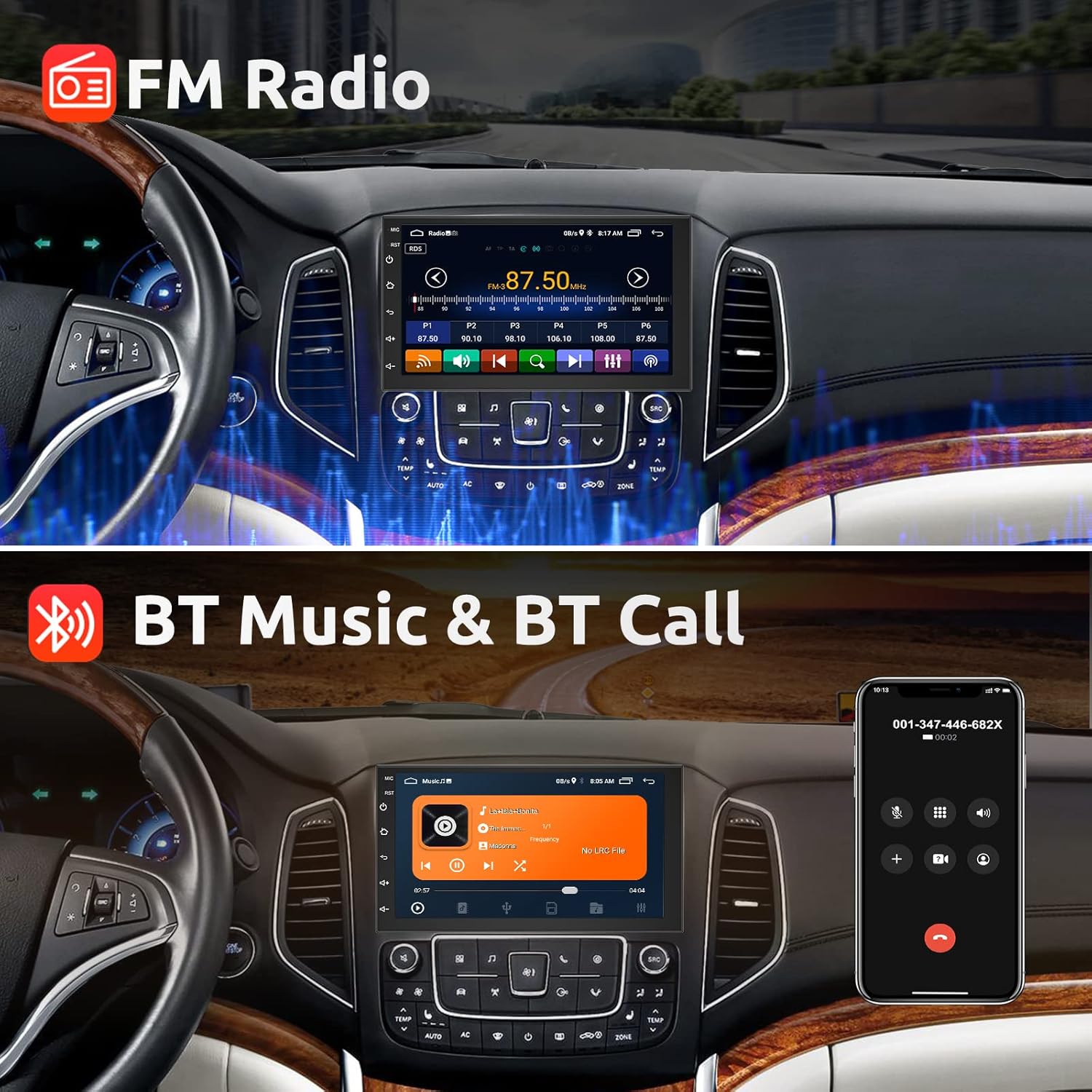
Image: The car stereo displaying both the FM radio interface and the Bluetooth music player, alongside a smartphone showing an incoming call, illustrating hands-free communication and audio streaming.
6.5 FM రేడియో
Access and tune into FM radio stations.
- Select the "FM Radio" application.
- Use the on-screen controls to scan for stations, manually tune, or select preset stations.
6.6 GPS నావిగేషన్
Utilize the built-in GPS for navigation.
- Open the "Navigation" or "Maps" application.
- GPS యాంటెన్నా సరిగ్గా ఇన్స్టాల్ చేయబడిందని మరియు స్పష్టమైన కాంతిని కలిగి ఉందని నిర్ధారించుకోండి view of the sky for optimal signal.
- Input your destination and follow the voice-guided directions.

Image: The car stereo displaying a GPS navigation map on one side and a selection of app icons, including streaming services, on the other, highlighting both navigation and WiFi capabilities.
6.7 WiFi కనెక్షన్
Connect the stereo to a Wi-Fi network for internet access and app downloads.
- Go to "Settings" and then "Wi-Fi".
- మీకు కావలసిన Wi-Fi నెట్వర్క్ను ఎంచుకుని, అవసరమైతే పాస్వర్డ్ను నమోదు చేయండి.
- Once connected, you can browse the internet, download apps from the Play Store, and stream content.
6.8 స్టీరింగ్ వీల్ నియంత్రణ
Configure your vehicle's steering wheel controls to operate the stereo.
- Navigate to the "Steering Wheel Control" settings in the stereo's menu.
- Follow the on-screen instructions to map your vehicle's steering wheel buttons to specific stereo functions (e.g., volume up/down, track skip, mode).
6.9 స్ప్లిట్ స్క్రీన్ ఫంక్షన్
Use the split-screen feature to run two applications simultaneously.
- While an app is open, press and hold the recent apps button or drag an app to one side of the screen (depending on the Android interface).
- Select another app to occupy the other half of the screen.
6.10 EQ సెట్టింగ్లు
Adjust audio equalization for a personalized listening experience.
- Access the "EQ" or "Sound Settings" menu.
- Adjust frequency bands, balance, fader, and preset sound modes (e.g., Pop, Rock, Jazz).
7. నిర్వహణ
మీ కారు స్టీరియో యొక్క దీర్ఘాయువు మరియు సరైన పనితీరును నిర్ధారించడానికి, ఈ నిర్వహణ మార్గదర్శకాలను అనుసరించండి:
- శుభ్రపరచడం: Use a soft, dry cloth to clean the screen and unit. For stubborn smudges, slightly dampen the cloth with water or a screen cleaner. Avoid abrasive cleaners or solvents.
- ఉష్ణోగ్రత: యూనిట్ను తీవ్రమైన వేడి లేదా చలికి గురిచేయవద్దు.
- తేమ: Keep the unit dry. If moisture enters the unit, disconnect power immediately and allow it to dry completely before use.
- సాఫ్ట్వేర్ అప్డేట్లు: Periodically check for software updates to ensure the system runs efficiently and has the latest features.
8. ట్రబుల్షూటింగ్
If you encounter issues with your ESSGOO car stereo, refer to the following common problems and solutions:
| సమస్య | సాధ్యమైన కారణం | పరిష్కారం |
|---|---|---|
| యూనిట్ పవర్ ఆన్ చేయదు. | విద్యుత్ సరఫరా లేదు; ఫ్యూజ్ ఎగిరిపోయింది; వైరింగ్ తప్పుగా ఉంది. | Check power connections; Inspect vehicle's fuse box and stereo's fuse; Verify wiring against diagram. |
| శబ్దం లేదు. | వాల్యూమ్ చాలా తక్కువగా ఉంది; మ్యూట్ యాక్టివేట్ చేయబడింది; స్పీకర్ వైరింగ్ సమస్య. | వాల్యూమ్ పెంచండి; మ్యూట్ను నిష్క్రియం చేయండి; స్పీకర్ కనెక్షన్లను తనిఖీ చేయండి. |
| బ్లూటూత్ కనెక్ట్ కావడం లేదు. | Bluetooth off on phone/stereo; Pairing mode not active; Interference. | Ensure Bluetooth is on; Put stereo in pairing mode; Try pairing in a different location. |
| GPS సిగ్నల్ బలహీనంగా లేదా సరికానిదిగా ఉంది. | GPS యాంటెన్నా అడ్డుపడింది లేదా సరిగ్గా ఉంచలేదు. | GPS యాంటెన్నా స్పష్టంగా ఉందని నిర్ధారించుకోండి view of the sky; Check antenna connection. |
| బ్యాకప్ కెమెరా ప్రదర్శించబడటం లేదు. | Camera power issue; Incorrect video input; Trigger wire not connected. | Check camera power and ground; Verify video cable connection to "CAM VIDEO IN"; Ensure reverse trigger wire is connected. |
| టచ్ స్క్రీన్ స్పందించడం లేదు. | సిస్టమ్ స్తంభించిపోవడం; సాఫ్ట్వేర్ సమస్య. | Restart the unit (press reset button if available); Perform a factory reset (data will be lost). |
If the problem persists after trying these solutions, please contact ESSGOO customer support.
9. స్పెసిఫికేషన్లు
| ఫీచర్ | స్పెసిఫికేషన్ |
|---|---|
| మోడల్ | B09Y1SDHWP |
| ఆపరేటింగ్ సిస్టమ్ | ఆండ్రాయిడ్ 10 |
| స్క్రీన్ పరిమాణం | 7 అంగుళాలు |
| ఉత్పత్తి కొలతలు | 7"D x 7.09"W x 3.94"H (180మిమీ x 100మిమీ x 47మిమీ) |
| వస్తువు బరువు | 2.48 పౌండ్లు |
| కనెక్టివిటీ టెక్నాలజీ | బ్లూటూత్, USB, Wi-Fi |
| కంట్రోలర్ రకం | ఆండ్రాయిడ్ |
| ప్రత్యేక లక్షణాలు | DAB (Digital Audio Broadcasting), RDS (Radio Data System), Touchscreen |
| అనుకూల పరికరాలు | స్మార్ట్ఫోన్, స్పీకర్ |
| ఆడియో అవుట్పుట్ మోడ్ | స్టీరియో |
| అవుట్పుట్ పవర్ | 60 Watts (per channel, 4 channels total) |
| తయారీదారు | ఎస్ఎస్గు |
10. వారంటీ మరియు మద్దతు
ESSGOO is committed to providing high-quality products and customer satisfaction.
- నాణ్యత హామీ: The product typically comes with a 1-year quality assurance. Please refer to your purchase documentation for specific warranty terms.
- కస్టమర్ మద్దతు: If you have any questions, require technical assistance, or need to report an issue, please contact ESSGOO Support via Amazon Messages. Our professional technical team and after-sales service are available to provide high-quality solutions.


