1. సెటప్ గైడ్
This section provides instructions for the initial setup of your Logitech MX Mechanical Keyboard and MX Master 3S Mouse.
1.1 అన్బాక్సింగ్ మరియు భాగాలు
Carefully remove all components from the packaging. You should find the MX Mechanical Keyboard, the MX Master 3S Mouse, and a Logi Bolt USB Receiver.

Image: The Logitech MX Mechanical Keyboard and MX Master 3S Mouse, as they appear in the bundle.
1.2 మీ పరికరాలను కనెక్ట్ చేయడం
Your devices can be connected via the included Logi Bolt USB Receiver or Bluetooth Low Energy.
1.2.1 లాగి బోల్ట్ USB రిసీవర్ని ఉపయోగించడం
- లాగి బోల్ట్ USB రిసీవర్ను మీ కంప్యూటర్లో అందుబాటులో ఉన్న USB పోర్ట్లోకి ప్లగ్ చేయండి.
- Ensure both the keyboard and mouse are powered on. The devices should automatically connect to the receiver.
1.2.2 బ్లూటూత్ తక్కువ శక్తిని ఉపయోగించడం
- On the keyboard, press and hold one of the Easy-Switch keys (1, 2, or 3) until the LED blinks rapidly.
- On the mouse, press the Easy-Switch button on the bottom until the LED blinks rapidly.
- On your computer, navigate to Bluetooth settings and select the Logitech MX Mechanical Keyboard or MX Master 3S Mouse from the list of available devices to pair.
- Repeat for the other device.
macOS వినియోగదారుల కోసం, FileVault is enabled, you may need to use the Logi Bolt USB Receiver for password entry at start-up or reboot when connected via Bluetooth.
1.3 లాజి ఆప్షన్స్+ సాఫ్ట్వేర్ను ఇన్స్టాల్ చేయడం
To unlock the full customization and advanced features of your devices, download and install the Logi Options+ software. This software is available for Windows and macOS.
- అధికారిక లాజిటెక్ను సందర్శించండి webసైట్: logitech.com/optionsplus
- మీ ఆపరేటింగ్ సిస్టమ్ కోసం ఇన్స్టాలర్ను డౌన్లోడ్ చేసి అమలు చేయండి.
- ఇన్స్టాలేషన్ను పూర్తి చేయడానికి ఆన్-స్క్రీన్ ప్రాంప్ట్లను అనుసరించండి.
2. ఆపరేటింగ్ సూచనలు
This section details the key features and functionalities of your Logitech MX Mechanical Keyboard and MX Master 3S Mouse.
2.1 MX Mechanical Keyboard Features
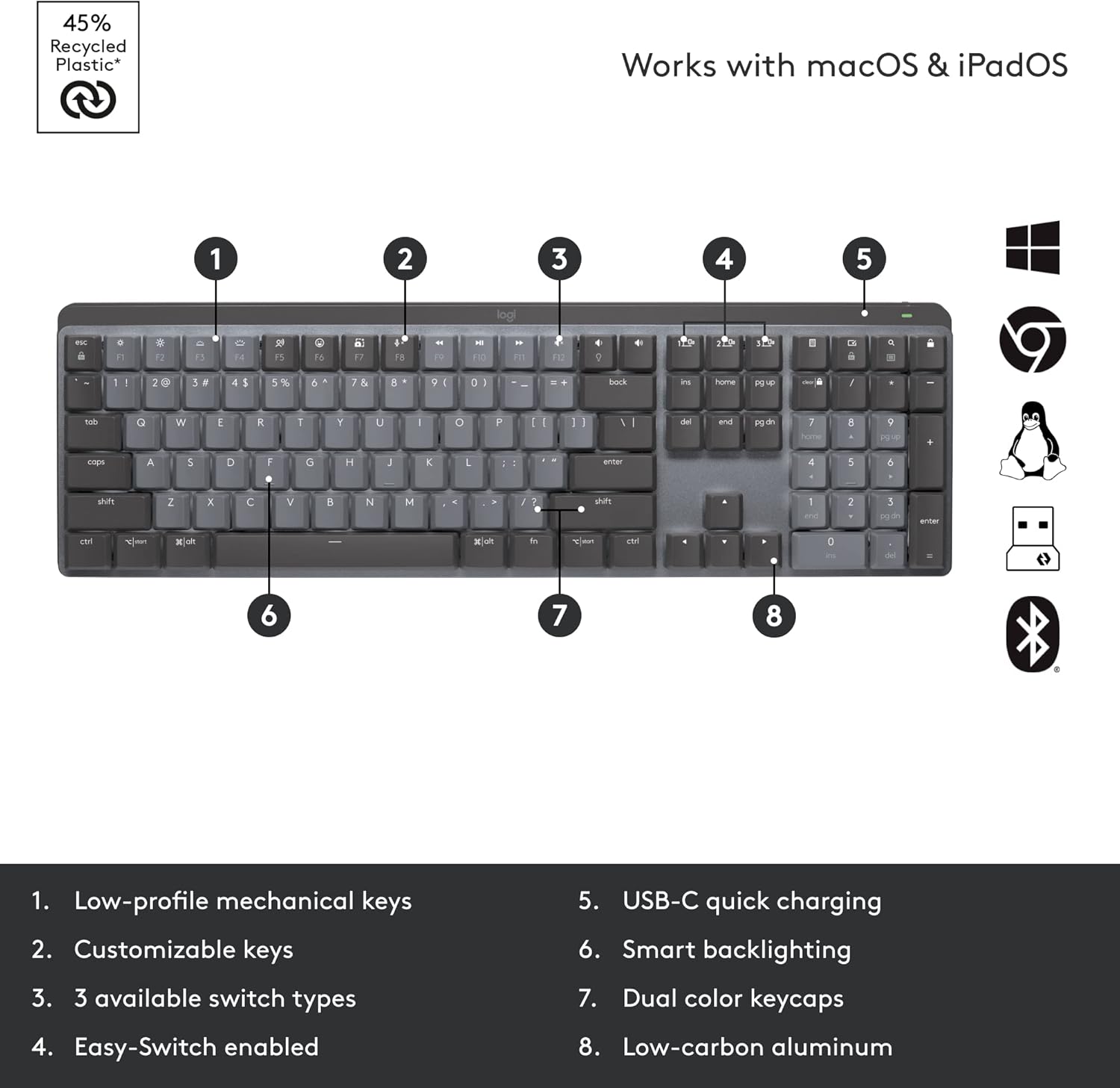
Image: A detailed diagram highlighting the key features of the MX Mechanical Keyboard.
- తక్కువ-ప్రోfile మెకానికల్ కీలు: Experience comfortable and precise typing with low-profile mechanical switches. This bundle includes the Tactile Quiet switch type.
- అనుకూలీకరించదగిన కీలు: Utilize Logi Options+ to reassign functions to various keys, including Fn-keys, to streamline your workflow.
- స్మార్ట్ బ్యాక్లైటింగ్: The keyboard features intelligent backlighting that illuminates when your hands approach and adjusts brightness automatically based on ambient light conditions.
- Easy-Switch Enabled: Quickly switch between up to three connected devices (via Logi Bolt or Bluetooth) using the dedicated Easy-Switch keys (1, 2, 3).
- USB-C త్వరిత ఛార్జింగ్: Recharge the keyboard quickly using the USB-C port.
- Dual Color Keycaps: The keycaps feature a dual-color design for enhanced visibility and aesthetics.
- Low-carbon Aluminum: The keyboard is constructed with low-carbon aluminum for a premium and durable build.

Image: The MX Mechanical Keyboard displaying its smart backlighting feature in a low-light environment.
2.2 MX Master 3S Mouse Features

Image: A detailed diagram highlighting the key features of the MX Master 3S Mouse.
- మాగ్స్పీడ్ వీల్: Experience ultra-fast and precise scrolling with the MagSpeed electromagnetic scroll wheel. Scroll 1,000 lines in a second or stop on a pixel.
- థంబ్వీల్: The dedicated thumbwheel allows for horizontal scrolling, ideal for large spreadsheets or timelines.
- అనుకూలీకరించదగిన బటన్లు: The mouse features 7 customizable buttons (Left/Right-click, Back/Forward, App-Switch, Wheel mode-shift, Middle click, Gesture button) that can be configured using Logi Options+.
- Track-anywhere Sensor: The Darkfield high precision sensor allows the mouse to track on virtually any surface, including glass (minimum 4mm thickness), with up to 8K DPI precision.
- USB-C ఛార్జింగ్: Recharge the mouse quickly using the USB-C port.
- సులభంగా మార్చగల బటన్లు: Similar to the keyboard, the mouse can connect to and switch between up to three devices.

Image: The MX Master 3S Mouse demonstrating its ability to track precisely on a glass surface.
2.3 Multi-Device and Multi-OS Functionality (Logitech Flow)
The MX Mechanical Keyboard and MX Master 3S Mouse are designed to work seamlessly across multiple devices and operating systems, including Windows, macOS, Linux, Chrome OS, iPadOS, and Android. With Logi Options+ software, you can enable Logitech Flow.

Image: An illustration of Logitech Flow, demonstrating the ability to seamlessly transfer text, images, and files between two different computers with a single keyboard and mouse.
Logitech Flow allows you to control multiple computers with a single MX keyboard and mouse, and even copy-paste text, images, and files between them. This feature requires Logi Options+ to be installed on all computers you wish to use with Flow.
3. నిర్వహణ మరియు సంరక్షణ
Proper care ensures the longevity and optimal performance of your Logitech devices.
3.1 శుభ్రపరిచే సూచనలు
- కీబోర్డ్: కొద్దిగా మెత్తని, మెత్తని బట్టను ఉపయోగించండి dampనీరు లేదా తేలికపాటి శుభ్రపరిచే ద్రావణంతో నానబెట్టండి. అధిక తేమను నివారించండి. క్లీనర్లను నేరుగా కీబోర్డ్పై పిచికారీ చేయవద్దు.
- మౌస్: Wipe the surface with a soft, dry cloth. For the sensor, use a cotton swab lightly dampఅవసరమైతే ఐసోప్రొపైల్ ఆల్కహాల్ తో నింపాలి, తద్వారా మౌస్ లోకి ద్రవం ప్రవేశించకుండా చూసుకోవాలి.
- Avoid abrasive cleaners, solvents, or aerosol sprays.
3.2 బ్యాటరీ ఛార్జింగ్
Both the keyboard and mouse feature rechargeable Li-Po batteries. Connect them to a USB-C power source using the provided cables when the battery indicator shows low charge.
- MX Mechanical Keyboard: Rechargeable Li-Po (1500 mAh) battery. Battery life may vary based on user and computing conditions.
- MX Master 3S Mouse: Rechargeable Li-Po (500 mAh) battery. Battery life may vary based on user and computing conditions.
4. ట్రబుల్షూటింగ్
This section addresses common issues you might encounter with your devices.
4.1 కనెక్టివిటీ సమస్యలు
- పరికరం కనెక్ట్ కావడం లేదు: Ensure the devices are powered on and fully charged. Try re-pairing them via Bluetooth or re-inserting the Logi Bolt USB Receiver.
- జోక్యం: Wireless range may vary depending on the operating environment and computer setup. Try moving the devices closer to the receiver or computer. Avoid placing them near other wireless devices that might cause interference.
- Logi Bolt Receiver not recognized: Try plugging the receiver into a different USB port. Ensure your computer's USB drivers are up to date.
4.2 Backlighting Problems (Keyboard)
- Backlight not turning on: Ensure the keyboard battery has sufficient charge. The smart backlighting feature may not activate in brightly lit environments. Check settings in Logi Options+.
- Backlight not adjusting: Verify that the ambient light sensor is not obstructed. Adjust brightness manually using the dedicated keys or through Logi Options+.
4.3 Mouse Tracking Inaccuracies
- Erratic tracking: Clean the mouse sensor area. Ensure the surface you are using is suitable for optical tracking. While the mouse tracks on glass, ensure the glass is at least 4mm thick.
- DPI సర్దుబాటు: మీ ప్రాధాన్యతకు అనుగుణంగా లాగి ఆప్షన్స్+లో DPI సెన్సిటివిటీని సర్దుబాటు చేయండి.
For further assistance, refer to the Logi Options+ software's help section or visit the Logitech support webసైట్.
5. సాంకేతిక లక్షణాలు
Detailed specifications for the Logitech MX Mechanical Keyboard and MX Master 3S Mouse.
5.1 MX Mechanical Keyboard Specifications
| ఫీచర్ | స్పెసిఫికేషన్ |
|---|---|
| కొలతలు (కీక్యాప్లతో సహా) | 26.10mm (H) x 433.85 mm (W) x 131.55 mm (D) |
| బరువు | 828గ్రా |
| బ్యాటరీ | రీఛార్జబుల్ లి-పో (1500 mAh) |
| కనెక్టివిటీ | బ్లూటూత్ తక్కువ శక్తి, లాగి బోల్ట్ USB రిసీవర్ |
| ఆపరేటింగ్ సిస్టమ్ అనుకూలత | Windows, macOS, Linux, Chrome OS, iPadOS, Android |
| కీ రకం | తక్కువ-ప్రోfile యాంత్రిక (స్పర్శ నిశ్శబ్ద) |
| బ్యాక్లైటింగ్ | స్మార్ట్ ప్రకాశం |
5.2 MX Master 3S Mouse Specifications
| ఫీచర్ | స్పెసిఫికేషన్ |
|---|---|
| కొలతలు | 51 x 84.3 x 124.9 మిమీ (2 x 3.3 x 4.9 అంగుళాలు) |
| బరువు | 141 గ్రా (4.97 oz) |
| బ్యాటరీ | రీఛార్జబుల్ లి-పో (500 mAh) |
| సెన్సార్ టెక్నాలజీ | డార్క్ఫీల్డ్ అధిక ఖచ్చితత్వం |
| DPI పరిధి | 200 నుండి 8000 DPI (50 DPI ఇంక్రిమెంట్లలో సర్దుబాటు చేయవచ్చు) |
| బటన్లు | 7 బటన్లు (ఎడమ/కుడి-క్లిక్, వెనుక/ముందుకు, యాప్-స్విచ్, వీల్ మోడ్-షిఫ్ట్, మిడిల్ క్లిక్), స్క్రోల్ వీల్, థంబ్వీల్, సంజ్ఞ బటన్ |
| వైర్లెస్ ఆపరేటింగ్ దూరం | 10 మీ (33 అడుగులు) |
| కనెక్టివిటీ | బ్లూటూత్ తక్కువ శక్తి, లాగి బోల్ట్ USB రిసీవర్ |
| ఆపరేటింగ్ సిస్టమ్ అనుకూలత | Windows, macOS, Linux, Chrome OS, iPadOS, Android |
5.3 Logi Bolt Receiver Specifications
| ఫీచర్ | స్పెసిఫికేషన్ |
|---|---|
| కొలతలు | 18.4 mm x 14.4 mm x 6.6 mm |
| బరువు | 2g |
| అనుకూలత | Not compatible with Logitech Unifying technology |
6. వారంటీ మరియు మద్దతు
లాజిటెక్ ఉత్పత్తులు విశ్వసనీయత మరియు పనితీరు కోసం రూపొందించబడ్డాయి. వివరణాత్మక వారంటీ సమాచారం కోసం, దయచేసి మీ ఉత్పత్తితో చేర్చబడిన వారంటీ కార్డును చూడండి లేదా అధికారిక లాజిటెక్ వెబ్సైట్ను సందర్శించండి. webసైట్.
6.1 ఉత్పత్తి వారంటీ
Your Logitech MX Mechanical Keyboard and MX Master 3S Mouse bundle comes with a limited hardware warranty. This warranty covers defects in materials and workmanship under normal use. Specific terms and duration may vary by region.
6.2 కస్టమర్ మద్దతు
For technical support, troubleshooting, or warranty claims, please contact Logitech Customer Support through the following channels:
- ఆన్లైన్ మద్దతు: లాజిటెక్ మద్దతును సందర్శించండి website for FAQs, troubleshooting guides, and driver downloads: support.logi.com
- యూజర్ మాన్యువల్ (PDF): మీ సౌలభ్యం కోసం యూజర్ మాన్యువల్ యొక్క PDF వెర్షన్ డౌన్లోడ్ చేసుకోవచ్చు: PDF మాన్యువల్ని డౌన్లోడ్ చేయండి


