1. పరిచయం
The KanDao QooCam EGO is a state-of-the-art stereoscopic 3D camera designed to capture immersive photos and videos with exceptional clarity. Featuring a unique dual-lens system that mimics human vision, it delivers true-to-life 3D content that can be instantly viewed on its integrated magnetic viewer or shared across various platforms and devices, including VR headsets, AR glasses, and projectors.
This manual provides comprehensive instructions for setting up, operating, maintaining, and troubleshooting your QooCam EGO camera, ensuring you get the most out of its advanced capabilities.

Image: The KanDao QooCam EGO camera, showcasing its compact design and the detachable magnetic viewer displaying a captured scene.
2. పెట్టెలో ఏముంది
Upon unboxing your KanDao QooCam EGO, please verify that all the following components are included:
- QooCam EGO Camera Unit
- Magnetic 3D Viewer
- Rechargeable Battery (1 LR44 battery included)
- USB ఛార్జింగ్ కేబుల్
- సెల్ఫీ అద్దం
- చేతి పట్టీ
- నిల్వ బ్యాగ్
- లెన్స్ క్లీనింగ్ క్లాత్
3. సెటప్ గైడ్
3.1 బ్యాటరీని ఛార్జ్ చేస్తోంది
Before first use, fully charge the camera's battery. Connect the provided USB charging cable to the camera's USB port and a compatible USB power adapter (not included). The charging indicator light will show the charging status.

Image: A hand placing a battery into a charging dock, illustrating the charging process.
3.2. మైక్రో SD కార్డ్ చొప్పించడం
The QooCam EGO requires a Micro SD card (not included) for storing photos and videos. Locate the Micro SD card slot on the camera body. Insert the card with the gold contacts facing down until it clicks into place. Ensure the camera is powered off before inserting or removing the card.
3.3. Attaching the 3D Viewer
The magnetic 3D viewer easily attaches to the top of the camera. Align the viewer with the magnetic contacts on the camera until it snaps securely into place. This allows for instant 3D playback directly on the device.

Image: A user demonstrating the use of the QooCam EGO with its magnetic viewer attached, providing an instant 3D viewing అనుభవం.
3.4. పవర్ చేయడం ఆన్/ఆఫ్
To power on the camera, press and hold the power button located on the top of the device until the screen illuminates. To power off, press and hold the power button again until the screen shuts down.
4. ఆపరేటింగ్ సూచనలు
4.1. ఫోటోలు మరియు వీడియోలను సంగ్రహించడం
The QooCam EGO captures 24MP 3D photos and 4K 60FPS stereoscopic 3D videos. The dual-lens system, with a 65mm inter-lens distance, is designed to replicate human eye vision for realistic 3D depth.
- ఫోటో మోడ్: Select photo mode on the camera interface. Frame your shot using the screen or the attached viewer. Press the shutter button to capture a 24MP 3D image (JPG for quick sharing, DNG for professional editing).
- వీడియో మోడ్: Switch to video mode. Press the record button to start and stop recording 4K 60FPS 3D video. The camera features built-in IMU sensor and image stabilization for smooth footage.
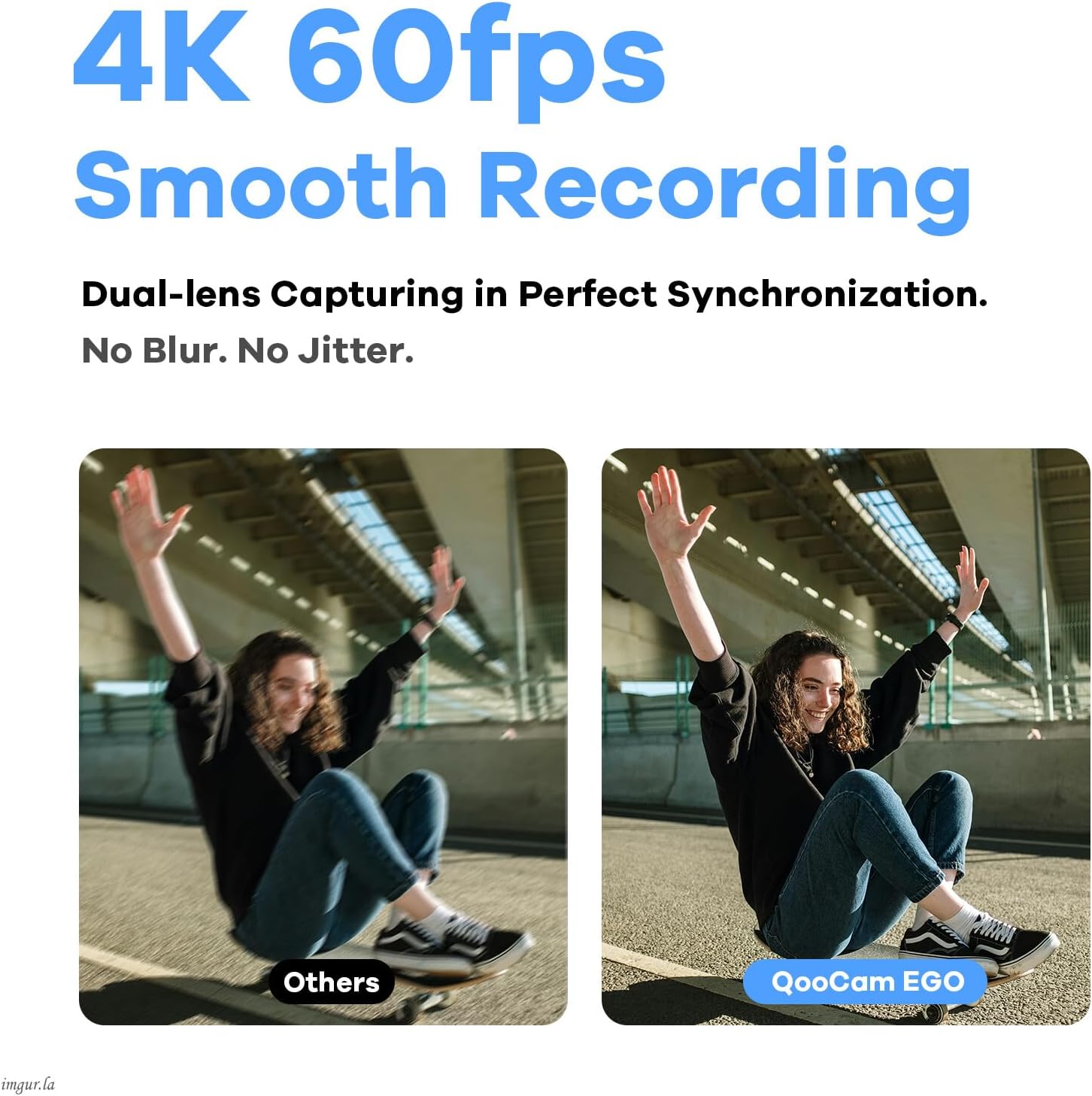
Image: Visual comparison demonstrating the superior smoothness of 4K 60FPS video recording with QooCam EGO, highlighting its effective image stabilization.
4.2. Precision Focus Control
The QooCam EGO offers both manual and auto dual focus modes, allowing you to achieve pinpoint accuracy for every shot. Access focus settings through the camera's touchscreen interface to adjust as needed for different subjects and distances.

Image: The QooCam EGO's display interface, illustrating the precision focus control feature with a focus box highlighting a subject.
4.3 Viewing and Sharing Content
Your captured 3D content can be viewed and shared in multiple ways:
- తక్షణ ప్లేబ్యాక్: Use the magnetic 3D viewer for immediate stereoscopic playback directly from the camera.
- QooCam APP: Download the QooCam APP to your smartphone or tablet. Connect the camera via Wi-Fi to easily edit, manage, and export your photos and videos.
- VR Headsets & AR Glasses: Export side-by-side MP4 videos for seamless viewing on major VR headsets. Transform your real-world surroundings into interactive augmented reality experiences by overlaying 3D-captured elements onto your view with AR glasses.
- ప్రొజెక్టర్లు: Connect your QooCam EGO to a compatible projector to display your 3D images and videos on a large screen, creating a unique 3D viewing event.
- సోషల్ మీడియా: Share your content directly to platforms like Facebook and YouTube through the QooCam APP.
- Apple Vision Pro Integration: Utilize the transcoding tool to convert QooCam EGO content into spatial videos and photos for an enhanced stereoscopic effect and clear visuals on Apple Vision Pro.

Image: A collage demonstrating the versatility of the QooCam EGO, capturing 3D content for various viewing platforms including VR headsets, AR glasses, and projectors.
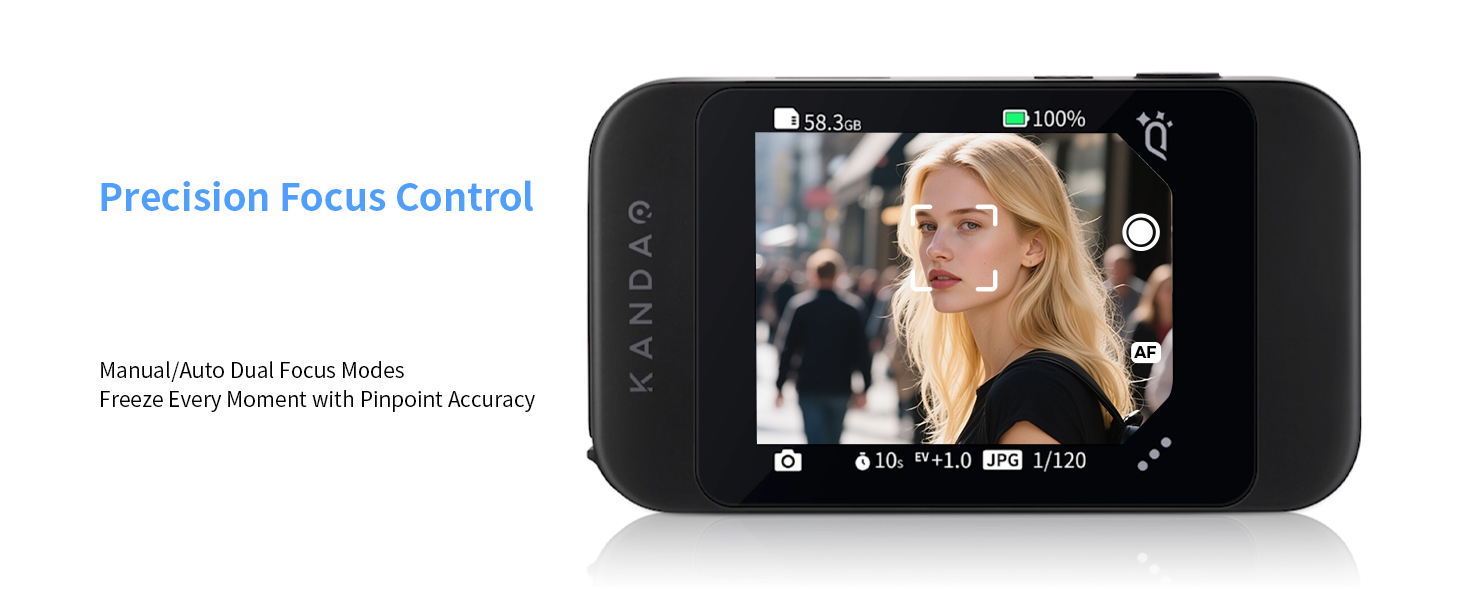
Image: The QooCam EGO camera positioned in front of a person wearing an Apple Vision Pro, highlighting its seamless integration for spatial content creation.
5. నిర్వహణ
5.1. కెమెరాను శుభ్రపరచడం
Regular cleaning helps maintain optimal performance and image quality. Use the provided lens cleaning cloth to gently wipe the camera lenses and screen. For the camera body, use a soft, dry cloth. Avoid using harsh chemicals or abrasive materials.
5.2. బ్యాటరీ సంరక్షణ
To prolong battery life, avoid exposing the camera to extreme temperatures. If storing the camera for an extended period, ensure the battery is partially charged (around 50%) and recharge it every few months.
5.3. నిల్వ
When not in use, store the QooCam EGO in its provided storage bag in a cool, dry place, away from direct sunlight and moisture. This protects the camera from dust and potential damage.
6. ట్రబుల్షూటింగ్
If you encounter issues with your QooCam EGO, please refer to the following common troubleshooting steps:
| సమస్య | సాధ్యమైన కారణం | పరిష్కారం |
|---|---|---|
| కెమెరా పవర్ ఆన్ అవ్వదు. | బ్యాటరీ తక్కువగా ఉంది; బ్యాటరీ సరిగ్గా చొప్పించబడలేదు. | బ్యాటరీని పూర్తిగా ఛార్జ్ చేయండి. బ్యాటరీ సరిగ్గా చొప్పించబడిందని నిర్ధారించుకోండి. |
| ఫోటోలు/వీడియోలను రికార్డ్ చేయలేరు. | No Micro SD card; SD card full or corrupted. | Insert a Micro SD card. Delete unnecessary files or format the card (backup data first). Try a different SD card. |
| 3D viewer display is blurry. | Viewer not attached correctly; dirty lenses/screen. | Ensure the magnetic viewer is securely attached. Clean the camera lenses and viewer screen with the provided cloth. |
| Wi-Fi connection issues with APP. | Incorrect password; camera too far from device; interference. | Double-check Wi-Fi password. Move closer to the camera. Restart both camera and device. |
ఇక్కడ జాబితా చేయని సమస్యలకు లేదా మరిన్ని వివరాల కోసం, దయచేసి అధికారిక లింక్ను చూడండి. KanDao QooCam EGO User Manual (PDF) లేదా కస్టమర్ మద్దతును సంప్రదించండి.
7. స్పెసిఫికేషన్లు
| ఫీచర్ | వివరాలు |
|---|---|
| మోడల్ సంఖ్య | QG7018 |
| ఫోటో రిజల్యూషన్ | 8000x3000 (24MP) |
| వీడియో రిజల్యూషన్ | 3840x1080 @ 60FPS |
| Lens Distance | 65మి.మీ |
| ఫోటో సెన్సార్ టెక్నాలజీ | CMOS |
| గరిష్ట ఎపర్చరు | 1.8 f |
| ఫ్లాష్ మెమరీ రకం | మైక్రో SD |
| వీడియో క్యాప్చర్ ఫార్మాట్ | MP4 |
| మద్దతు ఉన్న ఆడియో ఫార్మాట్ | AAC(16bit/dual track/48KHz) |
| స్క్రీన్ పరిమాణం | 2.54 అంగుళాలు |
| కనెక్టివిటీ టెక్నాలజీ | USB, Wi-Fi |
| వస్తువు బరువు | 1.26 పౌండ్లు (సుమారు 570గ్రా) |
| బ్యాటరీ రకం | 1 LR44 బ్యాటరీ (చేర్చబడింది) |
8. వారంటీ మరియు మద్దతు
8.1. వారంటీ సమాచారం
The KanDao QooCam EGO typically comes with a 12-month / 1-year warranty from the date of purchase. Please retain your proof of purchase for warranty claims. Extended protection plans may also be available for purchase.
8.2. కస్టమర్ మద్దతు
For technical assistance, product inquiries, or warranty service, please contact KanDao customer support. KanDao is committed to providing quick responses and technical support to ensure a satisfactory user experience.
- అధికారిక Webసైట్: సందర్శించండి KanDao Store on Amazon ఉత్పత్తి సమాచారం మరియు మద్దతు వనరుల కోసం.
- ఫర్మ్వేర్ ఆప్టిమైజేషన్: KanDao regularly releases firmware updates to improve camera performance and add new features. Check the official website or QooCam APP for the latest updates.


Image: Icons representing KanDao's commitment to quick response, 1-year warranty, technical support, and firmware optimization.


