పరిచయం
This manual provides detailed instructions for the setup, operation, and maintenance of your HUNSN RJ03 Micro Firewall Appliance. The RJ03 is a compact, fanless mini PC designed for network security applications, including use as a firewall, VPN router, or other network appliance. It features an Intel Celeron N5105 processor and multiple 2.5GbE LAN ports.
సరైన సంస్థాపన మరియు సరైన పనితీరును నిర్ధారించుకోవడానికి పరికరాన్ని ఉపయోగించే ముందు దయచేసి ఈ మాన్యువల్ను పూర్తిగా చదవండి.
భద్రతా సమాచారం
- Ensure the device is placed on a stable, flat surface with adequate ventilation.
- Use only the provided power supply. Using an incorrect power supply may damage the device and void the warranty.
- పరికరాన్ని నీరు, తేమ లేదా తీవ్రమైన ఉష్ణోగ్రతలకు గురిచేయవద్దు.
- Avoid opening the chassis unless performing authorized upgrades (RAM, SSD/HDD, WiFi module). Disconnecting internal components improperly can cause damage.
- In case of malfunction, disconnect the power supply and contact support. Do not attempt repairs yourself.
ప్యాకేజీ విషయాలు
ప్యాకేజీలో అన్ని అంశాలు ఉన్నాయని నిర్ధారించుకోండి:
- HUNSN RJ03 Firewall Appliance
- Power Supply (DC12V3A)
- పవర్ కార్డ్
- వారంటీ కార్డ్
ఉత్పత్తి ముగిసిందిview
The HUNSN RJ03 is a compact, fanless mini PC designed for robust network applications. Its aluminum chassis acts as a heatsink, ensuring silent operation.
ముందు ప్యానెల్

మూర్తి 1: ముందు ప్యానెల్ లేఅవుట్
The front panel provides essential user interfaces:
- పవర్ ఆన్/ఆఫ్ బటన్: Used to power the device on or off.
- CLR CMOS Button: A small button to clear CMOS settings, often requiring a pin to press.
- USB 3.0 పోర్ట్లు (2x): హై-స్పీడ్ USB పరికరాలను కనెక్ట్ చేయడానికి.
- టైప్-సి పోర్ట్: Supports display output and USB connectivity.
- TF కార్డ్ స్లాట్: For TransFlash (MicroSD) memory cards.
- Antenna Connectors (2x): For optional WiFi antennas.
వెనుక ప్యానెల్
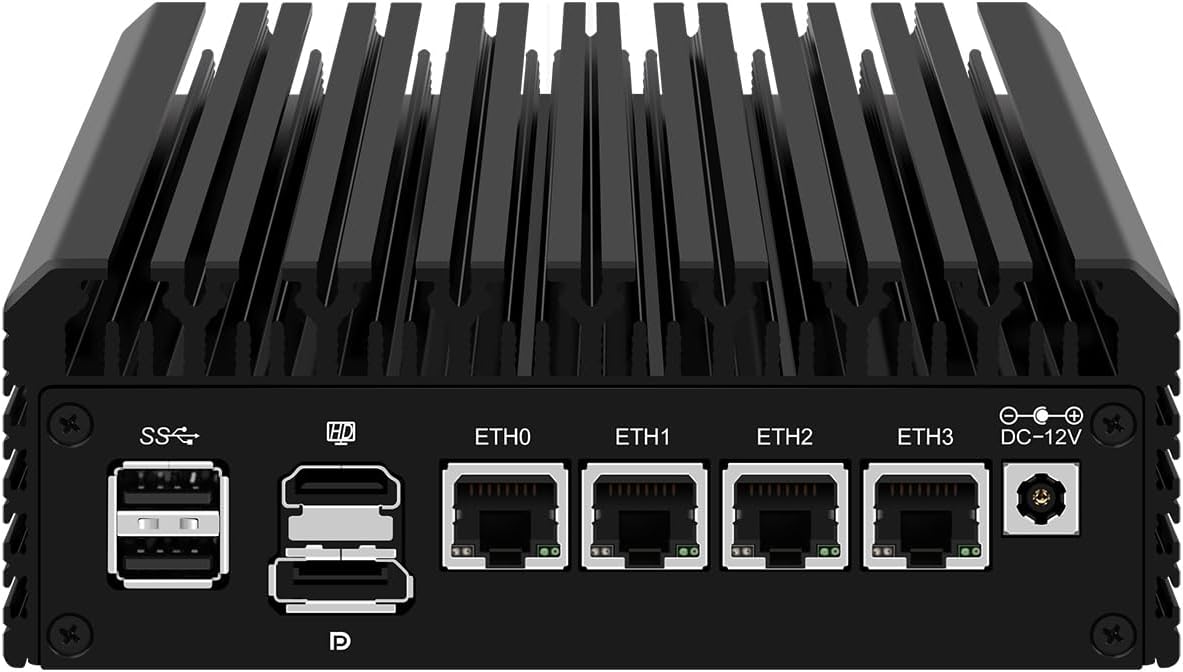
మూర్తి 2: వెనుక ప్యానెల్ లేఅవుట్
The rear panel houses the primary connectivity options:
- USB 2.0 పోర్ట్లు (2x): ప్రామాణిక USB పరికరాలను కనెక్ట్ చేయడానికి.
- HDMI పోర్ట్: డిస్ప్లేకి కనెక్ట్ చేయడానికి.
- డిస్ప్లేపోర్ట్ (DP): డిస్ప్లేకి కనెక్ట్ చేయడానికి.
- LAN Ports (4x 2.5GbE I226-V): Four 2.5 Gigabit Ethernet ports for network connections (ETH0, ETH1, ETH2, ETH3).
- DC_IN Port: For connecting the 12V power adapter.
సెటప్ సూచనలు
1. Hardware Installation (Optional)
If you purchased a barebones unit or wish to upgrade, follow these steps to install RAM, SSD/HDD, or a WiFi module. Ensure the device is powered off and disconnected from the power source before proceeding.
- చాసిస్ తెరవండి: Carefully remove the screws securing the bottom panel of the appliance.
- RAM ని ఇన్స్టాల్ చేయండి: The device supports 2 x SODIMM DDR4 2933MHz, up to 32GB. Insert the RAM modules into the SODIMM slots, ensuring they are seated correctly and the clips lock them in place.
- నిల్వను ఇన్స్టాల్ చేయండి:
- M.2 NVMe SSD: Insert the M.2 2280 PCIe 3.0 x1 NVMe SSD into its dedicated slot and secure it with the provided screw.
- 2.5 Inch SATA SSD/HDD: Connect a 2.5-inch SATA SSD or HDD using the internal SATA data and power cables (if included). Secure the drive within the chassis.
- Install M.2 WiFi Module (Optional): If installing a WiFi 6 module, insert it into the M.2 WiFi slot and connect the antenna cables.
- చాసిస్ మూసివేయండి: దిగువ ప్యానెల్ను మార్చండి మరియు దానిని స్క్రూలతో భద్రపరచండి.
2. పెరిఫెరల్స్ కనెక్ట్ చేయడం
- పవర్ కనెక్షన్: Connect the provided power adapter to the DC_IN port on the rear panel, then plug the power cord into an electrical outlet.
- నెట్వర్క్ కనెక్షన్: Connect your network cables to the 2.5GbE LAN ports (ETH0-ETH3) as required for your network configuration (e.g., WAN, LAN, DMZ).
- Display and Input (Optional): For initial setup or direct interaction, connect a monitor via HDMI or DisplayPort, and a keyboard/mouse to the USB ports.
3. ప్రారంభ బూట్
Press the Power ON/OFF button on the front panel. The device should power on. If a display is connected, you will see the boot sequence.
ఆపరేటింగ్ సిస్టమ్ ఇన్స్టాలేషన్
The HUNSN RJ03 supports a variety of operating systems and network appliance software. It supports UEFI boot only.
- అనుకూల వ్యవస్థలు: 5.10.x and above core-based FreeBSD router systems, Linux distributions, or Windows operating systems.
- Firewall Software: Compatible with popular open-source solutions such as pfSense and OPNsense.
- ఇన్స్టాలేషన్ ప్రక్రియ:
- Prepare a bootable USB drive with your chosen operating system or firewall software.
- Connect the USB drive to a USB port on the RJ03.
- Power on the device and enter the BIOS/UEFI setup (usually by pressing DEL or F2 during boot) to configure the boot order, prioritizing the USB drive.
- ఆపరేటింగ్ సిస్టమ్ను ఇన్స్టాల్ చేయడానికి ఆన్-స్క్రీన్ సూచనలను అనుసరించండి.
- Network Driver Considerations: The Intel I226-V 2.5GbE LAN ports may require specific drivers or a newer kernel version for optimal performance, especially with certain older operating systems or firewall distributions (e.g., older pfSense versions). Ensure your chosen OS version supports these NICs or be prepared to install necessary drivers.
ఆపరేషన్
Once the operating system is installed and configured, the HUNSN RJ03 functions as a reliable network appliance. Specific operation details will depend on the software installed (e.g., OPNsense, pfSense).
- విద్యుత్పరివ్యేక్షణ: The device supports hardware auto power-on (enabled by default), network wake-up (Wake-on-LAN), and system power management features. These can typically be configured in the BIOS/UEFI settings.
- ఫ్యాన్ లేని డిజైన్: The fanless design ensures silent operation (0.00dB noise). The aluminum chassis acts as a large heatsink, dissipating heat efficiently.
- ఉష్ణోగ్రత నిర్వహణ: The device is designed to operate within a temperature range of 0°C to 70°C. While the chassis may feel warm to the touch, this is normal for fanless systems and indicates effective heat dissipation.
నిర్వహణ
- శుభ్రపరచడం: Periodically clean the exterior of the device with a soft, dry cloth. Do not use liquid cleaners or aerosols. Ensure ventilation fins are free from dust accumulation to maintain optimal cooling.
- శీతలీకరణ: Although fanless, ensure the device has adequate airflow around its chassis. Avoid placing it in enclosed spaces without ventilation. If operating in consistently high ambient temperatures or under heavy load, consider adding an external USB fan for additional cooling, especially if system temperatures are a concern.
- ఫర్మ్వేర్ నవీకరణలు: Check the HUNSN support website or contact customer service for any available BIOS/UEFI firmware updates, which may improve compatibility or performance.
ట్రబుల్షూటింగ్
| సమస్య | సాధ్యమైన కారణం | పరిష్కారం |
|---|---|---|
| పరికరం పవర్ ఆన్ చేయదు. | No power, faulty power supply, or internal connection issue. |
|
| ప్రదర్శన అవుట్పుట్ లేదు. | Incorrect display connection, monitor input, or BIOS settings. |
|
| Network interfaces (LAN ports) not working or slow. | Missing or incorrect network drivers, incompatible OS kernel. |
|
| Device runs very warm. | Normal operation for fanless design, or insufficient ventilation. |
|
స్పెసిఫికేషన్లు
| మోడల్ సంఖ్య | HUNSN RJ03 |
| చట్రం | Aluminum, Fanless Design |
| ప్రాసెసర్ | Intel Celeron N5105 (4M Cache, up to 2.90 GHz) |
| AES-NI Support | అవును |
| జ్ఞాపకశక్తి | 2 x SODIMM DDR4 2933MHz, max. 32GB (4GB installed in base model) |
| నిల్వ | 1 x M.2 2280 PCIe 3.0 x1 NVMe SSD, 1 x 2.5 Inch SATA SSD/HDD (128GB SSD installed in base model) |
| నెట్వర్క్ కార్డ్ | 4 x 2.5GbE Intel I226-V LAN |
| I/O ఇంటర్ఫేస్ | Power ON/OFF, CLR CMOS, 2 x USB 3.0, Type-C (Display/USB), TF Card Slot, 2 x USB 2.0, HDMI, DisplayPort, 4 x LAN, DC_IN |
| విస్తరణ | 1 x M.2 WiFi 6 slot |
| శక్తి | DC100-240V AC/50-60Hz input, 12V3A output |
| ఆపరేటింగ్ ఉష్ణోగ్రత | 0°C ~ 70°C |
| నిల్వ ఉష్ణోగ్రత | -20°C ~ 80°C |
| సాపేక్ష ఆర్ద్రత | 10% ~ 90% నాన్-కండెన్సింగ్ |
| టీడీపీ | 10W |
| శీతలీకరణ వ్యవస్థ | Fanless, supports optional 12V 4-pin 8010 fan |
| కొలతలు | 145.6 x 135.6 x 53.6 మిమీ |
| బరువు | 1.5 కిలోలు (సుమారు 3.3 పౌండ్లు) |
| సిస్టమ్ అనుకూలత | FreeBSD router systems (5.10.x+), Linux distros, Windows OS (UEFI support only) |
| ప్రత్యేక లక్షణాలు | Hardware auto power on (default), network wake-up, system power management, temperature management |
వారంటీ మరియు మద్దతు
Your HUNSN RJ03 appliance comes with a warranty. Please refer to the included warranty card for specific terms and conditions. For technical support, troubleshooting assistance, or inquiries regarding parts and upgrades, please contact HUNSN customer service through the retailer where you purchased the product or visit the official HUNSN store online.
అదనపు వనరులు మరియు ఉత్పత్తి సమాచారం కోసం, మీరు సందర్శించవచ్చు HUNSN Store on Amazon.
