1. ఉత్పత్తి ముగిసిందిview
The EPOMAKER Aura75 is a 75% layout mechanical keyboard kit designed for customization and versatile connectivity. It features a compact design, hot-swappable switch sockets, and dynamic RGB backlighting. This kit supports multiple connection modes and is compatible with various operating systems.
ముఖ్య లక్షణాలు:
- 75% లేఅవుట్: Optimized for functionality and space efficiency.
- ట్రై-మోడ్ కనెక్టివిటీ: Supports 2.4GHz wireless, Bluetooth 5.0, and USB-C wired connections.
- Hot-Swappable PCB: Allows for easy installation and removal of 3-pin and 5-pin mechanical switches without soldering.
- డైనమిక్ RGB బ్యాక్లైట్: Features per-key RGB lighting and unique side lighting effects.
- మల్టీఫంక్షన్ నాబ్: Provides control over volume and RGB brightness.
- ధ్వని శోషణ: Equipped with silicone pads and IXPE switch cushioning for a quieter typing experience.
- మన్నికైన నిర్మాణం: Crafted with a robust injection-molded casing and PC plate.
2. సెటప్ గైడ్
ప్యాకేజీ విషయాలు:
- EPOMAKER Aura75 Keyboard Kit
- USB-C కేబుల్
- 2.4GHz వైర్లెస్ డాంగిల్
- కీకాప్ పుల్లర్
- స్విచ్ పుల్లర్
2.1 Installing Switches and Keycaps
The Aura75 is a barebone kit, meaning switches and keycaps are not pre-installed. You will need to install your preferred 3-pin or 5-pin mechanical switches and keycaps.
- Align the pins of your mechanical switch with the hot-swappable socket on the PCB.
- Gently press the switch until it clicks into place. Ensure the pins are straight to avoid bending.
- Repeat for all desired switch positions.
- Place your chosen keycaps onto the installed switches, pressing firmly until they are secure.
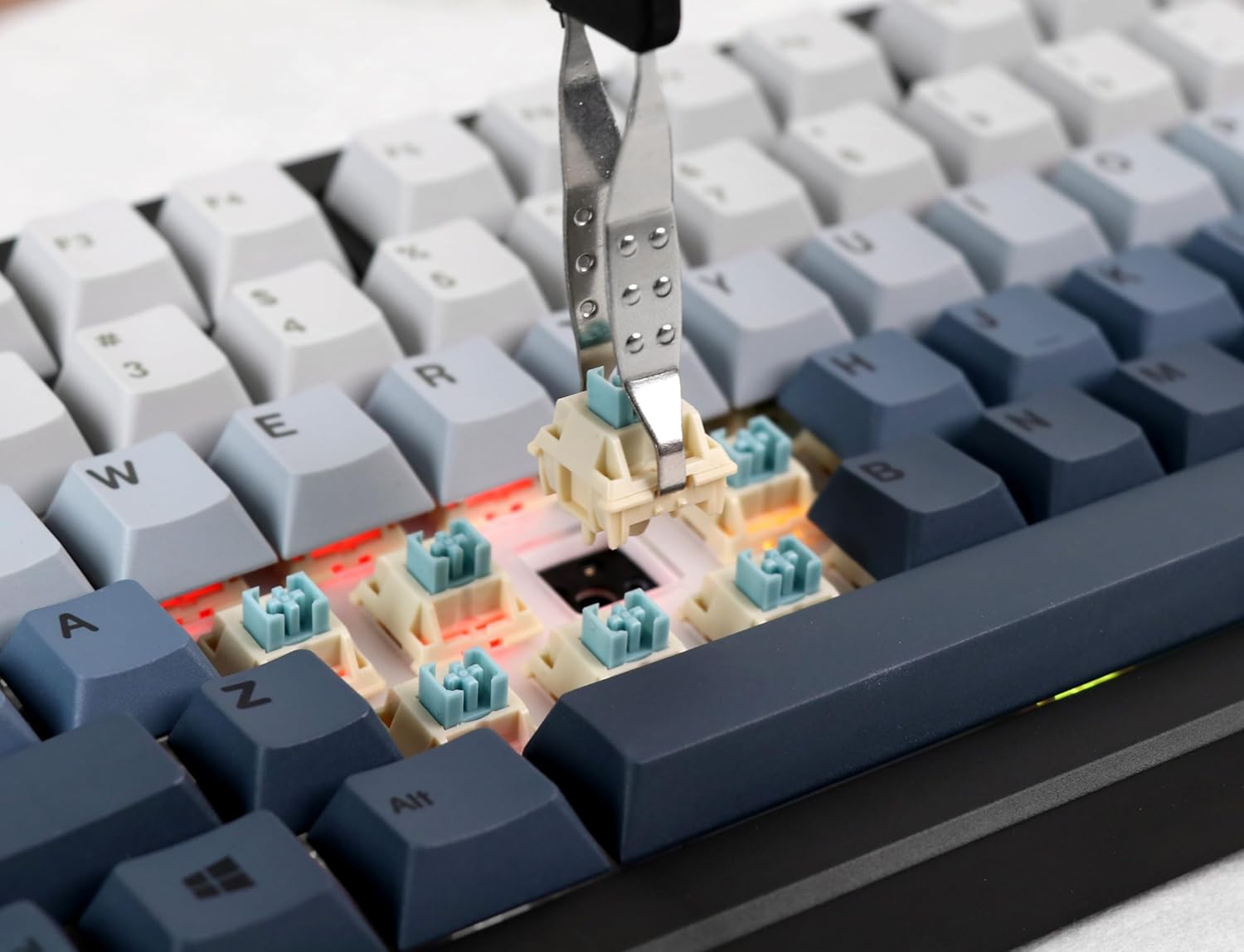
Image: Proper installation of a mechanical switch into the hot-swappable PCB.

Image: The hot-swappable barebone kit featuring south-facing RGB LEDs and tuned plate-mounted stabilizers.
2.2 Connecting the Keyboard:
The Aura75 offers three connectivity options:
- USB-C వైర్డు: Connect the keyboard directly to your device using the provided USB-C cable.
- 2.4GHz వైర్లెస్: Insert the 2.4GHz USB dongle into your device. Flip the switch on the back of the keyboard to the 2.4G position.
- బ్లూటూత్ 5.0: Flip the switch on the back of the keyboard to the Bluetooth position. Press FN + 1/2/3 to enter pairing mode for up to three different devices. The indicator light will flash, then become solid upon successful connection.
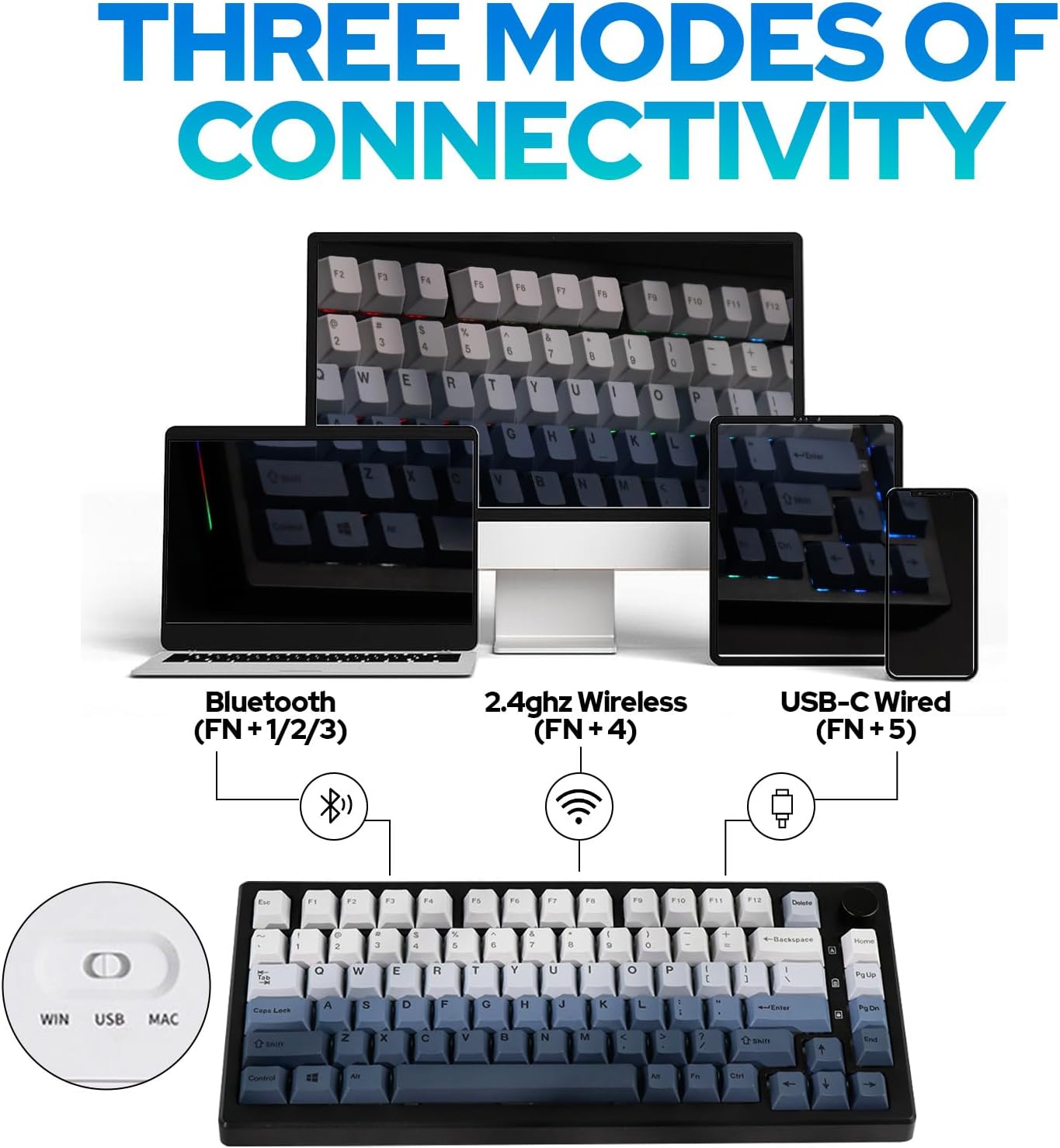
చిత్రం: పైగాview of the three connectivity modes: Bluetooth (FN+1/2/3), 2.4GHz Wireless (FN+4), and USB-C Wired (FN+5).

చిత్రం: వివరణాత్మకం view of the keyboard's rear, highlighting the connectivity switch, 2.4GHz dongle storage, and USB-C port.
2.3 Adjusting Keyboard Height:
కీబోర్డ్ రెండు-సెకన్లను కలిగి ఉందిtage adjustable feet on the underside to customize the typing angle for ergonomic comfort.
3. ఆపరేటింగ్ సూచనలు
3.1 RGB Backlight Control:
The Aura75 features extensive RGB lighting options, including per-key and side lighting.
- FN + \|: Cycle through different backlight effects (Light Effect 1-20).
- FN + Home/PU: Cycle through different backlight colors/brightness (Light Effect 1-10).
- FN + L: బ్యాక్లైట్ను ఆన్/ఆఫ్ చేయండి.
- FN + L_Ctrl: Toggle sidelight effect on/off.
- FN + L_Alt: Cycle through sidelight colors.
- FN + Z/X: Adjust sidelight brightness/speed.

చిత్రం: కీబోర్డ్ షోasing its RGB backlight and unique side light effects.

Image: FN key combinations for adjusting backlight effects, colors, brightness, and speed.
3.2 Multifunction Knob:
The knob located on the top right of the keyboard serves dual functions:
- తిప్పు: Adjusts system volume or RGB brightness.
- నొక్కండి: Toggles between volume control and RGB brightness control.

Image: The multifunction knob, used to switch between volume and RGB brightness adjustments.
3.3 Operating System Mode Switching:
The keyboard supports both Windows and Mac operating systems.
- విండోస్ మోడ్: నొక్కండి FN + W.
- Mac మోడ్: నొక్కండి FN + E. If this does not work, try FN + Q.
3.4 Software Programming:
The EPOMAKER Aura75 is programmable using the dedicated EPOMAKER software. This software allows for:
- Key remapping
- మాక్రో సృష్టి
- Customizing lighting effects
- Setting sleep modes

Image: The EPOMAKER software interface for advanced keyboard customization.
4. నిర్వహణ
Regular maintenance helps ensure the longevity and optimal performance of your EPOMAKER Aura75 keyboard.
- కీక్యాప్లను శుభ్రపరచడం: కీక్యాప్లను తీసివేయడానికి కీక్యాప్ పుల్లర్ను ఉపయోగించండి. వాటిని తేలికపాటి సబ్బు ద్రావణం మరియు మృదువైన గుడ్డతో శుభ్రం చేసి, తిరిగి అటాచ్ చేసే ముందు పూర్తిగా గాలికి ఆరబెట్టండి.
- Cleaning the PCB/Switches: Use compressed air to remove dust and debris from between switches. For deeper cleaning, carefully remove switches with a switch puller and clean the PCB with a soft brush.
- కేబుల్ కేర్: USB-C కేబుల్ దెబ్బతినకుండా ఉండటానికి పదునైన వంపులు లేదా ఎక్కువగా లాగడం మానుకోండి.
- బ్యాటరీ సంరక్షణ: For wireless modes, ensure the keyboard is charged regularly. Avoid fully depleting the battery for extended periods.
5. ట్రబుల్షూటింగ్
సాధారణ సమస్యలు మరియు పరిష్కారాలు:
- కీబోర్డ్ స్పందించడం లేదు:
- Ensure the keyboard is fully charged or connected via USB-C.
- Check the connectivity switch on the back of the keyboard (Wired, 2.4G, Bluetooth).
- For 2.4GHz, ensure the dongle is securely inserted.
- For Bluetooth, re-pair the device if necessary.
- Incorrect key functions in Mac OS:
- Ensure the keyboard is set to Mac mode by pressing FN + E. If this does not resolve the issue, try pressing FN + Q.
- RGB lights not working or flickering:
- Check brightness settings using the multifunction knob or FN key combinations.
- Ensure the keyboard is not in a low-power state.
- Update keyboard firmware using the EPOMAKER software.
- Accidental key presses (high sensitivity):
- Some users may find the actuation point of certain switches sensitive. Adjust your typing style or consider different switch types if customization is desired.
6. స్పెసిఫికేషన్లు
| ఫీచర్ | వివరాలు |
|---|---|
| బ్రాండ్ | ఎపోమేకర్ |
| మోడల్ సంఖ్య | Aura75 |
| లేఅవుట్ | 75% |
| కనెక్టివిటీ టెక్నాలజీ | 2.4GHz వైర్లెస్, బ్లూటూత్ 5.0, USB-C వైర్డ్ |
| అనుకూల పరికరాలు | గేమింగ్ కన్సోల్, ల్యాప్టాప్, PC, స్మార్ట్ఫోన్, టాబ్లెట్ |
| ప్రత్యేక లక్షణాలు | Backlit, Ergonomic, Hot-Swappable, Programmable Keys |
| కీబోర్డ్ బ్యాక్లైటింగ్ | RGB |
| మెటీరియల్ | ప్లాస్టిక్ |
| వస్తువు బరువు | 2.12 పౌండ్లు |
| ప్యాకేజీ కొలతలు | 14.92 x 8.11 x 1.77 అంగుళాలు |
| తయారీదారు | ఎపోమేకర్ |
| మొదట అందుబాటులో ఉన్నవి | మే 6, 2023 |
7. వారంటీ మరియు మద్దతు
For warranty information and technical support, please refer to the official EPOMAKER webసైట్ లేదా వారి కస్టమర్ సర్వీస్ను నేరుగా సంప్రదించండి. వారంటీ క్లెయిమ్ల కోసం మీ కొనుగోలు రసీదును ఉంచండి.
Official EPOMAKER Store: Visit EPOMAKER Store
8. అదనపు వనరులు
ఉత్పత్తి వీడియోలు:
EPOMAKER Sea Salt Switch VS Sea Salt Silent Switch
Video: A comparison between EPOMAKER Sea Salt Switches and Sea Salt Silent Switches, demonstrating their sound and feel differences.
AURA75 Keyboard Kit Typing Sound
Video: Demonstrates the typing sound profile of the AURA75 Keyboard Kit, highlighting its acoustic characteristics.
F75 purple gaming keyboard
వీడియో: ఒక చిన్న వివరణview of the F75 keyboard, showcasing its design and RGB lighting in a purple variant.
Typing Video Epomaker AULA F75 Black Pink Gradient
Video: A short typing demonstration on an Epomaker AULA F75 keyboard with a black and pink gradient keycap set.


