1. పరిచయం
This manual provides essential information for the installation, operation, and maintenance of your Philips Hue Wall Tap Dial Light Switch and Philips Hue Smart Dimmer Switch. These devices are designed to enhance your Philips Hue smart lighting system, offering convenient control over your lights. A Philips Hue Bridge (sold separately) is required for full functionality.
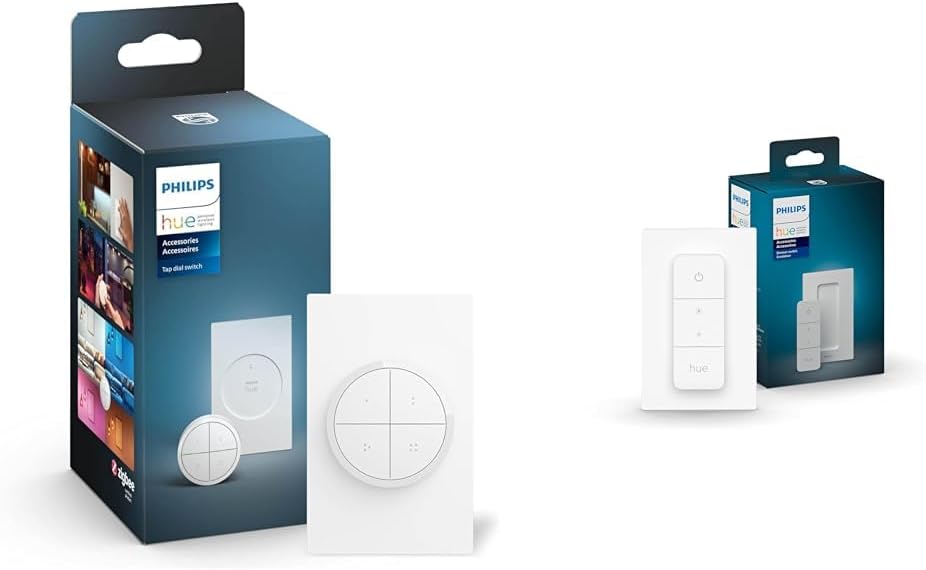
Image 1.1: Philips Hue Wall Tap Dial Light Switch and Smart Dimmer Switch in their retail packaging.
2. భద్రతా సమాచారం
ఈ ఉత్పత్తిని ఉపయోగించే ముందు దయచేసి అన్ని భద్రతా సూచనలను చదివి అర్థం చేసుకోండి. ఈ సూచనలను పాటించడంలో విఫలమైతే విద్యుత్ షాక్, అగ్ని ప్రమాదం లేదా ఇతర ప్రమాదాలు సంభవించవచ్చు.
- Do not attempt to open or modify the devices.
- Keep devices away from water and moisture.
- Use only with Philips Hue compatible lighting products and the Philips Hue Bridge.
- Ensure proper ventilation around the devices.
- స్థానిక నిబంధనల ప్రకారం బ్యాటరీలను పారవేయండి.
3. ప్యాకేజీ విషయాలు
మీ ప్యాకేజీ కింది అంశాలను కలిగి ఉండాలి:
- 1x Philips Hue Wall Tap Dial Light Switch (includes dial and wall plate)
- 1x Philips Hue Smart Dimmer Switch (includes remote and wall plate)
- ఇన్స్ట్రక్షన్ మాన్యువల్

Image 3.1: Components of the Philips Hue Tap Dial Switch.

Image 3.2: Components of the Philips Hue Smart Dimmer Switch.
4. సెటప్
Both the Wall Tap Dial Switch and the Smart Dimmer Switch require a Philips Hue Bridge for full functionality and integration with your smart home system. Ensure your Hue Bridge is set up and connected to your network before proceeding.
4.1 ప్రారంభ సెటప్ దశలు
- Install your Philips Hue Lighting: Ensure your Philips Hue lights are installed and functioning within your home.
- Connect the Philips Hue Bridge: If not already done, connect your Hue Bridge to your router and power it on.
- ఫిలిప్స్ హ్యూ యాప్ను డౌన్లోడ్ చేసుకోండి: Download and install the Philips Hue app on your smartphone or tablet. Follow the in-app instructions to set up your Hue Bridge and discover your lights.

Image 4.1: Visual guide for installing Philips Hue lighting.

Image 4.2: Visual guide for connecting the Philips Hue Bridge.

Image 4.3: Visual guide for downloading the Philips Hue app.
4.2 Mounting and Pairing the Wall Tap Dial Switch
- మౌంటు: The Wall Tap Dial Switch can be mounted to a wall using the included adhesive or screws, or it can be used as a portable remote. The dial itself is magnetic and attaches to the wall plate.
- జత చేయడం: Open the Philips Hue app, navigate to 'Settings' > 'Accessories setup' > 'Add accessory'. Select the Wall Tap Dial Switch and follow the on-screen instructions to pair it with your Hue Bridge and assign it to rooms or zones.

Image 4.4: The Philips Hue Tap Dial Switch mounted on a wall.
4.3 Mounting and Pairing the Smart Dimmer Switch
- మౌంటు: The Smart Dimmer Switch remote can be attached magnetically to its wall plate or any metal surface. The wall plate can be mounted using adhesive strips or screws.
- జత చేయడం: In the Philips Hue app, go to 'Settings' > 'Accessories setup' > 'Add accessory'. Select the Smart Dimmer Switch and follow the app's guidance to connect it to your Hue Bridge and configure its control over your lights.

Image 4.5: The Philips Hue Smart Dimmer Switch being used to control lights.
5. ఆపరేటింగ్ సూచనలు
5.1 Philips Hue Wall Tap Dial Switch
- బటన్లు: The four buttons can be customized via the Hue app to activate specific lighting scenes, turn lights on/off, or control individual lights or groups.
- డయల్ చేయండి: Rotate the dial clockwise to brighten lights and counter-clockwise to dim lights. The dial's function can also be customized in the app.
- పోర్టబిలిటీ: The magnetic dial can be removed from its wall plate for use as a portable remote.
5.2 Philips Hue Smart Dimmer Switch
- ఆన్/ఆఫ్ బటన్: Press the 'On' button to turn lights on. Press the 'Off' button to turn lights off.
- ప్రకాశం బటన్లు: Use the '+' button to brighten lights and the '-' button to dim lights.
- Hue Button: Press the 'Hue' button to cycle through four preset scenes or to get the right light based on the time of day. These scenes are configurable in the Philips Hue app.

Image 5.1: The Philips Hue app interface for assigning routines to accessories.

Image 5.2: Demonstrating the intuitive design of the Philips Hue Smart Dimmer Switch.
5.3 వీడియో ముగిసిందిview of Philips Hue System
వీడియో 5.3: ఒక ఓవర్view of the Philips Hue smart lighting system, demonstrating its versatility and control options.
6. నిర్వహణ
6.1 శుభ్రపరచడం
Clean the devices with a soft, dry cloth. Do not use abrasive cleaners or solvents, as these may damage the surface.
6.2 బ్యాటరీ భర్తీ
Both switches are battery-powered. When the battery is low, you may notice a decrease in responsiveness or an indicator in the Philips Hue app. Refer to the specific product's packaging or the Philips Hue app for instructions on how to replace the battery. Typically, these devices use standard coin cell batteries.
7. ట్రబుల్షూటింగ్
- పరికరం స్పందించడం లేదు: Check the battery. Ensure the device is within range of the Philips Hue Bridge. Verify the device is paired correctly in the Philips Hue app.
- లైట్లు స్పందించడం లేదు: Ensure the Philips Hue Bridge is powered on and connected to your network. Check the status of your Philips Hue lights in the app.
- జత చేయడంలో ఇబ్బంది: Ensure the device is in pairing mode (refer to specific product instructions for details). Move the device closer to the Hue Bridge during pairing. Restart the Hue app and the Hue Bridge.
- అడపాదడపా కనెక్షన్: Ensure there are no major obstructions (e.g., thick walls, large metal objects) between the switch and the Hue Bridge. Other ZigBee devices can act as repeaters to extend the network range.
8. స్పెసిఫికేషన్లు
| ఫీచర్ | వివరాలు |
|---|---|
| బ్రాండ్ | ఫిలిప్స్ హ్యూ |
| మోడల్ | Tap Dial + Dimmer Switch |
| కనెక్టివిటీ ప్రోటోకాల్ | జిగ్బీ |
| నియంత్రణ పద్ధతి | టచ్ |
| ఆపరేషన్ మోడ్ | మాన్యువల్ |
| అనుకూల పరికరాలు | Philips Hue lights, Philips Hue bridge |
| రంగు | తెలుపు |
| మెటీరియల్ | మెటల్ (కాంటాక్ట్ మెటీరియల్) |
9. వారంటీ మరియు మద్దతు
వారంటీ సమాచారం మరియు కస్టమర్ మద్దతు కోసం, దయచేసి అధికారిక ఫిలిప్స్ హ్యూను చూడండి. website or contact Philips Hue customer service directly. Keep your proof of purchase for warranty claims.


