1. పరిచయం
Thank you for choosing the SOLAKAKA SM66 Dual Mode Wireless Mouse. This manual provides detailed instructions for setting up, operating, and maintaining your device. Please read this manual thoroughly before use to ensure optimal performance and longevity of your mouse.
2. ప్యాకేజీ విషయాలు
- SOLAKAKA SM66 Dual Mode Wireless Mouse
- USB-C ఛార్జింగ్ కేబుల్
- 2.4GHz USB రిసీవర్ (మౌస్లో నిల్వ చేయబడింది)
- వినియోగదారు మాన్యువల్

Image: The SOLAKAKA SM66 mouse, USB-C charging cable, and user manual are included in the package.
3. ఉత్పత్తి ముగిసిందిview
Familiarize yourself with the components of your SOLAKAKA SM66 mouse:

Image: A detailed diagram illustrating the various buttons and features of the SM66 mouse.
- ఎడమ బటన్: ప్రామాణిక ఎడమ-క్లిక్ ఫంక్షన్.
- కుడి బటన్: ప్రామాణిక కుడి-క్లిక్ ఫంక్షన్.
- స్క్రోల్ వీల్: నిలువు స్క్రోలింగ్ మరియు మధ్య-క్లిక్ కోసం.
- DPI బటన్: కర్సర్ సెన్సిటివిటీ (DPI)ని సర్దుబాటు చేస్తుంది.
- Side Button 1 (Forward): ముందుకు నావిగేట్ చేస్తుంది web బ్రౌజర్లు లేదా అప్లికేషన్లు.
- Side Button 2 (Backward): వెనుకకు నావిగేట్ చేస్తుంది web బ్రౌజర్లు లేదా అప్లికేషన్లు.
- స్విచ్ ఆన్/ఆఫ్: మౌస్ను ఆన్ లేదా ఆఫ్ చేస్తుంది.
- Signal Indicator (BT1/BT2/2.4GHz): Displays current connection mode and status.
- మోడ్ స్విచ్ బటన్: Toggles between 2.4GHz and Bluetooth modes (BT1, BT2).
- 2.4GHz Receiver Compartment: Stores the USB receiver.
- ఆప్టికల్ సెన్సార్: మౌస్ కదలికను ట్రాక్ చేస్తుంది.
4. సెటప్ మరియు కనెక్షన్
4.1. మౌస్ను ఛార్జ్ చేయడం
The mouse features a built-in rechargeable 500mAh Lithium-ion battery. Use the provided USB-C cable to charge the mouse. You can continue to use the mouse while it is charging.
- Connect the USB-C end of the cable to the charging port on the front of the mouse.
- Connect the USB-A end to a USB power source (e.g., computer, wall adapter).
- సూచిక లైట్ ఛార్జింగ్ స్థితిని చూపుతుంది.

Image: The mouse connected to a USB-C charging cable, indicating its rechargeable nature.
4.2. 2.4GHz వైర్లెస్ కనెక్షన్
This mode uses the included USB receiver for a stable 2.4GHz wireless connection.
- Locate the 2.4GHz USB receiver in its compartment on the bottom of the mouse.
- మీ కంప్యూటర్లో అందుబాటులో ఉన్న USB పోర్ట్కి USB రిసీవర్ని ప్లగ్ చేయండి.
- Turn on the mouse using the ON/OFF switch on the bottom.
- Short press the Mode Switch Button on the bottom of the mouse to select the 2.4GHz mode. The corresponding indicator light will illuminate.
- మీ కంప్యూటర్ స్వయంచాలకంగా మౌస్ను గుర్తించి దానికి కనెక్ట్ అవ్వాలి.

Image: Instructions for connecting the mouse via 2.4GHz mode, showing the USB receiver.
4.3. బ్లూటూత్ కనెక్షన్ (BT5.0 / BT3.0)
The mouse supports two Bluetooth channels (BT1 and BT2) for connecting to multiple devices.
- Turn on the mouse using the ON/OFF switch on the bottom.
- Long press the Mode Switch Button on the bottom of the mouse until the indicator light for BT1 or BT2 flashes rapidly. This indicates pairing mode.
- On your device (laptop, PC, tablet, mobile phone), go to Bluetooth settings.
- కోసం వెతకండి available devices and select "SM66 BT5.0" or "SM66 BT3.0" to connect.
- కనెక్ట్ చేసిన తర్వాత, సూచిక లైట్ ఫ్లాషింగ్ను ఆపివేస్తుంది మరియు పటిష్టంగా ఉంటుంది.
- To connect a second device, repeat the process, selecting the other Bluetooth channel (BT1 or BT2) by long-pressing the Mode Switch Button.

Image: Visual guide for establishing a Bluetooth connection with the SM66 mouse.
Video: An official demonstration of the SOLAKAKA SM66 Dual Mode Wireless Mouse, highlighting its features and connectivity options.
5. ఆపరేటింగ్ సూచనలు
5.1. DPI సర్దుబాటు
The mouse offers 5 adjustable DPI levels: 800, 1200, 1600, 2400, and 4800. To change the DPI:
- నొక్కండి DPI బటన్ (located on the top of the mouse, behind the scroll wheel) to cycle through the available DPI settings.
- Each press will change the cursor sensitivity, allowing you to find your preferred speed.

Image: A visual representation of the mouse's 5-level DPI adjustment feature.
5.2. నిశ్శబ్ద బటన్లు
The SM66 mouse is designed with silent buttons, reducing click noise by 99%. This feature is ideal for quiet environments such as libraries, offices, or late-night use.
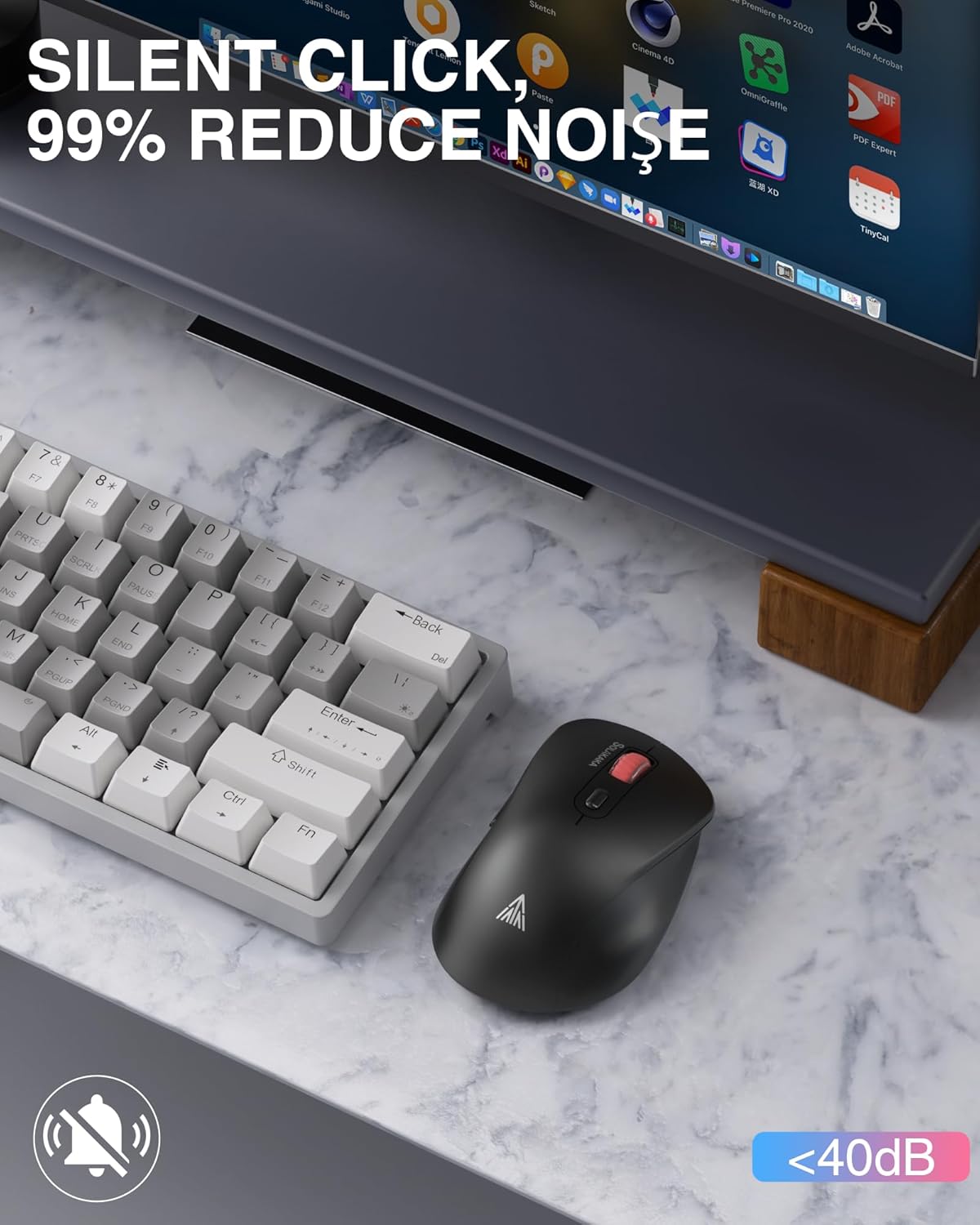
Image: The mouse positioned next to a keyboard, emphasizing its silent click capability.
5.3. బహుళ-పరికర మార్పిడి
Easily switch between up to three connected devices (one 2.4GHz and two Bluetooth) using the Mode Switch Button on the bottom of the mouse.
- షార్ట్ ప్రెస్ ది మోడ్ స్విచ్ బటన్ to cycle through the connected devices.
- The Signal Indicator will show which mode (2.4GHz, BT1, or BT2) is currently active.

Image: The SM66 mouse shown with a laptop, tablet, and mobile phone, demonstrating its multi-device connectivity.
5.4. పవర్ సేవింగ్ మోడ్
The mouse features a smart sleep design to conserve battery life. If inactive for 3 minutes, it will enter sleep mode.
- To wake the mouse, simply click any button.
Image: A reminder about the mouse's smart sleep feature and low power indication.
6. నిర్వహణ
Proper maintenance ensures the longevity and performance of your mouse.
- శుభ్రపరచడం: Use a soft, dry cloth to clean the mouse. Avoid harsh chemicals or abrasive materials.
- బ్యాటరీ సంరక్షణ: Charge the mouse when the cursor shows delayed movement due to low power. Avoid fully depleting the battery frequently.
- ఉపరితల వినియోగం: For optimal tracking, use the mouse on a mouse pad. Before use, remove any protective film from the mouse's non-slip feet.
7. ట్రబుల్షూటింగ్
| సమస్య | సాధ్యమైన కారణం | పరిష్కారం |
|---|---|---|
| మౌస్ స్పందించడం లేదు | Mouse is off, low battery, incorrect connection mode, receiver not plugged in (2.4GHz), Bluetooth not paired. | Turn on the mouse. Charge the mouse. Switch to the correct connection mode. Plug in the 2.4GHz receiver. Re-pair Bluetooth. |
| Cursor movement is delayed or erratic | Low battery, unsuitable surface, interference. | Charge the mouse. Use on a mouse pad. Move closer to the receiver/device, reduce interference from other wireless devices. |
| బ్లూటూత్ ద్వారా కనెక్ట్ చేయడం సాధ్యపడదు | Mouse not in pairing mode, device Bluetooth off, already connected to another device. | Long press mode switch button to enter pairing mode. Ensure device Bluetooth is on. Disconnect from other devices or use a different BT channel. |
| సైడ్ బటన్లు పనిచేయడం లేదు | Application does not support side buttons, driver issue. | Test in a different application (e.g., web browser). Ensure your operating system drivers are up to date. |
8. స్పెసిఫికేషన్లు
| ఫీచర్ | వివరాలు |
|---|---|
| మోడల్ | SM66 |
| కనెక్టివిటీ | 2.4GHz వైర్లెస్, బ్లూటూత్ (BT5.0, BT3.0) |
| DPI స్థాయిలు | 800, 1200, 1600, 2400, 4800 |
| బటన్లు | 7 (Left, Right, Scroll Wheel, DPI, 2 Side Buttons, Mode Switch) |
| ప్రత్యేక లక్షణాలు | Silent Clicks, Ergonomic Design, Rechargeable |
| బ్యాటరీ | 500mAh రీఛార్జబుల్ లిథియం-అయాన్ |
| ఛార్జింగ్ పోర్ట్ | USB-C |
| పని దూరం | 10 మీటర్లు (32 అడుగులు) వరకు |
| బరువు | 3.84 ఔన్సులు |
| కొలతలు | 4.8 x 3.31 x 1.85 అంగుళాలు |
| అనుకూలత | Windows, macOS, Android, iOS, etc. |
9. వారంటీ మరియు మద్దతు
For warranty information or technical support, please refer to the product packaging or contact SOLAKAKA customer service directly. Keep your purchase receipt for warranty claims.


