1. పరిచయం
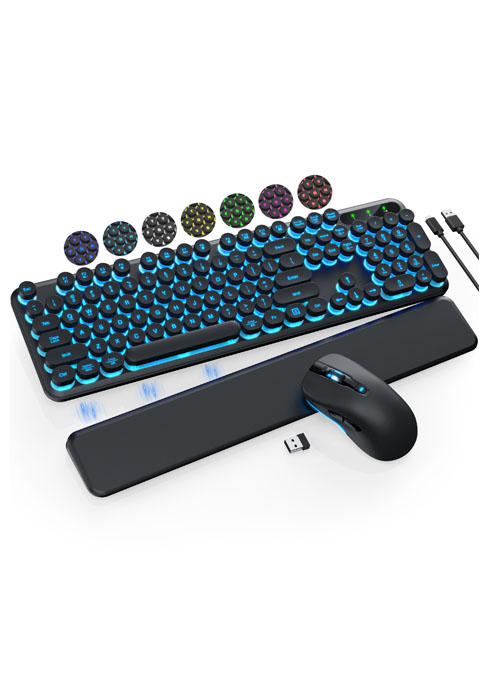
Thank you for choosing the Trueque Wireless Keyboard and Mouse Combo. This full-sized ergonomic combo is designed for comfort and efficiency, featuring a wrist rest, phone holder, silent keys, and reliable 2.4GHz wireless connectivity. This manual provides detailed instructions for setup, operation, maintenance, and troubleshooting to ensure optimal performance and longevity of your device.

Figure 1: Trueque Wireless Keyboard and Mouse Combo
2. ప్యాకేజీ విషయాలు
అన్ని వస్తువులు ఉన్నాయని నిర్ధారించుకోవడానికి దయచేసి ప్యాకేజీని జాగ్రత్తగా తనిఖీ చేయండి:
- వైర్లెస్ కీబోర్డ్ x 1
- వైర్లెస్ మౌస్ x 1
- USB రిసీవర్ x 1
- వినియోగదారు మాన్యువల్ x 1

Figure 2: What's included in the box
3. సెటప్ గైడ్
3.1 బ్యాటరీ ఇన్స్టాలేషన్
The keyboard and mouse require batteries (not included) for operation.
- కీబోర్డ్: Requires 2 x AAA batteries. Locate the battery compartment on the underside of the keyboard, open the cover, insert the batteries according to the polarity indicators, and close the cover.
- మౌస్: Requires 1 x AA battery. Locate the battery compartment on the underside of the mouse, open the cover, insert the battery according to the polarity indicators, and close the cover.

మూర్తి 3: బ్యాటరీ ఇన్స్టాలేషన్
3.2 USB రిసీవర్ను కనెక్ట్ చేస్తోంది
The Trueque Wireless Keyboard and Mouse Combo uses a single USB receiver for both devices, offering a convenient plug-and-play experience.
- Locate the USB receiver, typically stored in the mouse's battery compartment or a dedicated slot.
- మీ కంప్యూటర్, ల్యాప్టాప్ లేదా అనుకూల పరికరంలో అందుబాటులో ఉన్న USB పోర్ట్లోకి USB రిసీవర్ను ప్లగ్ చేయండి.
- Turn on the keyboard and mouse using their respective ON/OFF switches. The devices should automatically connect to the receiver.
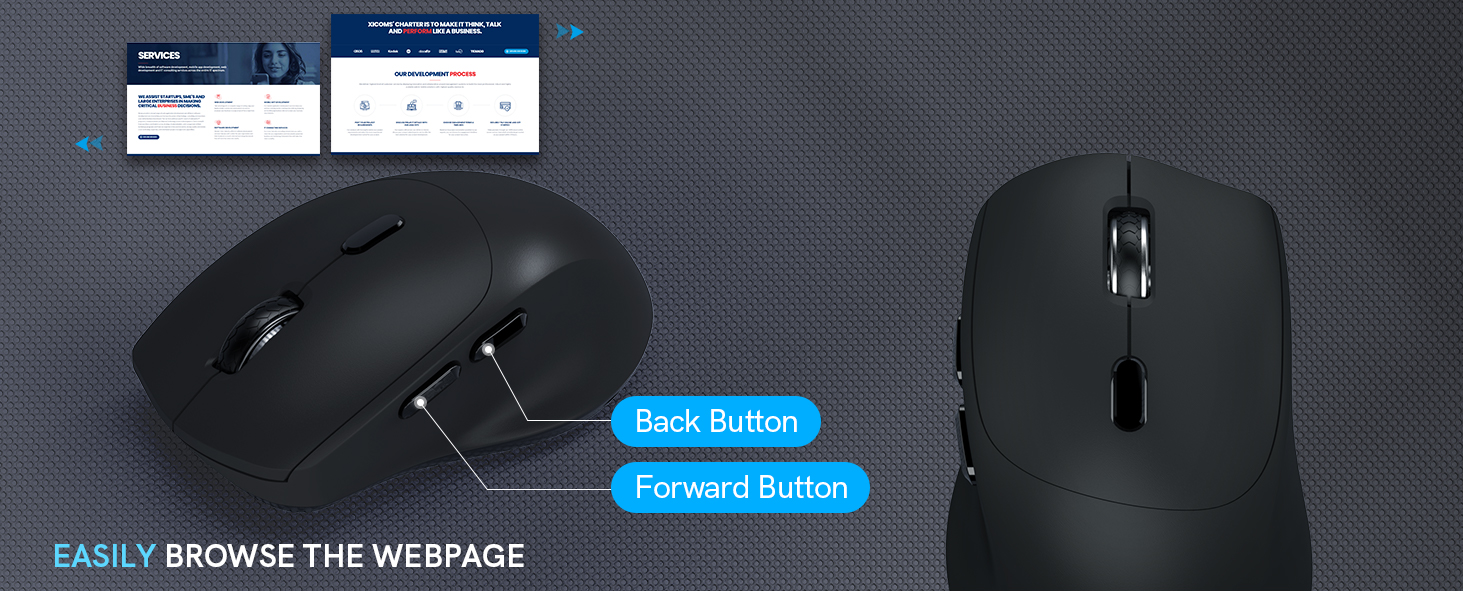
Figure 4: USB Receiver Connection
4. ఆపరేటింగ్ సూచనలు
4.1 Ergonomic Design and Comfort Features
The keyboard is designed with a generous palm rest and tilt legs to provide a comfortable typing position, reducing wrist pressure. The mouse features a contoured grip for a natural handshake angle, ensuring comfort during extended use.


Figure 5: Ergonomic Keyboard and Mouse Design
4.2 Built-in Phone and Tablet Holder
The keyboard includes a built-in cradle that can prop up your phone or tablet (under 11.9 inches) at an optimal angle for reading or watching videos, allowing you to stay connected without interrupting your workflow.

Figure 6: Integrated Phone/Tablet Holder
4.3 Quiet Typing and Silent Clicks
The keyboard features soft membrane keys for quiet and smooth typing. The wireless mouse is designed to produce 95% less noise, ensuring a quiet working environment.

చిత్రం 7: నిశ్శబ్ద ఆపరేషన్
4.4 Smart Power Management
To conserve battery life, both the keyboard and mouse feature a smart sleep mode. The keyboard will enter sleep mode after 15 minutes of inactivity, and the mouse after 10 minutes. Press any button or key to wake them up.

Figure 8: Smart Sleep Mode
4.5 Hotkeys and Mouse Buttons
The keyboard includes 6 commonly used hotkeys for quick access to functions like browsing and calculator. The 6-button mouse features forward/backward functions for faster web నావిగేషన్.


Figure 9: Keyboard Hotkeys and Mouse Buttons
4.6 విస్తృత అనుకూలత
This combo is compatible with various operating systems, including Windows, Chrome OS, and Mac OS, making it versatile for different devices such as PCs, laptops, and desktops.

చిత్రం 10: పరికర అనుకూలత
5. నిర్వహణ
- శుభ్రపరచడం: కీబోర్డ్ మరియు మౌస్ ఉపరితలాన్ని శుభ్రం చేయడానికి మృదువైన, పొడి వస్త్రాన్ని ఉపయోగించండి. మొండి ధూళి కోసం, కొద్దిగా damp తేలికపాటి సబ్బు ఉన్న వస్త్రాన్ని ఉపయోగించవచ్చు, తద్వారా పరికరంలోకి ద్రవం ప్రవేశించదు.
- బ్యాటరీ భర్తీ: When the power indicator light on the keyboard blinks, or if the mouse performance degrades, it's time to replace the batteries. Follow the battery installation steps in Section 3.1.
- నిల్వ: If not in use for an extended period, turn off the devices to conserve battery life and store them in a cool, dry place.
6. ట్రబుల్షూటింగ్
If you encounter issues with your Trueque Wireless Keyboard and Mouse Combo, please refer to the following common solutions:
| సమస్య | సాధ్యమైన కారణం | పరిష్కారం |
|---|---|---|
| కీబోర్డ్/మౌస్ స్పందించడం లేదు | Low battery; Devices are off; USB receiver not properly connected; Interference. | Replace batteries; Ensure ON/OFF switches are on; Re-plug the USB receiver; Try a different USB port; Move devices closer to the receiver; Avoid strong electromagnetic interference. |
| ప్రతిస్పందన ఆలస్యం లేదా ఆలస్యమైంది | Distance from receiver; Interference; Low battery. | Reduce distance between devices and receiver (max 33ft); Minimize interference from other wireless devices; Replace batteries. |
| నిర్దిష్ట కీలు పనిచేయడం లేదు | Dust/debris under key; Software issue. | Gently clean around the key; Test on another computer to rule out software issues. |
If the issue persists, please contact Trueque customer support as detailed in the Warranty and Support section.
7. స్పెసిఫికేషన్లు
| ఫీచర్ | వివరాలు |
|---|---|
| మోడల్ సంఖ్య | KC213 |
| కనెక్టివిటీ టెక్నాలజీ | 2.4GHz USB వైర్లెస్ |
| వైర్లెస్ రేంజ్ | 33 అడుగుల (10 మీటర్లు) వరకు |
| కీబోర్డ్ బ్యాటరీ | 2 x AAA బ్యాటరీలు (చేర్చబడలేదు) |
| మౌస్ బ్యాటరీ | 1 x AA బ్యాటరీ (చేర్చబడలేదు) |
| కీబోర్డ్ కొలతలు | సుమారుగా. 17.36 x 11.22 x 1.93 అంగుళాలు |
| వస్తువు బరువు | 2.16 పౌండ్లు |
| అనుకూల పరికరాలు | Chromebook, Laptop, Personal Computer (Windows, Chrome OS, Mac OS) |
| ప్రత్యేక లక్షణాలు | Ergonomic design, Wrist Rest, Phone Holder, Silent Keys, Smart Sleep Mode, Hotkeys |
8. వారంటీ మరియు మద్దతు
Trueque is committed to providing excellent customer service and product quality. Your Trueque Wireless Keyboard and Mouse Combo comes with comprehensive support:
- వారంటీ: 12-Month Free Warranty.
- కస్టమర్ సేవ: 24-hour online response.
- Brand Service: 360 Days Brand Service.
- మద్దతు సేవలు: Pre-sales Q&A, Troubleshooting, Accessories Reissue, Returns and Exchanges.
ఏవైనా విచారణలు లేదా మద్దతు కోసం, దయచేసి మమ్మల్ని సంప్రదించండి:
- ఇమెయిల్ మద్దతు: truequeservice@outlook.com
- మాకు కాల్ చేయండి: 1-866-608-6766 (యుఎస్)
- పని గంటలు: Mon-Fri, 9am-1pm, 2pm-6pm (PST)

Figure 11: Trueque After-Sales Support
