1. పరిచయం
This manual provides detailed instructions for the AUSDOM Airkey84 Wireless Mechanical Keyboard. Please read this guide thoroughly to ensure proper setup, operation, and maintenance of your device. The Airkey84 is a compact 75% layout keyboard featuring multiple connection modes, white backlighting, and low-profile brown switches, designed for various computing environments.

Image 1.1: The AUSDOM Airkey84 Wireless Mechanical Keyboard, showcasing its compact 75% layout and white keycaps with gray accents. A USB-C cable is connected, and a Bluetooth dongle is visible, indicating its wireless capabilities.
2. ప్యాకేజీ విషయాలు
దయచేసి మీ ప్యాకేజీలో అన్ని అంశాలు ఉన్నాయని ధృవీకరించండి:
- AUSDOM Airkey84 Wireless Mechanical Keyboard
- USB-C కేబుల్
- 2.4GHz USB రిసీవర్ (సాధారణంగా కీబోర్డ్ బ్యాటరీ కంపార్ట్మెంట్ లేదా ప్రత్యేక స్లాట్లో నిల్వ చేయబడుతుంది)
- Extra Keycaps for Windows (3 pieces)
- వినియోగదారు మాన్యువల్ (ఈ పత్రం)
3. ఉత్పత్తి ముగిసిందిview
The AUSDOM Airkey84 keyboard offers a versatile and efficient typing experience with its key features:
- 75% కాంపాక్ట్ లేఅవుట్: 84 keys, including dedicated arrow keys and function keys, optimizing desktop space.
- ట్రిపుల్ కనెక్షన్ మోడ్లు: Supports Bluetooth 5.0, 2.4GHz wireless via USB receiver, and USB-C wired connection.
- బహుళ-పరికర కనెక్టివిటీ: Connects to up to 4 devices and allows seamless switching.
- తక్కువ ప్రోfile Brown Switches: Designed for comfortable and efficient typing.
- తెల్లని బ్యాక్లైట్: Features 14 distinct lighting options for visibility in various environments.
- పునర్వినియోగపరచదగిన బ్యాటరీ: Integrated 2000 mAh battery provides extended usage.
- విస్తృత అనుకూలత: Compatible with Mac OS and Windows operating systems.
- ఎర్గోనామిక్ డిజైన్: Features an ultra-slim aluminum frame and adjustable feet for comfortable typing angles.

Image 3.1: Illustration of the keyboard's triple connection modes: Bluetooth 5.0, 2.4G Wireless, and Wired Mode. The image shows the keyboard connected to a laptop, smartphone, and tablet, demonstrating its multi-device capability.

చిత్రం 3.2: ముందు మరియు వెనుక views of the AUSDOM Airkey84 keyboard. The back view displays product information and regulatory markings, along with the adjustable feet.
4. సెటప్ సూచనలు
4.1 కీబోర్డ్ను ఛార్జ్ చేయడం
Before first use, fully charge the keyboard using the provided USB-C cable. Connect one end to the keyboard's USB-C port and the other end to a USB power source (e.g., computer, wall adapter).

Image 4.1: The AUSDOM Airkey84 keyboard connected via its USB-C port to a charging cable, with a smartphone nearby. This illustrates the USB-C charging capability.
4.2 Connecting via Bluetooth Mode
- Ensure the keyboard's power switch is in the ON స్థానం.
- నొక్కండి మరియు పట్టుకోండి ఎఫ్ఎన్ + బిటి1 keycaps for 3-5 seconds. The keyboard will enter pairing mode, and the backlight indicator will flash rapidly.
- On your device (computer, tablet, smartphone), enable Bluetooth and search for available devices.
- Select "AUSDOM Airkey84" from the list to complete the pairing process.
- To connect to other Bluetooth devices, repeat steps 2-4 using ఎఫ్ఎన్ + బిటి2 or ఎఫ్ఎన్ + బిటి3.
4.3 Connecting via 2.4GHz Wireless Mode
- Ensure the keyboard's power switch is in the ON స్థానం.
- నొక్కండి Fn + 3# once to switch to 2.4GHz USB connection mode.
- Plug the 2.4GHz USB receiver into an available USB port on your device. The keyboard should connect automatically.
4.4 Connecting via USB-C Wired Mode
- Connect the provided USB-C cable to the keyboard's USB-C port and the other end to your device's USB port.
- కీబోర్డ్ స్వయంచాలకంగా వైర్డు మోడ్కి మారుతుంది.

Image 4.2: A visual guide on how to use 2.4GHz and Bluetooth modes. The image highlights the 'esc' key (power button) and 'fn+BT1' keys for Bluetooth pairing, and 'fn+3#' for 2.4G wireless mode.
5. ఆపరేటింగ్ సూచనలు
5.1 కనెక్ట్ చేయబడిన పరికరాల మధ్య మారడం
Once multiple devices are paired (via Bluetooth or 2.4GHz), you can switch between them:
- నొక్కండి ఎఫ్ఎన్ + బిటి1/బిటి2/బిటి3 to switch to the corresponding Bluetooth device.
- నొక్కండి Fn + 3# to switch to the 2.4GHz wireless connection.
- Connecting the USB-C cable will automatically switch to wired mode.
5.2 బ్యాక్లైట్ నియంత్రణ
The keyboard features a white backlight with 14 lighting options:
- నొక్కండి Fn + \| to cycle through the 14 different backlight effects.
- ఉపయోగించండి Fn + ↑ మరియు Fn + ↓ బ్యాక్లైట్ ప్రకాశాన్ని సర్దుబాటు చేయడానికి.
- ఉపయోగించండి Fn + ← మరియు Fn + → to adjust backlight speed (for dynamic effects).

Image 5.1: The AUSDOM Airkey84 keyboard illuminated with its white backlight, demonstrating one of the 14 lighting options. The image shows the keyboard in a desktop setup with a monitor displaying a user interface.
5.3 Compatibility and Keycap Replacement
The keyboard is compatible with both Mac OS and Windows. Extra keycaps for Windows are included in the package to replace Mac-specific keys if desired.

Image 5.2: The AUSDOM Airkey84 keyboard shown in a desktop environment, highlighting its compatibility with both Mac and Windows operating systems. The image also mentions the inclusion of extra keycaps for Windows users.
5.4 Ergonomic Adjustment
The keyboard features adjustable feet on the underside. Flip these feet out to achieve a more angled typing position (approximately 4° or 7°) for improved comfort.
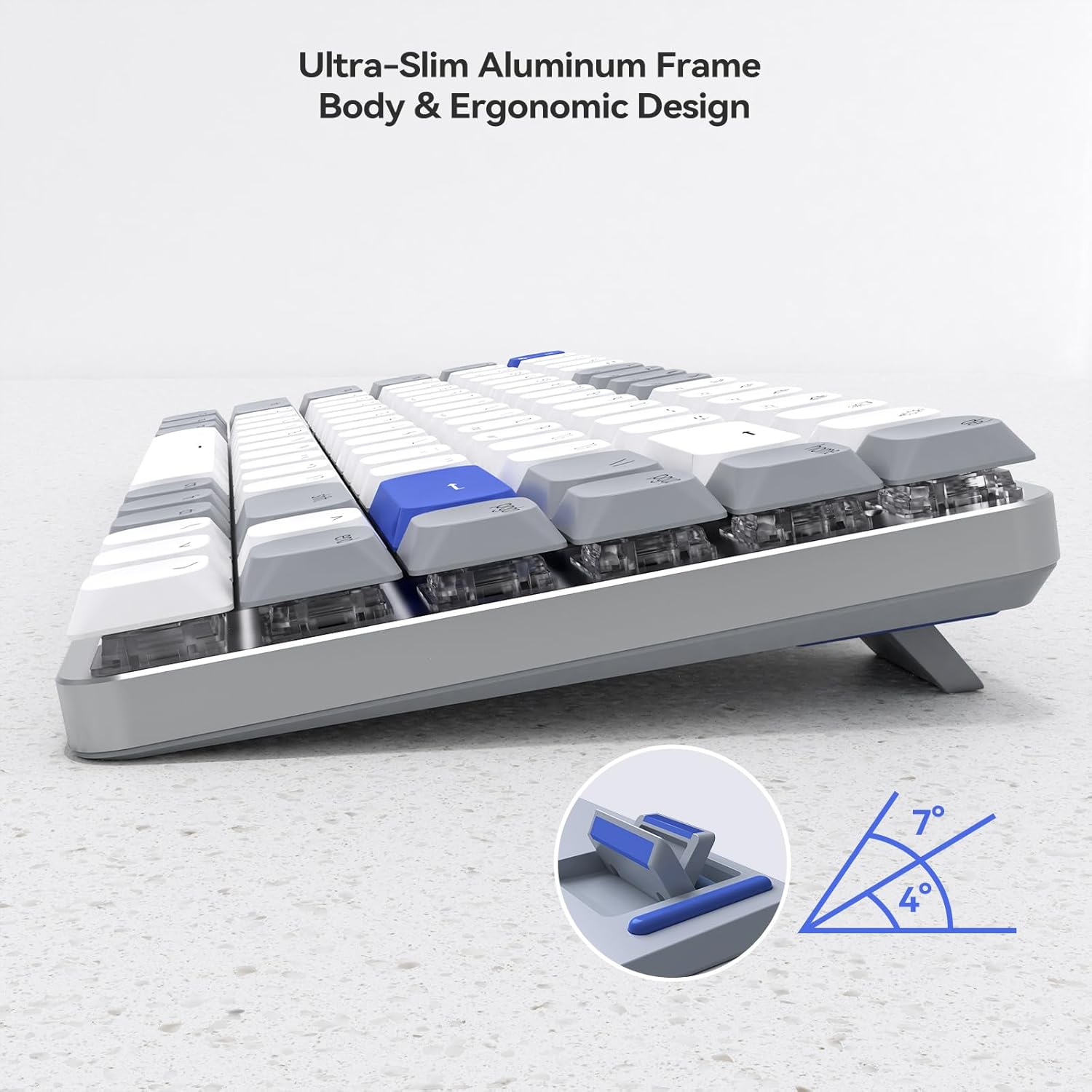
చిత్రం 5.3: ఒక వైపు view of the AUSDOM Airkey84 keyboard, illustrating its ultra-slim aluminum frame and adjustable feet that allow for 4° and 7° ergonomic typing angles.
6. నిర్వహణ
To ensure the longevity and optimal performance of your AUSDOM Airkey84 keyboard, follow these maintenance guidelines:
- శుభ్రపరచడం: కీబోర్డ్ ఉపరితలాన్ని తుడవడానికి మృదువైన, పొడి వస్త్రాన్ని ఉపయోగించండి. లోతైన శుభ్రపరచడం కోసం, కీక్యాప్ల మధ్య నుండి దుమ్ము మరియు చెత్తను తొలగించడానికి సంపీడన గాలిని ఉపయోగించండి. కఠినమైన రసాయనాలు లేదా రాపిడి పదార్థాలను ఉపయోగించకుండా ఉండండి.
- నిల్వ: ఎక్కువసేపు ఉపయోగంలో లేనప్పుడు, కీబోర్డ్ను ప్రత్యక్ష సూర్యకాంతి మరియు తీవ్రమైన ఉష్ణోగ్రతలకు దూరంగా చల్లని, పొడి ప్రదేశంలో నిల్వ చేయండి.
- బ్యాటరీ సంరక్షణ: To preserve battery life, avoid fully discharging the keyboard frequently. Charge it when the battery indicator is low.
- లిక్విడ్ ఎక్స్పోజర్: Avoid spilling liquids on the keyboard. If a spill occurs, immediately disconnect the keyboard, power it off, and allow it to dry completely before attempting to use it again.
7. ట్రబుల్షూటింగ్
If you encounter issues with your AUSDOM Airkey84 keyboard, refer to the following troubleshooting steps:
| సమస్య | సాధ్యమైన కారణం | పరిష్కారం |
|---|---|---|
| కీబోర్డ్ ఆన్ చేయబడలేదు | బ్యాటరీ తక్కువగా ఉంది; పవర్ స్విచ్ ఆఫ్ చేయబడింది | Charge the keyboard; Ensure power switch is ON. |
| బ్లూటూత్ ద్వారా కనెక్ట్ చేయడం సాధ్యపడదు | Keyboard not in pairing mode; Device Bluetooth off; Interference | Put keyboard in pairing mode (Fn+BTx); Enable Bluetooth on device; Move closer to device; Restart device. |
| 2.4GHz wireless not working | USB receiver not plugged in; Keyboard not in 2.4GHz mode; Driver issue | Ensure receiver is securely plugged in; Press Fn+3# to switch to 2.4GHz mode; Try a different USB port; Reinstall drivers if necessary. |
| Keys are unresponsive or intermittent | Low battery; Connectivity issue; Debris under keycap | Charge keyboard; Re-establish connection; Clean under keycaps with compressed air. |
| బ్యాక్లైట్ పనిచేయడం లేదు లేదా నిలిచిపోయింది | Backlight turned off; Software glitch | Press Fn+\| to cycle modes; Restart keyboard. |
If the problem persists after attempting these solutions, please contact AUSDOM customer support for further assistance.
8. స్పెసిఫికేషన్లు
| ఫీచర్ | వివరాలు |
|---|---|
| మోడల్ | Airkey84 |
| కనెక్టివిటీ టెక్నాలజీ | బ్లూటూత్ 5.0, 2.4GHz వైర్లెస్, USB-C వైర్డ్ |
| కీ లేఅవుట్ | 75% (84-Key) |
| స్విచ్ రకం | తక్కువ ప్రోfile బ్రౌన్ మెకానికల్ స్విచ్లు |
| బ్యాక్లైట్ | White Backlight, 14 Lighting Options |
| బ్యాటరీ కెపాసిటీ | 2000 mAh లిథియం పాలిమర్ (చేర్చబడింది) |
| బ్యాటరీ లైఫ్ | Up to 20 hours (backlight on), approx. 3 months (backlight off) |
| అనుకూలత | Mac OS, Windows |
| మెటీరియల్ | యాక్రిలోనిట్రైల్ బుటాడిన్ స్టైరీన్ (ABS) |
| వస్తువు బరువు | 2.21 పౌండ్లు |
| ప్యాకేజీ కొలతలు | 15.43 x 5.94 x 1.57 అంగుళాలు |
9. వారంటీ మరియు మద్దతు
AUSDOM products are manufactured with quality and reliability in mind. For warranty information and customer support, please refer to the warranty card included with your product or visit the official AUSDOM website. When contacting support, please have your product model (Airkey84) and purchase details available.
For direct inquiries, you may visit the AUSDOM store on Amazon: AUSDOM Store


