పరిచయం
This manual provides comprehensive instructions for the Keychron K5 Pro QMK/VIA Wireless Mechanical Keyboard. It covers initial setup, operational procedures, maintenance guidelines, troubleshooting tips, and detailed product specifications. Please read this manual thoroughly to ensure optimal use and longevity of your keyboard.
The Keychron K5 Pro is an ultra-slim, full-size (108 keys) wireless mechanical keyboard featuring QMK/VIA programmability, hot-swappable low-profile Gateron mechanical switches, and RGB backlighting. It supports both wireless Bluetooth 5.1 and wired USB-C connectivity, and is compatible with macOS, Windows, and Linux operating systems.
సెటప్
1. ప్యాకేజీ విషయాలు
కొనసాగే ముందు, అన్ని భాగాలు ఉన్నాయని నిర్ధారించుకోండి:
- కీక్రోన్ K5 ప్రో కీబోర్డ్
- USB టైప్-సి కేబుల్
- కీకాప్ పుల్లర్
- స్విచ్ పుల్లర్
- Extra Keycaps for Mac and Windows
2. ప్రారంభ ఛార్జింగ్
It is recommended to fully charge the keyboard before first use. Connect the provided USB Type-C cable to the keyboard's USB-C port and to a power source (e.g., computer USB port or USB wall adapter). The charging indicator will show the charging status.
3. కనెక్టివిటీ మోడ్లు
The K5 Pro supports both wireless Bluetooth and wired USB-C connections.

Image: The Keychron K5 Pro keyboard highlighting its dual connectivity modes: Wireless (Bluetooth) and Wired (USB-C).
వైర్డ్ మోడ్:
- Locate the toggle switch on the side of the keyboard labeled "Bluetooth OFF Cable". Slide it to the "Cable" position.
- Connect the USB Type-C cable from the keyboard to your computer.
- మీ ఆపరేటింగ్ సిస్టమ్ ద్వారా కీబోర్డ్ స్వయంచాలకంగా గుర్తించబడుతుంది.
Wireless Bluetooth Mode:
- Locate the toggle switch on the side of the keyboard labeled "Bluetooth OFF Cable". Slide it to the "Bluetooth" position.
- To enter pairing mode, press and hold the 'Fn' + '1' (or '2', '3') keys for 4 seconds until the '1' key (or '2', '3') backlight flashes rapidly. This indicates the keyboard is ready to pair.
- On your device (computer, phone, tablet), enable Bluetooth and search for "Keychron K5 Pro".
- Select the keyboard to connect. The '1' key (or '2', '3') backlight will stop flashing and remain solid when successfully paired.
- The K5 Pro can connect to up to 3 devices simultaneously. Use 'Fn' + '1', 'Fn' + '2', or 'Fn' + '3' to switch between paired devices.
4. ఆపరేటింగ్ సిస్టమ్ స్విచ్
The keyboard has a dedicated switch for macOS/iOS and Windows/Android compatibility. Locate the toggle switch on the side of the keyboard labeled "Win/Android Mac/iOS".

Image: The Keychron K5 Pro keyboard displaying its compatibility with both Mac and Windows operating systems.
- ఆపిల్ పరికరాల కోసం స్విచ్ను "Mac/iOS"కి స్లైడ్ చేయండి.
- Slide the switch to "Win/Android" for Windows or Android devices.
Ensure the correct operating system mode is selected for proper key functionality.
ఆపరేటింగ్
1. QMK and VIA Support
The Keychron K5 Pro is fully programmable with QMK and VIA firmware, allowing for extensive customization of key assignments, macros, and lighting effects.
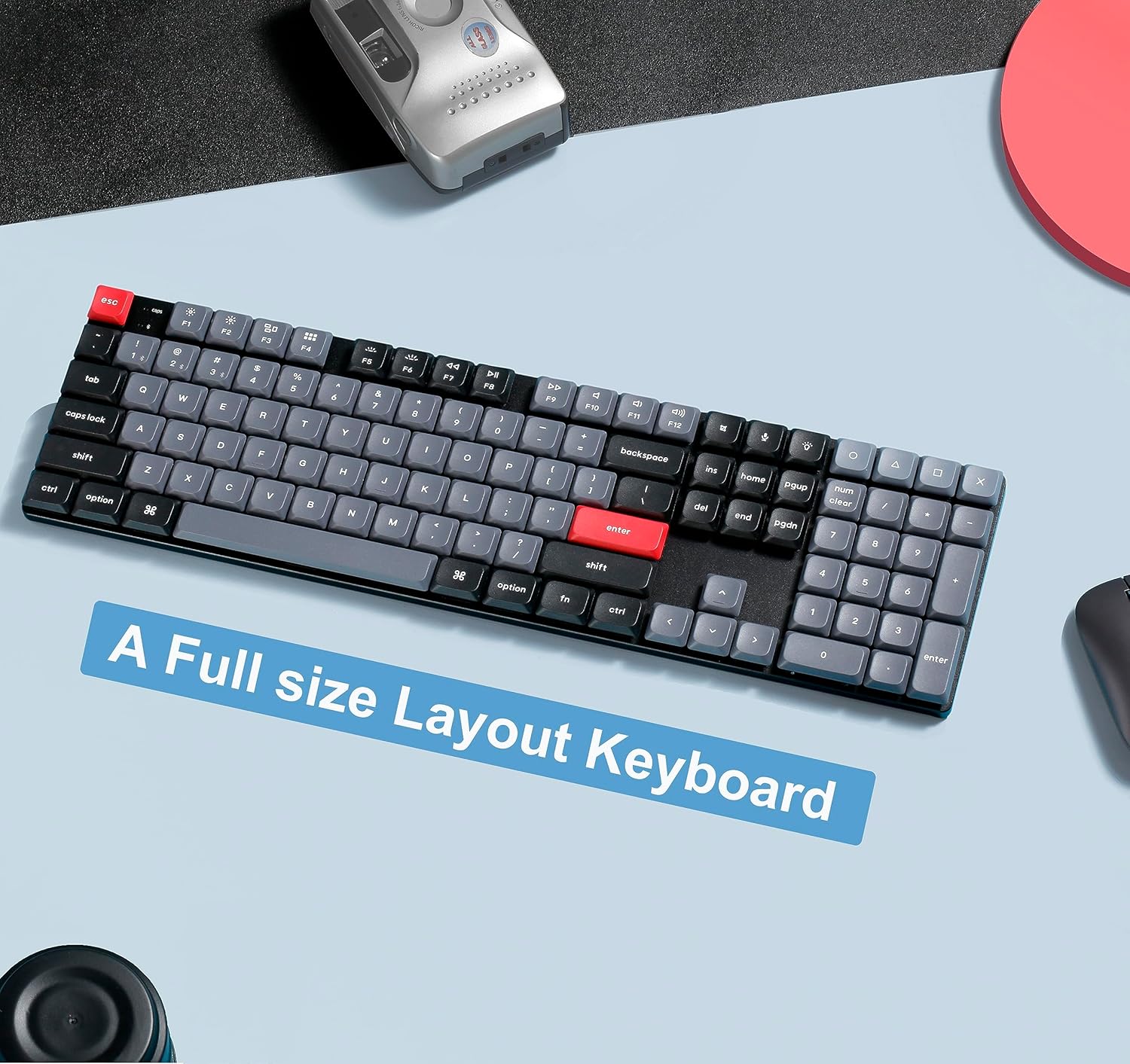
Image: A screenshot of the VIA software interface, demonstrating how to remap keys and create macros for the Keychron K5 Pro keyboard.
- అధికారిక కీక్రోన్ నుండి VIA సాఫ్ట్వేర్ను డౌన్లోడ్ చేసుకోండి. webసైట్.
- Connect the K5 Pro to your device using the USB-C cable. VIA software requires a wired connection for programming.
- Open the VIA application. The software should automatically detect your K5 Pro.
- Use the graphical interface to remap any key, create custom macro commands, or set up shortcuts. Changes are applied in real-time.
2. హాట్-స్వాపబుల్ స్విచ్లు
The K5 Pro features hot-swappable sockets, allowing you to change mechanical switches without soldering. This enables customization of the typing experience.

చిత్రం: క్లోజప్ view demonstrating the hot-swappable feature, with a switch being removed from the keyboard using a switch puller.
- Power off the keyboard or switch to wired mode to prevent accidental inputs.
- కావలసిన కీక్యాప్ను సున్నితంగా తొలగించడానికి కీక్యాప్ పుల్లర్ను ఉపయోగించండి.
- Use the switch puller to carefully grip the top and bottom clips of the switch. Pull the switch straight up to remove it from the PCB.
- కొత్త తక్కువ-ప్రో యొక్క పిన్లను సమలేఖనం చేయండిfile Gateron mechanical switch with the holes on the PCB.
- Gently press the new switch into place until it clicks. Ensure the switch is seated firmly and the pins are not bent.
- కీక్యాప్ను మార్చండి.
3. RGB లైటింగ్ ప్రభావాలు
The K5 Pro offers 22 different RGB lighting effects. These can be cycled through and customized directly on the keyboard.

Image: The Keychron K5 Pro keyboard illuminated with colorful RGB backlighting, showcasing its various lighting effects.
- Use the dedicated lighting key (often marked with a lightbulb icon or similar) to cycle through different RGB effects.
- Specific key combinations (e.g., Fn + arrow keys) may adjust brightness, speed, or color of the effects. Refer to the quick start guide for exact combinations.
నిర్వహణ
1. శుభ్రపరచడం
క్రమం తప్పకుండా శుభ్రపరచడం వల్ల కీబోర్డ్ యొక్క రూపాన్ని మరియు కార్యాచరణను నిర్వహించడానికి సహాయపడుతుంది.
- దుమ్ము తొలగింపు: Use compressed air to remove dust and debris from between keycaps.
- ఉపరితల శుభ్రపరచడం: Wipe the keycaps and keyboard frame with a soft, slightly damp, మెత్తటి రహిత వస్త్రం. కఠినమైన రసాయనాలు లేదా రాపిడి పదార్థాలను నివారించండి.
- డీప్ క్లీనింగ్: For thorough cleaning, remove keycaps using the provided keycap puller. Clean the keycaps with mild soap and water, ensuring they are completely dry before reattaching. Clean the exposed switch stems and plate with a soft brush or compressed air.
2. బ్యాటరీ సంరక్షణ
The K5 Pro uses a Lithium Ion battery. Follow these guidelines for optimal battery life:
- బ్యాటరీని తరచుగా పూర్తిగా డిశ్చార్జ్ చేయడాన్ని నివారించండి.
- కీబోర్డ్ను ఎక్కువసేపు ఉపయోగించకపోతే చల్లని, పొడి ప్రదేశంలో నిల్వ చేయండి.
- ఛార్జింగ్ కోసం అందించిన USB-C కేబుల్ని ఉపయోగించండి.
ట్రబుల్షూటింగ్
This section addresses common issues you might encounter with your Keychron K5 Pro keyboard.
1. బ్లూటూత్ కనెక్టివిటీ సమస్యలు
- కీబోర్డ్ కనెక్ట్ కావడం లేదు: Ensure the keyboard is in Bluetooth mode and pairing mode is activated (Fn + 1/2/3 for 4 seconds). Check your device's Bluetooth settings to ensure it's discoverable and try re-pairing.
- అడపాదడపా కనెక్షన్/లాగ్: Ensure the keyboard is fully charged. Move the keyboard closer to your device to reduce interference. Try disconnecting and re-pairing the keyboard. If possible, test with another Bluetooth-enabled device.
- Keyboard not appearing in device list: Try restarting both the keyboard and your device. Ensure no other devices are actively connected to the keyboard's Bluetooth channels.
2. Key Registration Problems
- Keys not responding or double-typing: This can sometimes indicate a faulty switch. Due to the hot-swappable design, you can try removing the keycap and switch (refer to the "Hot-Swappable Switches" section) and reseating it firmly. If the issue persists, consider replacing the switch.
- తప్పు కీ అవుట్పుట్: Ensure the operating system switch (Mac/Windows) is set correctly for your device. If using VIA, verify that no accidental key remappings have occurred.
3. Backlighting Issues
- లైట్లు పనిచేయవు: Check if the backlight is turned off or set to minimum brightness. Ensure the keyboard is sufficiently charged, as low battery can affect lighting performance.
- అసమాన లైటింగ్: This might be a software or firmware issue. Try cycling through lighting effects or performing a factory reset if available (consult Keychron support for specific reset procedures).
స్పెసిఫికేషన్లు
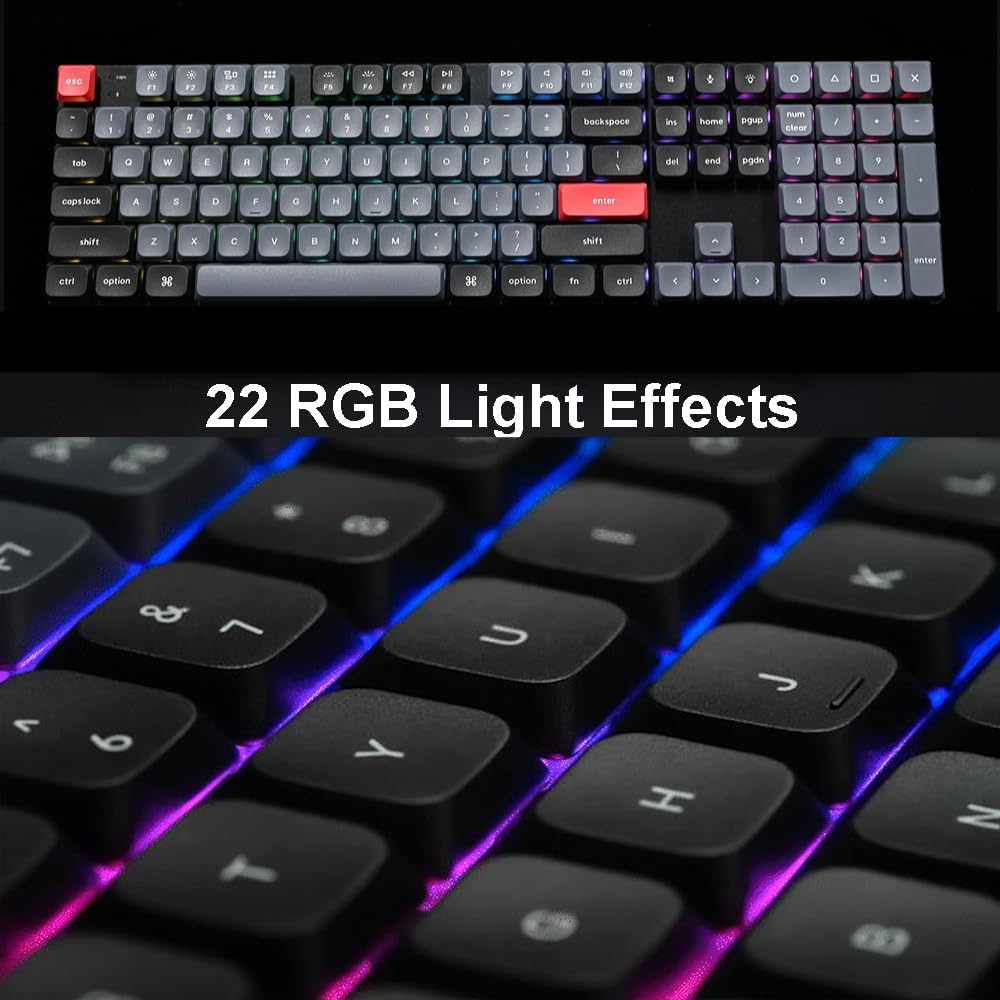
Image: A visual comparison illustrating the ultra-slim profile of the Keychron K5 Pro and the difference between conventional and Gateron low-profile యాంత్రిక స్విచ్లు.
| ఫీచర్ | వివరాలు |
|---|---|
| మోడల్ సంఖ్య | HS-K5P-H3 |
| లేఅవుట్ | Full Size (108 Keys) |
| స్విచ్లు | తక్కువ-ప్రోfile Gateron Mechanical (Brown Switch variant) |
| హాట్-స్వాప్ చేయదగినది | అవును |
| కనెక్టివిటీ | Bluetooth 5.1 (Wireless), USB Type-C (Wired) |
| అనుకూలత | మాక్, విండోస్, లైనక్స్, ఆండ్రాయిడ్, iOS |
| బ్యాక్లైటింగ్ | RGB (22 Light Effects) |
| కీకాప్స్ | LSA (Low Profile Spherical-Angled) Profile |
| ఫ్రేమ్ మెటీరియల్ | అల్యూమినియం |
| బ్యాటరీ | 1 లిథియం అయాన్ బ్యాటరీ (చేర్చబడింది) |
| వస్తువు బరువు | 2.35 పౌండ్లు |
| ప్యాకేజీ కొలతలు | 17.76 x 6.61 x 1.65 అంగుళాలు |
| తయారీదారు | కీక్రోన్ |
వారంటీ మరియు మద్దతు
1. వారంటీ సమాచారం
Keychron products typically come with a limited warranty covering manufacturing defects. For specific warranty terms and duration, please refer to the warranty card included with your product or visit the official Keychron webవారంటీ క్లెయిమ్ల కోసం మీ కొనుగోలు రుజువును ఉంచండి.
2. కస్టమర్ మద్దతు
For technical assistance, troubleshooting beyond this manual, or warranty inquiries, please contact Keychron customer support. You can usually find contact information, FAQs, and driver/firmware downloads on the official Keychron webసైట్ (www.keychron.com).


