1. పరిచయం
The JSAUX HB1201S 12-in-1 RGB Docking Station is designed to expand the connectivity and enhance the gaming experience for handheld consoles such as the Steam Deck (OLED), ROG Ally, and Legion Go. This manual provides detailed instructions for setting up, operating, and maintaining your docking station.
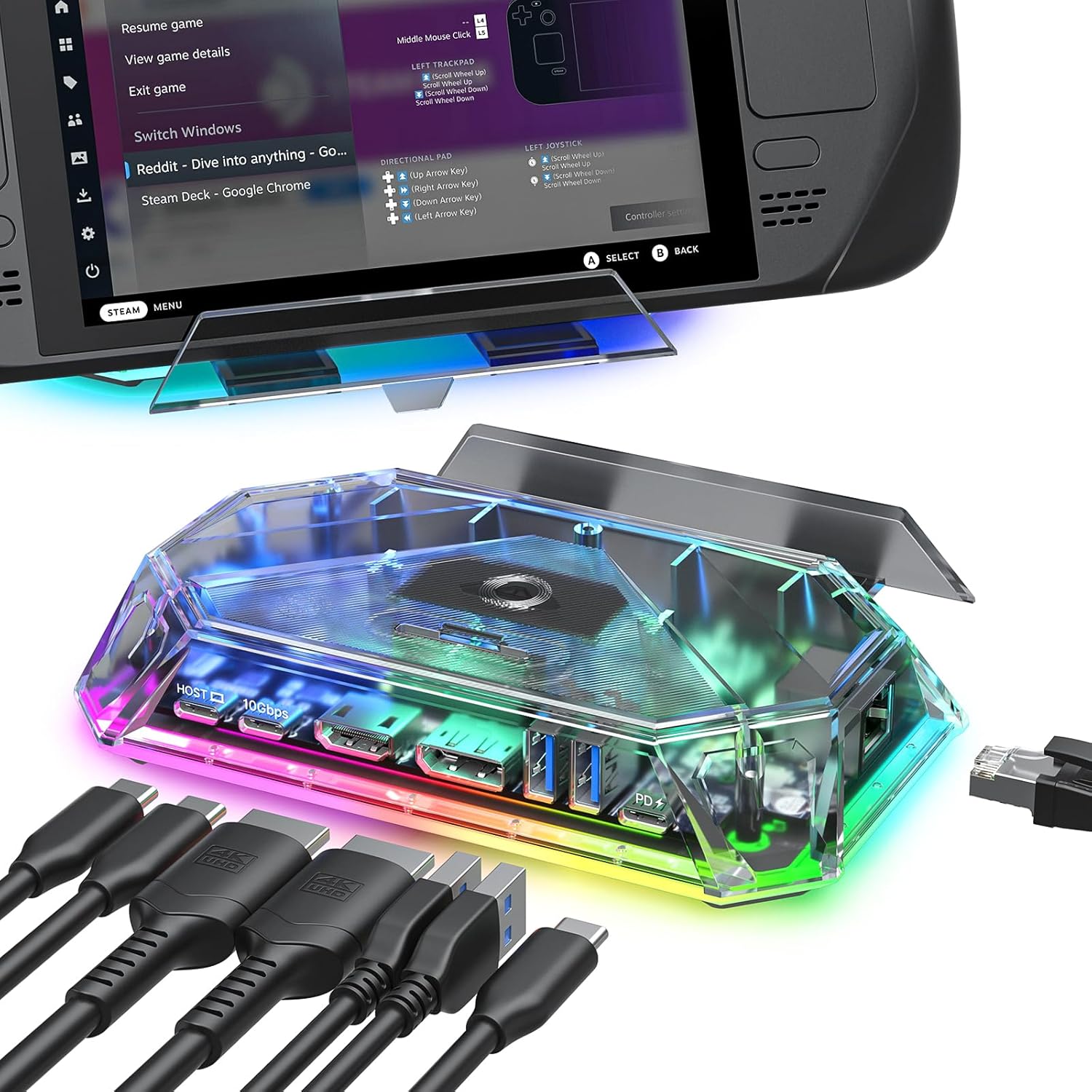
The JSAUX HB1201S RGB Docking Station connected to a Steam Deck, illustrating its compact design and multiple ports for peripheral connections.
2. ప్యాకేజీ విషయాలు
- JSAUX HB1201S 12-in-1 RGB Docking Station
- USB-C to USB-C Host Cable
- యూజర్ మాన్యువల్ / డాక్యుమెంటేషన్
3. ఉత్పత్తి లక్షణాలు ఓవర్view
The JSAUX HB1201S offers a comprehensive set of ports and features to enhance your handheld gaming experience:

ఒక పేలింది view diagram highlighting all 12 ports of the docking station, including HDMI, DisplayPort, USB-C PD, USB-A, USB-C data, Gigabit Ethernet, 3.5mm audio, SD, and TF card slots.
Port Specifications:
- 1x HDMI 2.1: Supports 4K@120Hz output with VRR, ALLM, and HDR.
- 1x DisplayPort 1.4: Supports 4K@120Hz output.
- 2x USB A 3.2: Provides 10Gbps data transfer speed.
- 1x USB C 3.2: Provides 10Gbps data transfer speed (no video output).
- 1x Gigabit Ethernet: Offers 1Gbps wired network connectivity.
- 1x USB C PD 3.0: Supports up to 100W power delivery for charging.
- 1x 3.5mm Audio Jack: హెడ్ఫోన్లు లేదా స్పీకర్లకు ఆడియో అవుట్పుట్ కోసం.
- 1x TF Card Slot: Supports 480Mbps data transfer.
- 1x SD కార్డ్ స్లాట్: Supports 480Mbps data transfer.
- 1x USB A 2.0: Provides 480Mbps data transfer speed.
అదనపు ఫీచర్లు:
- 6 RGB లైటింగ్ మోడ్లు: Customizable lighting effects with a top-mounted touch switch and OpenRGB software compatibility.
- ముడుచుకునే స్టాండ్: Integrated stand for holding your handheld device.
4. సెటప్ సూచనలు
- పవర్ కనెక్ట్ చేయండి: Plug a compatible USB-C Power Delivery (PD) adapter (not included) into the USB C PD port on the docking station. Ensure the power adapter provides sufficient wattage (up to 100W supported) for your handheld device and connected peripherals.
- Connect Host Device: Use the provided USB-C to USB-C host cable to connect your handheld gaming device (e.g., Steam Deck, ROG Ally, Legion Go) to the 'HOST' USB-C port on the docking station.
- Connect External Display(s):
- For single display: Connect an HDMI cable from the docking station's HDMI port to your monitor or TV, or a DisplayPort cable from the docking station's DisplayPort to your monitor.
- For dual displays: Connect one monitor via HDMI and another via DisplayPort. Note that dual-screen support maxes out at 4K@60Hz or 2K@120Hz.
- పెరిఫెరల్స్ కనెక్ట్ చేయండి: Plug in your USB devices such as keyboards, mice, game controllers, or external storage drives into the available USB A 3.2, USB C 3.2, or USB A 2.0 ports.
- నెట్వర్క్ను కనెక్ట్ చేయండి (ఐచ్ఛికం): For a stable wired internet connection, connect an Ethernet cable from your router or modem to the Gigabit Ethernet port on the docking station.
- మెమరీ కార్డులను చొప్పించండి (ఐచ్ఛికం): If using, insert SD or TF cards into their respective slots. It is recommended to insert memory cards before gaming and avoid unplugging them during active use. Simultaneous reading of SD and TF cards is not supported.
- ఆడియో కనెక్షన్ (ఐచ్ఛికం): Connect headphones or speakers to the 3.5mm audio jack for audio output.
5. ఆపరేటింగ్ సూచనలు
5.1 డిస్ప్లే అవుట్పుట్
The docking station supports high-resolution video output to external displays. Connect your monitor or TV using either the HDMI or DisplayPort. The upgraded HDMI technology supports Variable Refresh Rate (VRR), Auto Low Latency Mode (ALLM), and HDR for an optimized visual experience.
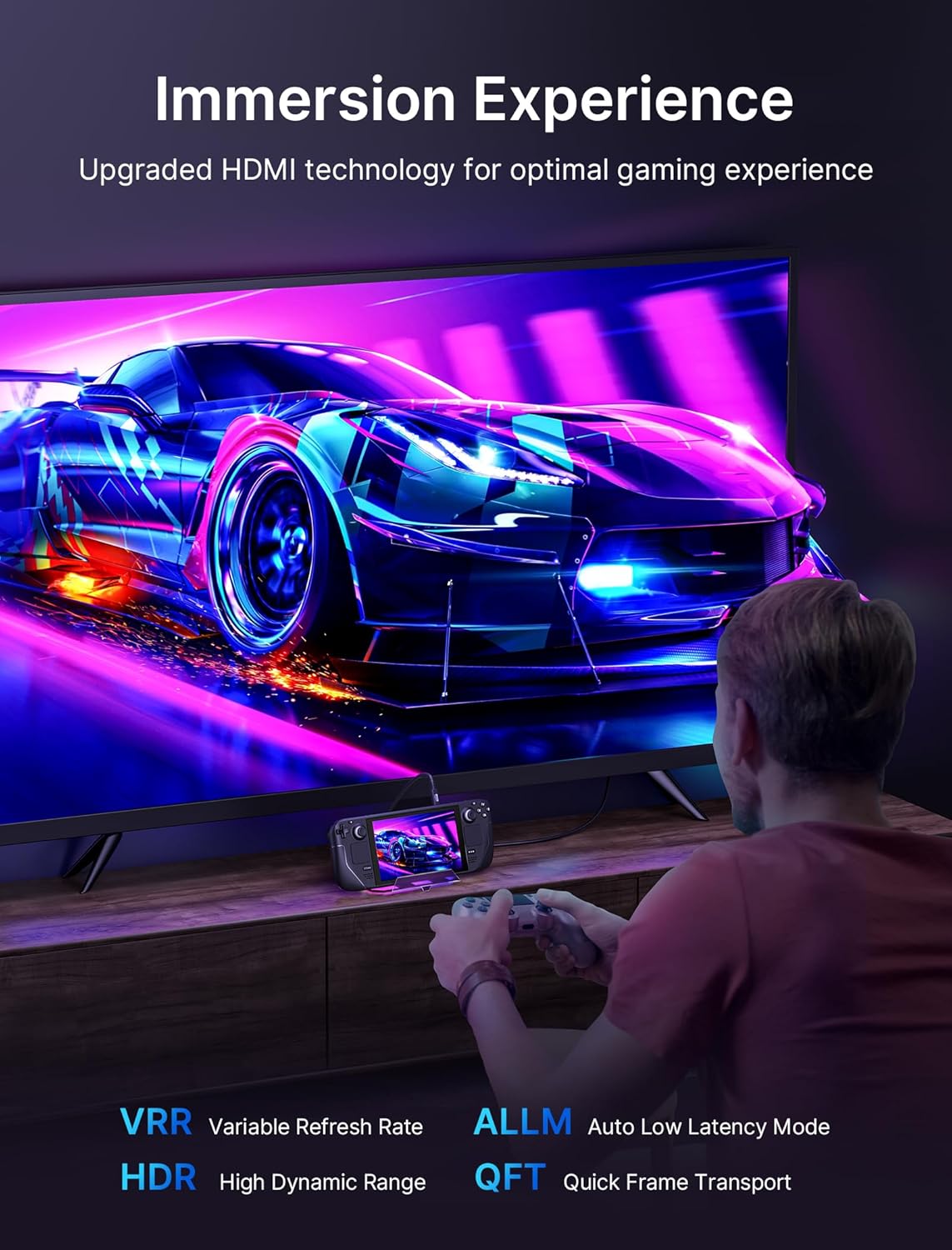
A user playing a game on a large television, with their Steam Deck connected to the docking station, demonstrating the enhanced visual experience provided by VRR, ALLM, and HDR technologies.
డ్యూయల్ స్క్రీన్ డిస్ప్లే:
- విండోస్: Supports both mirror (A-AA, A-BB) and extend (A-BC) modes.
- MAC OS: Supports mirror mode (A-AA, A-BB).
The maximum resolution for dual-screen output is 4K@60Hz or 2K@120Hz.

A Steam Deck connected to two external monitors, illustrating the dual-screen display capability of the docking station using both HDMI and DisplayPort outputs at 4K@120Hz.
5.2 RGB లైటింగ్ నియంత్రణ
The docking station features six dynamic RGB lighting modes. Use the top-mounted touch switch to cycle through the modes or turn the lighting on/off. For custom lighting control, the dock is compatible with OpenRGB software when connected via the USB-C upstream port.

Visual representation of the six dynamic RGB lighting modes: Direct, Breathing, Rainbow Wave, Spectrum Cycle, Race Cycle, and Stacking, with a note about the touch switch and OpenRGB compatibility.
5.3 డేటా బదిలీ మరియు ఛార్జింగ్
Utilize the USB A 3.2 and USB C 3.2 ports for high-speed data transfers up to 10Gbps. The USB A 2.0 port, SD card slot, and TF card slot support data transfer at 480Mbps. The USB C PD 3.0 port delivers up to 100W of power to charge your connected handheld device and other compatible electronics.
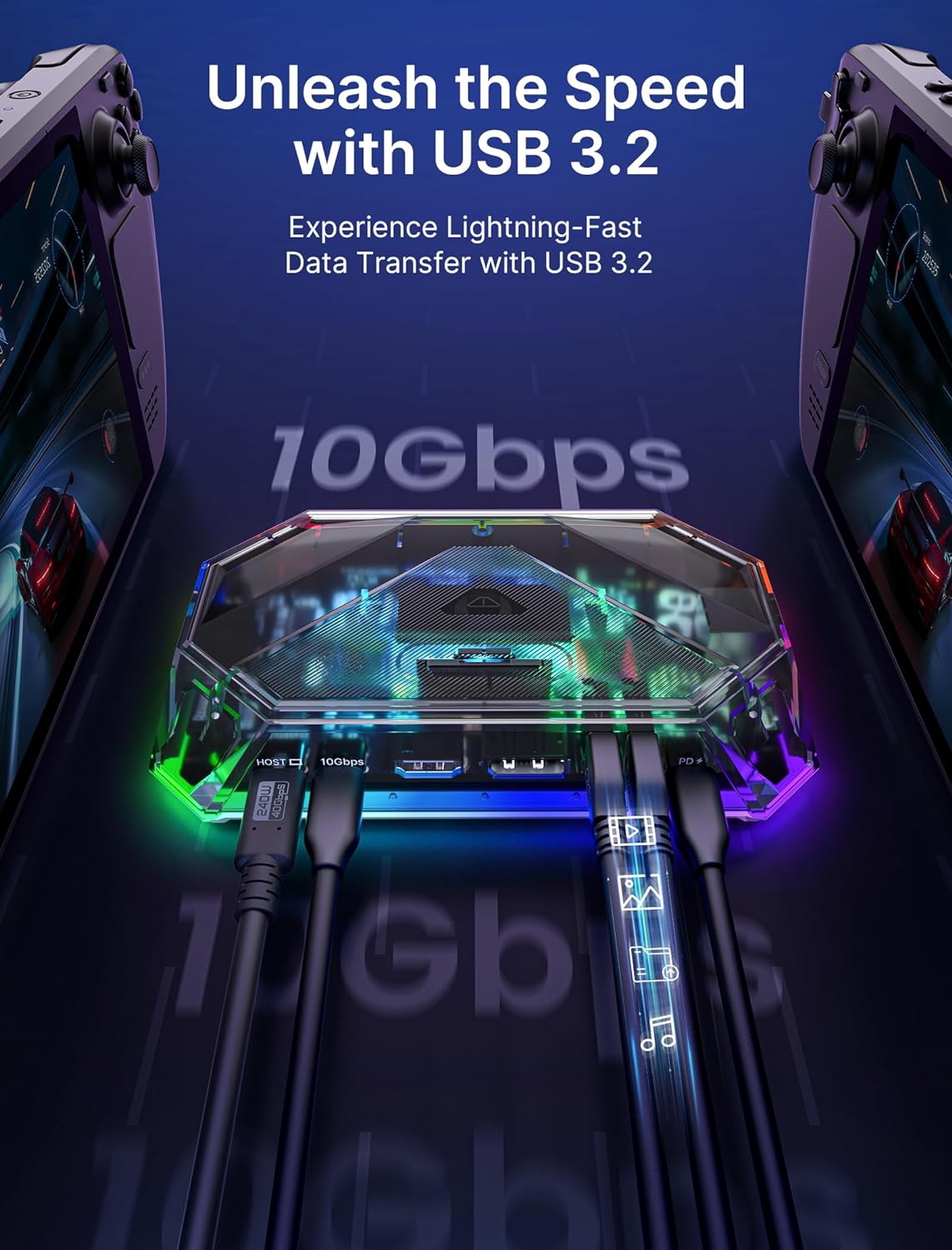
The USB 3.2 ports of the docking station with cables connected, illustrating the high-speed 10Gbps data transfer capability.
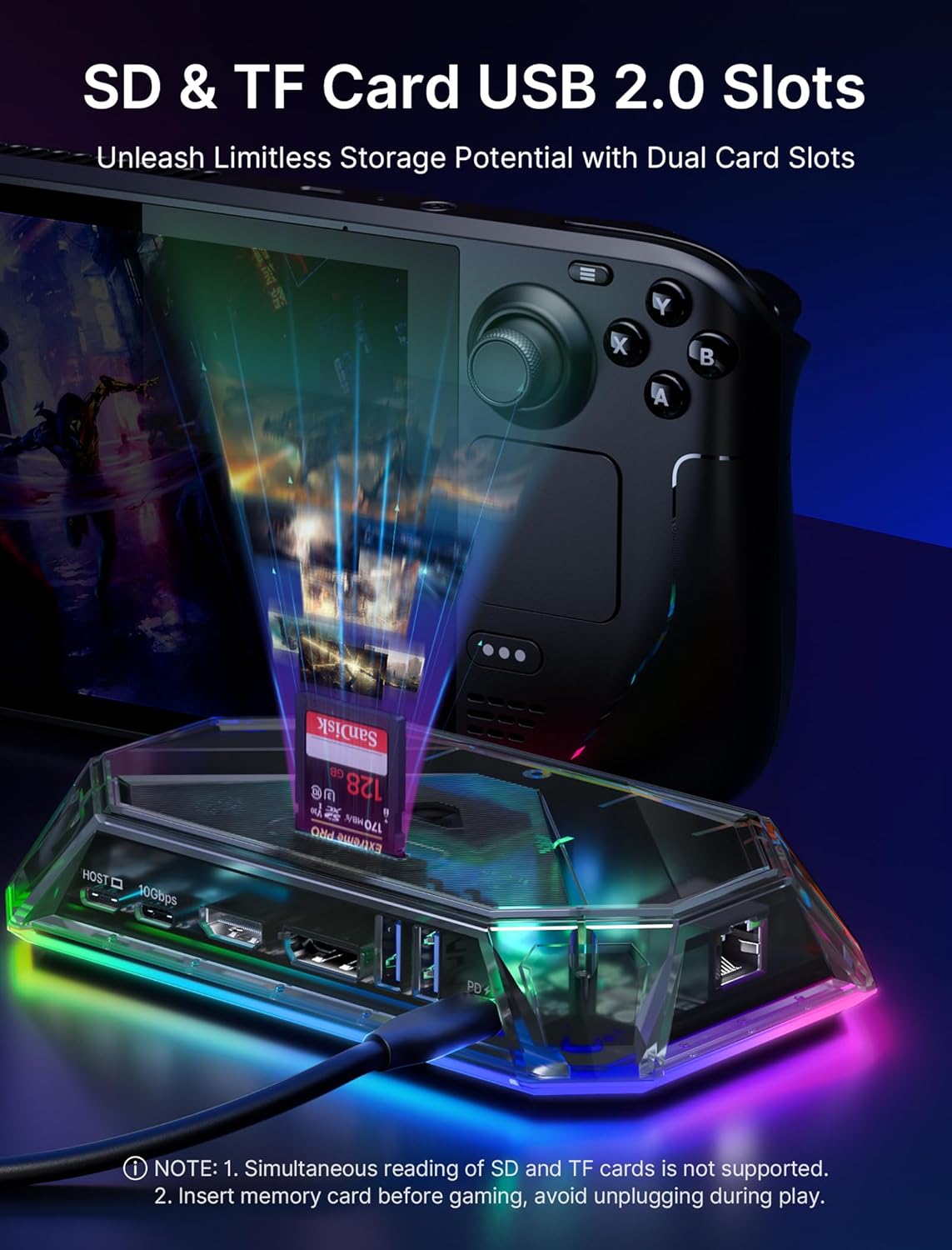
ఒక క్లోజప్ view of the SD and TF card slots on the docking station, showing memory cards inserted, emphasizing the dual card slot functionality.
6. అనుకూలత
The JSAUX HB1201S RGB Docking Station is compatible with a wide range of handheld gaming consoles and other devices, including:
- Valve Steam Deck
- Steam Deck OLED
- ASUS ROG అల్లీ
- ASUS ROG Ally X
- లెనోవా లెజియన్ గో
- MSI క్లా
- OneXPlayer
- AYANEO Slide
- iPad, iPad Pro, iPhone
- రేజర్ ఎడ్జ్
- లాజిటెక్ జి క్లౌడ్
- Other USB-C enabled phones and tablets
గమనిక: నింటెండో స్విచ్తో అనుకూలంగా లేదు.

An ASUS ROG Ally handheld console connected to the docking station, highlighting its compatibility and support for 30W Turbo mode for optimal performance.
7. నిర్వహణ
To ensure the longevity and optimal performance of your JSAUX HB1201S Docking Station, follow these maintenance guidelines:
- మెత్తటి, పొడి గుడ్డతో తుడవడం ద్వారా పరికరాన్ని శుభ్రంగా ఉంచండి. రాపిడి క్లీనర్లు లేదా ద్రావకాలను ఉపయోగించవద్దు.
- Protect the docking station from extreme temperatures, direct sunlight, and moisture.
- పరికరాన్ని వదలడం లేదా బలమైన ప్రభావాలకు గురి చేయడం మానుకోండి.
- ఆపరేషన్ సమయంలో పరికరం చుట్టూ సరైన వెంటిలేషన్ ఉండేలా చూసుకోండి.
8. ట్రబుల్షూటింగ్
If you encounter issues with your docking station, refer to the following common solutions:
- డిస్ప్లే అవుట్పుట్ లేదు:
- Ensure all cables (USB-C host, HDMI/DisplayPort) are securely connected.
- Verify that the external display is set to the correct input source.
- Check if your handheld device's display settings are configured for external output.
- Ensure the docking station is receiving adequate power from a compatible PD charger.
- నెమ్మది డేటా బదిలీ:
- Confirm that you are using the USB 3.2 ports for high-speed devices.
- Ensure your connected device and cable support USB 3.2 speeds.
- ఛార్జింగ్ సమస్యలు:
- Verify that your USB-C PD power adapter meets the wattage requirements of your handheld device.
- Ensure the power cable is securely connected to both the adapter and the docking station.
- RGB లైటింగ్ పని చేయడం లేదు:
- Press the top-mounted touch switch to activate or cycle through lighting modes.
- డాకింగ్ స్టేషన్ ఆన్ చేయబడిందని నిర్ధారించుకోండి.
- నెట్వర్క్ కనెక్టివిటీ సమస్యలు:
- Check the Ethernet cable connection to both the dock and your router/modem.
- Verify network settings on your handheld device.
9. స్పెసిఫికేషన్లు
| ఫీచర్ | వివరాలు |
|---|---|
| మోడల్ సంఖ్య | HB1201S |
| ఉత్పత్తి కొలతలు | 5.91 x 3.62 x 1.11 అంగుళాలు (15.01 x 9.19 x 2.82 సెం.మీ.) |
| వస్తువు బరువు | 15.1 ఔన్సులు (0.43 కిలోలు) |
| హార్డ్వేర్ ఇంటర్ఫేస్ | USB టైప్ C |
| మొత్తం USB పోర్ట్లు | 12 |
| మొత్తం HDMI పోర్ట్లు | 1 |
| వాట్tagఇ (పిడి) | 100W |
| అనుకూల పరికరాలు | Valve Steam Deck, Deck OLED, ASUS ROG Ally, Ally X, Lenovo Legion Go, MSI Claw, OneXPlayer, AYANEO Slide, iPad, iPad Pro, iPhone, Razer Edge, Logitech G Cloud, other phones |
10. అధికారిక ఉత్పత్తి వీడియో
This video provides a visual guide to the JSAUX 12-in-1 RGB Docking Station, showcasing its various ports, RGB lighting, and how it connects to handheld gaming devices and external displays.
11. వారంటీ మరియు మద్దతు
JSAUX products come with a standard warranty. For detailed warranty information, product support, or technical assistance, please visit the official JSAUX webసైట్ లేదా వారి కస్టమర్ సర్వీస్ను సంప్రదించండి. వారంటీ క్లెయిమ్ల కోసం మీ కొనుగోలు రసీదును ఉంచండి.
JSAUX అధికారికం Webసైట్: www.jsaux.com


