పరిచయం
Welcome to the user manual for your new Blackview Tab 16 Pro Android 14 Tablet. This guide provides detailed instructions on setting up, operating, maintaining, and troubleshooting your device to ensure you get the most out of its advanced features. Please read this manual thoroughly before using your tablet.

Figure 1: Blackview Tab 16 Pro Tablet and Included Accessories.
1. సెటప్
1.1 అన్బాక్సింగ్ మరియు ప్రారంభ తనిఖీ
Carefully remove all items from the packaging. Verify that all components listed in the 'Box Contents' section are present and undamaged.

Figure 2: Box Contents of the Blackview Tab 16 Pro.
1.2 టాబ్లెట్ను ఛార్జ్ చేయడం
Before first use, fully charge the tablet using the provided 18W PD fast charger and USB cable. Connect the USB cable to the tablet's Type-C port and the adapter to a power outlet. The charging indicator will show the charging status.
1.3 పవర్ చేయడం ఆన్/ఆఫ్
- పవర్ ఆన్ చేయడానికి: Press and hold the Power button on the side of the tablet until the Blackview లోగో కనిపిస్తుంది.
- పవర్ ఆఫ్ చేయడానికి: పవర్ బటన్ను నొక్కి పట్టుకోండి, ఆపై స్క్రీన్పై కనిపించే ఎంపికల నుండి 'పవర్ ఆఫ్' ఎంచుకోండి.
1.4 Installing SIM and TF Cards
ది బ్లాక్view Tab 16 Pro supports dual 4G LTE SIM cards and a TF card for expandable storage up to 1TB.
- టాబ్లెట్ వైపున SIM/TF కార్డ్ ట్రేని గుర్తించండి.
- Insert the provided SIM ejector tool into the small hole next to the tray to pop it open.
- మీ నానో-సిమ్ కార్డ్లు మరియు/లేదా TF కార్డ్ను ట్రేలోని నిర్దేశించిన స్లాట్లలో ఉంచండి, సరైన ఓరియంటేషన్ను నిర్ధారించుకోండి.
- ట్రే సరైన స్థానంలోకి వచ్చే వరకు దాన్ని తిరిగి టాబ్లెట్లోకి సున్నితంగా నెట్టండి.

Figure 3: Inserting SIM Cards into the Blackview Tab 16 Pro.
1.5 ప్రారంభ సెటప్ విజార్డ్
Upon first power-on, the tablet will guide you through an initial setup process. Follow the on-screen prompts to select your language, connect to Wi-Fi, set up your Google account, and configure basic settings.
2. టాబ్లెట్ను ఆపరేట్ చేయడం
2.1 డిస్ప్లే ఫీచర్లు
ది బ్లాక్view Tab 16 Pro features an 11-inch FHD+ IPS display with 2K resolution, offering a clear and vibrant visual experience. It supports Widevine L1 for high-definition streaming from platforms like Netflix, Disney+, and Amazon Prime Video.
- Eye Comfort Modes: The tablet includes Reading Mode, Eye Comfort Mode, and Night Mode to reduce eye strain during prolonged use. These can be accessed in the display settings.

Figure 4: Display Features and Widevine L1 Support.
2.2 కెమెరా వినియోగం
The tablet is equipped with a 13MP rear camera and an 8MP front camera, enhanced with AI features for clearer photos and videos.
- ఫోటోలు/వీడియోలు తీయడం: Open the Camera app and select your desired mode (Photo, Video, Portrait, etc.). Tap the shutter button to capture.
- AI Enhancements: Features like AI Face Detection and Face Center Algorithms improve photo quality and video calls.

Figure 5: Camera Features of the Blackview Tab 16 Pro.
2.3 కనెక్టివిటీ
The Tab 16 Pro supports various connectivity options for seamless online experience and data transfer.
- 4G LTE: Insert a SIM card to access mobile data and make calls.
- 5G వైఫై: Supports dual-band 2.4G/5G Wi-Fi for stable and fast internet connections.
- వైర్లెస్ ప్రొజెక్షన్: Easily cast your tablet's screen to compatible TVs or projectors.
- బ్లూటూత్ 5.0: Connect wireless accessories like headphones, keyboards, and mice.

Figure 6: High-Speed WiFi and Wireless Projection.
2.4 ఉత్పాదకత లక్షణాలు
The tablet is designed for enhanced productivity, supporting various modes and applications.
- PC Mode 2.0: Connect a wireless keyboard and mouse (sold separately) to transform your tablet into a PC-like experience for work and study.
- విభజించండి View 2.0: Multitask efficiently by running two applications side-by-side on the screen.
- Notebook App 2.0: Tailored for note-taking with the included stylus.
- Pre-installed WPS Office Suite: Access Word, Excel, and PowerPoint functionalities.
- Included Stylus Pen: For precise input, drawing, and note-taking.
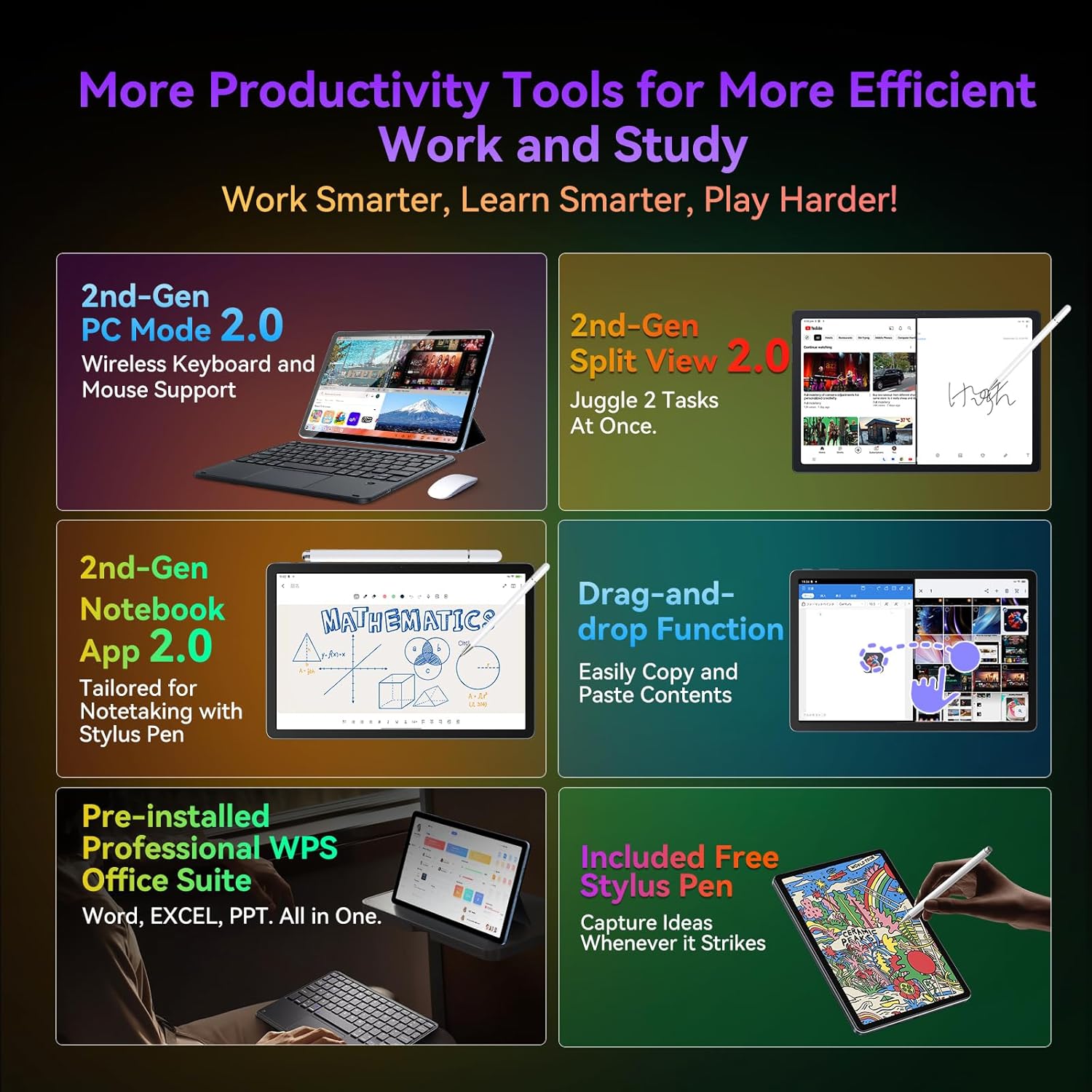
Figure 7: Productivity Tools for Work and Study.
2.5 బ్యాటరీ నిర్వహణ
The 7700mAh battery provides extended usage time. Utilize the 18W PD fast charging for quick power-ups.
- AI Charging Protection: Optimizes charging to prolong battery lifespan.
- AI Power Saving Mode: Helps conserve battery when not in active use.

Figure 8: Battery Capacity and Fast Charging.
3. నిర్వహణ
3.1 టాబ్లెట్ను శుభ్రపరచడం
టాబ్లెట్ స్క్రీన్ మరియు బాడీని శుభ్రం చేయడానికి మృదువైన, మెత్తటి బట్టను ఉపయోగించండి. ఉపరితలాన్ని దెబ్బతీసే కఠినమైన రసాయనాలు లేదా రాపిడి పదార్థాలను ఉపయోగించకుండా ఉండండి.
3.2 సాఫ్ట్వేర్ నవీకరణలు
Regularly check for and install software updates to ensure your tablet has the latest features, security patches, and performance improvements. You can usually find this option in the tablet's 'Settings' under 'System' or 'About tablet'.
3.3 బ్యాటరీ సంరక్షణ
To maximize battery life, avoid exposing the tablet to extreme temperatures. It is recommended to keep the battery charge between 20% and 80% for optimal long-term health.
4. ట్రబుల్షూటింగ్
This section addresses common issues you might encounter with your Blackview Tab 16 Pro.
| సమస్య | సాధ్యమైన కారణం | పరిష్కారం |
|---|---|---|
| టాబ్లెట్ ఆన్ అవ్వడం లేదు | బ్యాటరీ తక్కువగా ఉంది; సిస్టమ్ క్రాష్ అయింది | టాబ్లెట్ను కనీసం 30 నిమిషాలు ఛార్జ్ చేయండి. రీస్టార్ట్ చేయమని బలవంతం చేయడానికి పవర్ బటన్ను 10-15 సెకన్ల పాటు నొక్కి ఉంచండి. |
| Wi-Fiకి కనెక్ట్ చేయడం సాధ్యపడదు | Incorrect password; Router issue; Wi-Fi disabled | Double-check password. Restart router. Ensure Wi-Fi is enabled in settings. Forget network and reconnect. |
| యాప్లు నెమ్మదిగా లేదా క్రాష్ అవుతున్నాయి | Too many apps running; Low storage; App bug | Close background apps. Clear app cache/data. Free up storage. Update the app or tablet software. |
| స్టైలస్ స్పందించడం లేదు | Stylus issue; Screen protector interference | Ensure stylus tip is clean. Try restarting the tablet. Check if screen protector is too thick or incompatible. |
If you encounter issues not listed here or if the suggested solutions do not resolve the problem, please contact Blackview సహాయం కోసం కస్టమర్ మద్దతు.
5. స్పెసిఫికేషన్లు
Below are the key technical specifications for the Blackview Tab 16 Pro:
| ఫీచర్ | స్పెసిఫికేషన్ |
|---|---|
| మోడల్ పేరు | నలుపుview Tab 16 Pro Tablet |
| ఆపరేటింగ్ సిస్టమ్ | ఆండ్రాయిడ్ 14 |
| ప్రాసెసర్ | UNISOC T616 Octa-core (2x A75 @2.0GHz + 6x A55 @1.8GHz) |
| గ్రాఫిక్స్ ప్రాసెసర్ | ARM Mali-G57 @750MHz |
| RAM | 16 GB (8 GB LPDDR4X + 8 GB Expansion) |
| అంతర్గత నిల్వ | 256 GB |
| విస్తరించదగిన నిల్వ | Up to 1 TB via Micro TF card |
| ప్రదర్శన పరిమాణం | 10.95 అంగుళాలు |
| డిస్ప్లే రిజల్యూషన్ | 2560x1600 pixels (2K FHD+ IPS) |
| వెనుక కెమెరా | 13 ఎంపీ |
| ఫ్రంట్ కెమెరా | 8 ఎంపీ |
| బ్యాటరీ కెపాసిటీ | 7700 mAh |
| ఛార్జింగ్ | 18W PD Fast Charge |
| కనెక్టివిటీ | 4G LTE Dual SIM, 5G WiFi (802.11ac), Bluetooth 5.0 |
| కొలతలు (L x W x H) | 24.6 x 17 x 0.85 సెం.మీ |
| బరువు | 1.16 కిలోలు |
| ప్రత్యేక లక్షణాలు | PC Mode, Stylus Support, Widevine L1, Facial Recognition |
6. వారంటీ మరియు మద్దతు
6.1 వారంటీ సమాచారం
ది బ్లాక్view Tab 16 Pro comes with a రెండు సంవత్సరాల వారంటీ from the date of purchase. This warranty covers manufacturing defects and quality-related issues under normal use. Please retain your proof of purchase for warranty claims.
6.2 మద్దతును సంప్రదిస్తోంది
For any questions, technical assistance, or warranty claims, please contact Blackview customer service. You can typically reach them through the following methods:
- అమెజాన్ ద్వారా: On the product page, click 'Add to Cart' then click on the seller's name. Under 'Add to Cart', click 'Ask a question' in the top right corner.
- ఇమెయిల్ ద్వారా: You may also contact customer service via email. Refer to your product packaging or the official Blackview webనిర్దిష్ట ఇమెయిల్ చిరునామాల కోసం సైట్.
- Order History: Go to your Amazon account, navigate to 'Order History', find your order, and select 'Contact Seller'.
నలుపుview is committed to providing the best product service available and aims to respond to all inquiries within 24 hours.

Figure 9: Blackview Customer Service and Warranty Information.


