పరిచయం
This manual provides essential instructions for the proper setup, operation, and maintenance of your 3nStar PTA0157-432 All-in-One POS System. Please read this manual thoroughly before using the device to ensure optimal performance and longevity.
భద్రతా సమాచారం
పరికరానికి నష్టం జరగకుండా లేదా మీకు మరియు ఇతరులకు గాయం కాకుండా ఉండటానికి ఈ క్రింది భద్రతా జాగ్రత్తలను గమనించండి:
- పరికరాన్ని నీరు లేదా అధిక తేమకు గురిచేయవద్దు.
- పరికరాన్ని వేడి మూలాల దగ్గర లేదా ప్రత్యక్ష సూర్యకాంతిలో ఉంచడం మానుకోండి.
- Use only the provided AC adapter.
- పరికరాన్ని మీరే తెరవడానికి లేదా మరమ్మతు చేయడానికి ప్రయత్నించవద్దు. అన్ని సర్వీసింగ్లను అర్హత కలిగిన సిబ్బందికి సూచించండి.
- ఆపరేషన్ సమయంలో పరికరం చుట్టూ సరైన వెంటిలేషన్ ఉండేలా చూసుకోండి.
ప్యాకేజీ విషయాలు
ప్యాకేజీలో అన్ని అంశాలు ఉన్నాయని నిర్ధారించుకోండి:
- 3nStar PTA0157-432 All-in-One POS System
- AC అడాప్టర్
- వినియోగదారు మాన్యువల్ (ఈ పత్రం)
ఉత్పత్తి ముగిసిందిview
The 3nStar PTA0157-432 is a 15.6-inch All-in-One Point of Sale system designed for various business environments. It features a 10-point capacitive touchscreen, runs on Android 11, and is powered by a Quad-Core processor with 4GB RAM and 32GB storage. Integrated Wi-Fi and Bluetooth connectivity are also included.

మూర్తి 1: ముందు view of the 3nStar PTA0157-432 All-in-One POS System, showcasing 15.6-అంగుళాల డిస్ప్లే మరియు ఇంటిగ్రేటెడ్ స్టాండ్.

Figure 2: A user interacting with the 10-point capacitive touchscreen of the POS system, demonstrating its touch responsiveness.

చిత్రం 3: వెనుక view of the 3nStar POS System, showing the ventilation slots and the sturdy integrated stand.
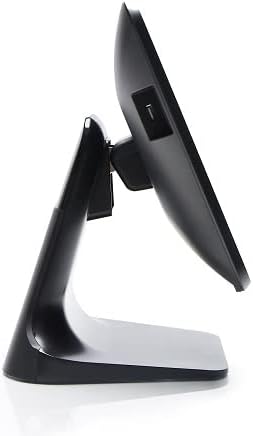
చిత్రం 4: సైడ్ ప్రోfile of the 3nStar POS System, highlighting its slim design and adjustable screen angle.
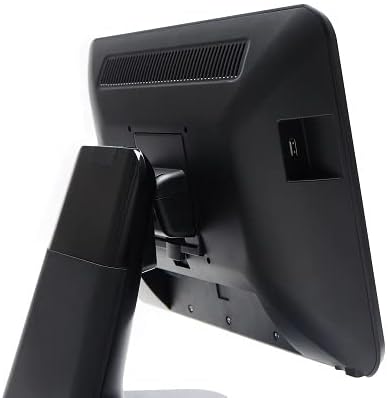
చిత్రం 5: వెనుక వైపు view of the 3nStar POS System, illustrating the location of various connectivity ports for peripherals.
సెటప్
- సిస్టమ్ను అన్ప్యాక్ చేయండి: Carefully remove the POS system and all accessories from the packaging.
- Position the System: Place the POS system on a stable, flat surface, ensuring adequate ventilation around the device.
- పవర్ కనెక్ట్ చేయండి: Connect the AC adapter to the power input port on the back of the POS system, then plug the adapter into a standard electrical outlet.
- ప్రారంభ పవర్ ఆన్: Press the power button, usually located on the side or back of the display. The system will boot up to the Android 11 operating system.
- ప్రారంభ కాన్ఫిగరేషన్: Follow the on-screen prompts to complete the initial Android setup, including language selection, Wi-Fi connection, and Google account setup (optional).
- పెరిఫెరల్స్ కనెక్ట్ చేయండి: Connect any necessary peripherals such as barcode scanners, receipt printers, or cash drawers to the available USB or other designated ports. Refer to the peripheral's manual for specific connection instructions.
ఆపరేటింగ్ సూచనలు
The 3nStar PTA0157-432 operates on Android 11, providing a familiar and intuitive user experience.
ప్రాథమిక నావిగేషన్
- టచ్స్క్రీన్: Use your fingers to tap, swipe, pinch, and zoom on the 15.6-inch capacitive display.
- హోమ్ స్క్రీన్: Access your installed applications and widgets from the main home screen.
- యాప్ డ్రాయర్: Swipe up from the bottom of the screen or tap the app drawer icon to view అన్ని ఇన్స్టాల్ చేసిన అప్లికేషన్లు.
- నోటిఫికేషన్లు: నోటిఫికేషన్లు మరియు త్వరిత సెట్టింగ్లను యాక్సెస్ చేయడానికి స్క్రీన్ పై నుండి క్రిందికి స్వైప్ చేయండి.
Wi-Fiకి కనెక్ట్ చేస్తోంది
- వెళ్ళండి సెట్టింగ్లు > నెట్వర్క్ & ఇంటర్నెట్ > Wi-Fi.
- Wi-Fiని టోగుల్ చేయి On.
- జాబితా నుండి మీకు కావలసిన నెట్వర్క్ను ఎంచుకుని, ప్రాంప్ట్ చేయబడితే పాస్వర్డ్ను నమోదు చేయండి.
బ్లూటూత్ పరికరాలను కనెక్ట్ చేస్తోంది
- వెళ్ళండి సెట్టింగ్లు > కనెక్ట్ చేయబడిన పరికరాలు > కనెక్షన్ ప్రాధాన్యతలు > బ్లూటూత్.
- బ్లూటూత్ను టోగుల్ చేయండి On.
- మీ బ్లూటూత్ పరికరం జత చేసే మోడ్లో ఉందని నిర్ధారించుకోండి.
- Select the device from the list to pair.
Using POS Software
The system is designed to run various Android-compatible Point of Sale applications. Install your preferred POS software from the Google Play Store or other trusted sources. Refer to your specific POS software's documentation for detailed usage instructions.
నిర్వహణ
పరికరాన్ని శుభ్రపరచడం
- స్క్రీన్: కొద్దిగా మెత్తని, మెత్తని బట్టను ఉపయోగించండి dampened with water or a screen cleaner specifically designed for electronic displays. Do not spray cleaner directly onto the screen.
- శరీరం: Wipe the exterior surfaces with a soft, dry cloth. Avoid abrasive cleaners or solvents.
- వెంటిలేషన్: Ensure ventilation slots are free from dust and debris to prevent overheating. Use compressed air if necessary.
సాఫ్ట్వేర్ నవీకరణలు
Regularly check for and install system updates for Android 11 to ensure optimal performance, security, and compatibility. Go to సెట్టింగ్లు > వ్యవస్థ > సిస్టమ్ నవీకరణ.
నిల్వ నిర్వహణ
Monitor the 32GB internal storage to ensure sufficient space for applications and data. Delete unnecessary files or uninstall unused applications to free up space. Go to సెట్టింగ్లు > నిల్వ.
ట్రబుల్షూటింగ్
| సమస్య | సాధ్యమైన కారణం | పరిష్కారం |
|---|---|---|
| పరికరం పవర్ ఆన్ చేయదు. | Power cable not connected properly; AC adapter malfunction. | Ensure the AC adapter is securely connected to the device and a working power outlet. Test the outlet with another device. |
| టచ్స్క్రీన్ స్పందించడం లేదు. | Software glitch; screen dirty; physical damage. | Restart the device. Clean the screen with a soft cloth. If the issue persists, contact support. |
| Wi-Fi కనెక్షన్ సమస్యలు. | తప్పు పాస్వర్డ్; పరిధిలో లేదు; రౌటర్ సమస్య. | Verify Wi-Fi password. Ensure the device is within range of the router. Restart the router and the POS system. |
| Peripheral (e.g., printer) not detected. | Incorrect connection; driver issue; peripheral not powered on. | Check physical connections. Ensure the peripheral is powered on. Install necessary drivers or apps for the peripheral. Restart the POS system. |
స్పెసిఫికేషన్లు
| ఫీచర్ | వివరాలు |
|---|---|
| మోడల్ సంఖ్య | PTA0157-432 |
| ఆపరేటింగ్ సిస్టమ్ | ఆండ్రాయిడ్ 11 |
| స్క్రీన్ పరిమాణం | 15.6 అంగుళాలు |
| స్క్రీన్ రిజల్యూషన్ | 1920 x 1080 పిక్సెల్లు |
| టచ్స్క్రీన్ | 10-పాయింట్ కెపాసిటివ్ |
| ప్రాసెసర్ | Quad-Core (Rockchip 3568, 2 GHz) |
| RAM | 4GB LPDDR4 |
| నిల్వ | 32GB SSD (Flash Memory) |
| గ్రాఫిక్స్ | ఇంటిగ్రేటెడ్ గ్రాఫిక్స్ |
| కనెక్టివిటీ | Wi-Fi, బ్లూటూత్ |
| ఉత్పత్తి కొలతలు (LxWxH) | 10 x 13 x 16 అంగుళాలు |
| వస్తువు బరువు | 11 పౌండ్లు |
| రంగు | నలుపు |
వారంటీ మరియు మద్దతు
For warranty information, technical support, or service inquiries, please refer to the official 3nStar website or contact your authorized reseller. Keep your purchase receipt as proof of purchase for warranty claims.
Online resources and frequently asked questions may be available on the manufacturer's support page: 3nStar మద్దతు


