1. పరిచయం
This manual provides essential information for the safe and efficient operation of your Displays2go 43-inch Touch Screen Digital Kiosk. Please read this manual thoroughly before installation and use, and retain it for future reference. This interactive kiosk is designed for various public and commercial environments, offering a user-friendly interface powered by Android 11 OS.
2. భద్రతా సమాచారం
పరికరానికి నష్టం జరగకుండా లేదా మీకు మరియు ఇతరులకు గాయం కాకుండా ఉండటానికి ఈ క్రింది భద్రతా జాగ్రత్తలను గమనించండి:
- Ensure the kiosk is placed on a stable, level surface to prevent tipping.
- పరికరాన్ని నీరు, తేమ లేదా తీవ్రమైన ఉష్ణోగ్రతలకు గురిచేయవద్దు.
- Use only the provided power adapter and cable.
- వేడెక్కడాన్ని నివారించడానికి వెంటిలేషన్ ఓపెనింగ్లను నిరోధించడాన్ని నివారించండి.
- పరికరాన్ని మీరే తెరవడానికి లేదా మరమ్మతు చేయడానికి ప్రయత్నించవద్దు. అన్ని సర్వీసింగ్లను అర్హత కలిగిన సిబ్బందికి సూచించండి.
- Keep children away from the device during operation and maintenance.
- యూనిట్ను శుభ్రం చేయడానికి లేదా తరలించడానికి ముందు విద్యుత్తును డిస్కనెక్ట్ చేయండి.
3. ప్యాకేజీ విషయాలు
Carefully unpack the box and ensure all items listed below are present and undamaged. If any items are missing or damaged, contact Displays2go customer support immediately.
- 43-inch Touch Screen Digital Kiosk Unit
- పవర్ కేబుల్
- రిమోట్ కంట్రోల్
- క్లీనింగ్ క్లాత్
- రక్షణ తొడుగులు
- వినియోగదారు మాన్యువల్ (ఈ పత్రం)
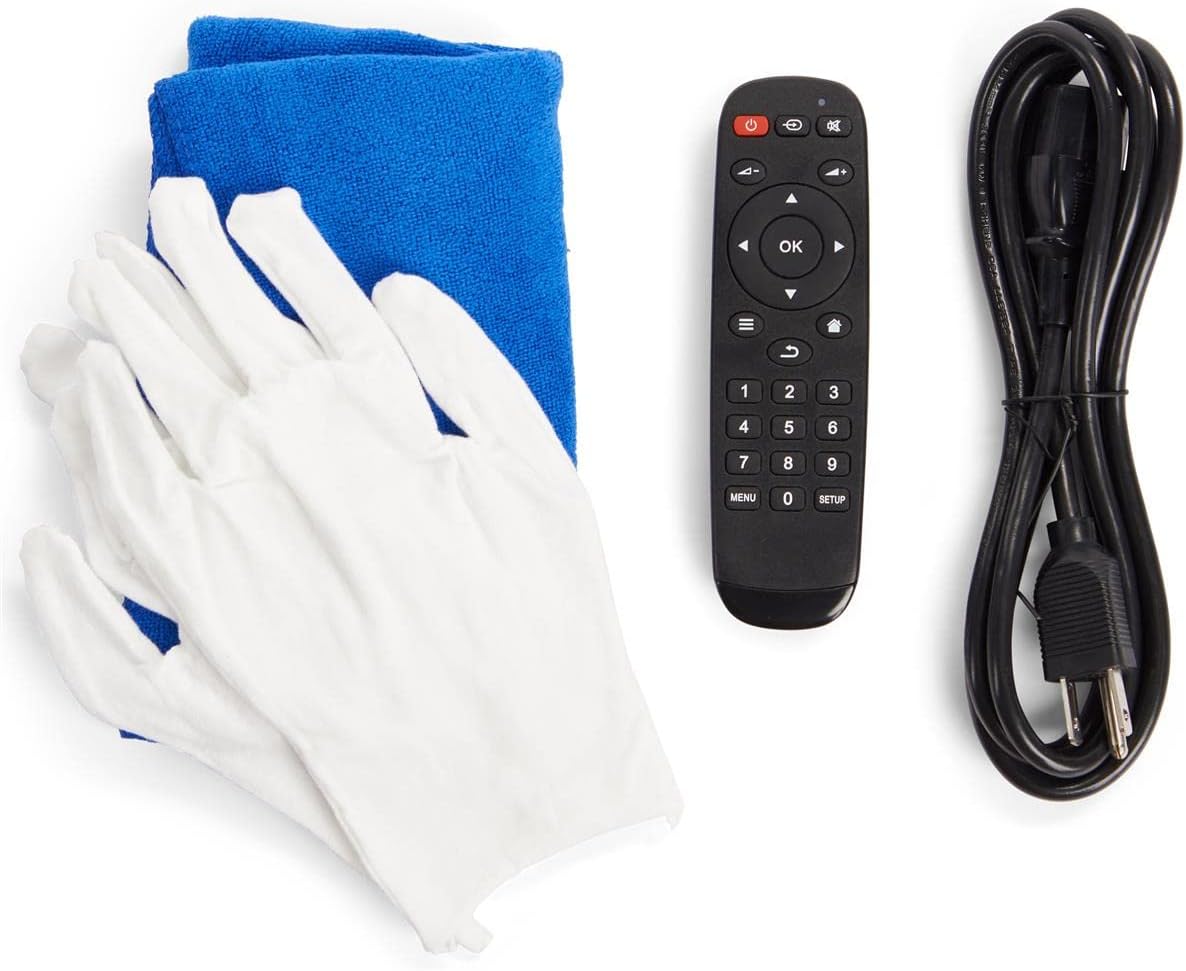
Figure 3.1: Included accessories for the digital kiosk.
4. ఉత్పత్తి ముగిసిందిview
The Displays2go 43-inch Touch Screen Digital Kiosk features a robust design and an intuitive interface for interactive digital signage applications.

మూర్తి 4.1: ముందు view of the 43-inch Touch Screen Digital Kiosk.
4.1. ముఖ్య భాగాలు
- 43-inch LCD Panel: High-quality display with 20-point IR touch technology.
- ఆండ్రాయిడ్ 11 ఆపరేటింగ్ సిస్టమ్: Pre-installed operating system for versatile application support.
- దృఢమైన అల్యూమినియం ఫ్రేమ్: Durable construction for high-traffic environments.
- ఇంటిగ్రేటెడ్ స్పీకర్లు: For dynamic audio content.
- కనెక్టివిటీ పోర్ట్స్: USB, Ethernet, Wi-Fi, Bluetooth.
- Floor Levelers: Adjustable feet for enhanced stability.

Figure 4.2: Connectivity ports located on the rear panel.

మూర్తి 4.3: వైపు view illustrating the screen's ergonomic tilt.
5. సెటప్
5.1. అన్ప్యాకింగ్ మరియు ప్లేస్మెంట్
- Carefully remove the kiosk from its packaging. It is recommended to have two people for safe handling due to its weight.
- Place the kiosk in your desired location, ensuring it is on a stable, level surface.
- Adjust the four floor levelers at the base of the unit to ensure maximum stability and prevent wobbling.
5.2. కనెక్ట్ పవర్
- Locate the power input port on the rear panel of the kiosk (refer to Figure 4.2).
- Connect the provided power cable to the kiosk's power input.
- Route the power cable through the integrated cable management system in the base for a tidy appearance (see Figure 5.1).
- పవర్ కేబుల్ యొక్క మరొక చివరను గ్రౌండెడ్ ఎలక్ట్రికల్ అవుట్లెట్లోకి ప్లగ్ చేయండి.

చిత్రం 5.1: ఇంటిగ్రేటెడ్ కేబుల్ నిర్వహణ వ్యవస్థ.
5.3. ప్రారంభ పవర్ ఆన్
- Locate the power switch on the rear panel (refer to Figure 4.2).
- Flip the power switch to the 'ON' position. The kiosk will begin to boot up.
- The initial boot process may take a few moments. The Android 11 OS home screen will appear once complete.
6. ఆపరేటింగ్ సూచనలు
6.1. Android 11 OS Navigation
The kiosk operates on Android 11, providing a familiar and intuitive user experience. You can navigate using the touch screen or the provided remote control.
- టచ్ స్క్రీన్: Interact directly with the display using gestures similar to a tablet or smartphone.
- రిమోట్ కంట్రోల్: Use the remote for basic navigation, volume control, and power functions.
6.2 నెట్వర్క్ కనెక్టివిటీ
The kiosk supports multiple network connection methods:
- Wi-Fi: Access Wi-Fi settings from the Android system menu to connect to available wireless networks.
- ఈథర్నెట్ (LAN): Connect an Ethernet cable to the LAN port on the rear panel for a wired network connection.
- బ్లూటూత్: Pair Bluetooth-enabled devices (e.g., speakers, keyboards) through the Android settings.
6.3. USB Ports Usage
The kiosk is equipped with two USB ports (refer to Figure 4.2) for connecting external devices such as:
- USB flash drives for content transfer.
- External keyboards or mice.
- Other compatible USB peripherals.
6.4. DiViEx Slideshow Software
The kiosk comes with DiViEx slideshow software pre-installed. This application allows for easy creation and management of multimedia presentations. Refer to the DiViEx software's in-app help or online documentation for detailed usage instructions.
6.5. కంటెంట్ నిర్వహణ
Content can be uploaded and managed through various methods:
- USB బదిలీ: కాపీ చేయండి files directly from a USB drive to the kiosk's internal storage.
- నెట్వర్క్ బదిలీ: Utilize network shares or cloud services accessible via the Android OS.
- Google Play Store: Download and install compatible content management applications from the Google Play Store.
7. నిర్వహణ
7.1. Cleaning the Kiosk
To maintain the appearance and functionality of your kiosk:
- శుభ్రపరిచే ముందు ఎల్లప్పుడూ పవర్ను డిస్కనెక్ట్ చేయండి.
- Use the provided soft cleaning cloth (or a similar lint-free cloth) to gently wipe the screen and frame.
- తెరపై మొండి గుర్తుల కోసం, తేలికగా dampen the cloth with a screen-safe cleaning solution. Do not spray liquid directly onto the screen.
- Avoid abrasive cleaners, solvents, or harsh chemicals, as these can damage the display and finish.
7.2. ఫర్మ్వేర్ నవీకరణలు
Displays2go provides regular firmware updates to enhance performance and add new features. Check the Displays2go support website or contact customer service for information on available updates and installation instructions.
8. ట్రబుల్షూటింగ్
This section addresses common issues you might encounter. For problems not listed here, contact Displays2go customer support.
| సమస్య | సాధ్యమైన కారణం | పరిష్కారం |
|---|---|---|
| Kiosk does not power on. | Power cable not connected; Power switch off; Faulty outlet. | Ensure power cable is securely connected. Check power switch position. Test outlet with another device. |
| టచ్ స్క్రీన్ స్పందించడం లేదు. | Screen is dirty; Software glitch; External interference. | Clean the screen thoroughly. Restart the kiosk. Ensure no strong light sources are directly hitting the IR sensors. |
| Wi-Fi కనెక్షన్ లేదు. | Wi-Fi is off; Incorrect password; Router issue; Out of range. | Check Wi-Fi settings in Android. Verify password. Restart router. Move kiosk closer to router. |
| Display shows no image. | Kiosk is off; Input source issue; Display settings. | Ensure kiosk is powered on. Check if the display is in standby mode. Restart the kiosk. |
9. స్పెసిఫికేషన్లు
Detailed technical specifications for the Displays2go 43-inch Touch Screen Digital Kiosk:
| ఫీచర్ | స్పెసిఫికేషన్ |
|---|---|
| మోడల్ సంఖ్య | 00840844186788 |
| స్క్రీన్ పరిమాణం | 43 అంగుళాలు |
| రిజల్యూషన్ | 1920 x 1080 (FHD 1080p) |
| కారక నిష్పత్తి | 16:9 |
| టచ్ టెక్నాలజీ | 20-point IR Display |
| ఆపరేటింగ్ సిస్టమ్ | ఆండ్రాయిడ్ 11 OS |
| కనెక్టివిటీ | Wi-Fi, Bluetooth, Ethernet (LAN), 2x USB Ports, Type-C, TF Card Slot |
| స్క్రీన్ ఉపరితలం | నిగనిగలాడే |
| వస్తువు బరువు | 90.4 పౌండ్లు |
| తయారీదారు | డిస్ప్లేలు2గో |
| మొదటి తేదీ అందుబాటులో ఉంది | మార్చి 1, 2024 |
10. వారంటీ మరియు మద్దతు
Displays2go is a trusted US-based brand committed to customer satisfaction. While specific warranty details are not provided in this manual, the product typically includes a manufacturer's warranty against defects in materials and workmanship. Please refer to your purchase documentation or the official Displays2go webవివరణాత్మక వారంటీ నిబంధనలు మరియు షరతుల కోసం సైట్.
For technical assistance, troubleshooting, or any inquiries regarding your 43-inch Touch Screen Digital Kiosk, please contact Displays2go expert technical support. Information regarding returns is generally available for 30 days from the purchase date.
సందర్శించండి Displays2go Store on Amazon మరింత సమాచారం కోసం లేదా మద్దతును సంప్రదించడానికి.


