పరిచయం
This manual provides comprehensive instructions for the setup, operation, maintenance, and troubleshooting of your MageGee Moon104 Wireless Mechanical Keyboard. Please read this manual thoroughly to ensure optimal performance and longevity of your device.

Image: The MageGee Moon104 Wireless Mechanical Keyboard, showcasing its full layout and the included USB receiver.
ప్యాకేజీ విషయాలు
ప్యాకేజీని తెరిచిన తర్వాత, అన్ని అంశాలు ఉన్నాయని నిర్ధారించుకోండి:
- MageGee Moon104 Wireless Mechanical Keyboard
- USB-C నుండి USB-A కేబుల్
- 2.4GHz USB రిసీవర్
- వినియోగదారు మాన్యువల్ (ఈ పత్రం)
స్పెసిఫికేషన్లు
| ఫీచర్ | వివరాలు |
|---|---|
| మోడల్ | Moon104 |
| కొలతలు (L x W x H) | 16.73" x 16.73" x 0.98" (42.49 సెం.మీ x 42.49 సెం.మీ x 2.49 సెం.మీ) |
| వస్తువు బరువు | 2.33 పౌండ్లు (1.06 కిలోలు) |
| కనెక్టివిటీ | USB-C Wired, 2.4GHz Wireless, Bluetooth 3.0/5.0 |
| కీబోర్డ్ రకం | మెకానికల్, తక్కువ ప్రోfile |
| స్విచ్లు | బ్రౌన్ మెకానికల్ స్విచ్లు |
| బ్యాక్లైటింగ్ | RGB Backlit (Seven-color breathing system) |
| అనుకూలత | Windows, macOS |
| సిఫార్సు ఉపయోగం | కార్యాలయం |

చిత్రం: ఒక ఓవర్view of the MageGee Moon104 keyboard's key features, including its tri-mode connectivity, low-profile switches, RGB backlighting, and ergonomic design.
సెటప్
1. కీబోర్డ్ను ఛార్జ్ చేయడం
Before first use, it is recommended to fully charge the keyboard using the provided USB-C cable. Connect the USB-C end to the keyboard and the USB-A end to a powered USB port on your computer or a wall adapter.

చిత్రం: క్లోజప్ view of the MageGee Moon104 keyboard showing the detachable USB-C cable connected to its port.
2. కీబోర్డ్ను కనెక్ట్ చేస్తోంది
The MageGee Moon104 supports three connection modes: USB-C Wired, 2.4GHz Wireless, and Bluetooth.

Image: The MageGee Moon104 keyboard demonstrating its tri-mode connection capabilities, showing both wired USB-C and the 2.4GHz receiver in use.
2.1. USB-C వైర్డ్ కనెక్షన్
- కేబుల్ యొక్క USB-C చివరను కీబోర్డ్ పోర్ట్కి కనెక్ట్ చేయండి.
- Connect the USB-A end to an available USB port on your computer.
- కీబోర్డ్ స్వయంచాలకంగా గుర్తించబడుతుంది మరియు ఉపయోగం కోసం సిద్ధంగా ఉంటుంది.
2.2. 2.4GHz వైర్లెస్ కనెక్షన్
- Locate the 2.4GHz USB receiver (usually stored in a compartment on the keyboard or included separately).
- మీ కంప్యూటర్లో అందుబాటులో ఉన్న USB పోర్ట్కి USB రిసీవర్ని ప్లగ్ చేయండి.
- కీబోర్డ్లో, Fn+Q to switch to 2.4GHz wireless mode. The indicator light will confirm the connection.
2.3. బ్లూటూత్ కనెక్షన్
- కీబోర్డ్లో, Fn + W or Fn+E to select a Bluetooth channel (BT1 or BT2). The indicator light will flash, indicating pairing mode.
- On your device (computer, laptop, smart TV), enable Bluetooth and search for new devices.
- Select "MageGee Moon104" from the list of available devices to pair.
- Once paired, the indicator light on the keyboard will become solid.
ఆపరేటింగ్ సూచనలు
1. Switching Between Connection Modes
To switch between the three connection modes, use the following key combinations:
- Fn + TAB: Switch to USB-C Wired Mode
- Fn+Q: 2.4GHz వైర్లెస్ మోడ్కి మారండి
- Fn + W: Switch to Bluetooth Channel 1 (BT1)
- Fn+E: Switch to Bluetooth Channel 2 (BT2)
2. RGB బ్యాక్లైట్ కంట్రోల్
The keyboard features an RGB backlight system with multiple effects and brightness levels.

Image: The MageGee Moon104 keyboard displaying its vibrant RGB backlighting across the keys.
- ప్రకాశం సర్దుబాటు: ఉపయోగించండి Fn + ↑ (increase brightness) and Fn + ↓ (decrease brightness).
- లైటింగ్ మోడ్లను మార్చడం: ఉపయోగించండి Fn + → or Fn + ← to cycle through different RGB effects.
- సర్దుబాటు వేగం: ఉపయోగించండి ఎఫ్ఎన్ + - (decrease speed) and Fn + = (increase speed) for dynamic lighting effects.
3. Windows/macOS Compatibility Switch
The keyboard includes a physical switch to toggle between Windows and macOS layouts for optimal key mapping.

Image: A close-up of the MageGee Moon104 keyboard highlighting the physical switch to select between Windows and Mac operating system compatibility.
- గుర్తించండి WIN/MAC switch on the side or back of the keyboard.
- Slide the switch to the appropriate operating system setting.
4. Function Keys (F1-F12)
The F-keys often have secondary functions accessible by pressing them in combination with the Fn key. Refer to the keycaps for specific icons indicating these functions (e.g., media control, volume, brightness).
ఎర్గోనామిక్ డిజైన్
The MageGee Moon104 is designed with ergonomics in mind to reduce wrist strain during extended use. It features low-profile mechanical switches and adjustable tilt feet.

Image: The MageGee Moon104 keyboard positioned on a desk, showcasing its ergonomic profile and comfortable typing angle.
- Adjustable Tilt Feet: Extend the feet on the underside of the keyboard to adjust the typing angle to your preference.
- తక్కువ ప్రోfile స్విచ్లు: తక్కువ-ప్రోfile design of the mechanical switches contributes to a flatter keyboard, reducing the need for excessive wrist extension.
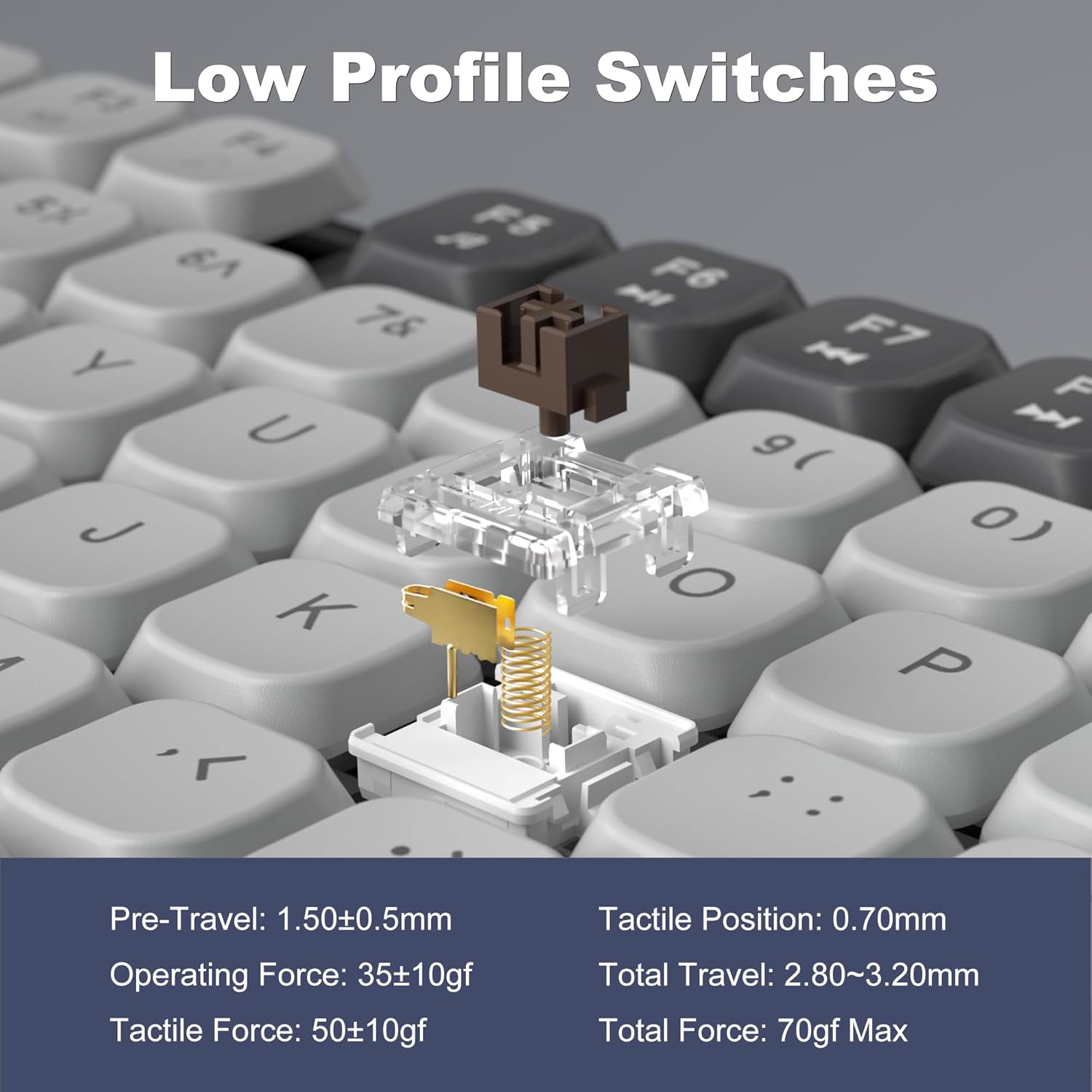
Image: A detailed diagram illustrating the internal structure and operational specifications of the low-profile mechanical switches used in the MageGee Moon104 keyboard.
నిర్వహణ
మీ కీబోర్డ్ యొక్క దీర్ఘాయువు మరియు సరైన పనితీరును నిర్ధారించడానికి, ఈ నిర్వహణ మార్గదర్శకాలను అనుసరించండి:
- శుభ్రపరచడం: కీబోర్డ్ ఉపరితలాన్ని తుడవడానికి మృదువైన, పొడి వస్త్రాన్ని ఉపయోగించండి. లోతైన శుభ్రపరచడం కోసం, కీక్యాప్ల మధ్య నుండి దుమ్ము మరియు చెత్తను తొలగించడానికి సంపీడన గాలిని ఉపయోగించండి. కఠినమైన రసాయనాలు లేదా రాపిడి పదార్థాలను ఉపయోగించకుండా ఉండండి.
- నిల్వ: ఎక్కువసేపు ఉపయోగంలో లేనప్పుడు, కీబోర్డ్ను ప్రత్యక్ష సూర్యకాంతి మరియు తీవ్రమైన ఉష్ణోగ్రతలకు దూరంగా చల్లని, పొడి ప్రదేశంలో నిల్వ చేయండి.
- బ్యాటరీ సంరక్షణ: బ్యాటరీని తరచుగా పూర్తిగా డిశ్చార్జ్ చేయవద్దు. బ్యాటరీ ఆరోగ్యాన్ని కాపాడుకోవడానికి కీబోర్డ్ను క్రమం తప్పకుండా ఛార్జ్ చేయండి.
ట్రబుల్షూటింగ్
If you encounter issues with your MageGee Moon104 keyboard, refer to the following common solutions:
- కీబోర్డ్ స్పందించడం లేదు:
- కీబోర్డ్ ఛార్జ్ అయ్యిందని నిర్ధారించుకోండి.
- Verify the correct connection mode is selected (Wired, 2.4GHz, or Bluetooth).
- 2.4GHz కోసం, USB రిసీవర్ సురక్షితంగా ప్లగిన్ చేయబడిందని నిర్ధారించుకోండి.
- For Bluetooth, ensure the keyboard is paired and within range of your device. Try re-pairing if necessary.
- If using wired mode, try a different USB port or cable.
- బ్యాక్లైట్ పనిచేయడం లేదు లేదా తప్పుగా ఉంది:
- Check backlight brightness settings using Fn + ↑.
- లైటింగ్ మోడ్ల ద్వారా సైకిల్ చేయండి Fn + → or Fn + ←.
- కీబోర్డ్ బ్యాటరీ తగినంత ఛార్జ్ కలిగి ఉందని నిర్ధారించుకోండి.
- కీలు నమోదు కావడం లేదా రెండుసార్లు టైప్ చేయడం లేదు:
- Clean the affected key with compressed air to remove any debris.
- కీబోర్డ్ పూర్తిగా ఛార్జ్ అయ్యిందని నిర్ధారించుకోండి.
- If the issue persists, try connecting the keyboard to a different device to rule out software or driver issues on your primary computer.
- Function Keys (F1-F12) Not Working:
- మీరు నొక్కినట్లు నిర్ధారించుకోండి Fn key in combination with the desired F-key for secondary functions.
- Verify the keyboard is set to the correct operating system (Windows/Mac) using the physical switch.
వారంటీ మరియు మద్దతు
MageGee provides a 1-year warranty for the Moon104 Wireless Mechanical Keyboard. If you encounter any product issues or have questions, please contact MageGee customer support via Amazon email. They aim to reply within 24 hours and provide a satisfactory solution.
మద్దతు కోసం, దయచేసి సందర్శించండి అమెజాన్లో MageGee స్టోర్ or contact their customer service directly through your Amazon order details.


