1. పరిచయం
The BSP D9 Game Controller is a versatile gaming accessory designed to enhance your mobile and PC gaming experience. It supports a wide range of devices including iPhones, iPads, Android phones and tablets, PCs, Nintendo Switch, and PlayStation consoles. Featuring advanced Hall Effect joysticks and triggers, programmable back buttons, and a stretchable design, the D9 controller provides precise control and comfortable gameplay across various platforms.
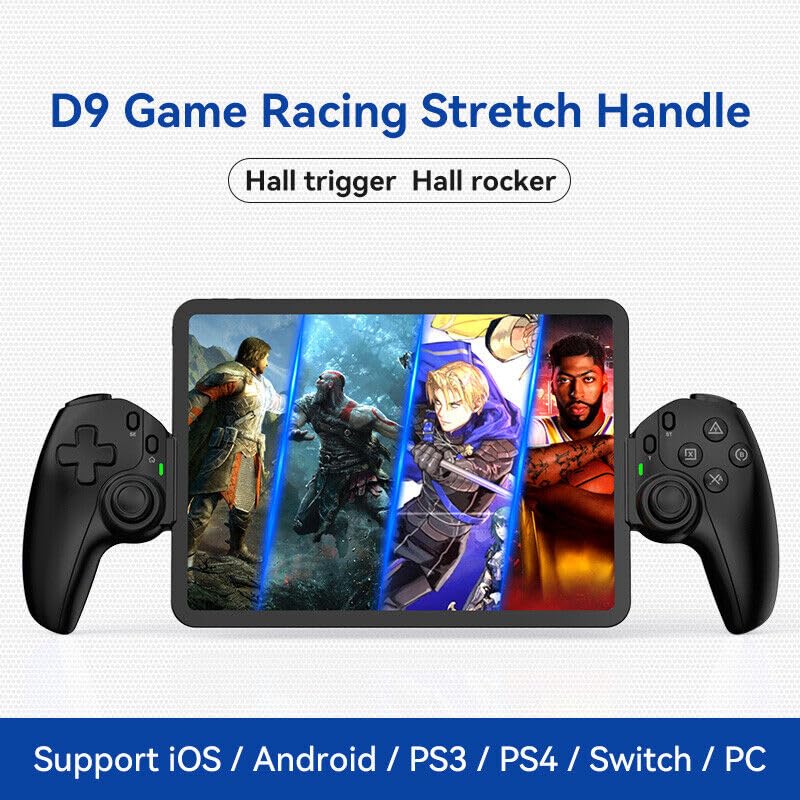
Figure 1.1: The BSP D9 Game Controller attached to a tablet, showcasing its design and compatibility with mobile gaming.
2. ఉత్పత్తి ముగిసిందిview: Key Details
Familiarize yourself with the various buttons and components of your D9 Game Controller.

Figure 2.1: Detailed diagram of the D9 controller's button layout, including the Cross Key, SELECT, HOME, START, A/B/X/Y buttons, L1/R1, L2/R2 triggers, M1/M2 back buttons, Left/Right Sticks (L3/R3), Status Indicator, and Charging Indicator.
- Cross Key (D-Pad): దిశాత్మక ఇన్పుట్.
- Left Stick/L3: Left analog joystick, press down for L3.
- ఎంపిక బటన్: Function button, typically for menu selection.
- హోమ్ బటన్: Power on/off, mode switching, return to home screen.
- స్థితి సూచిక: Shows connection status and mode.
- ఛార్జింగ్ సూచిక: Displays battery charging status.
- Right Stick/R3: Right analog joystick, press down for R3.
- A/B/X/Y బటన్లు: ప్రామాణిక చర్య బటన్లు.
- START బటన్: Function button, typically for pausing or starting games.
- TURBO బటన్: Activates/deactivates turbo function for assigned buttons.
- L1/R1 బటన్లు: భుజం బటన్లు.
- L2/R2 ట్రిగ్గర్లు: Analog triggers.
- M1/M2 బటన్లు: ప్రోగ్రామబుల్ బ్యాక్ బటన్లు.
3 ఫీచర్లు
3.1 Hall Effect Triggers and Joysticks
The D9 controller is equipped with advanced Hall Effect technology for both its triggers and joysticks. This provides superior precision and durability compared to traditional potentiometers.

Figure 3.1: Explanation of Hall Effect Triggers and Joysticks, highlighting 0.1mm accuracy for triggers and benefits like no drift issues, no dead zone, long lifespan, and precise control for joysticks.
- హాల్ ఎఫెక్ట్ ట్రిగ్గర్లు: Provide 0.1mm accuracy for precise micro-operations in games.
- హాల్ ఎఫెక్ట్ జాయ్స్టిక్లు: Eliminate drift issues, maintain stable trajectory, offer precise positioning, and provide a smooth feel without stuttering.
3.2 టర్బో ఫంక్షన్
The Turbo function allows you to set automatic rapid firing for specific buttons, giving you an advantagవేగవంతమైన ఆటలలో ఇ.

Figure 3.2: The Turbo function allows setting A/B/X/Y, L1/R1, L2/R2 buttons for rapid fire. Three adjustable turbo speeds are available: 8 shots/s, 15 shots/s, and 25 shots/s.
3.3 Macro Programming Function
The M1 and M2 back buttons can be programmed to execute complex key combinations with a single press, reducing repetitive actions and extending controller lifespan.

Figure 3.3: Instructions for setting and canceling macro programming on the M1 and M2 back buttons. Macros can be assigned to A/B/X/Y/L1/R1/L2/R2/Cross Key combinations.
3.4 Stretchable Design
The controller features a stretchable design to accommodate a wide range of smartphones and tablets, ensuring a secure fit and comfortable grip.

Figure 3.4: The controller supports device lengths from 130mm to 280mm (5-11 inches) and a maximum thickness of 13mm. It is perfectly compatible with iPhone 15 series and supports silicone & clear phone cases.
4. అనుకూలత
The BSP D9 Game Controller offers broad compatibility with various operating systems and gaming platforms, transforming your mobile device into a portable gaming console.

Figure 4.1: The controller supports streaming & cloud gaming (PS Remote Play, Xbox Game Pass, Steam Link, Rainway, NVIDIA GeForce NOW, Moonlight Game Streaming, Apple Arcade), direct play on iOS devices (Genshin Impact, Call of Duty Mobile, Diablo Immortal, Minecraft, Roblox), and direct play on Android devices (Call of Duty Mobile, Diablo Immortal, Minecraft, NBA 2K, Asphalt).
- ఆపరేటింగ్ సిస్టమ్స్: iOS, Android, Windows (PC).
- కన్సోల్లు: Nintendo Switch, PlayStation (PS3, PS4, PS5 via remote play).
- క్లౌడ్ గేమింగ్: Supports services like Xbox Game Pass, PS Remote Play, Steam Link, NVIDIA GeForce NOW, and more.
- ప్రత్యక్ష ఆట: Compatible with popular mobile games on both iOS and Android.
5. సెటప్
5.1 కంట్రోలర్ను ఛార్జ్ చేస్తోంది
- అందించిన USB-C ఛార్జింగ్ కేబుల్ను కంట్రోలర్లోని ఛార్జింగ్ పోర్ట్కు కనెక్ట్ చేయండి.
- కేబుల్ యొక్క మరొక చివరను USB పవర్ సోర్స్కి కనెక్ట్ చేయండి (ఉదా. కంప్యూటర్ USB పోర్ట్, వాల్ అడాప్టర్).
- The Charging Indicator light will illuminate during charging and turn off when fully charged.
5.2 Inserting Your Device
- Gently pull the two sides of the controller apart to extend the stretchable mechanism.
- Carefully place your smartphone or tablet into the central slot, ensuring it is securely seated. The controller supports devices with lengths between 130mm and 280mm and a maximum thickness of 13mm.
- The controller is designed to accommodate devices with slim cases.
5.3 Connecting to Your Device (Bluetooth Pairing)
The connection method varies slightly depending on your device's operating system.
Android పరికరాల కోసం:
- నొక్కండి మరియు పట్టుకోండి హోమ్ button until the Status Indicator light begins to flash rapidly, indicating pairing mode.
- మీ Android పరికరంలో, ఇక్కడికి వెళ్లండి సెట్టింగ్లు > బ్లూటూత్ మరియు బ్లూటూత్ను ఆన్ చేయండి.
- కోసం వెతకండి available devices and select "BSP-D9" or similar from the list.
- Once connected, the Status Indicator light on the controller will become solid.
IOS పరికరాల కోసం:
- నొక్కండి మరియు పట్టుకోండి హోమ్ button until the Status Indicator light begins to flash rapidly.
- On your iOS device, go to సెట్టింగ్లు > బ్లూటూత్ మరియు బ్లూటూత్ను ఆన్ చేయండి.
- కోసం వెతకండి available devices and select "Xbox Wireless Controller" or "DUALSHOCK 4 Wireless Controller" (depending on the mode the D9 emulates for iOS compatibility) from the list.
- Once connected, the Status Indicator light on the controller will become solid.
For PC/Switch/PS (Wired/Wireless):
Refer to the specific connection instructions provided with your controller for PC, Switch, or PS modes, as these may involve different button combinations or wired connections.
6. ఆపరేటింగ్ సూచనలు
6.1 ప్రాథమిక బటన్ విధులు
Refer to Section 2, "Product Overview: Key Details," for the layout and basic functions of all buttons (Cross Key, A/B/X/Y, L1/R1, L2/R2, Joysticks, SELECT, START, HOME).
6.2 టర్బో ఫంక్షన్ను ఉపయోగించడం
- నొక్కండి మరియు పట్టుకోండి టర్బో బటన్.
- పట్టుకొని ఉండగా టర్బో, press the button you wish to assign the turbo function to (e.g., A, B, X, Y, L1, R1, L2, R2). The button will now have turbo enabled.
- To adjust the turbo speed, press and hold టర్బో and then press the Right Stick (R3) up or down to cycle through the 3 available speeds (8, 15, 25 shots/s).
- To cancel the turbo function for a specific button, press and hold టర్బో and press the assigned button again.
- To clear all turbo settings, press and hold టర్బో and then press the SELECT button.
6.3 Programming Macro Buttons (M1/M2)
The M1 and M2 back buttons can be programmed to store a sequence of button presses.
How to Set a Macro:
- నొక్కండి మరియు పట్టుకోండి ఎంచుకోండి బటన్ మరియు M1 (or M2) key for 2 seconds. The LED indicator light will flash quickly.
- Press the key(s) you want to set for the macro programming function (e.g., A+B+X+Y).
- After setting the sequence, press the M1 (or M2) key again. The LED light will become solid, indicating that the setting is complete.
- Once set, pressing M1 (or M2) will automatically execute the programmed key combination.
How to Cancel a Macro:
- నొక్కండి మరియు పట్టుకోండి ఎంచుకోండి బటన్ మరియు M1 (or M2) key for 2 seconds. The LED indicator light will flash quickly.
- నొక్కండి M1 (or M2) key again to clear the macro programming. (Note: Do not press other buttons at this time). The LED light will remain solid to confirm the setting is cleared.
7. నిర్వహణ
- శుభ్రపరచడం: Use a soft, dry cloth to clean the controller. Do not use abrasive cleaners or solvents.
- నిల్వ: నియంత్రికను ప్రత్యక్ష సూర్యకాంతి మరియు తీవ్రమైన ఉష్ణోగ్రతలకు దూరంగా చల్లని, పొడి ప్రదేశంలో నిల్వ చేయండి.
- బ్యాటరీ సంరక్షణ: బ్యాటరీ జీవితకాలాన్ని పొడిగించడానికి, కంట్రోలర్ను తరచుగా పూర్తిగా డిశ్చార్జ్ చేయకుండా ఉండండి. ఎక్కువసేపు ఉపయోగంలో లేనప్పటికీ, దానిని క్రమం తప్పకుండా ఛార్జ్ చేయండి.
- చుక్కలను నివారించండి: అంతర్గత భాగాలను దెబ్బతీసే చుక్కలు మరియు ప్రభావాల నుండి కంట్రోలర్ను రక్షించండి.
8. ట్రబుల్షూటింగ్
| సమస్య | సాధ్యమైన కారణం | పరిష్కారం |
|---|---|---|
| కంట్రోలర్ పవర్ ఆన్ చేయదు. | తక్కువ బ్యాటరీ. | కంట్రోలర్ను కనీసం 30 నిమిషాలు ఛార్జ్ చేయండి. |
| బ్లూటూత్ ద్వారా జత చేయడం సాధ్యం కాలేదు. | కంట్రోలర్ జత చేసే మోడ్లో లేదు; బ్లూటూత్ జోక్యం; పరికరం బ్లూటూత్ ఆఫ్లో ఉంది. | Ensure controller is in pairing mode (flashing LED). Turn off and on Bluetooth on your device. Move closer to the device. |
| బటన్లు లేదా జాయ్స్టిక్లు స్పందించడం లేదు. | కనెక్షన్ సమస్య; సాఫ్ట్వేర్ లోపం; భౌతిక నష్టం. | Reconnect the controller. Restart your device. If problem persists, contact customer support. |
| పరికరం నియంత్రికలో సరిపోదు. | Device dimensions exceed supported limits. | Ensure your device length is between 130-280mm and thickness is max 13mm. Remove bulky cases. |
9. స్పెసిఫికేషన్లు
- మోడల్: D9
- బ్రాండ్: BSP
- కనెక్టివిటీ: Bluetooth, Wired (for PC/Switch/PS, specific modes may vary)
- మద్దతు ఉన్న పరికర పొడవు: 130మి.మీ - 280మి.మీ (5 - 11 అంగుళాలు)
- Supported Device Thickness: 13 మిమీ వరకు
- Joystick/Trigger Technology: హాల్ ప్రభావం
- ప్రోగ్రామబుల్ బటన్లు: M1, M2 (back buttons)
- టర్బో ఫంక్షన్: Yes, with 3 adjustable speeds
- తయారీదారు: ShenZhen ShanWan Technology Co., Ltd.
- మొదట అందుబాటులో ఉన్న తేదీ: మార్చి 30, 2024
10. వారంటీ మరియు మద్దతు
For warranty information and technical support, please refer to the documentation included with your purchase or visit the official BSP product support webవారంటీ క్లెయిమ్ల కోసం మీ కొనుగోలు రుజువును ఉంచండి.
Note: Specific warranty terms and support contact details may vary by region.


