ఉత్పత్తి ముగిసిందిview
The Trueque Wireless Keyboard is designed for enhanced productivity and comfort, featuring 7 vibrant backlight colors, an integrated wrist rest, and a convenient phone/tablet holder. It offers a stable 2.4 GHz wireless connection and quiet, responsive keys, making it suitable for various computing environments.

Image: The Trueque Wireless Keyboard in black, featuring its 7-colored backlights and integrated phone holder. The keyboard is shown with a smartphone placed in the holder, demonstrating its multi-device functionality.
పెట్టెలో ఏముంది
Upon unboxing your Trueque Wireless Keyboard, you will find the following components:
- 1 x వైర్లెస్ కీబోర్డ్
- 1 x USB రిసీవర్
- 1 x రకం C ఛార్జింగ్ కేబుల్
- 1 x వినియోగదారు మాన్యువల్

Image: A visual representation of the items included in the product packaging: the wireless keyboard, USB receiver, Type-C charging cable, and user manual.
సెటప్
1. కీబోర్డ్ను ఛార్జ్ చేయడం
Before initial use, fully charge the keyboard. Connect the provided Type-C charging cable to the keyboard's charging port and a compatible USB power source (PC, power bank, or wall charger). A full charge typically takes 2-3 hours. The power indicator will show charging status.

Image: A close-up of the keyboard's Type-C charging port with the charging cable connected, illustrating the charging process. Indicators for charging time, standby time, and smart sleep mode are also visible.
2. కీబోర్డ్ను కనెక్ట్ చేస్తోంది
The keyboard utilizes a 2.4 GHz advanced wireless connection for plug-and-play functionality. Simply insert the USB receiver into an available USB port on your computer, laptop, desktop, Chromebook, or Smart TV. No additional drivers are required. For devices with only Type-C ports, use the included Type-C adapter with the USB receiver.
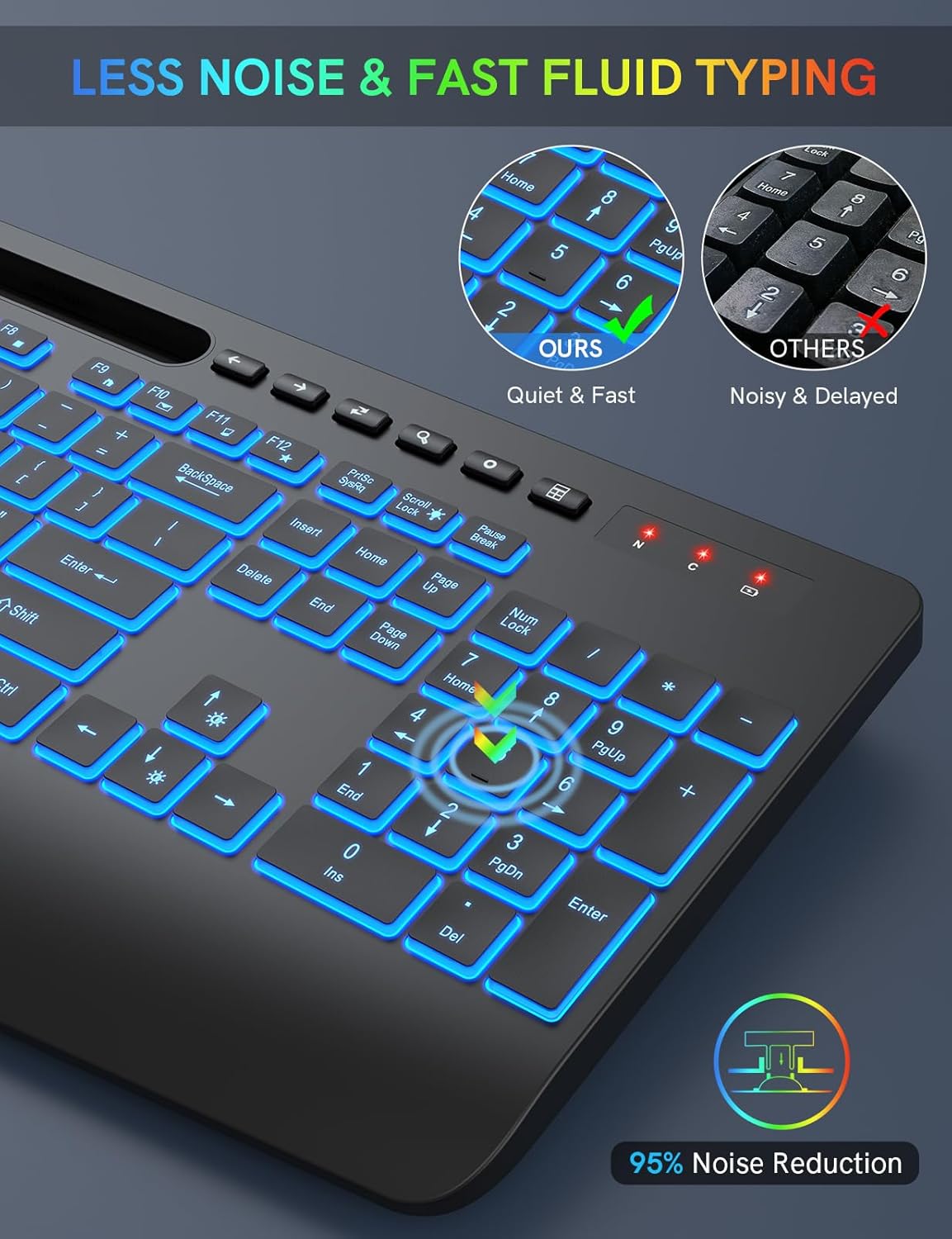
Image: The Trueque Wireless Keyboard positioned in front of a laptop, demonstrating its 2.4GHz stable wireless connection and compatibility with various operating systems including Windows, Mac OS, Android, Linux, and Google.
3. పవర్ చేయడం ఆన్/ఆఫ్
Locate the ON/OFF switch on the back of the keyboard. Slide the switch to the 'ON' position to activate the keyboard. To conserve battery life when not in use, slide the switch to the 'OFF' position.
ఆపరేటింగ్ సూచనలు
1. బ్యాక్లైట్ నియంత్రణ
The keyboard features 7 vibrant backlight color options and 3 adjustable brightness levels. To cycle through the colors, press the Fn కీతో పాటు స్క్రోల్ లాక్ key. To adjust the brightness, press the Fn key along with the పైకి బాణం key (to increase brightness) or the డౌన్ బాణం key (to decrease brightness).
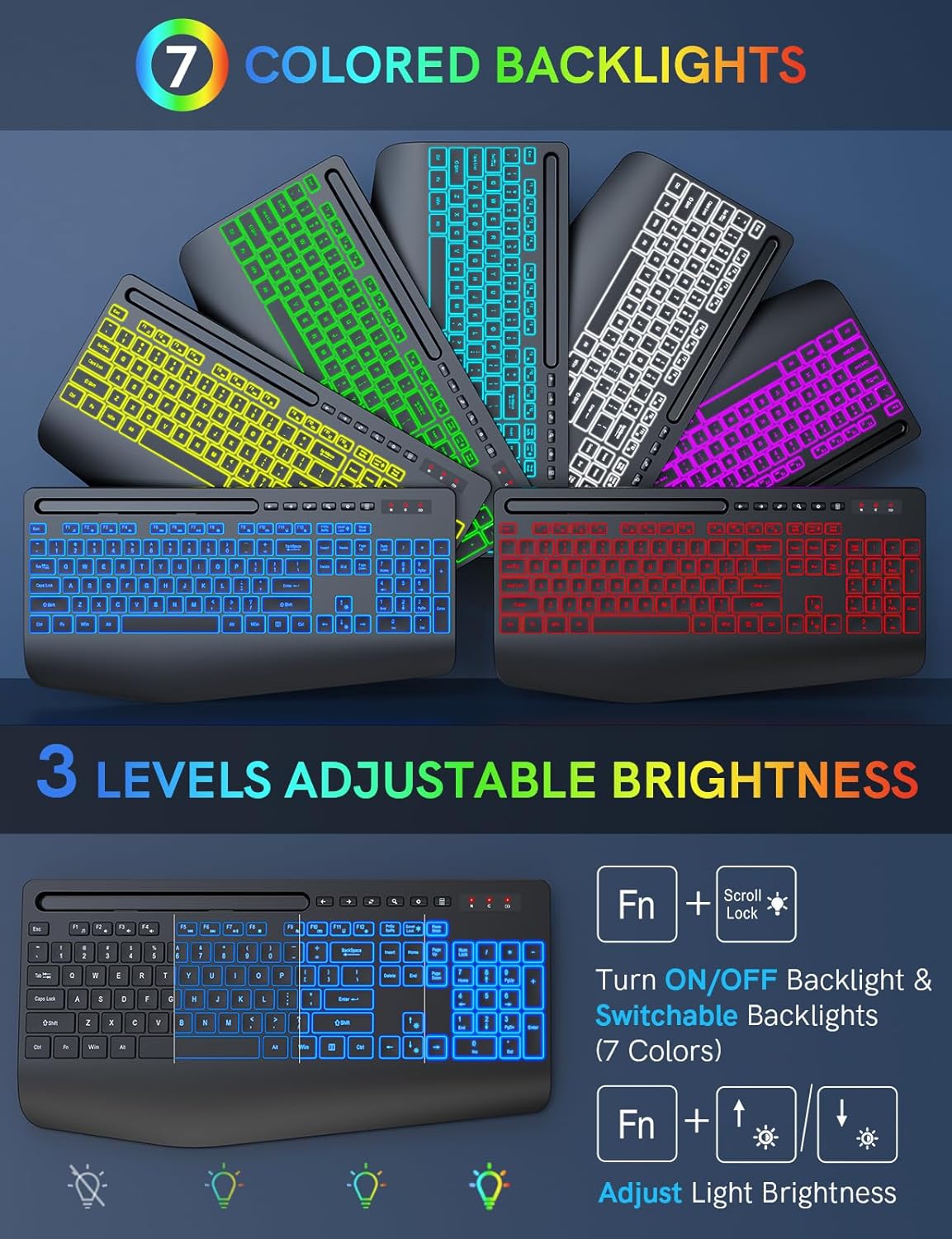
Image: Multiple Trueque keyboards displayed in a fan-like arrangement, each showcasing a different one of the 7 available backlight colors.
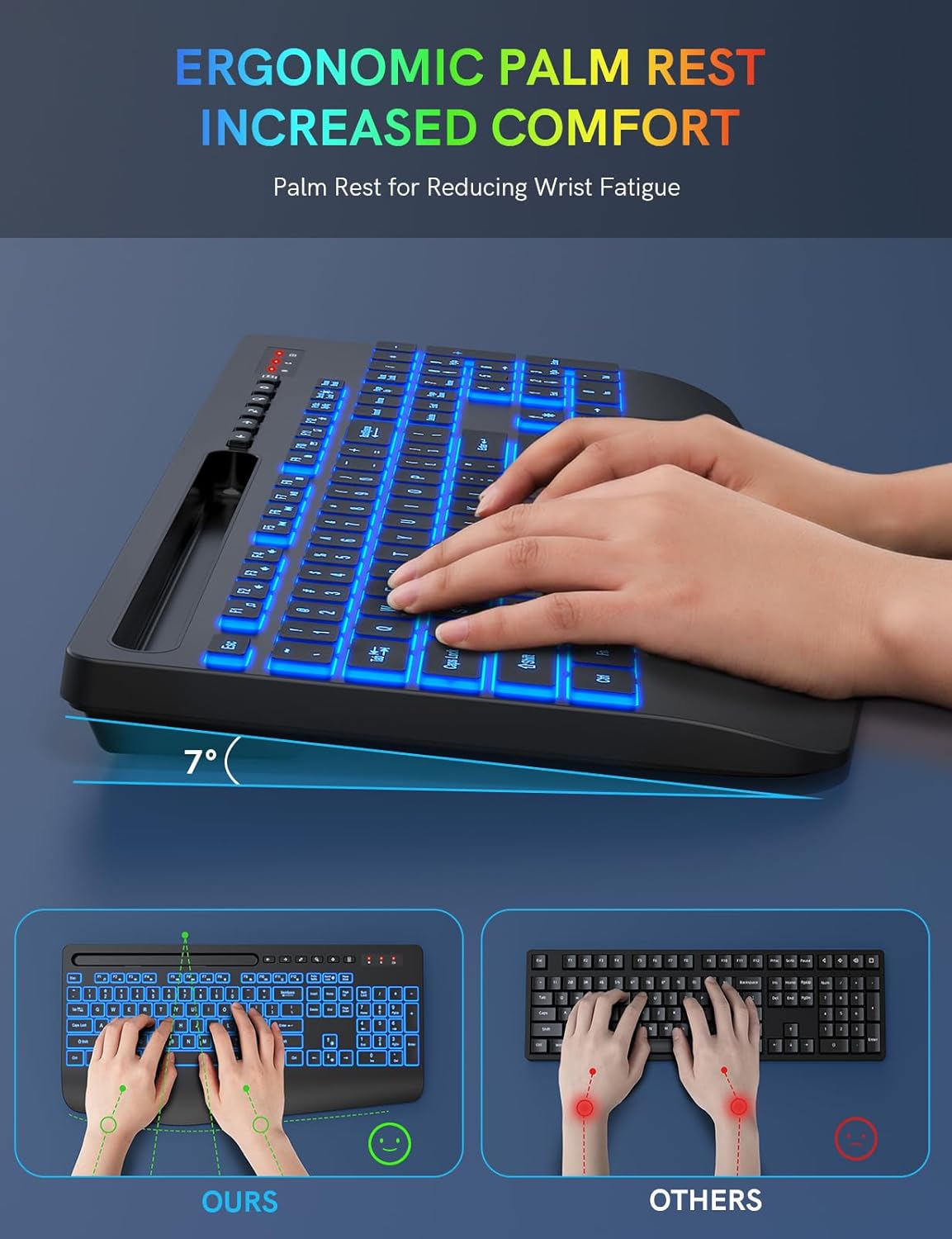
Image: A diagram illustrating how to turn the backlight ON/OFF and switch between the 7 colors using 'Fn + Scroll Lock', and how to adjust the 3 brightness levels using 'Fn + Up/Down Arrow' keys.
2. Ergonomic Design and Wrist Rest
The keyboard is designed with an ergonomic typing angle and an integrated wrist rest to provide support and reduce wrist fatigue during extended use. This design promotes a more comfortable and natural typing posture.
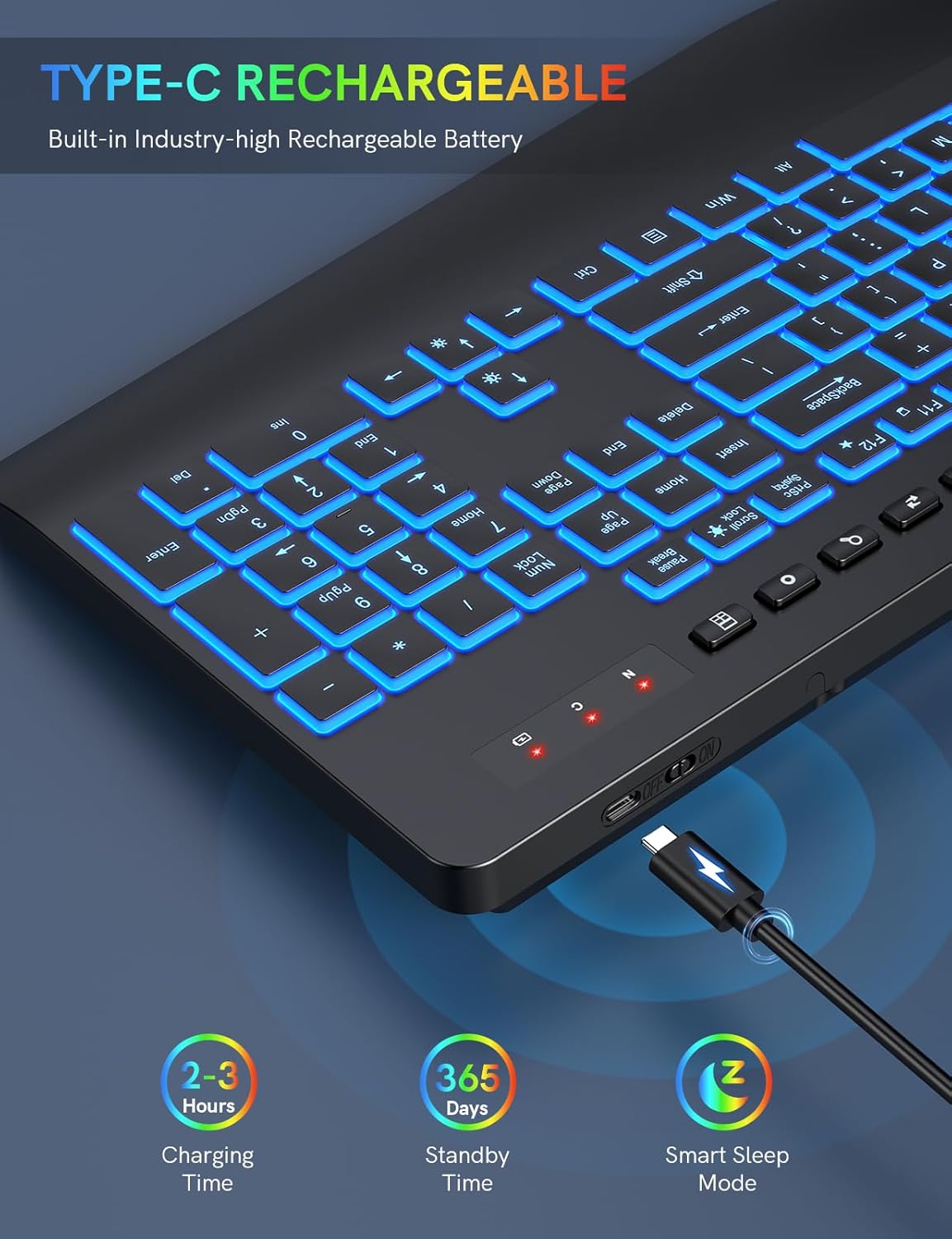
చిత్రం: ఒక వైపు view of the keyboard highlighting its 7-degree ergonomic tilt and integrated palm rest, with hands positioned correctly for comfortable typing. A comparison shows the ergonomic advantage over standard flat keyboards.
3. Device Holder Functionality
A convenient device holder is integrated into the keyboard, allowing you to securely place your smartphone or tablet. This feature helps keep your workspace tidy and enables easy viewing of your device while working or watching videos.

Image: The keyboard with a tablet placed in its integrated holder, illustrating how the holder functions and its dimensions (8.78" x 0.59").
4. షార్ట్కట్ కీలు
The full-size keyboard includes a numeric keypad, 12 function keys (F1-F12), and 6 independent shortcut keys for quick access to common functions like media control, email, and calculator. These shortcuts are designed to enhance efficiency.

Image: A detailed layout of the keyboard highlighting the 12 combined function keys (Fn + F1-F12) and 6 independent shortcut keys, explaining their respective functions such as media player, volume control, and quick access to mail or calculator.
5. స్మార్ట్ స్లీప్ మోడ్
To optimize battery life, the keyboard features a smart energy-saving mode. The backlight automatically turns off after 90 seconds of inactivity. The keyboard will enter a deeper auto-sleep mode after 15 minutes of non-use. Simply type or click any key to wake it up.

Image: A visual explanation of the keyboard's smart sleep mode, indicating a 2000-hour standby time and 15-minute auto-sleep feature to conserve power.
6. LED సూచికలు
The keyboard is equipped with smart LED indicators to keep you informed of its status. A red light flashes when the battery is low, a blue light appears during charging, and the power indicator turns off when fully charged. There are also indicators for Caps Lock and Num Lock.

Image: A close-up of the keyboard's top right corner, showing the Power Indicator, Caps Lock Indicator, and Num Lock Indicator, with text explaining their functions, especially regarding low power status.
నిర్వహణ
To ensure the longevity and optimal performance of your Trueque Wireless Keyboard, follow these maintenance guidelines:
- శుభ్రపరచడం: The keyboard features a waterproof and dustproof design. For general cleaning, gently wipe the surface with a soft, damp వస్త్రం. కఠినమైన రసాయనాలు లేదా రాపిడి పదార్థాలను ఉపయోగించడం మానుకోండి.
- చిందటం నిరోధకత: While designed to be spill-resistant, it is recommended to clean up any liquid spills immediately to prevent potential damage.
- నిల్వ: కీబోర్డ్ను ప్రత్యక్ష సూర్యకాంతి మరియు తీవ్రమైన ఉష్ణోగ్రతలకు దూరంగా చల్లని, పొడి ప్రదేశంలో నిల్వ చేయండి.
ట్రబుల్షూటింగ్
కీబోర్డ్ స్పందించడం లేదు:
- Ensure the USB receiver is properly plugged into your device's USB port.
- Verify the keyboard is turned ON using the switch located on the back.
- Check the battery level. If the red power indicator is flashing, recharge the keyboard.
- Ensure the keyboard is within the effective wireless range of 10 meters (33 feet) from the receiver.
బ్యాక్లైట్ పని చేయడం లేదు:
- నొక్కండి Fn + స్క్రోల్ లాక్ to toggle the backlight ON or OFF.
- ఉపయోగించి ప్రకాశం స్థాయిలను సర్దుబాటు చేయండి Fn + పైకి బాణం or Fn + డౌన్ బాణం కీలు.
- The backlight automatically turns off after 90 seconds of inactivity to save power. Press any key to reactivate it.
Typing Delay/Lag:
- Ensure the keyboard is within the optimal wireless range of the USB receiver.
- Minimize potential interference from other 2.4 GHz wireless devices in the vicinity.
స్పెసిఫికేషన్లు
| ఫీచర్ | వివరాలు |
|---|---|
| బ్రాండ్ | వస్తు మార్పిడి |
| మోడల్ సంఖ్య | 59d4d2fe-b8ae-465b-8653-26919cf8a1e2 |
| కనెక్టివిటీ టెక్నాలజీ | 2.4 GHz Wireless (USB) |
| బ్యాక్లైట్ రంగులు | 7 (RGB) |
| ప్రకాశం స్థాయిలు | 3 |
| బ్యాటరీ లైఫ్ (స్టాండ్బై) | 2000 గంటల వరకు |
| ఛార్జింగ్ పోర్ట్ | టైప్-సి |
| ఎర్గోనామిక్ లక్షణాలు | Wrist Rest, 7° Typing Angle |
| ప్రత్యేక లక్షణాలు | Phone Holder, Quiet Keys, Spill-Resistant |
| అనుకూలత | Windows, Mac, Laptop, Desktop, Chromebooks, Smart TV |
| కొలతలు | 16.85 x 8.46 x 0.59 అంగుళాలు (సుమారుగా) |
| వస్తువు బరువు | 1.54 పౌండ్లు |
| కీల సంఖ్య | 114 |
| మొదటి తేదీ అందుబాటులో ఉంది | ఏప్రిల్ 22, 2024 |
వారంటీ మరియు మద్దతు
Trueque is committed to providing quality products and excellent customer service. Your Trueque Wireless Keyboard comes with a 12 నెలల ఉచిత వారంటీ మరియు 360 days of brand service.
For any inquiries, technical assistance, or warranty claims, please contact our customer support team:
- ఇమెయిల్: Truequeservices@outlook.com
- ఫోన్: 1-866-608-6766 (యుఎస్)
- పని గంటలు: Monday - Friday, 9:00 AM - 6:00 PM (PST), with a break from 1:00 PM - 2:00 PM.

Image: A graphic illustrating the available customer support channels, including email and phone contact details, emphasizing 24-hour online response, 12-month free warranty, and 360 days of brand service.


