1. పరిచయం
Thank you for choosing the Trueque Wireless Keyboard and Mouse Combo. This manual provides detailed instructions to help you set up, operate, maintain, and troubleshoot your new device. Please read this manual carefully before use to ensure optimal performance and longevity of your product.
2. ఉత్పత్తి ముగిసిందిview
The Trueque Wireless Keyboard and Mouse Combo offers a blend of retro aesthetics and modern functionality, designed for comfort and efficiency. It features a full-size keyboard with unique round keycaps and a matching ergonomic mouse, connecting wirelessly via a single USB receiver.
ముఖ్య లక్షణాలు:
- Retro & Cute Design: Detachable round keycaps for easy cleaning and a visually appealing aesthetic.
- Comfortable & Personalized: Magnetic palm rest and foldable legs for adjustable typing angles and reduced wrist fatigue.
- Lag-Free Wireless Freedom: 2.4GHz wireless technology with a single USB receiver for stable connection up to 33ft.
- Energy Saving & Durability: Smart sleep mode and power switches to extend battery life.
- Efficiency & Compatibility: Mouse with adjustable DPI (1000/1500/2000) and wide compatibility with PC, Laptop, Windows, Mac, Linux, and Chrome OS.

Figure 2.1: Trueque Wireless Keyboard and Mouse Combo (Colorful-Pink)

Figure 2.2: Keyboard and mouse integrated into a workspace.

Figure 2.3: Detachable magnetic palm rest and foldable legs for ergonomic comfort.

Figure 2.4: Stable 2.4GHz wireless connection with a single USB receiver.
3. సెటప్ సూచనలు
Follow these steps to set up your Trueque Wireless Keyboard and Mouse Combo:
- బ్యాటరీలను వ్యవస్థాపించండి:
- కీబోర్డ్: Open the battery compartment on the back of the keyboard. Insert 2 AAA batteries (not included), ensuring correct polarity. Close the compartment.
- మౌస్: Open the battery compartment on the bottom of the mouse. Insert 1 AA battery (not included), ensuring correct polarity. Close the compartment.

Figure 3.1: Battery installation for keyboard and mouse.
- USB రిసీవర్ను గుర్తించండి: The single USB receiver for both the keyboard and mouse is typically found inside the mouse's battery compartment or within the product packaging.
- USB రిసీవర్ని కనెక్ట్ చేయండి: Plug the USB receiver into an available USB-A port on your computer (PC, Laptop, Desktop). If your computer only has USB-C ports, use the provided Type-C adapter.
- పరికరాలను ఆన్ చేయండి:
- కీబోర్డ్: Locate the ON/OFF switch on the back of the keyboard and slide it to the 'ON' position.
- మౌస్: మౌస్ దిగువన ఆన్/ఆఫ్ స్విచ్ను గుర్తించి, దానిని 'ఆన్' స్థానానికి స్లైడ్ చేయండి.
- జత చేయడం (అవసరమైతే): The devices should automatically connect. If they do not, follow these steps:
- కీబోర్డ్: Press and hold the 'ESC' and '+=' keys simultaneously until the battery indicator light illuminates, indicating successful pairing.
- మౌస్: Long press the mouse wheel and the right button simultaneously until the mouse indicator light illuminates, indicating successful pairing.
Video 3.1: Visual guide to setting up the keyboard and mouse, including battery installation and connection. (Source: Trueq Tech)
4. ఆపరేటింగ్ సూచనలు
కీబోర్డ్ వినియోగం:
- టైపింగ్: The round keycaps are designed for comfortable and quiet typing.
- Multimedia Function Keys (Fn + F1-F12):
- Fn + F1: Turn on Music
- Fn + F2: Volume -
- Fn + F3: వాల్యూమ్ +
- Fn + F4: మ్యూట్
- Fn + F5: మునుపటి ట్రాక్
- Fn + F6: తదుపరి ట్రాక్
- Fn + F7: ప్లే/పాజ్ చేయండి
- Fn + F8: ఆపు
- Fn + F9: Home Page
- Fn + F10: Mail
- Fn + F11: My Computer
- Fn + F12: Favorites
- సిస్టమ్ స్విచింగ్:
- Fn + Q: For Windows System
- Fn + W: For Mac OS System
- మణికట్టు విశ్రాంతి: Attach the magnetic palm rest for enhanced comfort during extended typing sessions. The foldable legs on the keyboard can be adjusted for an optimal typing angle.
మౌస్ వినియోగం:
- DPI సర్దుబాటు: The mouse features 3 tracking speeds (1000/1500/2000 DPI) for precise control.
- ఎర్గోనామిక్ డిజైన్: Designed to fit the contours of your hand, reducing stress and providing a comfortable grip.

Figure 4.1: Enhanced convenience with multimedia function keys.

Figure 4.2: Optimal typing position with magnetic palm rest.
5. నిర్వహణ
మీ కీబోర్డ్ మరియు మౌస్ యొక్క దీర్ఘాయువు మరియు సరైన పనితీరును నిర్ధారించడానికి, ఈ నిర్వహణ చిట్కాలను అనుసరించండి:
- కీక్యాప్లను శుభ్రపరచడం: The round keycaps are detachable for easy cleaning. Gently pull them off to clean underneath. They are also splash-proof, making cleaning simple.
- సాధారణ శుభ్రపరచడం: కీబోర్డ్ మరియు మౌస్ను తుడవడానికి మృదువైన, పొడి వస్త్రాన్ని ఉపయోగించండి. మొండి ధూళి కోసం, కొద్దిగా damp వస్త్రాన్ని ఉపయోగించవచ్చు, కానీ లోపలి భాగాలలోకి తేమ రాకుండా చూసుకోండి.
- బ్యాటరీ సంరక్షణ: If the devices will not be used for an extended period, it is recommended to remove the batteries to prevent leakage.
- నిల్వ: పరికరాలను ప్రత్యక్ష సూర్యకాంతి మరియు తీవ్రమైన ఉష్ణోగ్రతలకు దూరంగా చల్లని, పొడి ప్రదేశంలో నిల్వ చేయండి.
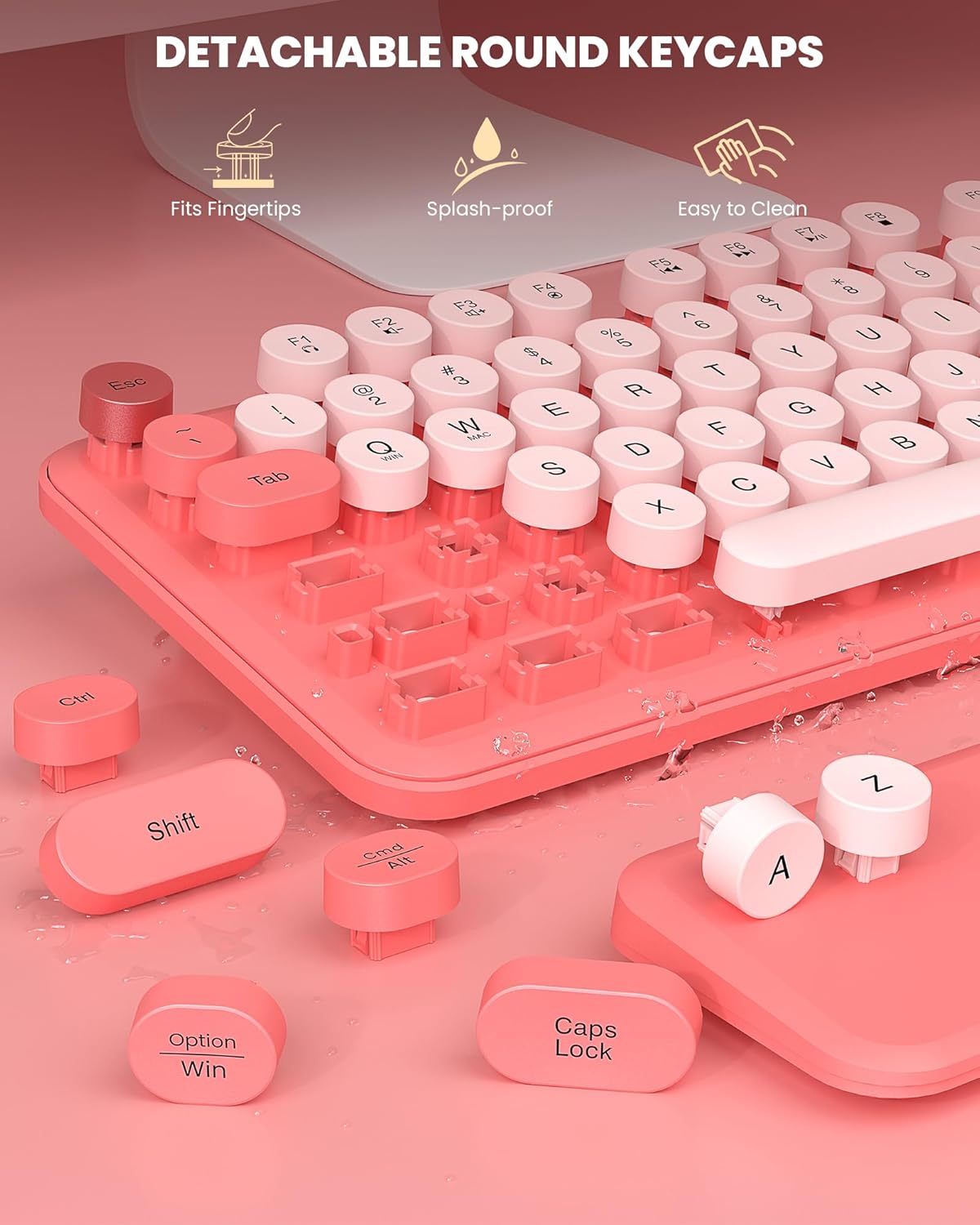
Figure 5.1: Detachable keycaps allow for easy cleaning.
6. ట్రబుల్షూటింగ్
If you encounter any issues with your Trueque Wireless Keyboard and Mouse Combo, please refer to the following common solutions:
| సమస్య | సాధ్యమైన పరిష్కారం |
|---|---|
| కీబోర్డ్/మౌస్ స్పందించడం లేదు |
|
| లాగ్ లేదా అడపాదడపా కనెక్షన్ |
|
| మౌస్ కర్సర్ అస్తవ్యస్తంగా ఉంది లేదా సజావుగా కదలడం లేదు. |
|
| USB receiver missing from package |
|
Video 6.1: Troubleshooting tips for common keyboard and mouse issues. (Source: Trueq Tech)
7. స్పెసిఫికేషన్లు
| ఫీచర్ | వివరాలు |
|---|---|
| ఉత్పత్తి కొలతలు | 17.2 x 5.1 x 1.5 అంగుళాలు |
| వస్తువు బరువు | 2.03 పౌండ్లు |
| మోడల్ సంఖ్య | KC303 |
| బ్యాటరీలు అవసరం | 2 AAA (Keyboard), 1 AA (Mouse) |
| కనెక్టివిటీ టెక్నాలజీ | 2.4GHz USB వైర్లెస్ |
| ప్రత్యేక లక్షణాలు | Round Key, Ergonomic, Detachable Wrist Rest |
| అనుకూల పరికరాలు | Laptop, Personal Computer, Macbook Pro, Macbook Air, iMac, Television, Dell XPS 13/15, Inspiron, HP ENVY, Pavilion, Chromebook, Notebook |
| తయారీదారు | వస్తు మార్పిడి |
| మూలం దేశం | చైనా |
8. వారంటీ మరియు మద్దతు
Trueque is committed to providing high-quality products and excellent customer service.
వారంటీ సమాచారం:
This product comes with a 12-month free warranty from the date of purchase. Please retain your proof of purchase for warranty claims.
కస్టమర్ మద్దతు:
For any questions, technical assistance, or warranty claims, please contact our support team:
- ఇమెయిల్ మద్దతు: Truequeservice@outlook.com
- ఫోన్ సపోర్ట్ (US): 1-866-608-6766 (Mon-Fri, 9am-1pm, 2pm-6pm PST)
Our team offers 24-hour online response and 360 days of brand service to ensure your satisfaction.

Figure 8.1: Trueque Customer Support Team ready to assist.
