1. పరిచయం
This manual provides detailed instructions for the setup, operation, and maintenance of your Vixic P-T M950 Label Maker Machine. Please read this manual thoroughly before using the device to ensure proper functionality and longevity.
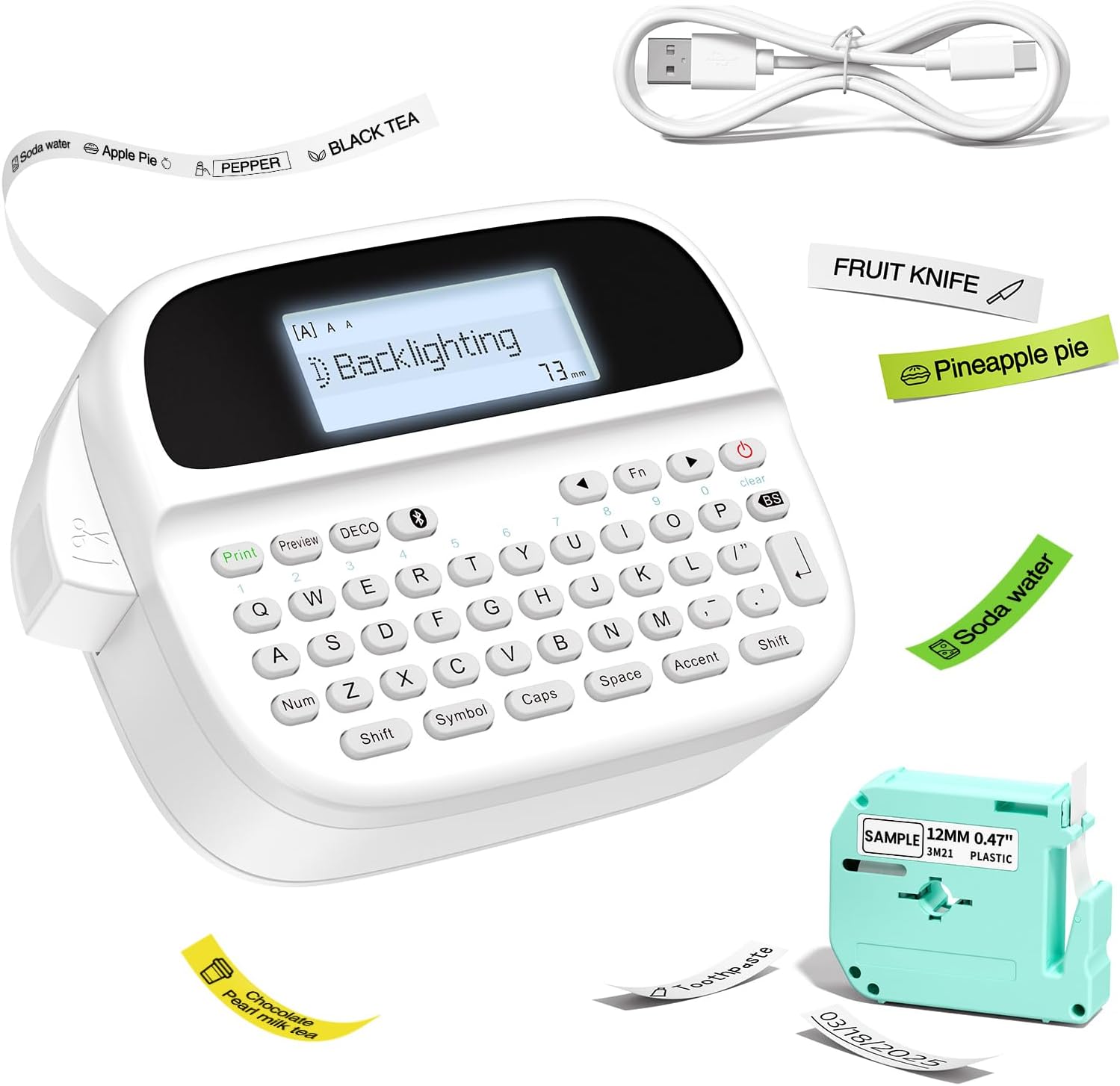
Figure 1: Vixic P-T M950 Label Maker Machine and accessories.
2. ప్యాకేజీ విషయాలు
ప్యాకేజీలో అన్ని అంశాలు ఉన్నాయని నిర్ధారించుకోండి:
- 1 x Vixic M950 Label Maker Machine
- 1 x MZ Label Tape (Black on White, 12mm*4m)
- 1 x టైప్-సి ఛార్జింగ్ కేబుల్
- 1 x వినియోగదారు మాన్యువల్
3. సెటప్
3.1 పరికరాన్ని ఛార్జ్ చేస్తోంది
The label maker is equipped with a built-in 1200mAh lithium battery. Before first use, fully charge the device.
- అందించిన టైప్-సి ఛార్జింగ్ కేబుల్ను పరికరంలోని ఛార్జింగ్ పోర్ట్కు కనెక్ట్ చేయండి.
- కేబుల్ యొక్క మరొక చివరను అనుకూలమైన USB పవర్ అడాప్టర్కి కనెక్ట్ చేయండి (చేర్చబడలేదు).
- The device takes approximately 2.5 hours to fully charge. The charging indicator will show the charging status.

Figure 2: Charging the Vixic M950 Label Maker. A full charge allows for approximately 1.6 hours of continuous printing.
3.2 లేబుల్ టేప్ను లోడ్ చేస్తోంది
To load or replace the label tape:
- Locate the tape compartment on the back of the label maker.
- Open the integrated back cover.
- Insert the label tape cassette into the compartment, ensuring it clicks into place. The tape end should extend slightly from the printer's output slot.
- వెనుక కవర్ను సురక్షితంగా మూసివేయండి.

Figure 3: Loading the label tape cassette into the Vixic M950 Label Maker.
4. ఆపరేటింగ్ సూచనలు
4.1 పవర్ చేయడం ఆన్/ఆఫ్
Press the power button to turn the device on or off. The backlit LCD display will illuminate upon powering on.
4.2 Creating Labels
The Vixic M950 offers two modes for label creation:
4.2.1 Keyboard Input Mode
- పరికరాన్ని ఆన్ చేయండి.
- Use the QWERTY keyboard to type your desired text. The 14-character backlit LCD display allows for easy preview.
- Press the 'Print' button to print the label.
4.2.2 Bluetooth App Mode
For advanced customization, connect to the "Print Master" app via Bluetooth.
- మీ పరికరం యొక్క యాప్ స్టోర్ నుండి "ప్రింట్ మాస్టర్" యాప్ను డౌన్లోడ్ చేసుకోండి.
- మీ స్మార్ట్ఫోన్లో బ్లూటూత్ ప్రారంభించబడిందని నిర్ధారించుకోండి.
- Open the "Print Master" app and connect to your Vixic M950 device.
- Use the app to design your label with various fonts, borders, symbols, and clip art.
- Send the design to the label maker for printing.

Figure 4: Label creation using both the integrated keyboard and the Bluetooth app.
4.3 అనుకూలీకరణ ఎంపికలు
The Vixic M950 offers extensive customization:
- ఫాంట్లు: Choose from 8 artistic fonts.
- సరిహద్దులు: Select from 103 borders/underscores.
- Symbols & Clip Art: Access 791 symbols and clip art options.
- లేబుల్ నిల్వ: Store up to 9 labels for future printing, each supporting up to 89 characters.

Figure 5: Customization options available for label design.
4.4 Cutting Labels
The device features a built-in cutter for clean label separation. After printing, press the cutter button to trim the label.
5. నిర్వహణ
5.1 బ్యాటరీ సంరక్షణ
బ్యాటరీ జీవితాన్ని పొడిగించడానికి:
- ప్రారంభ ఉపయోగం ముందు పరికరాన్ని పూర్తిగా ఛార్జ్ చేయండి.
- The device automatically shuts down after 5 minutes of inactivity to conserve power.
- పరికరాన్ని తీవ్రమైన ఉష్ణోగ్రతలకు బహిర్గతం చేయకుండా ఉండండి.
5.2 శుభ్రపరచడం
Gently wipe the exterior of the label maker with a soft, dry cloth. Do not use liquid cleaners or abrasive materials.
6. ట్రబుల్షూటింగ్
If you encounter issues with your Vixic M950, please refer to the following common solutions:
- పరికరం ఆన్ చేయడం లేదు: Ensure the battery is charged. Connect the device to the Type-C cable and a power source.
- No print or faint print: Check if the label tape is correctly installed and not empty. Ensure the tape is properly aligned in the output slot.
- బ్లూటూత్ కనెక్షన్ సమస్యలు: Make sure Bluetooth is enabled on your smartphone and the "Print Master" app is updated. Restart both the label maker and your smartphone.
- Labels not cutting cleanly: Ensure the tape is fully extended before cutting. The built-in cutter should be free of debris.
For further assistance, please contact Vixic customer support.
7. స్పెసిఫికేషన్లు
| ఫీచర్ | స్పెసిఫికేషన్ |
|---|---|
| మోడల్ | M950 |
| బ్రాండ్ | విక్సిక్ |
| కనెక్టివిటీ | Bluetooth, QWERTY Keyboard |
| ప్రింటింగ్ టెక్నాలజీ | థర్మల్ / థర్మల్ బదిలీ |
| గరిష్ట ముద్రణ రిజల్యూషన్ | 203 DPI |
| గరిష్ట ముద్రణ వేగం (మోనోక్రోమ్) | 10mm/s |
| Compatible Label Widths | 9మి.మీ., 12మి.మీ |
| ప్రదర్శన రకం | బ్యాక్లిట్ LCD |
| బ్యాటరీ | 1200mAh లిథియం అయాన్ (రీఛార్జబుల్) |
| ఛార్జింగ్ ఇంటర్ఫేస్ | USB టైప్-C |
| కొలతలు | 16.8D x 7.2W x 11.8H సెంటీమీటర్లు |
| వస్తువు బరువు | 489 గ్రాములు |
| ప్రత్యేక లక్షణాలు | Built-in Cutter, Backlit LCD screen, QWERTY Keyboard, Portable, Rechargeable |
8. వారంటీ మరియు మద్దతు
Vixic provides professional customer service and technical support for its products. For any inquiries, technical assistance, or warranty claims, please contact our support team through the following channels:
- ఇమెయిల్: Refer to your product packaging or the official Vixic webఅత్యంత ప్రస్తుత ఇమెయిల్ చిరునామా కోసం సైట్.
- ప్రత్యక్ష చాట్: Available on the official Vixic webపని వేళల్లో సైట్.

Figure 6: Vixic Customer Service and Technical Support.


