పరిచయం
This user manual provides comprehensive instructions for setting up, operating, maintaining, and troubleshooting your Memoking WiFi Thermal Label Printer. This 300DPI printer is designed for efficient and high-quality label printing for various applications, including shipping, retail, and home organization. It supports both wireless (WiFi) and wired (USB) connections, offering flexibility for different operating environments and compatibility with Android, iOS, Mac, and Windows devices.
పెట్టెలో ఏముంది
అన్బాక్సింగ్ తర్వాత, దయచేసి కింది అన్ని భాగాలు చేర్చబడ్డాయని ధృవీకరించండి:
- 1* Memoking 344WF Wi-Fi Thermal Label Printer
- 1* Power Adapter & Cable
- 1* USB Cord & Type c convertor
- 1* యూజర్ గైడ్
- 1 * 4"X6" Test Labels
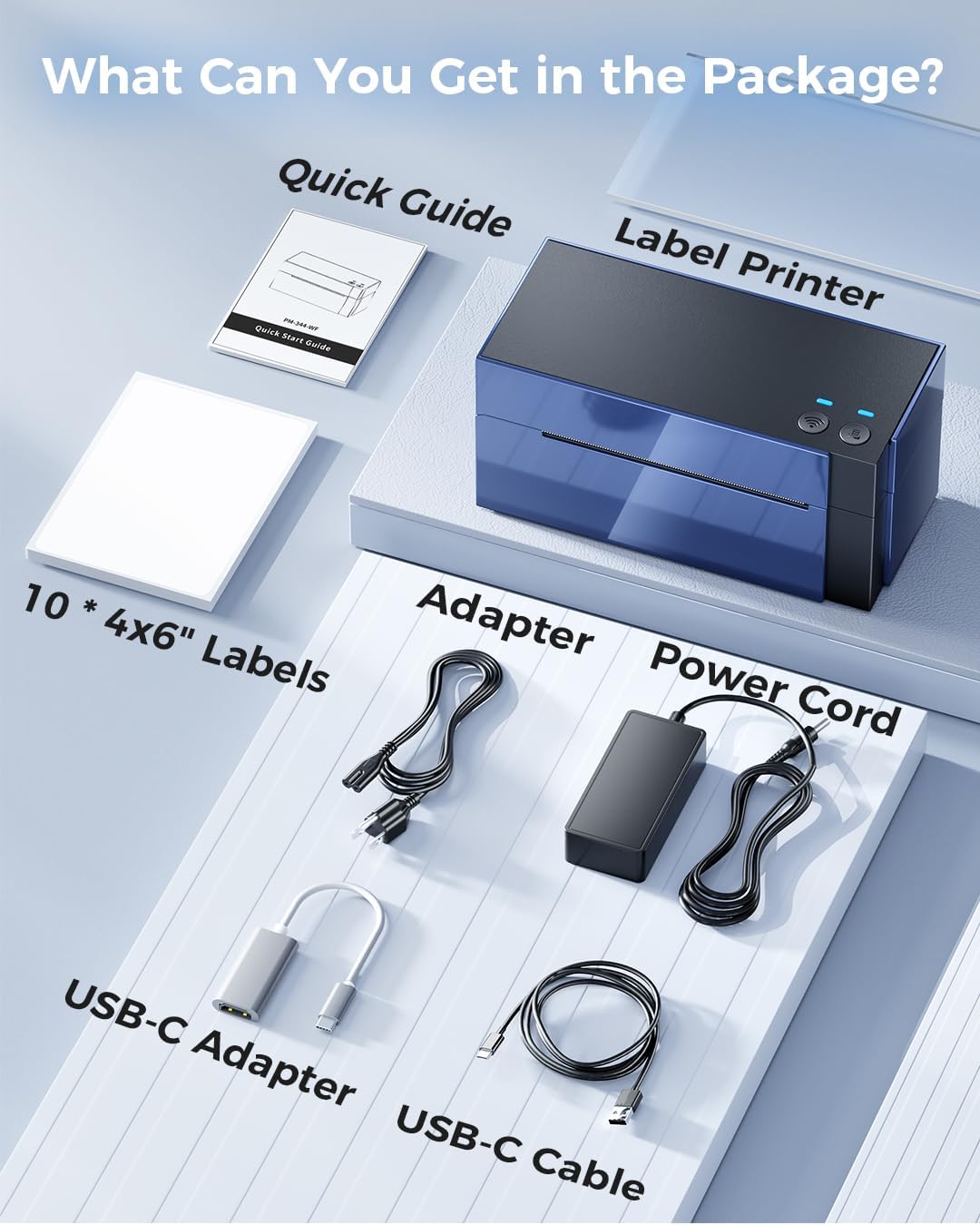
Image: All components included in the Memoking WiFi Thermal Label Printer package, including the printer, power adapter, USB cables, user guide, and test labels.
సెటప్
1. Initial Printer Setup
- పవర్ కనెక్షన్: పవర్ అడాప్టర్ను ప్రింటర్కు కనెక్ట్ చేయండి మరియు దానిని పవర్ అవుట్లెట్లోకి ప్లగ్ చేయండి.
- లేబుల్లను లోడ్ చేస్తోంది: Ensure the labels are straight and smooth. Insert the labels into the printer's feed slot. The printer will automatically detect and feed the labels.
- పరీక్ష పేజీని ముద్రించండి: When the printer is in standby mode (not printing), press the feed button once to print a test page. This confirms basic functionality.
Video: Demonstrates how to use the feed button for various functions, including printing a test page, automatic label identification, and restoring factory settings.
2. Label Calibration (Automatic Identification)
It is crucial to perform automatic label identification every time you change your label roll or type to ensure accurate printing and prevent blank labels or misprints.
- For Labels with Gaps:
Insert the label, ensuring it is straight and smooth. When the printer is standby and ready, press and hold the feed button until the blue light flashes 2 times, then release the feed button. The printer will learn the label size.
- For Labels with Black Marks:
Insert the label, ensuring it is straight and smooth. When the printer is standby and ready, press and hold the feed button until the blue light flashes 3 times, then release the feed button. The printer will learn the label size based on black marks.
Note: Refer to the "Introduction Of Feed Button Mode" video in the previous section for visual guidance on these steps.
3. Connectivity Setup (WiFi & USB)
The Memoking 344WF printer supports both WiFi and USB connections for versatile printing.
WiFi Setup (Recommended for Mobile & Remote Printing)
- Download the "Labelife" APP: Scan the QR code provided in the Quick Guide or search for "Labelife" on the App Store (iOS) or Google Play Store (Android).
- యాప్ ద్వారా కనెక్ట్ అవ్వండి: Turn on your phone's Bluetooth and WiFi. Open the "Labelife" App, click on the printer logo in the upper right corner to connect to the label printer.
- ప్రింటర్ని ఎంచుకోండి: Select the printer named "PM-344-WF" from the available devices.
- నెట్వర్క్ కాన్ఫిగరేషన్: Go for network configuration, enter your WiFi password, import your file, choose the size or crop your label, and start printing.

Image: Visual guide for connecting the printer to a mobile device via the Labelife app, including QR code for app download and connection steps.

Image: Demonstrates wireless printing via WiFi from a laptop and smartphone to the Memoking printer.
USB Setup (for PC/Mac)
- Download Printer Setting Tool: సందర్శించండి pm344.labelife.cc and download the Printer Setting Tool for your computer (macOS or Windows).
- ప్రింటర్ను కనెక్ట్ చేయండి: Connect your computer and label printer via a USB cable.
- Configure WiFi (Optional but Recommended): Use the Printer Setting Tool to select your WiFi network and enter the password. This allows for more stable and flexible operation, even if primarily using USB.
- ముద్రణ ప్రారంభించండి: Once configured, you can send print jobs from your computer.

Image: Visual guide for connecting the printer to a computer via USB and configuring WiFi settings using the Printer Setting Tool.

Image: Demonstrates printing via USB cable from a desktop computer to the Memoking printer.
ఆపరేటింగ్ సూచనలు
ముద్రణ లేబుల్స్
Once your printer is set up and connected, you can print labels from your preferred platform or software. The printer supports label widths from 1" to 4.6" (25.4-117 mm).
- మద్దతు ఉన్న ప్లాట్ఫారమ్లు: Compatible with major sales platforms including USPS, UPS, eBay, Etsy, Shopify, Amazon, PayPal, Poshmark, Shippo, EasyPost, ShipWorks, XPS Ship, DHL, Stamps.com, and Shipwire.
- లేబుల్ రకాలు: Ideal for shipping labels, thank you labels, logos, QR codes, address labels, name tags, storage labels, and more.

Image: Icons of various platforms like Amazon, eBay, Shopify, USPS, UPS, PayPal, Poshmark, Shippo, EasyPost, ShipWorks, XPS Ship, DHL, Stamps.com, indicating compatibility.
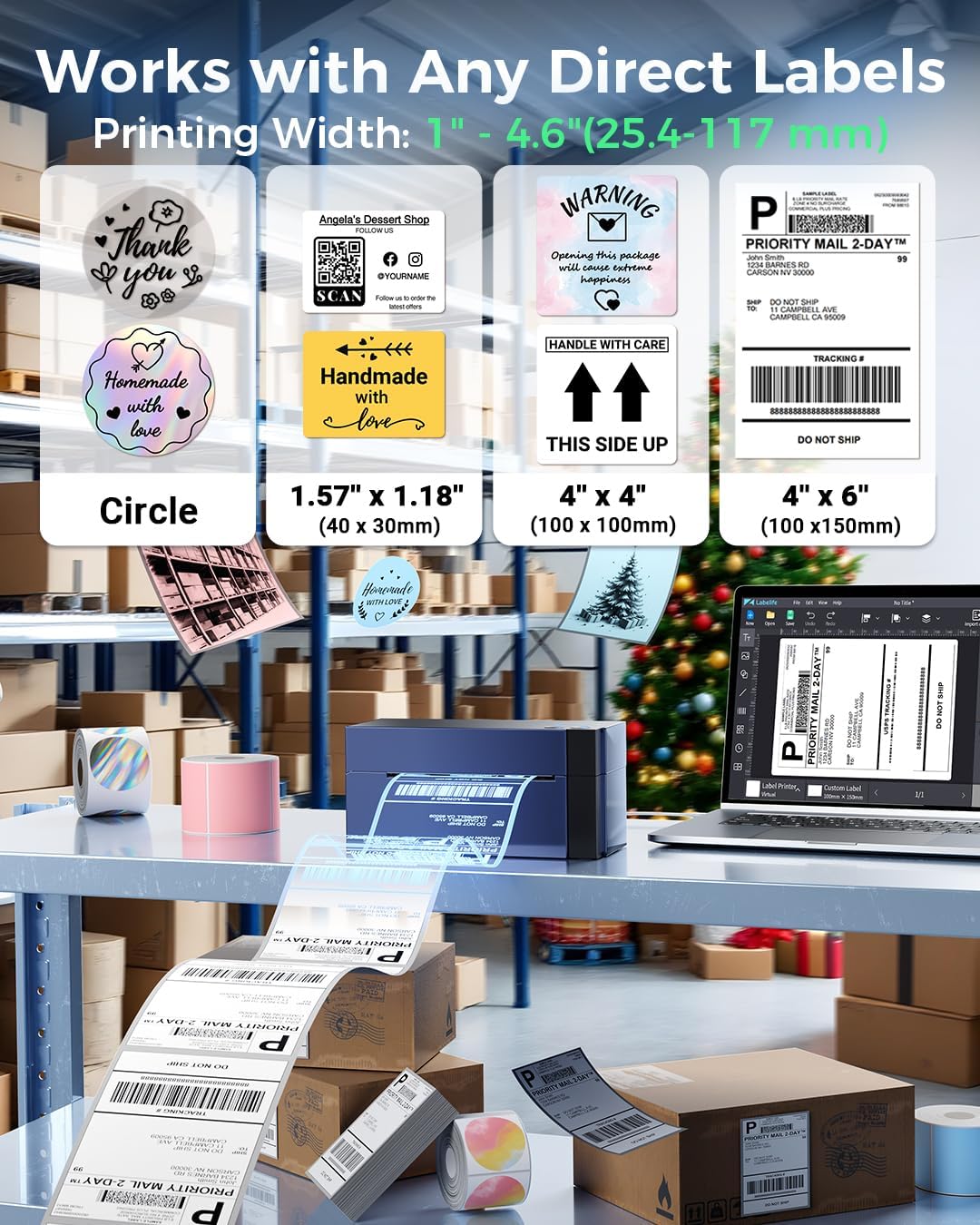
చిత్రం: ఉదాamples of different label types and sizes that can be printed, such as circular labels, 1.57" x 1.18" labels, 4" x 4" labels, and 4" x 6" shipping labels.

Image: Illustrates diverse uses for the printer, showing examples like shipping labels, QR codes, barcodes, name tags, storage labels, and thank you stickers.
Pause and Resume Printing
If you need to temporarily stop a print job, you can pause it and resume later without losing your progress.
- Pause Printing: When the printer is printing, press the Feed Button once to pause the print job. The blue light will change to purple.
- రెజ్యూమ్ ప్రింటింగ్: When the printer is paused, press the Feed Button once again to resume printing. The blue light will return to blue.
Note: Refer to the "Introduction Of Feed Button Mode" video in the Setup section for visual guidance on these steps.
నిర్వహణ
Regular maintenance ensures the longevity and optimal performance of your Memoking Thermal Label Printer.
- ప్రింట్ హెడ్ క్లీనింగ్: Use an alcohol swab or a specialized print head cleaning pen to gently wipe the print head. Ensure the printer is turned off and cooled down before cleaning.
- ప్లేటెన్ రోలర్ను శుభ్రపరచడం: ప్రకటన ఉపయోగించండిamp, lint-free cloth to wipe the platen roller. Remove any adhesive residue or dust.
- దుమ్ము తొలగింపు: Regularly wipe the exterior of the printer with a soft, dry cloth to prevent dust accumulation.
- సరైన నిల్వ: Store the printer in a cool, dry place away from direct sunlight and extreme temperatures when not in use for extended periods.
ట్రబుల్షూటింగ్
This section addresses common issues you might encounter with your Memoking WiFi Thermal Label Printer.
సాధారణ సమస్యలు మరియు పరిష్కారాలు
| సమస్య | సాధ్యమైన కారణం | పరిష్కారం |
|---|---|---|
| Printer not responding / Red blinking light | Label misfeed, paper jam, or calibration error. |
|
| Poor print quality (faint, incomplete) | Dirty print head, incorrect print density, or low-quality labels. |
|
| Cannot connect via WiFi | Incorrect WiFi password, printer not on the same network, or network interference. |
|
| Labels skipping or misaligning | Improper label loading, incorrect label type setting, or calibration needed. |
|
Factory Reset Options
If you encounter persistent issues, performing a factory reset can often resolve them by restoring the printer to its default settings.
- Restore Factory Setting (General Reset):
Press and hold the Feed Button until the blue light flashes 4 times, then release the feed button. This will restore general factory settings.
- Wi-Fi Factory Reset:
Press and hold the Wi-Fi Button until the blue light flashes 2 times, then release the Wi-Fi button. This will reset only the Wi-Fi settings, requiring you to reconfigure the network connection.
Note: Refer to the "Introduction Of Feed Button Mode" video in the Setup section for visual guidance on these steps.
స్పెసిఫికేషన్లు
| ఫీచర్ | వివరాలు |
|---|---|
| బ్రాండ్ | మెమోకింగ్ |
| మోడల్ పేరు | PM-344-WF-BKB |
| ప్రింటింగ్ టెక్నాలజీ | థర్మల్ |
| కనెక్టివిటీ టెక్నాలజీ | USB, Wi-Fi |
| కంట్రోలర్ రకం | Android, iOS, iPadOS, PC |
| గరిష్ట మీడియా పరిమాణం | 4 x 6 అంగుళాలు |
| ప్రింట్ మీడియా | లేబుల్స్ |
| గరిష్ట ఇన్పుట్ షీట్ కెపాసిటీ | 500 |
| గరిష్ట కాపీ వేగం (నలుపు & తెలుపు) | 72 ppm |
| గరిష్ట కలర్ ప్రింట్ రిజల్యూషన్ | 300 dpi |
| గరిష్ట నలుపు మరియు తెలుపు ప్రింట్ రిజల్యూషన్ | 300 dpi |
| రెండు వైపులా ముద్రణ | నం |
| వస్తువు బరువు | 1.59 పౌండ్లు |
| ఉత్పత్తి కొలతలు | 3.5 x 7.17 x 3.54 అంగుళాలు |
వారంటీ మరియు మద్దతు
The Memoking WiFi Thermal Label Printer comes with a పరిమిత వారంటీ. For specific details regarding the warranty period and coverage, please refer to the warranty card included in your product packaging or contact Memoking customer service.
Memoking offers a lifelong customer service team dedicated to assisting you with any post-sale issues or technical support needs. If you require assistance, please reach out to our support team through the contact information provided in your user guide or on the official Memoking webసైట్.


