1. పరిచయం
This manual provides detailed instructions for the installation, operation, and maintenance of the darkFlash Z4Pro Mist CPU Cooler. Designed for efficient heat dissipation, this single-tower air cooler features a 120mm ARGB PWM fan and four Φ6mm heat pipes. Please read this manual thoroughly before installation to ensure proper setup and optimal performance.

darkFlash Z4Pro Mist CPU Cooler with illuminated ARGB fan.
2. ప్యాకేజీ విషయాలు
క్రింద జాబితా చేయబడిన అన్ని భాగాలు మీ ప్యాకేజీలో ఉన్నాయని ధృవీకరించండి:
- darkFlash Z4Pro Mist CPU Cooler (Heatsink and 120mm ARGB PWM Fan)
- ఇంటెల్ మౌంటు బ్రాకెట్లు
- AMD మౌంటు బ్రాకెట్లు
- Backplate (Universal for Intel, AMD uses original motherboard backplate)
- మౌంటు స్క్రూలు మరియు స్పేసర్లు
- థర్మల్ పేస్ట్
- ఫ్యాన్ క్లిప్లు

ఒక పేలింది view of the darkFlash Z4Pro Mist CPU Cooler components.
3. స్పెసిఫికేషన్లు
| మోడల్ సంఖ్య | Z4 Pro Mist |
| ఉత్పత్తి కొలతలు | 2.8"L x 4.7"W x 6.1"H (72మిమీ x 120మిమీ x 155మిమీ) |
| బరువు | 1.41 పౌండ్లు |
| టిడిపి (థర్మల్ డిజైన్ పవర్) | 200W |
| వేడి పైపులు | 4 x Φ6mm Copper Heat Pipes (HDT Technology) |
| ఫిన్ మెటీరియల్ | అల్యూమినియం |
| ఫ్యాన్ పరిమాణం | 120మి.మీ |
| ఫ్యాన్ వేగం | 800-1600 ±10% RPM (PWM Controlled) |
| Fan Air Capacity | 54.7 CFM |
| ఫ్యాన్ ఒత్తిడి | 1.5 MMH2O |
| శబ్దం స్థాయి | 24.3 dBA |
| పవర్ కనెక్టర్ | 4- పిన్ (PWM) |
| వాల్యూమ్tage | 12 వోల్ట్లు (DC) |
| శీతలీకరణ పద్ధతి | గాలి |
| అనుకూలమైన సాకెట్లు | Intel: LGA1700/115x/12xx; AMD: AM4/AM5 |

Dimensions of the darkFlash Z4Pro Mist CPU Cooler.
4. అనుకూలత
The darkFlash Z4Pro Mist CPU Cooler is compatible with a wide range of Intel and AMD CPU sockets. Please ensure your motherboard socket is listed below and that your PC case has sufficient clearance (155mm height) for the cooler.
- ఇంటెల్ సాకెట్లు: LGA1700, LGA1200, LGA1150, LGA1151, LGA1155, LGA1156
- AMD సాకెట్లు: AM4, AM5
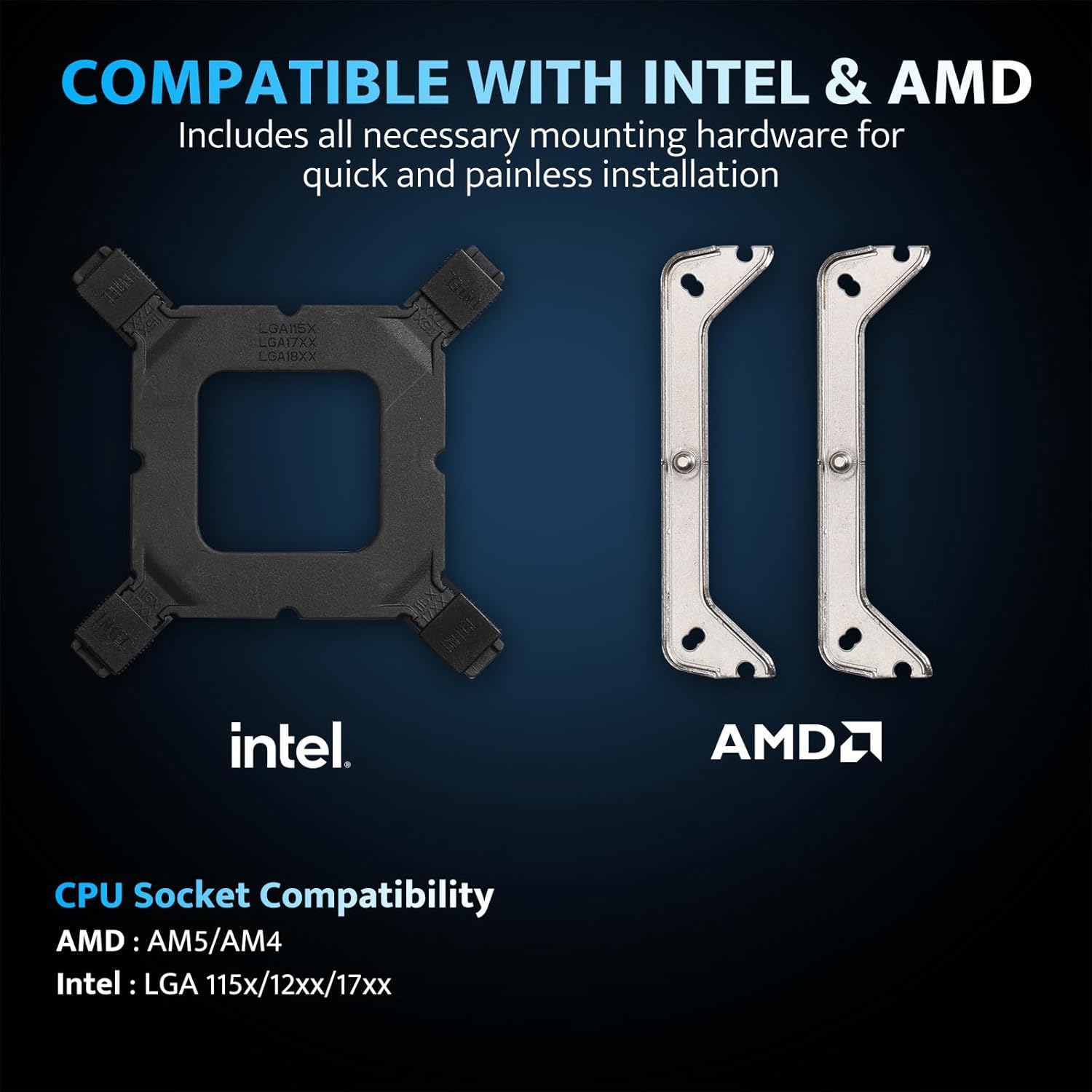
Intel and AMD mounting hardware and socket compatibility.
5. సెటప్ మరియు ఇన్స్టాలేషన్
Before beginning installation, ensure your system is powered off and unplugged. Handle components with care to avoid damage.
5.1. మదర్బోర్డ్ను సిద్ధం చేయండి
- Remove any existing CPU cooler and clean off old thermal paste from the CPU surface using isopropyl alcohol.
- For Intel Sockets: Attach the universal backplate to the rear of the motherboard, aligning the holes with the CPU socket. Secure it with the appropriate standoffs from the front side.
- For AMD Sockets: Retain the original AMD motherboard backplate. Remove the plastic retention clips from the front of the motherboard.
5.2. థర్మల్ పేస్ట్ వేయండి
Apply a small, pea-sized amount of thermal paste to the center of the CPU's integrated heat spreader (IHS). Do not spread it manually; the pressure from the cooler will distribute it evenly.
5.3. మౌంటు బ్రాకెట్లను ఇన్స్టాల్ చేయండి
- Attach the correct Intel or AMD mounting brackets to the base of the cooler using the provided screws.
- Carefully place the cooler onto the CPU, aligning the screws on the mounting brackets with the standoffs (Intel) or the original backplate (AMD).
- Tighten the screws in a diagonal pattern until snug. Do not overtighten.
5.4. Attach the Fan
- Using the included fan clips, secure the 120mm ARGB PWM fan to the heatsink. Ensure the fan is oriented to blow air through the heatsink towards the rear or top of your PC case for optimal airflow.
- మీ మదర్బోర్డ్లోని CPU_FAN హెడర్కు 4-పిన్ PWM ఫ్యాన్ కేబుల్ను కనెక్ట్ చేయండి.
- Connect the 3-pin ARGB cable to a compatible 5V Addressable RGB header on your motherboard. Ensure it is a 5V header, not a 12V RGB header, to prevent damage.

Example of the cooler installed with ARGB lighting.
6. ఆపరేటింగ్ సూచనలు
6.1. Fan Control (PWM)
The 120mm fan utilizes Pulse Width Modulation (PWM) technology, allowing your motherboard to automatically adjust fan speed based on CPU temperature. This ensures efficient cooling when needed and quiet operation during lighter loads. You can typically configure fan curves in your motherboard's BIOS/UEFI settings or through manufacturer-provided software.

Fan specifications and intelligent control.
6.2. ARGB Lighting Customization
The cooler features Addressable RGB (ARGB) lighting, which can be synchronized with your motherboard's RGB software. Connect the 3-pin ARGB cable to a compatible 5V ARGB header on your motherboard. Supported software includes:
- ASUS ఆరా సమకాలీకరణ
- MSI మిస్టిక్ లైట్ సింక్
- GIGABYTE RGB Fusion 2.0
- ASRock పాలిక్రోమ్ సమకాలీకరణ
Use your motherboard's software to customize lighting effects, colors, and synchronization with other ARGB components in your system.
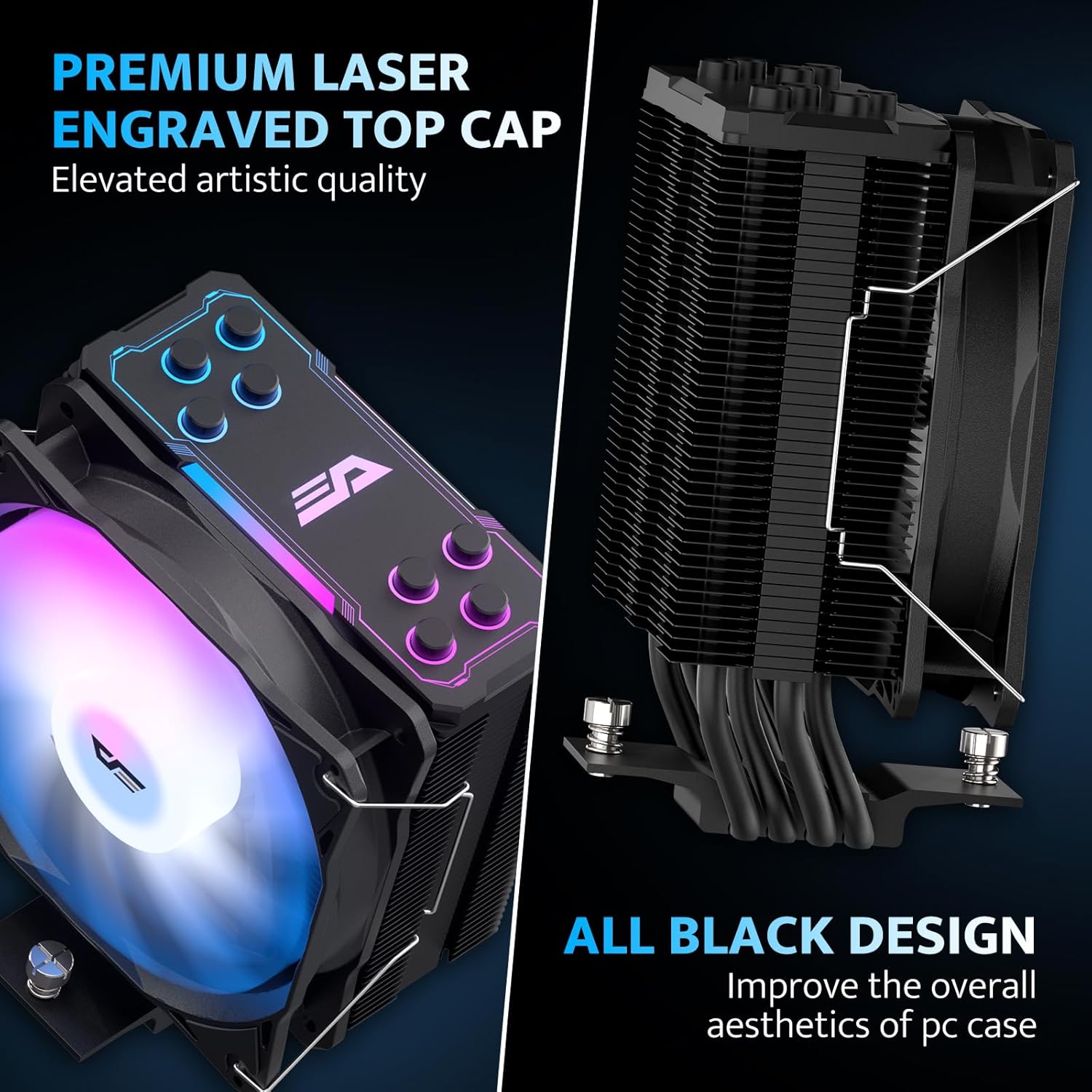
Aesthetic design with laser-engraved top cap and all-black finish.
7. నిర్వహణ
క్రమం తప్పకుండా నిర్వహణ మీ CPU కూలర్ యొక్క దీర్ఘాయువు మరియు సరైన పనితీరును నిర్ధారించడంలో సహాయపడుతుంది.
- దుమ్ము తొలగింపు: Periodically clean dust from the heatsink fins and fan blades using compressed air or a soft brush. Ensure the fan is not spinning during cleaning.
- ఫ్యాన్ తనిఖీ: Check the fan for any obstructions or unusual noises. If the fan is removable, you may detach it for more thorough cleaning.
- థర్మల్ పేస్ట్: While not frequently required, if you remove the cooler for any reason, it is recommended to clean off the old thermal paste and apply new thermal paste before reinstallation.
8. ట్రబుల్షూటింగ్
If you encounter issues with your darkFlash Z4Pro Mist CPU Cooler, refer to the following common problems and solutions:
| సమస్య | సాధ్యమైన కారణం | పరిష్కారం |
| అధిక CPU ఉష్ణోగ్రతలు | Improper cooler installation, insufficient thermal paste, poor airflow in case, fan not spinning. | Re-seat the cooler ensuring even pressure. Verify thermal paste application. Check fan connections and rotation. Improve case airflow. |
| ఫ్యాన్ తిరగడం లేదు | Fan cable disconnected, faulty fan header, fan failure. | Ensure 4-pin PWM cable is securely connected to the CPU_FAN header. Test fan on another header if available. Contact support if fan is faulty. |
| ARGB లైటింగ్ పనిచేయడం లేదు | ARGB cable disconnected, incorrect ARGB header (e.g., 12V instead of 5V), software issue. | Verify 3-pin ARGB cable is connected to a 5V Addressable RGB header. Check motherboard software settings. Ensure motherboard ARGB header is enabled in BIOS. |
| మితిమీరిన శబ్దం | Loose fan, dust buildup, fan bearing issue. | Check fan clips for secure attachment. Clean fan and heatsink. If noise persists, contact support. |
9. వారంటీ మరియు మద్దతు
For warranty information and terms, please refer to the documentation included with your product or visit the official darkFlash website. For technical assistance or further inquiries, please contact darkFlash customer support through their official channels.


