1. పరిచయం
The PeriPage PB40 Bluetooth Thermal Shipping Label Printer is designed for efficient and convenient label printing for various platforms. Utilizing thermal printing technology, it eliminates the need for ink, offering fast and clear output. This manual provides detailed instructions to help you maximize the functionality of your printer.

Image 1.1: The PeriPage PB40 Bluetooth Thermal Shipping Label Printer, shown with a smartphone connected via Bluetooth, printing a shipping label.
ముఖ్య లక్షణాలు:
- బ్లూటూత్ ప్రింటింగ్: Seamlessly connect and print from your phone or tablet using the 'PeriPage' app (available on Google Play and Apple Store).
- USB ప్రింటింగ్: Connect to Windows and Mac computers via USB for batch and complex printing operations, with drivers provided on a USB stick.
- బహుళ-పరిమాణ అనుకూలత: Supports label widths from 1.41 inches to 4.13 inches (36-105mm), including customized sizes.
- విస్తృత ప్లాట్ఫారమ్ అనుకూలత: Compatible with major shipping platforms such as Amazon, Etsy, Temu, eBay, USPS, Shopify, UPS, PayPal, Poshmark, and Walmart.
- Efficient Thermal Printing: High-speed printing up to 150 mm/sec, capable of printing 72 4x6 labels per minute, without the need for ink.
2. సెటప్ గైడ్
2.1. ప్యాకేజీ విషయాలు
మీరు ప్రారంభించడానికి ముందు, అన్ని అంశాలు ప్యాకేజీలో ఉన్నాయని నిర్ధారించుకోండి:
- PeriPage PB40 Label Printer
- USB Stick (containing Windows and Mac drivers, and installation instructions)
- పవర్ అడాప్టర్
- USB కేబుల్
- త్వరిత ప్రారంభ మార్గదర్శి (లేదా ఇలాంటి డాక్యుమెంటేషన్)
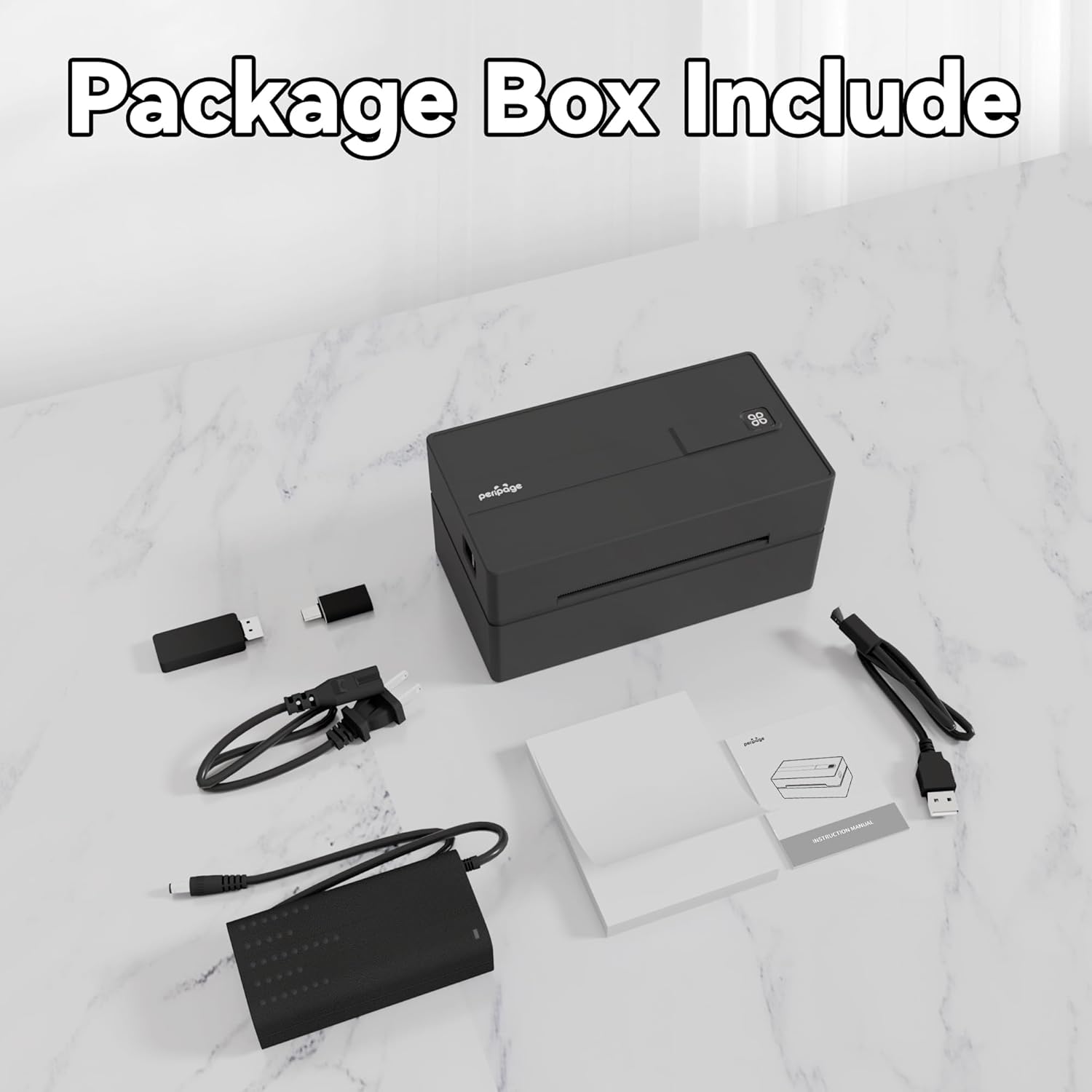
Image 2.1: Contents of the PeriPage PB40 printer package, including the printer, USB stick, and cables.
2.2. లేబుల్లను లోడ్ చేస్తోంది
- ప్రింటర్ పై కవర్ని తెరవండి.
- Insert the thermal labels into the paper slot, ensuring the printable side is facing up.
- Adjust the paper guides to fit the label width snugly, without creasing the labels.
- Close the top cover. The printer will automatically calibrate and feed a small portion of the label.

Image 2.2: Illustration of supported label sizes (4"x6", 2"x3", 2.25"x1.25") and the printer's label loading mechanism, emphasizing no waste of paper or jams.
2.3. పవర్ కనెక్షన్
Connect the power adapter to the printer's power port and then plug it into a wall outlet. Turn on the printer using the power button.
2.4. పరికరాలకు కనెక్ట్ చేయడం
The PeriPage PB40 offers both Bluetooth and USB connectivity.
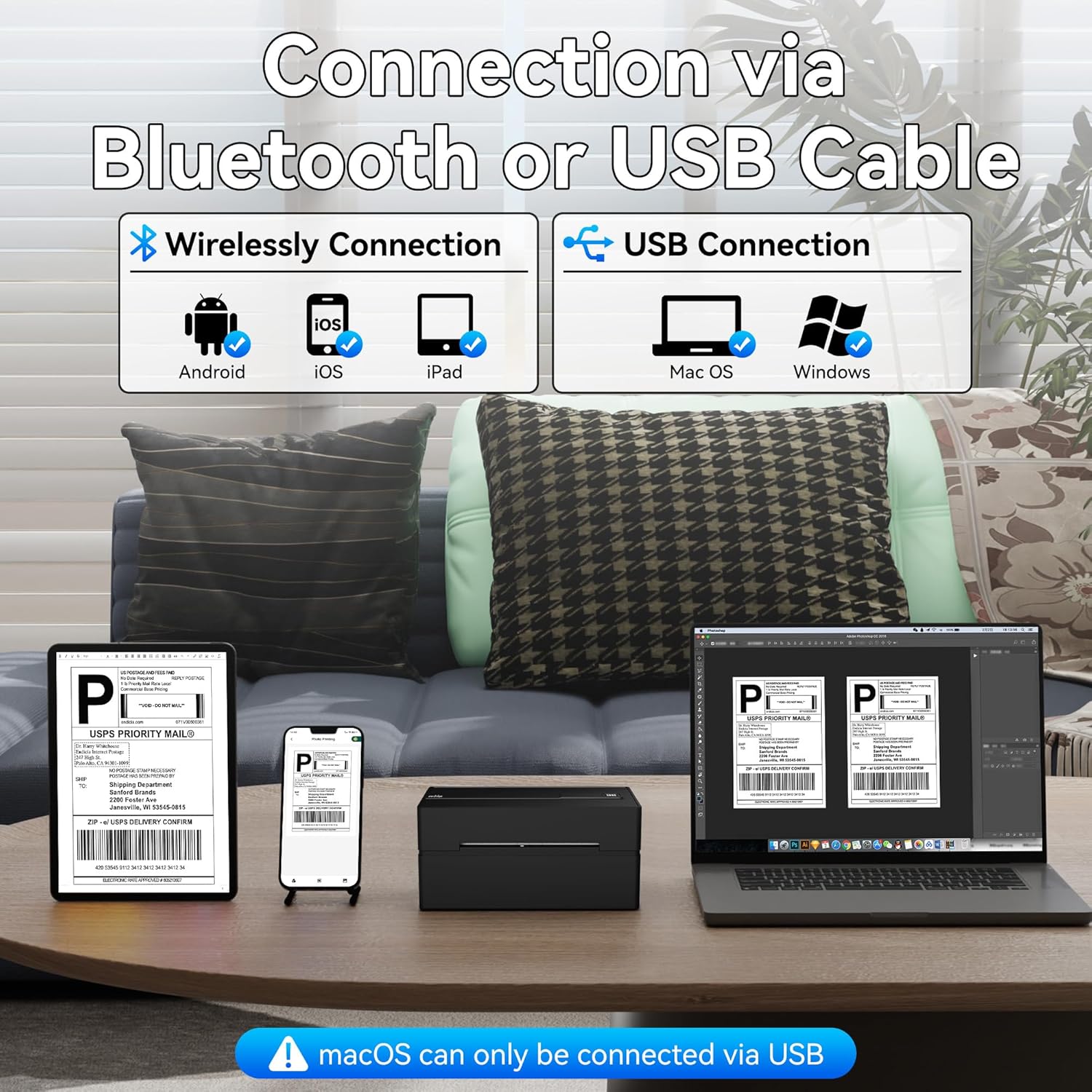
Image 2.3: Visual representation of connecting the printer via Bluetooth to Android/iOS/iPad devices and via USB to Mac OS/Windows computers. Note: macOS can only be connected via USB.
2.4.1. Bluetooth Connection (for Phones/Tablets)
- Download the 'PeriPage' app from Google Play Store (for Android) or Apple App Store (for iOS/iPad).
- Ensure Bluetooth is enabled on your phone or tablet.
- Open the PeriPage app and follow the in-app instructions to search for and connect to your printer. The printer's Bluetooth name typically includes "PeriPage" or "PB40".
- Once connected, the Bluetooth indicator on the printer will illuminate or change status.
2.4.2. USB Connection (for Windows/Mac Computers)
- Insert the provided USB stick into your computer.
- డ్రైవర్ ఇన్స్టాలేషన్ను గుర్తించి అమలు చేయండి file for your operating system (Windows or Mac).
- డ్రైవర్ ఇన్స్టాలేషన్ను పూర్తి చేయడానికి ఆన్-స్క్రీన్ సూచనలను అనుసరించండి.
- అందించిన USB కేబుల్ ఉపయోగించి ప్రింటర్ను మీ కంప్యూటర్కు కనెక్ట్ చేయండి.
- Your computer should recognize the printer. You may need to select it as the default printer for label printing.
Note: For macOS, USB connection is the primary method for computer printing.
3. ఆపరేటింగ్ సూచనలు
3.1. Printing from Mobile Devices (Bluetooth)
- Ensure your printer is powered on and connected via Bluetooth to your mobile device through the PeriPage app.
- Within the PeriPage app, navigate to the document or image you wish to print. This could be a shipping label PDF, barcode, or other printable content.
- Select the print option within the app. You may be able to adjust print settings such as label size or density.
- Confirm the print job. The printer will begin printing the label.

Image 3.1: Comparison of printing methods: via Bluetooth for Android, iOS, and iPad devices, and via USB cable for Mac and Windows computers.
3.2. Printing from Computers (USB)
- Ensure your printer is powered on and connected via USB to your Windows or Mac computer, and drivers are installed.
- Open the document (e.g., PDF shipping label) you wish to print using your preferred application.
- " వెళ్ళండిFile" > "ప్రింట్" (లేదా Ctrl+P/Cmd+P నొక్కండి).
- Select the PeriPage PB40 printer from the list of available printers.
- Adjust print settings as needed, such as paper size (e.g., 4x6 inches for shipping labels) and orientation.
- "ప్రింట్" క్లిక్ చేయండి.

Image 3.2: Depiction of the printer's fast printing speed (150 mm/s) and clear output quality (203 DPI), with labels being printed rapidly.
3.3. Label Compatibility and Supported Platforms
The printer supports a wide range of label sizes and is compatible with numerous e-commerce and shipping platforms.
- లేబుల్ వెడల్పు: From 1.41 inches to 4.13 inches (36-105mm). This includes standard 4x6 inch shipping labels.
- మద్దతు ఉన్న ప్లాట్ఫారమ్లు: Amazon, Etsy, Temu, eBay, USPS, Shopify, UPS, PayPal, Poshmark, Walmart, Stamps.com, ShipWire, Flash Express, ShipWorks, Shippo, XPS Ship, Descartes, DHL, FedEx, J&T Express, Endicia, Kerry Logistics, EasyPost, Ninjavan, Ordoro, ShipStation, Shipwire, Easyship, Shipping Easy.

Image 3.3: A visual display of various e-commerce and shipping platform logos, indicating the printer's broad compatibility.
4. నిర్వహణ
4.1. ప్రింట్ హెడ్ను శుభ్రపరచడం
Regular cleaning of the print head ensures optimal print quality and extends the printer's lifespan. Use a lint-free cloth lightly dampఐసోప్రొపైల్ ఆల్కహాల్తో కలుపుతారు.
- ప్రింటర్ను ఆపివేసి, పవర్ సోర్స్ నుండి దాన్ని అన్ప్లగ్ చేయండి.
- ప్రింట్ హెడ్ని యాక్సెస్ చేయడానికి పై కవర్ను తెరవండి.
- d తో ప్రింట్ హెడ్ ఉపరితలాన్ని సున్నితంగా తుడవండిampఎనెడ్ క్లాత్. ప్రింట్ హెడ్ను ఒట్టి చేతులతో తాకకుండా ఉండండి.
- కవర్ను మూసివేసి ప్రింటర్ను ఆన్ చేసే ముందు ప్రింట్ హెడ్ పూర్తిగా ఆరనివ్వండి.
4.2. Replacing Labels
When the printer runs out of labels, simply follow the "Loading Labels" instructions in Section 2.2 to replace the roll.
4.3. సాధారణ సంరక్షణ
- ప్రింటర్ను శుభ్రమైన, దుమ్ము-రహిత వాతావరణంలో ఉంచండి.
- Avoid exposing the printer to direct sunlight, high temperatures, or excessive humidity.
- ప్రింటర్ బయటి భాగంలో రాపిడి క్లీనర్లను లేదా ద్రావకాలను ఉపయోగించవద్దు.
- ప్రింటర్ పనిచేసే సమయంలో దాని చుట్టూ సరైన వెంటిలేషన్ ఉండేలా చూసుకోండి.
5. ట్రబుల్షూటింగ్
This section addresses common issues you might encounter with your PeriPage PB40 printer.
5.1. Printer Not Responding / No Power
- Check if the power adapter is securely connected to both the printer and the wall outlet.
- Ensure the power button is pressed and the power indicator light is on.
- Try plugging the printer into a different power outlet.
5.2. Bluetooth Disconnection / Cannot Connect
- Ensure Bluetooth is enabled on your mobile device and the printer is within range.
- ప్రింటర్ మరియు మీ మొబైల్ పరికరం రెండింటినీ పునఃప్రారంభించండి.
- Forget the printer from your device's Bluetooth settings and try pairing again through the PeriPage app.
- Ensure the PeriPage app is updated to the latest version.
5.3. Print Quality Issues (Faint, Streaky, or Blank Prints)
- Check if you are using thermal labels. This printer requires thermal labels and does not use ink.
- Ensure the labels are loaded correctly with the printable side facing up.
- Clean the print head as described in Section 4.1.
- Adjust print density settings within the PeriPage app or printer driver settings on your computer.
5.4. కాగితం జామ్లు
- Turn off the printer and carefully open the top cover.
- Gently pull out any jammed labels. Avoid tearing them inside the printer.
- Ensure the label roll is properly seated and the paper guides are adjusted correctly to the label width.
- Close the cover and restart the printer.
5.5. Driver Installation Issues (Windows/Mac)
- Ensure you are running the correct driver for your operating system (Windows or Mac).
- ఇన్స్టాలేషన్ సమయంలో యాంటీవైరస్ సాఫ్ట్వేర్ జోక్యం చేసుకుంటే తాత్కాలికంగా దాన్ని నిలిపివేయండి.
- Try installing the driver in compatibility mode (Windows) or check security settings (Mac) if the installation is blocked.
- Refer to the installation instructions on the provided USB stick for detailed steps.
6. ఉత్పత్తి లక్షణాలు
| ఫీచర్ | స్పెసిఫికేషన్ |
|---|---|
| బ్రాండ్ | పెరిపేజ్ |
| మోడల్ పేరు | షిప్పింగ్ లేబుల్ ప్రింటర్ |
| అంశం మోడల్ సంఖ్య | Shipping Label Printer-PB40 |
| కనెక్టివిటీ టెక్నాలజీ | బ్లూటూత్, USB |
| ప్రింటింగ్ టెక్నాలజీ | థర్మల్ |
| ప్రింటర్ అవుట్పుట్ | మోనోక్రోమ్ |
| గరిష్ట ముద్రణ వేగం (మోనోక్రోమ్) | 60 ppm (72 4x6 labels/min) |
| గరిష్ట నలుపు మరియు తెలుపు ప్రింట్ రిజల్యూషన్ | 300 dpi |
| గరిష్ట మీడియా పరిమాణం | 4.13 అంగుళాలు |
| షీట్ సైజు అనుకూలత | 1.41 to 4.13 inches (36-105mm) |
| గరిష్ట ఇన్పుట్ షీట్ కెపాసిటీ | 50 |
| వస్తువు బరువు | 3.14 పౌండ్లు |
| ఉత్పత్తి కొలతలు | 8 x 7 x 4.7 అంగుళాలు |
| చేర్చబడిన భాగాలు | Printer, USB Stick |
| ప్రత్యేక ఫీచర్ | పోర్టబుల్ |
| రంగు | నలుపు |
| వారంటీ రకం | పరిమిత వారంటీ |
7. వారంటీ మరియు మద్దతు
7.1. ఉత్పత్తి వారంటీ
The PeriPage PB40 Bluetooth Thermal Shipping Label Printer comes with a limited warranty. Please refer to the warranty information provided in your product packaging or contact PeriPage customer service for details regarding warranty terms and conditions.
7.2. కస్టమర్ మద్దతు
For technical assistance, troubleshooting beyond this manual, or warranty claims, please contact PeriPage customer support. Contact information can typically be found on the manufacturer's official webసైట్ లేదా ఉత్పత్తి ప్యాకేజింగ్లో.
You may also visit the official PeriPage store on Amazon for additional resources and product information: PeriPage Amazon Store


