1. పరిచయం
ధన్యవాదాలు, ధన్యవాదాలు.asing the AKAI 50 Inch 4K Ultra HD Smart QLED TV, Model AL50GQU-SFWS. This manual provides essential information for the safe and efficient operation of your new television. Please read it thoroughly before using the product and retain it for future reference.
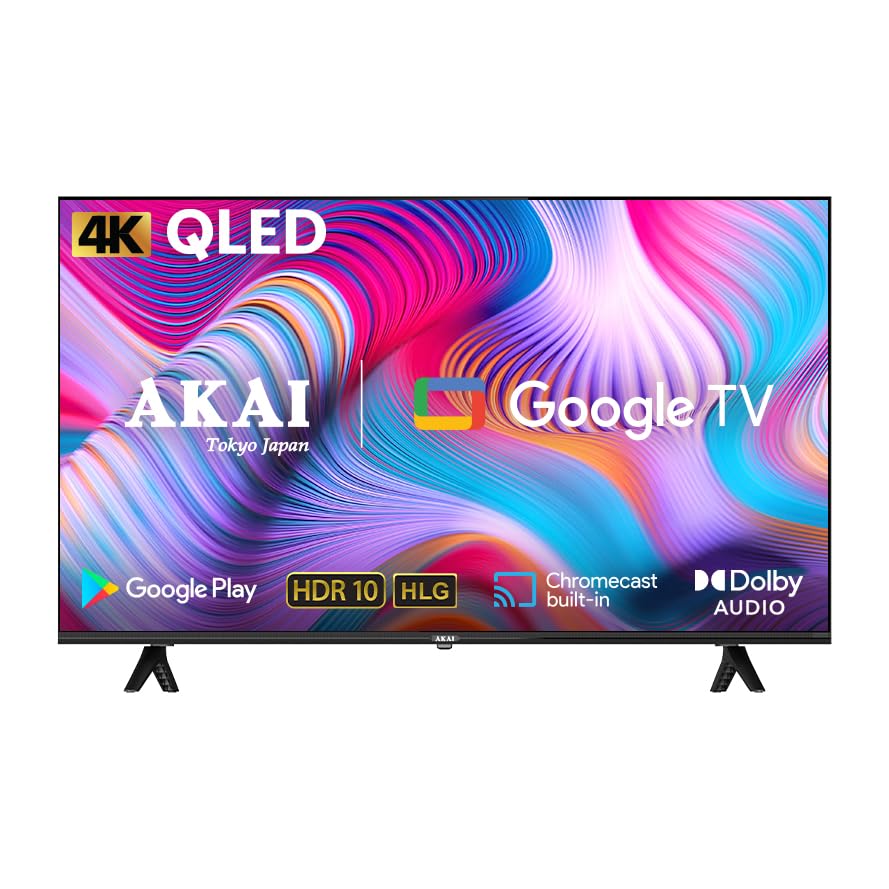
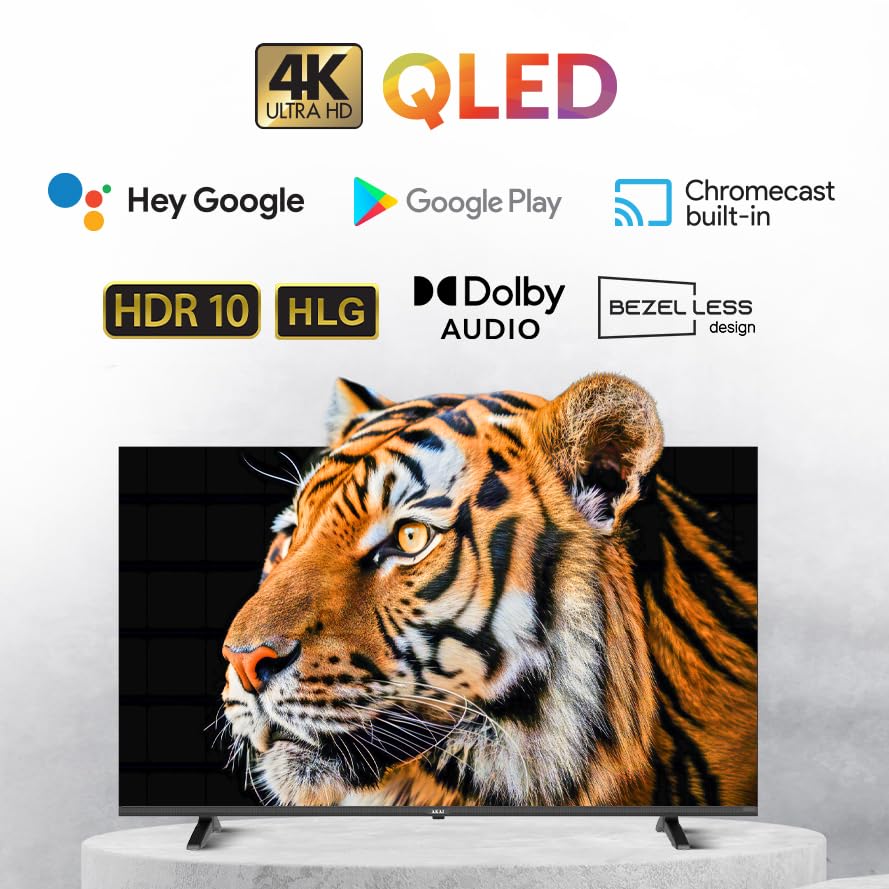
This QLED TV features a 4K Ultra HD display, Google TV operating system, Atmos Sound, 60Hz refresh rate with MEMC technology, HDR 10 support, and a bezelless design, offering an immersive viewing అనుభవం.
2. ప్యాకేజీ విషయాలు
సెటప్తో కొనసాగడానికి ముందు, దయచేసి క్రింద జాబితా చేయబడిన అన్ని అంశాలు మీ ప్యాకేజీలో చేర్చబడ్డాయని ధృవీకరించండి:
- AKAI 50 Inch 4K Ultra HD Smart QLED TV
- రిమోట్ కంట్రోల్
- పవర్ కేబుల్
- Wall Mount Bracket (if included in your specific package)
- Table Mount Stands
- వినియోగదారు మాన్యువల్ (ఈ పత్రం)
- Batteries for Remote Control (may be included)
3. సెటప్
3.1. అన్ప్యాకింగ్ మరియు ప్లేస్మెంట్
- Carefully remove the TV from its packaging. It is recommended that two people handle the TV to prevent damage.
- టీవీని స్థిరమైన, చదునైన ఉపరితలంపై ఉంచండి లేదా గోడకు అమర్చడానికి సిద్ధం చేయండి. టీవీ చుట్టూ తగినంత వెంటిలేషన్ ఉండేలా చూసుకోండి.
3.2. Attaching the Stands (Table Mount)
If you intend to place the TV on a table or cabinet, follow these steps:
- Lay the TV face down on a soft, clean cloth to protect the screen.
- Align the table stands with the screw holes on the bottom of the TV.
- అందించిన స్క్రూలను ఉపయోగించి స్టాండ్లను భద్రపరచండి. అతిగా బిగించవద్దు.
- టీవీని నిటారుగా ఉంచి జాగ్రత్తగా ఎత్తండి.
3.3. వాల్ మౌంటు
If you plan to wall mount your TV, it is strongly recommended to use a professional installer to ensure proper and safe installation. Refer to the wall mount bracket's instructions for specific details.
3.4. పరికరాలను కనెక్ట్ చేస్తోంది
మీ టీవీ వివిధ కనెక్టివిటీ ఎంపికలను అందిస్తుంది:
- HDMI పోర్ట్లు (x3): Connect Blu-ray players, gaming consoles, set-top boxes, etc.
- USB పోర్ట్ (x1): మీడియా ప్లేబ్యాక్ కోసం USB నిల్వ పరికరాలను కనెక్ట్ చేయండి.
- ఈథర్నెట్ పోర్ట్: వైర్డు ఇంటర్నెట్ కనెక్షన్ కోసం.
- Wi-Fi: వైర్లెస్ ఇంటర్నెట్ కనెక్షన్ కోసం.
- బ్లూటూత్: హెడ్ఫోన్లు లేదా సౌండ్బార్లు వంటి వైర్లెస్ ఉపకరణాలను కనెక్ట్ చేయడానికి.
టీవీని ఆన్ చేసే ముందు అన్ని కనెక్షన్లు సురక్షితంగా ఉన్నాయని నిర్ధారించుకోండి.
3.5. ప్రారంభ పవర్ ఆన్ మరియు Google TV సెటప్
- పవర్ కేబుల్ను టీవీకి, ఆపై పవర్ అవుట్లెట్కు కనెక్ట్ చేయండి.
- రిమోట్ కంట్రోల్ లేదా టీవీలోనే పవర్ బటన్ను నొక్కండి.
- Follow the on-screen instructions to complete the initial setup of Google TV, including language selection, network connection (Wi-Fi or Ethernet), Google account sign-in, and channel scanning.
4. మీ టీవీని ఆపరేట్ చేయడం
4.1. రిమోట్ కంట్రోల్ విధులు
The provided remote control allows you to navigate the TV's interface and control various functions. Familiarize yourself with the buttons:
- పవర్ బటన్: టీవీని ఆన్/ఆఫ్ చేస్తుంది.
- నావిగేషన్ ప్యాడ్ (పైకి/క్రిందికి/ఎడమ/కుడి/సరే): మెనూ నావిగేషన్ మరియు ఎంపిక కోసం.
- వెనుక బటన్: మునుపటి స్క్రీన్కి తిరిగి వస్తుంది.
- హోమ్ బటన్: Google TV హోమ్ స్క్రీన్ను యాక్సెస్ చేస్తుంది.
- వాల్యూమ్ అప్/డౌన్: వాల్యూమ్ స్థాయిని సర్దుబాటు చేస్తుంది.
- ఛానల్ పైకి/క్రిందికి: టీవీ ఛానళ్లు మారుస్తాడు.
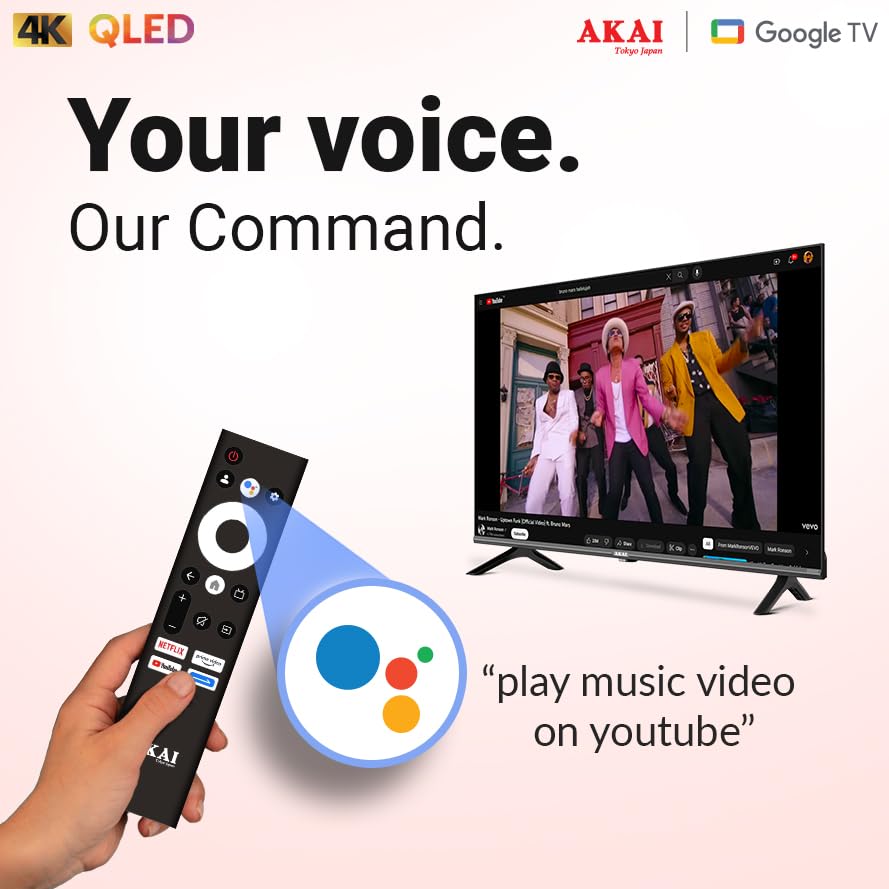
- గూగుల్ అసిస్టెంట్ బటన్: వాయిస్ నియంత్రణను సక్రియం చేస్తుంది.
- యాప్ షార్ట్కట్ బటన్లు: ప్రసిద్ధ స్ట్రీమింగ్ సేవలకు ప్రత్యక్ష ప్రాప్యత.
4.2. గూగుల్ టీవీ ఇంటర్ఫేస్
Google TV organizes your entertainment from various apps and subscriptions into a single, personalized interface. You can:
- Browse movies and TV shows from your streaming services.
- మీ ఆధారంగా కొత్త కంటెంట్ను కనుగొనండి viewఅలవాట్లు.
- Access the Google Play Store to download additional apps.
- Use Google Assistant for voice commands to search for content, control smart home devices, and more.
4.3. ముఖ్య లక్షణాలు మరియు సాంకేతికతలు
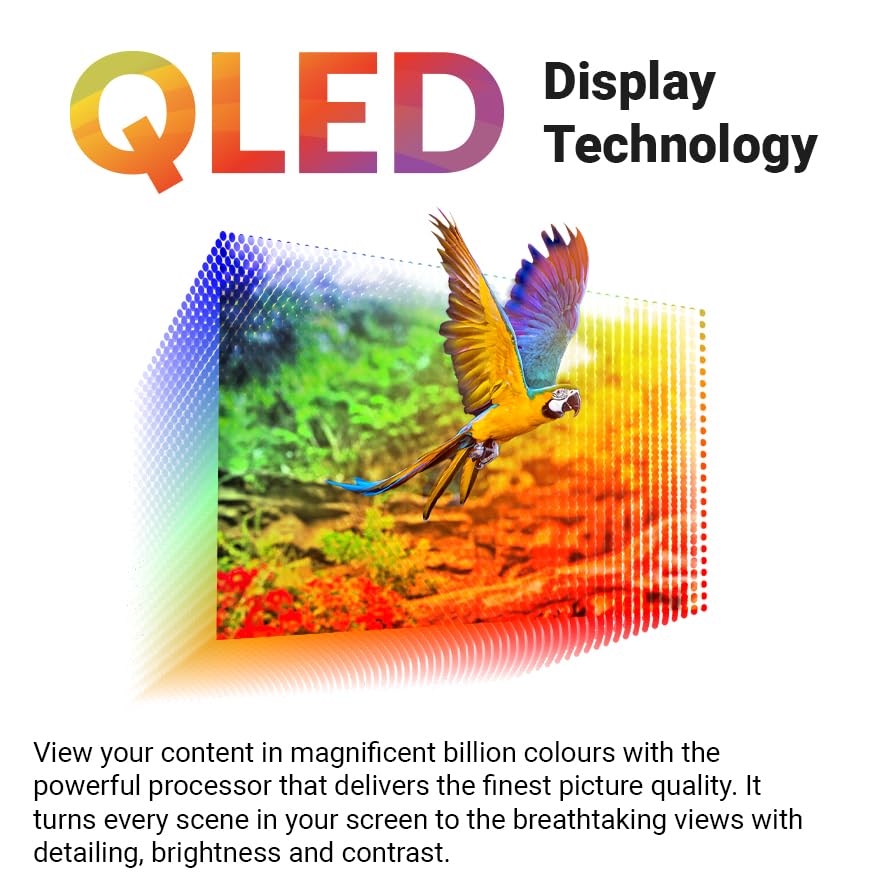
- 4K Ultra HD QLED Display: Experience stunning visuals with 3840 x 2160 resolution and vibrant colors enhanced by Quantum Dot technology.
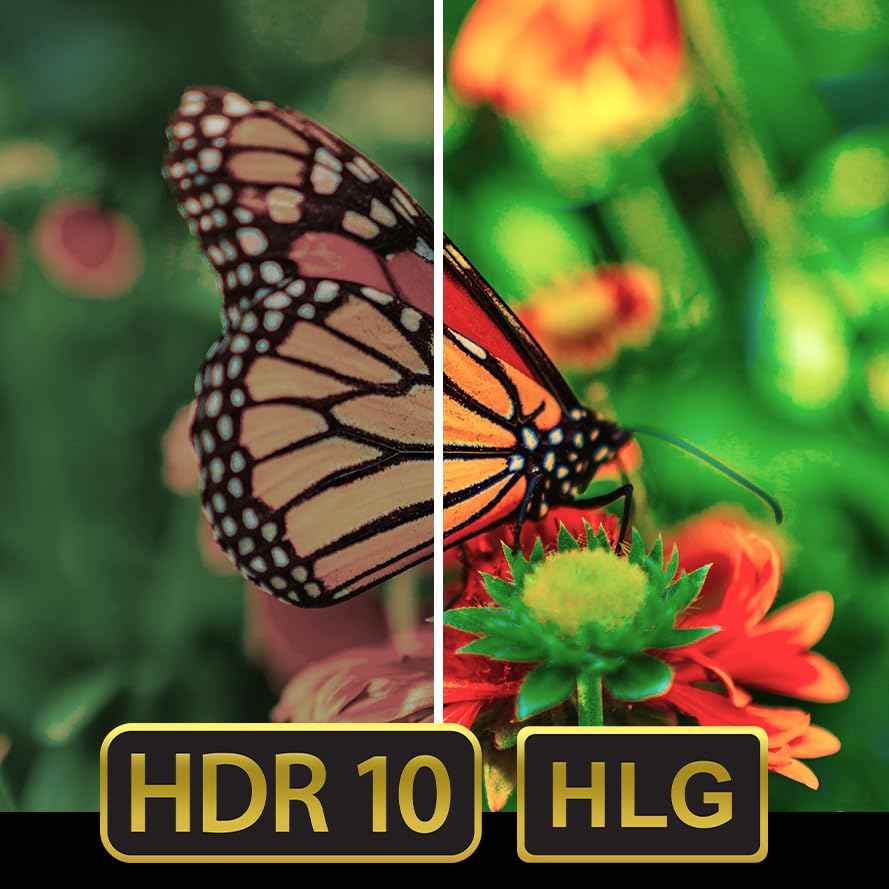
- HDR 10: Enjoy enhanced contrast, deeper blacks, and brighter whites for a more dynamic picture.
- 60Hz Refresh Rate with MEMC: Motion Estimation, Motion Compensation (MEMC) technology ensures smooth, fluid motion, reducing blur in fast-paced scenes.
- Atmos Sound: మీ చుట్టూ కదిలే లీనమయ్యే, బహుమితీయ ఆడియోను అందిస్తుంది.
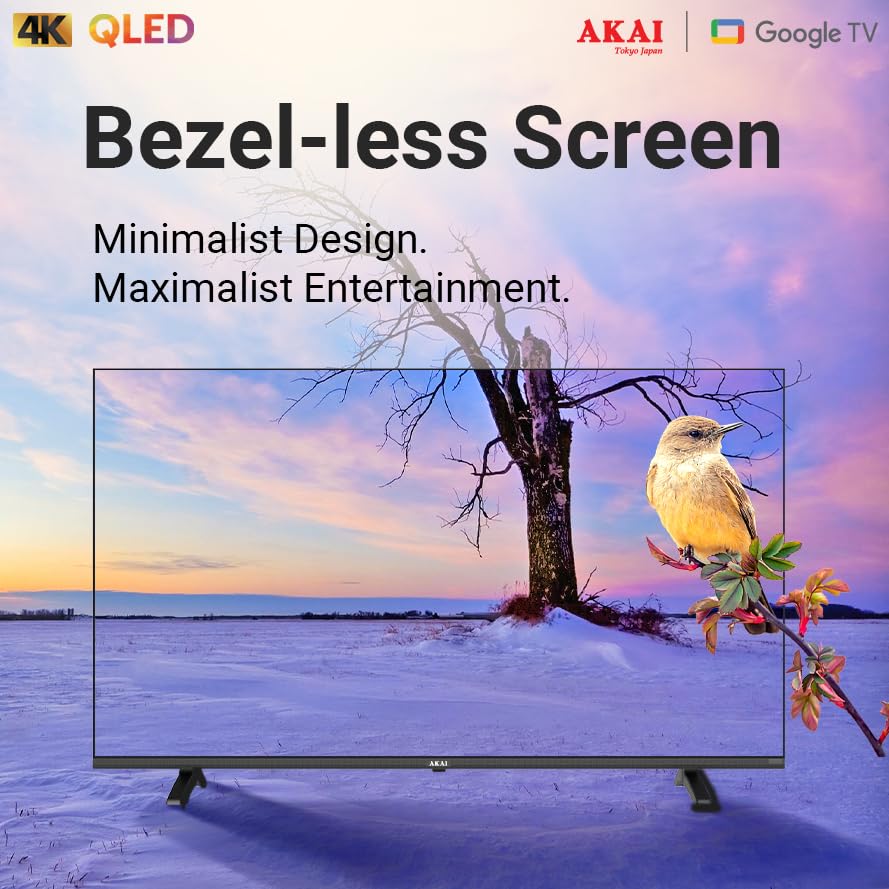
- Bezelless Design: Maximizes screen space for an expansive viewing అనుభవం.
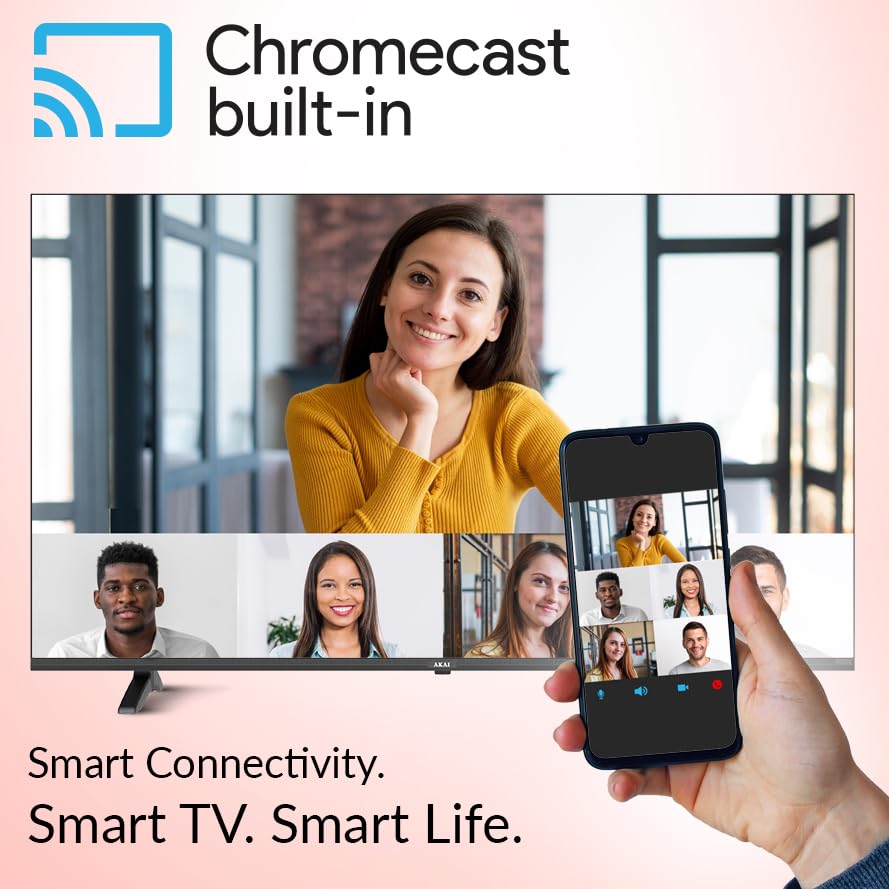
- Chromecast అంతర్నిర్మిత: మీ అనుకూల స్మార్ట్ఫోన్, టాబ్లెట్ లేదా కంప్యూటర్ నుండి కంటెంట్ను నేరుగా మీ టీవీకి ప్రసారం చేయండి.


5. నిర్వహణ
5.1. మీ టీవీని శుభ్రపరచడం
- శుభ్రం చేసే ముందు టీవీని ఎల్లప్పుడూ అన్ప్లగ్ చేయండి.
- స్క్రీన్ మరియు క్యాబినెట్ను సున్నితంగా తుడవడానికి మృదువైన, పొడి, మెత్తటి బట్టను ఉపయోగించండి.
- మొండి గుర్తులకు, తేలికగా dampనీటితో లేదా తేలికపాటి, రాపిడి లేని స్క్రీన్ క్లీనర్తో వస్త్రాన్ని తుడవండి. క్లీనర్ను ఎప్పుడూ స్క్రీన్పై నేరుగా పిచికారీ చేయవద్దు.
- Avoid using harsh chemicals, abrasive pads, or solvents as they can damage the TV's surface.
5.2. సాఫ్ట్వేర్ నవీకరణలు
Your Google TV may receive automatic software updates. Ensure your TV is connected to the internet to receive the latest features and security patches. You can also manually check for updates in the TV's settings menu.
6. ట్రబుల్షూటింగ్
మీ టీవీలో సమస్యలు ఎదురైతే, ఈ క్రింది సాధారణ సమస్యలు మరియు పరిష్కారాలను చూడండి:
| సమస్య | సాధ్యమైన పరిష్కారం |
|---|---|
| శక్తి లేదు | Check if the power cable is securely connected to both the TV and the power outlet. Ensure the power outlet is working. |
| చిత్రం లేదు, కానీ ధ్వని ఉంది | సరైన ఇన్పుట్ సోర్స్ ఎంచుకోబడిందని ధృవీకరించండి. కేబుల్ కనెక్షన్లను (HDMI, మొదలైనవి) తనిఖీ చేయండి. టీవీని పునఃప్రారంభించడానికి ప్రయత్నించండి. |
| శబ్దం లేదు, కానీ చిత్రం ఉంది | వాల్యూమ్ స్థాయిని తనిఖీ చేయండి మరియు టీవీ మ్యూట్ చేయబడలేదని నిర్ధారించుకోండి. ఆడియో కేబుల్ కనెక్షన్లను ధృవీకరించండి. బాహ్య ఆడియోను ఉపయోగిస్తుంటే, దాని సెట్టింగ్లను తనిఖీ చేయండి. |
| రిమోట్ కంట్రోల్ పనిచేయడం లేదు | Replace the batteries. Ensure there are no obstructions between the remote and the TV's IR sensor. Re-pair the remote if it's a Bluetooth remote. |
| Wi-Fiకి కనెక్ట్ చేయడం సాధ్యపడదు | మీ Wi-Fi రూటర్ ఆన్లో ఉందని మరియు పనిచేస్తుందని నిర్ధారించుకోండి. Wi-Fi పాస్వర్డ్ను తిరిగి నమోదు చేయండి. టీవీ మరియు రూటర్ రెండింటినీ పునఃప్రారంభించడానికి ప్రయత్నించండి. |
If the issue persists after trying these solutions, please contact AKAI customer support for further assistance.
7. స్పెసిఫికేషన్లు
| ఫీచర్ | వివరాలు |
|---|---|
| బ్రాండ్ | AKAI |
| మోడల్ | AL50GQU-SFWS |
| స్క్రీన్ పరిమాణం | 50 అంగుళాలు (126 సెం.మీ.) |
| ప్రదర్శన సాంకేతికత | QLED |
| రిజల్యూషన్ | 3840 x 2160 (4K అల్ట్రా HD) |
| రిఫ్రెష్ రేట్ | 60 Hz (with MEMC Technology) |
| ఆపరేటింగ్ సిస్టమ్ | Google TV |
| ప్రత్యేక లక్షణాలు | Atmos Sound, HDR 10, Bezelless Design, Chromecast Built-in, Google Assistant |
| RAM | 2GB |
| ROM | 16GB |
| HDMI పోర్ట్లు | 3 |
| USB పోర్ట్లు | 1 |
| కనెక్టివిటీ | Wi-Fi, బ్లూటూత్, ఈథర్నెట్ |
| ఆడియో అవుట్పుట్ మోడ్ | Stereo (5.1 Speaker Surround Sound Channel Configuration) |
| Viewing యాంగిల్ | 178 డిగ్రీలు |
| ఇమేజ్ కాంట్రాస్ట్ రేషియో | 5000:1 |
| శక్తి మూలం | కార్డెడ్ ఎలక్ట్రిక్ |
| వాట్tage | 130.00 W |
| ఉత్పత్తి కొలతలు (LxWxH) | 111.2 x 64.8 x 9.2 సెం.మీ (స్టాండ్ లేకుండా) |
| వస్తువు బరువు | 9.1 కిలోలు |
8. వారంటీ మరియు మద్దతు
Your AKAI 50 Inch 4K Ultra HD Smart QLED TV is covered by a manufacturer's warranty. Please refer to the warranty card included in your package for specific terms and conditions, including the warranty period and coverage details.
For technical support, service requests, or any questions not covered in this manual, please contact AKAI customer service. Contact details can typically be found on the AKAI official webసైట్ లేదా మీ వారంటీ డాక్యుమెంటేషన్లో.
తయారీదారు: Hometech Digital Limited, SCO 363-364, Sector 35B, Chandigarh


